> ## Documentation Index
> Fetch the complete documentation index at: https://docsv4.mile.app/llms.txt
> Use this file to discover all available pages before exploring further.
# Date and Time
> Capture a date and a time together.
**Date and time** captures a date and a time in one field, in the `dd/mm/yyyy hh:mm` format.
In the previous version this type was called **Date Time**.
**Use cases**
* **Appointment**: when a technician is booked to arrive.
* **Pickup slot**: the agreed collection time.
* **Event time**: when something happened, entered by hand. To stamp the current time with one tap instead, use [Capture](/pages/workflow/task-type/components/capture).
## Properties
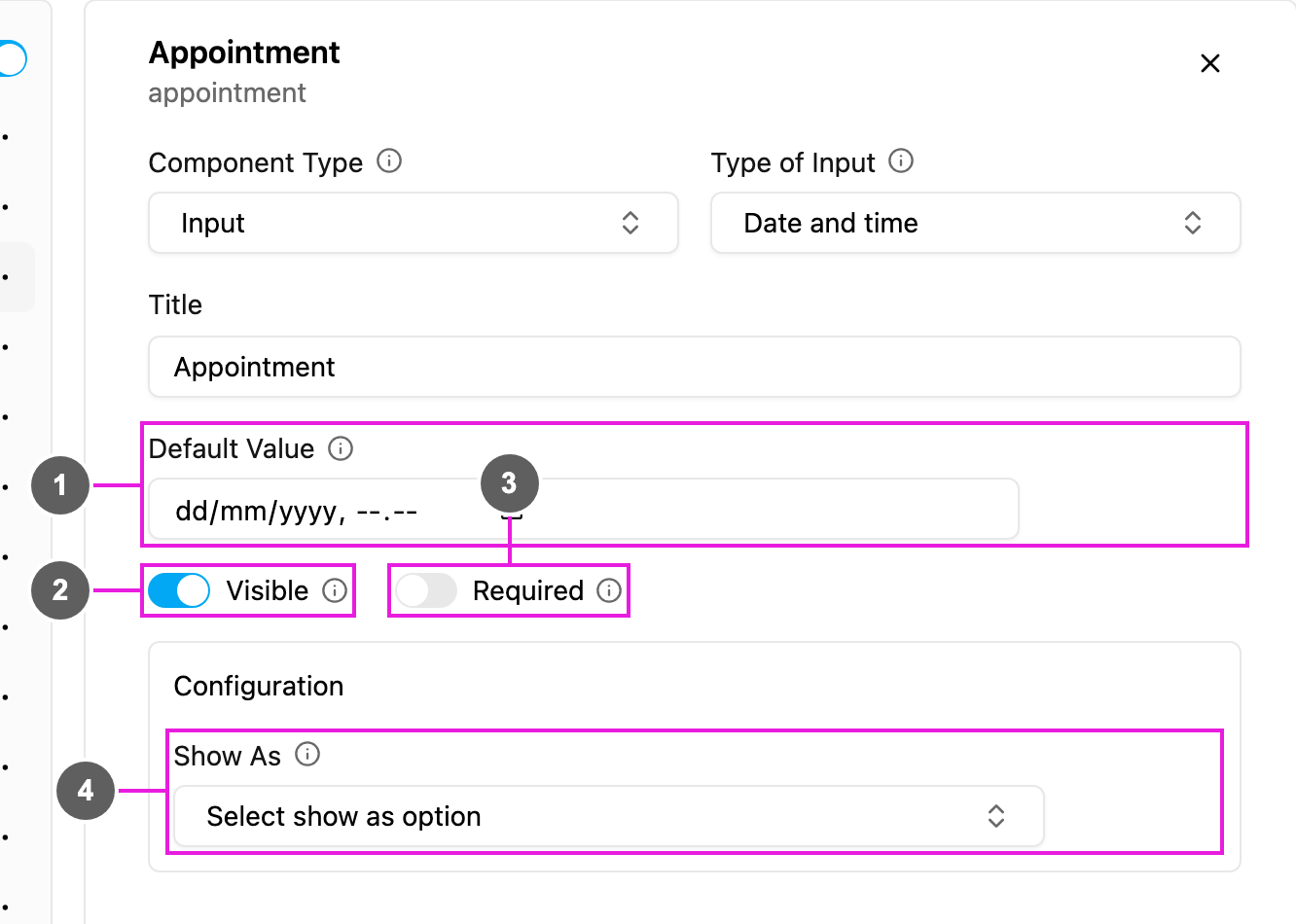
1. **Default Value**: a date and time filled in for every new task, in `dd/mm/yyyy hh:mm`.
2. **Visible**: when off, the field is hidden on the web and the field app; its value is still kept and exported.
3. **Required**: the task cannot be saved or finished until a date and time are picked.
4. **Show As**: show the value in the task list as the task's **Title**, **Content** or **Label**.
## How to set it up
Click **Add component**, choose **Input**, set **Type of Input** to **Date and time**, write the **Title**, and set **Required**, **Visible** and the **Default Value** as needed.
## On the field app
The field opens a date and time picker in `dd/mm/yyyy hh:mm`. It can already be filled from task creation or from the Default Value, and the worker can change it before finishing the page.
This documentation is built and hosted on [Mintlify](https://mintlify.com), a developer documentation platform.