> ## Documentation Index
> Fetch the complete documentation index at: https://docsv4.mile.app/llms.txt
> Use this file to discover all available pages before exploring further.
# Task Type Builder
> Every part of the screen you use to build a task type.
The **task type builder** is where you design the screens field workers see and fill in on the field app. You add pages, place components, set their properties and check the result on a simulated phone, all on one screen.
Required permission:
* View flow
* Edit flow
Open **Workflow › Task Type** and pick a task type. Without **Edit flow** you can open and view a task type, but the app refuses to save changes.
## Builder layout
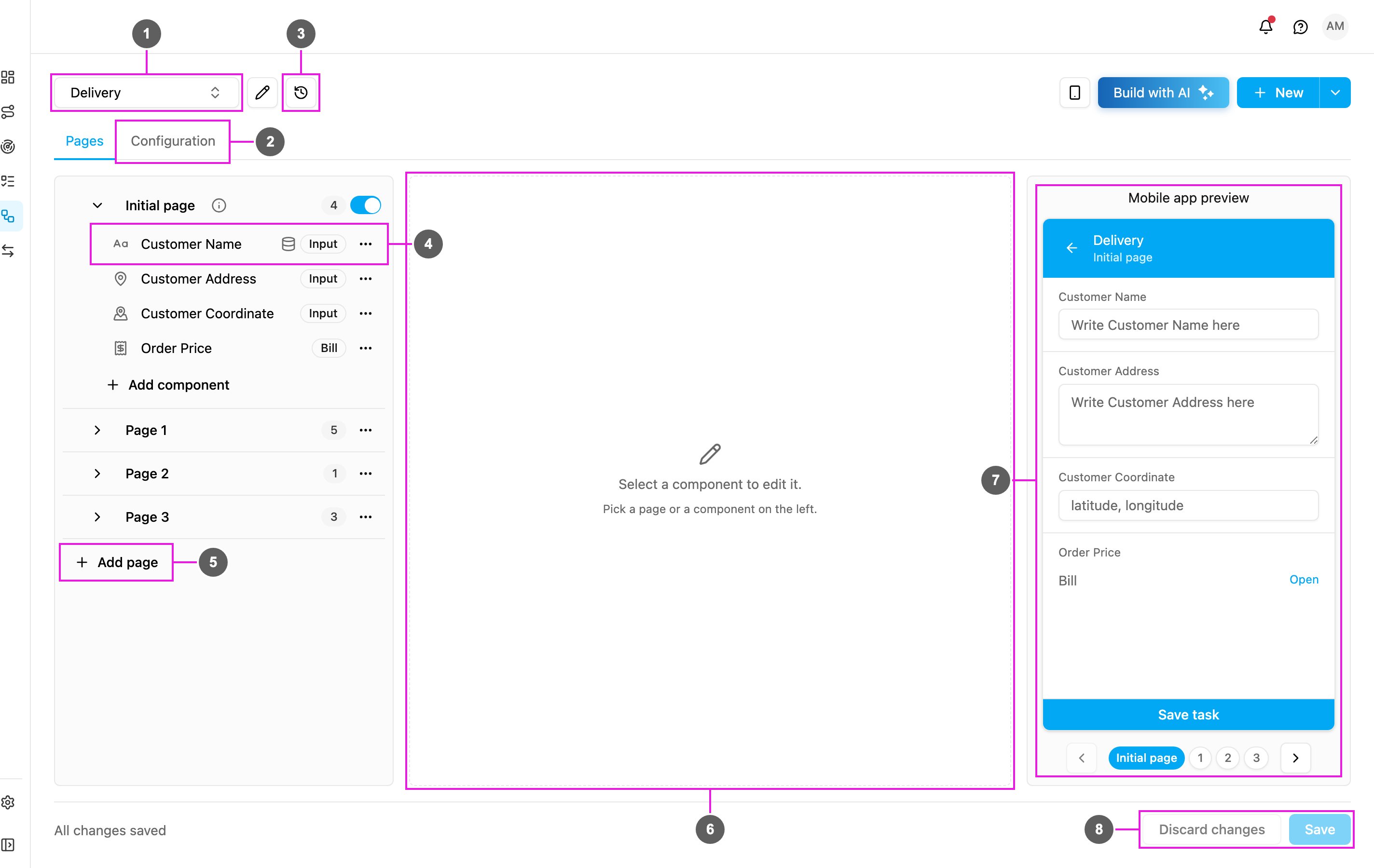
1. **Task type picker**: the task type that is open. Pick another one to switch. The pencil next to it opens the [Task Type Manager](/pages/workflow/task-type/managing-task-types#task-type-manager).
2. **Pages / Configuration tabs**: **Pages** is where you build the screens. **Configuration** connects the task type to the task list, routing, task times and the API. See [Configuration](/pages/workflow/task-type/configuration).
3. **History**: every saved version of the task type, with what changed. See [Version History](/pages/workflow/task-type/version-history).
4. **Page list**: the Initial page at the top, then the field app pages. Each page lists its components; click one to edit it. See [Pages](/pages/workflow/task-type/pages).
5. **Add page**: add a field app page at the end of the list.
6. **Component properties**: the settings of the page or component you clicked. When nothing is selected it says **Select a component to edit it.**
7. **Mobile app preview**: the open page as it looks on the field app. It updates as you edit. The phone button at the top right hides or shows it. See [Mobile App Preview](/pages/workflow/task-type/mobile-preview).
8. **Discard changes / Save**: **Save** stores every change; **Discard changes** goes back to the last saved version. Both are disabled until you change something. The text on the left says **Unsaved changes** or **All changes saved**.
If you leave the page or pick another task type with unsaved changes, the app asks whether to discard them.
## Pages
A task type is made of **pages**, and each page is one screen on the field app.
* **Initial page**: always at the top and cannot be deleted, renamed or moved. It is shown when a task is created, on the web app and on the field app, and holds what the person creating the task already knows, such as the customer's name and address.
* **Field app pages** (*Page 1*, *Page 2*, …): the screens the field worker goes through while doing the task. Add as many as you need with **Add page**, rename them, and drag them into order.
See [Pages](/pages/workflow/task-type/pages) for the full reference.
## Components
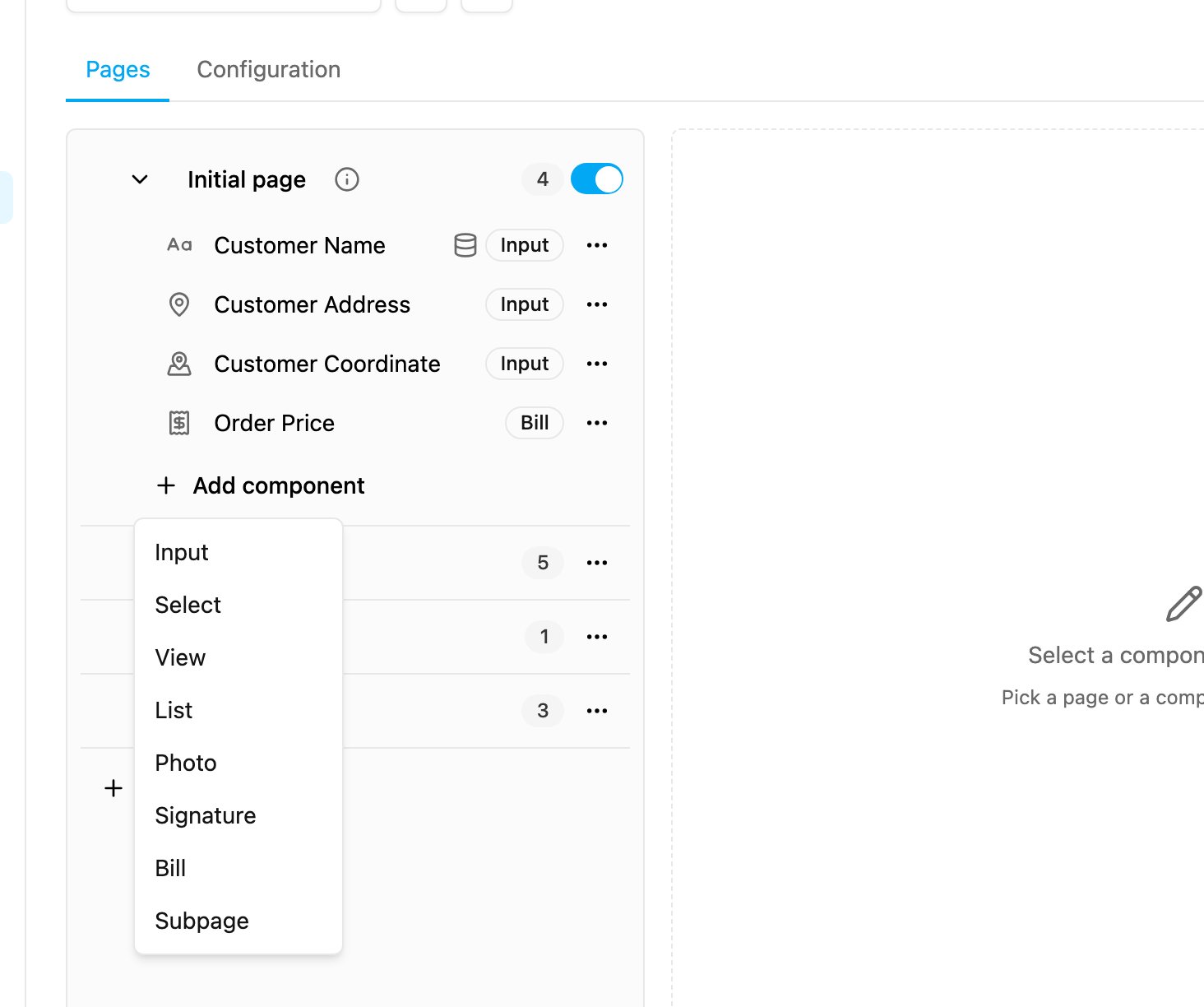
Components are the building blocks of a page. Click **Add component** at the bottom of a page, pick the type, then set it up in the properties panel.
The list only offers the components that the page can hold. On the Initial page that is **Input**, **Select**, **View**, **List**, **Photo**, **Signature**, **Bill** and **Subpage**. Field app pages also offer **Timer**, **Voice**, **Capture**, **Subflow** and **Video**. When the task type reaches its plan's component limit, **Add component** says so instead.
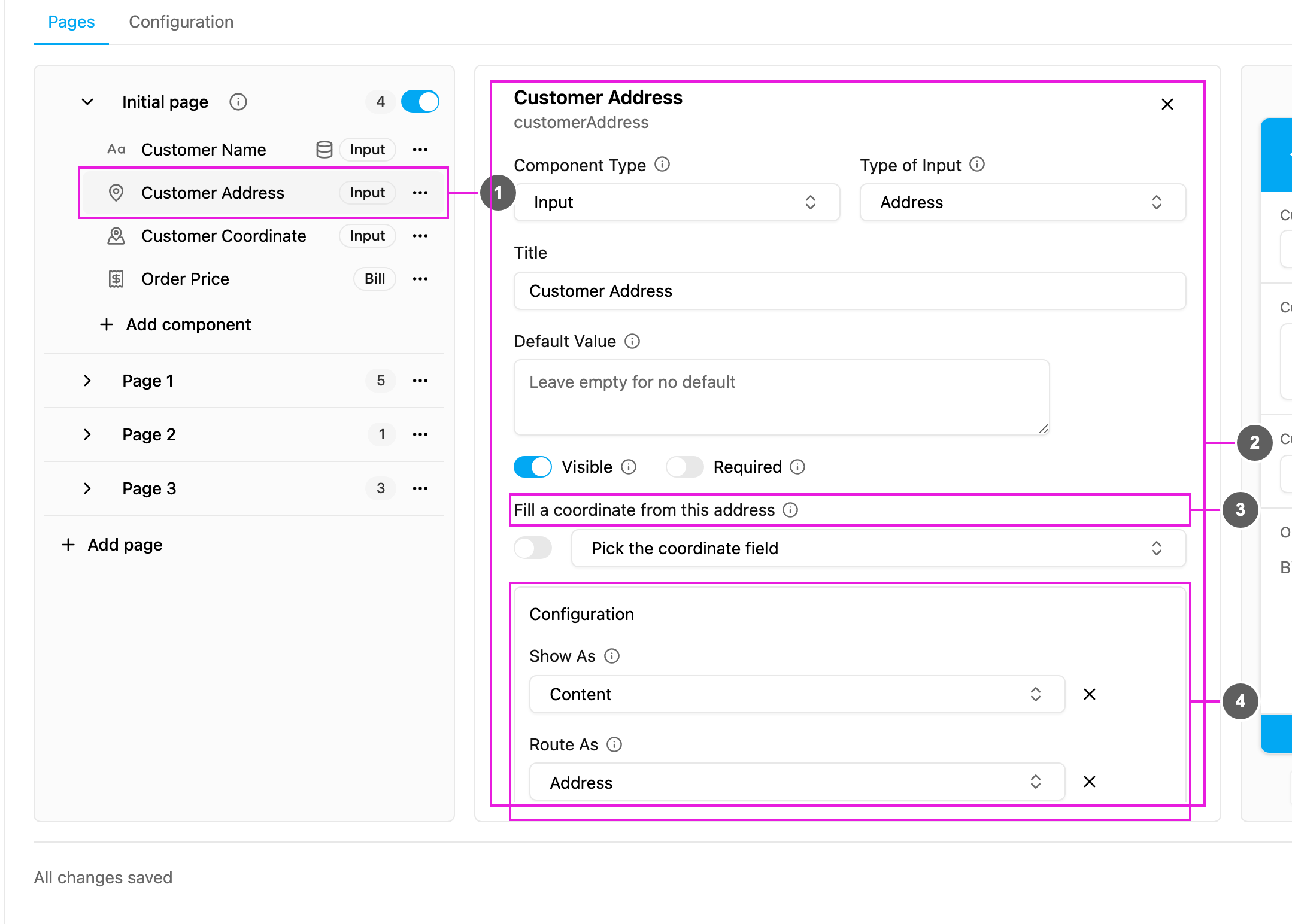
Click a component in the page list to open its properties:
1. **Selected component**: highlighted in the page list. Drag its handle, or use the arrow keys on it, to move it within the page.
2. **Basic settings**: **Component Type**, its type (here **Type of Input**), **Title**, **Default Value**, and the **Visible** and **Required** switches. Every component type has its own set; see [Components](/pages/workflow/task-type/components/introduction).
3. **Type-specific settings**: settings that only this type has, such as filling a coordinate from an address.
4. **Configuration**: **Show As** puts the component's value on the task list, and **Route As** sends it to routing. You can set the same from the [Configuration](/pages/workflow/task-type/configuration) tab.
Each component's **Title** also gives it an ID, which is used in imports, exports, automations and the API. Changing the title of a saved component changes its ID; the app tells you the old and the new ID.
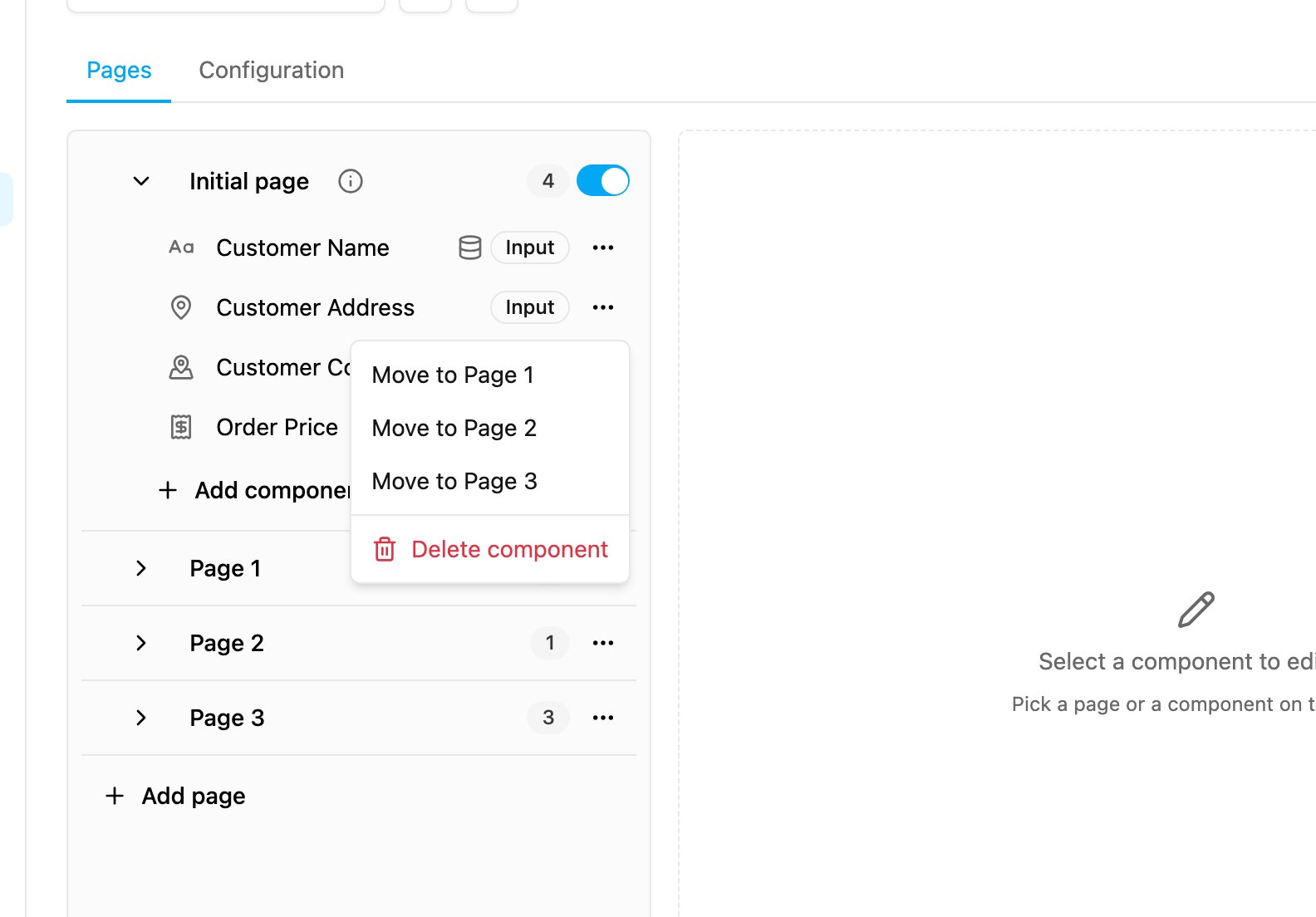
The **⋯** button on a component row opens its actions:
* **Move to Page …**: move the component to another page. A component that only field app pages can hold, such as a Timer, cannot be moved to the Initial page; the app tells you if a move is not allowed.
* **Delete component**: remove it when you save.
The table below lists every component:
| Component | What it does | Initial page | Field app pages |
| - | - | :-: | :-: |
| [Input](/pages/workflow/task-type/components/input/introduction) | Captures typed data: text, number, date, time, phone number, link, currency, address or coordinate. | Yes | Yes |
| [Select](/pages/workflow/task-type/components/select) | A dropdown, checkboxes or a group of buttons. | Yes | Yes |
| [View](/pages/workflow/task-type/components/view) | Shows information, often a value from the Initial page. | Yes | Yes |
| [List](/pages/workflow/task-type/components/list/introduction) | Items with a quantity. | Yes | Yes |
| [Photo](/pages/workflow/task-type/components/photo) | Takes photos. | Yes | Yes |
| [Signature](/pages/workflow/task-type/components/signature) | A hand-drawn signature. | Yes | Yes |
| [Bill](/pages/workflow/task-type/components/bill/introduction) | Billable items with quantity, price, costs, discounts and a total. | Yes | Yes |
| [Subpage](/pages/workflow/task-type/components/subpage) | A group of fields filled in more than once. | Yes | Yes |
| [Timer](/pages/workflow/task-type/components/timer) | Measures how long a step takes. | No | Yes |
| [Voice Note](/pages/workflow/task-type/components/voice-note) | Records audio. | No | Yes |
| [Capture](/pages/workflow/task-type/components/capture) | Stamps the date and time of a step. | No | Yes |
| [Subflow](/pages/workflow/task-type/components/subflow) | Creates a linked task of another task type. | No | Yes |
| [Video](/pages/workflow/task-type/components/video) | Records a short video. | No | Yes |
## Before you save
When you click **Save**, the app checks the task type. A page with a problem shows a warning icon (**Please re-check the components on this page before saving the task type**), and the component that needs fixing is marked.
Two settings get a reminder if they are empty, because tasks still work without them but look incomplete:
* **Task Title Mapping Not Configured**: no component is set as the task list **Title**, so task titles may be blank.
* **Routing Address Mapping Not Configured**: no component is set as the route **Address**, so routing visits will have no address.
Each reminder links to the part of the Configuration tab to fix, or lets you save anyway.
## Related
* [Pages](/pages/workflow/task-type/pages)
* [Mobile App Preview](/pages/workflow/task-type/mobile-preview)
* [Configuration](/pages/workflow/task-type/configuration)
* [Version History](/pages/workflow/task-type/version-history)
This documentation is built and hosted on [Mintlify](https://mintlify.com), a developer documentation platform.