> ## Documentation Index
> Fetch the complete documentation index at: https://docsv4.mile.app/llms.txt
> Use this file to discover all available pages before exploring further.
# Getting Started Tutorial
> A one-minute demo that builds a Pickup → Approval → Delivery order type on the Steps canvas.
The **Steps** tab has a built-in tutorial that shows how an order type is put together. It plays a short demo: a cursor builds a **Pickup → Approval → Delivery** example on the canvas while captions explain each move.
The demo runs on a sandbox copy. **Nothing is added to your order type**, and when it ends the canvas shows your own steps again.
Required permission:
* View Order Type
## Play the tutorial
1. Open an order type and go to the **Steps** tab.
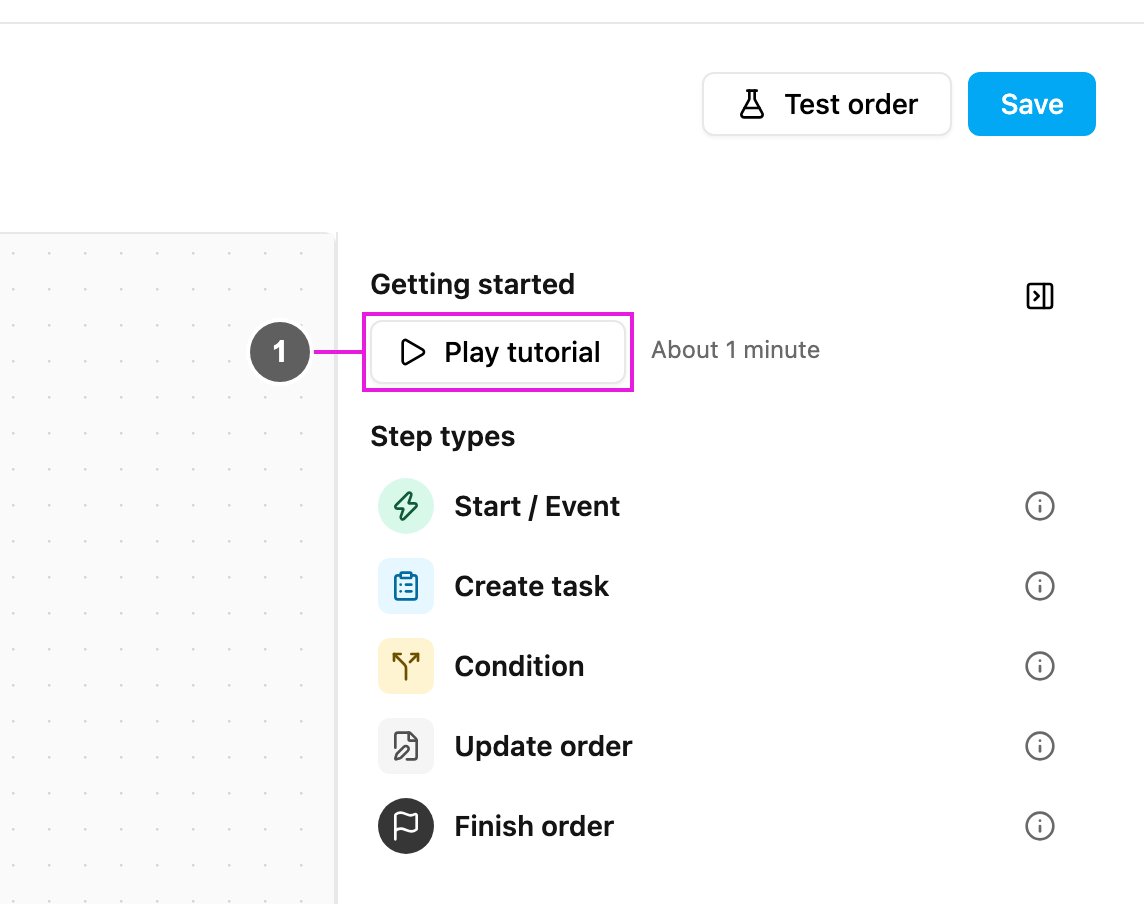
2. Close any open step panel, so the guide panel shows **Getting started**.
3. Click **Play tutorial** (*About 1 minute*).
1. **Play tutorial**
Starts the demo. The guide panel shows it whenever no step is selected.
While it plays, **Save** and the other tabs are not available.
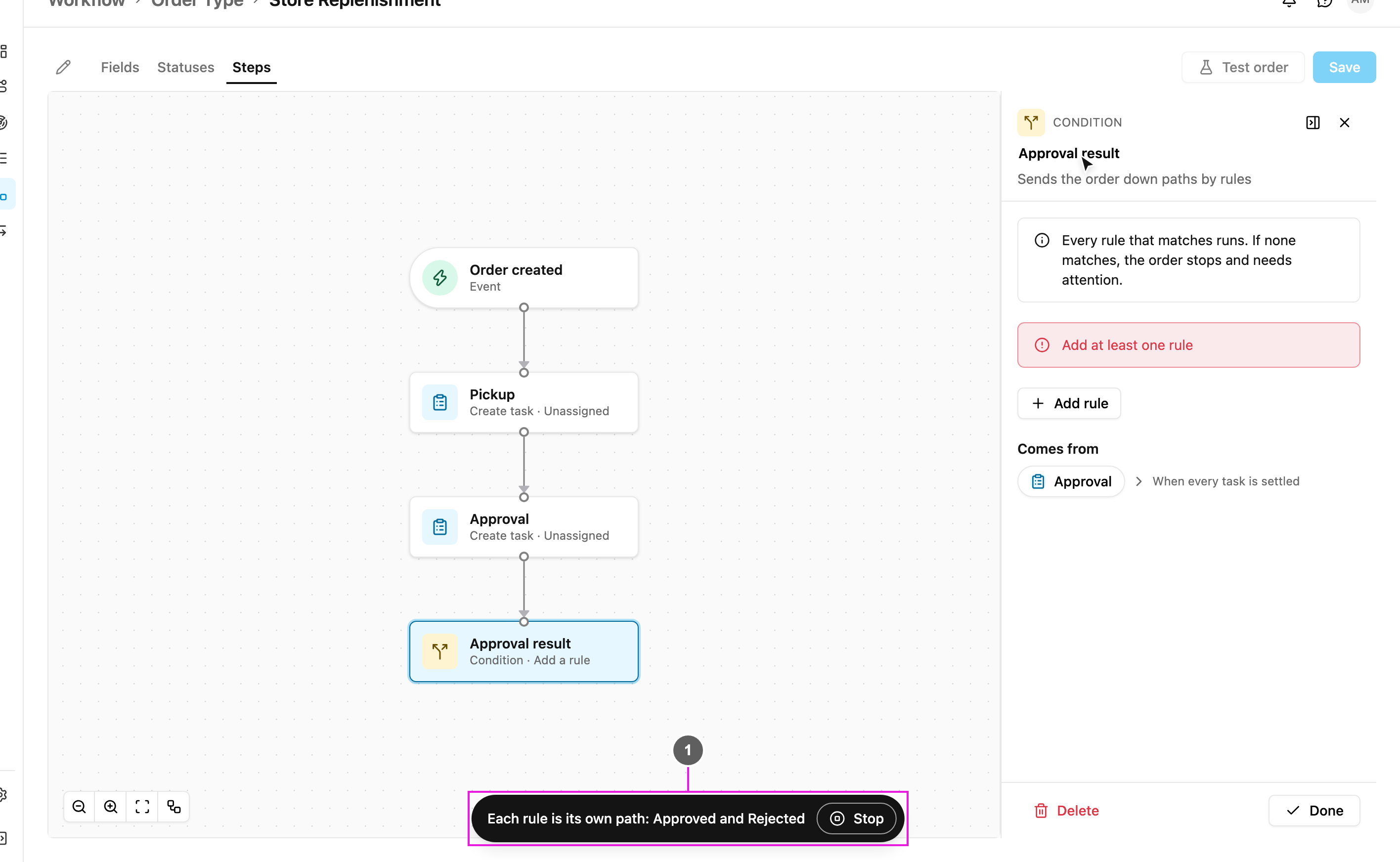
1. **Caption and Stop**
The caption says what is happening. Click **Stop**, or press Esc, to end the demo at any time.
## What the demo builds
The captions walk through these moves, in this order:
1. *Start from an empty canvas*.
2. *Add the first step*, then *Pick the trigger that starts the order*: **Order created**.
3. *Press + to add the next step*, then *Add the Pickup task* and *Pick the Task Type the task is made from*.
4. *Then an Approval task*.
5. *Add a condition on the approval result*: a **Condition** step named *Approval result*.
6. *Each rule is its own path: Approved and Rejected*.
7. *Approved goes to Delivery*, and *Finish the order after Delivery*.
8. *Rejected finishes the order too*.
9. *Every step shows where it comes from and where it goes*.
10. *Done. Now try it yourself: press + or click any step.*
The result has the same shape as the example in the [Introduction](/pages/workflow/order-type/introduction#how-an-order-moves). To build it for real, follow [Building an Order Type](/pages/workflow/order-type/building-an-order-type).
If your system is set to reduce motion, the demo skips its pauses and reaches the finished example almost at once.
This documentation is built and hosted on [Mintlify](https://mintlify.com), a developer documentation platform.