> ## Documentation Index
> Fetch the complete documentation index at: https://docsv4.mile.app/llms.txt
> Use this file to discover all available pages before exploring further.
# Editing and deleting
> Change a data type's fields, or delete a data type you no longer need.
Required permission:
* View data type
* Edit data type to edit, Delete data type to delete
## Edit a data type
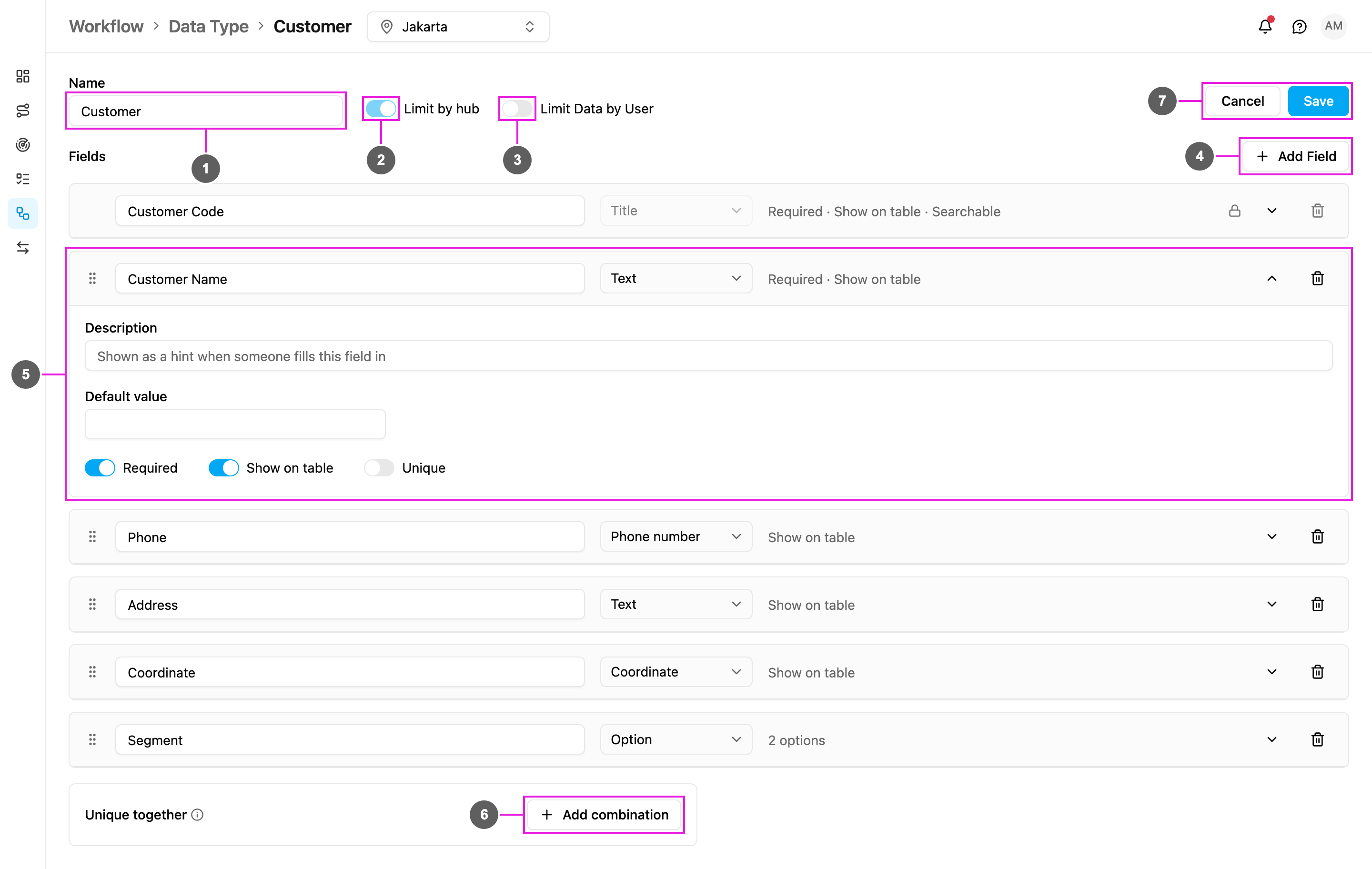
On **Workflow › Data Type**, click the pencil on a data type's row. The web app first asks **Edit this data type?** because changing its fields may affect existing records. Click **Continue**.
1. **Name**: rename the data type. The name of a Master Data type follows its entity and can't be changed.
2. **Limit by hub**: shown but locked. It can only be set when the data type is created.
3. **Limit Data by User**: turn it on or off. Turning it off asks **Turn off Limit Data by User?**, because it resets the access restriction on every existing record.
4. **Add Field**: add a field. Existing records get the new field empty.
5. Expand a field to change its label, type, rules and switches, as in [Creating a data type](/pages/workflow/data-type/creating-a-data-type#set-up-a-field). Drag a row to reorder the fields.
6. **Add combination**: add or remove [unique together](/pages/workflow/data-type/creating-a-data-type#unique-together) combinations.
7. **Cancel** or **Save**. If you leave with unsaved changes, the web app asks **Discard unsaved changes?**
Things to know when editing:
* **Removing a field** asks **Remove this field?**. The field and its stored value are removed from every record, and this can't be undone.
* The **Title** can be relabelled but not removed.
* A **Relation** field's target and relationship can't change. Delete the field and add a new one instead.
* On a **Master Data** type (User, Hub, Vehicle, Role, Task Type), you edit only the fields you added. Its built-in fields can't be changed.
* On the sample data types **Customer** and **Product** that come with a new organization, the fields they were created with are locked (shown with a lock). You can add your own fields next to them.
## Delete a data type
Click the bin on the data type's row.
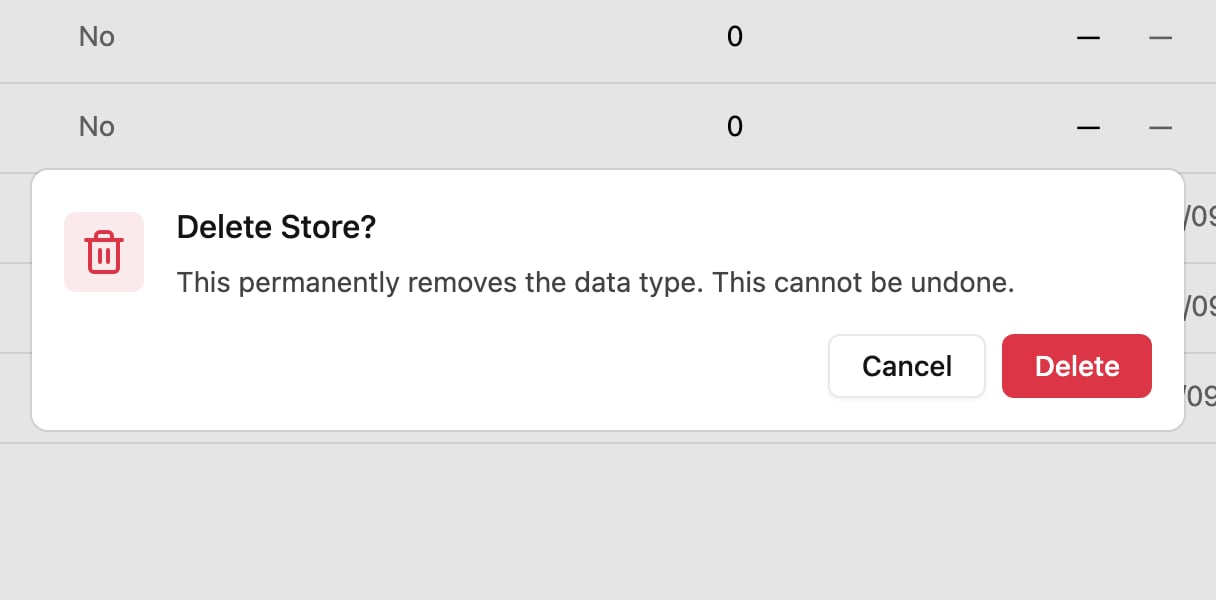
Click **Delete** to confirm. If the data type already has records, the message warns that deleting it removes the data type **and all of its records**. This can't be undone.
A data type can't be deleted while something still uses it. The web app shows **Can't delete this data type** and lists what uses it:
* **Task Type**: a task type that fills its fields from this data type.
* **Automation**: an automation that creates or updates its records.
* **Data type**: another data type with a Relation field pointing here.
Remove or change those first, then delete it again.
These data types can't be deleted; their bin is greyed out:
* The **Master Data** types: User, Hub, Vehicle, Role and Task Type.
* The sample data types **Customer** and **Product**, as long as they still have every field they were created with. Hover the greyed-out bin to see *The Customer data type is a system default and cannot be deleted.*
This documentation is built and hosted on [Mintlify](https://mintlify.com), a developer documentation platform.