> ## Documentation Index
> Fetch the complete documentation index at: https://docsv4.mile.app/llms.txt
> Use this file to discover all available pages before exploring further.
# Linked Records
> Point a record at records of another data type, and add extra information to users, hubs, roles, vehicles and task types.
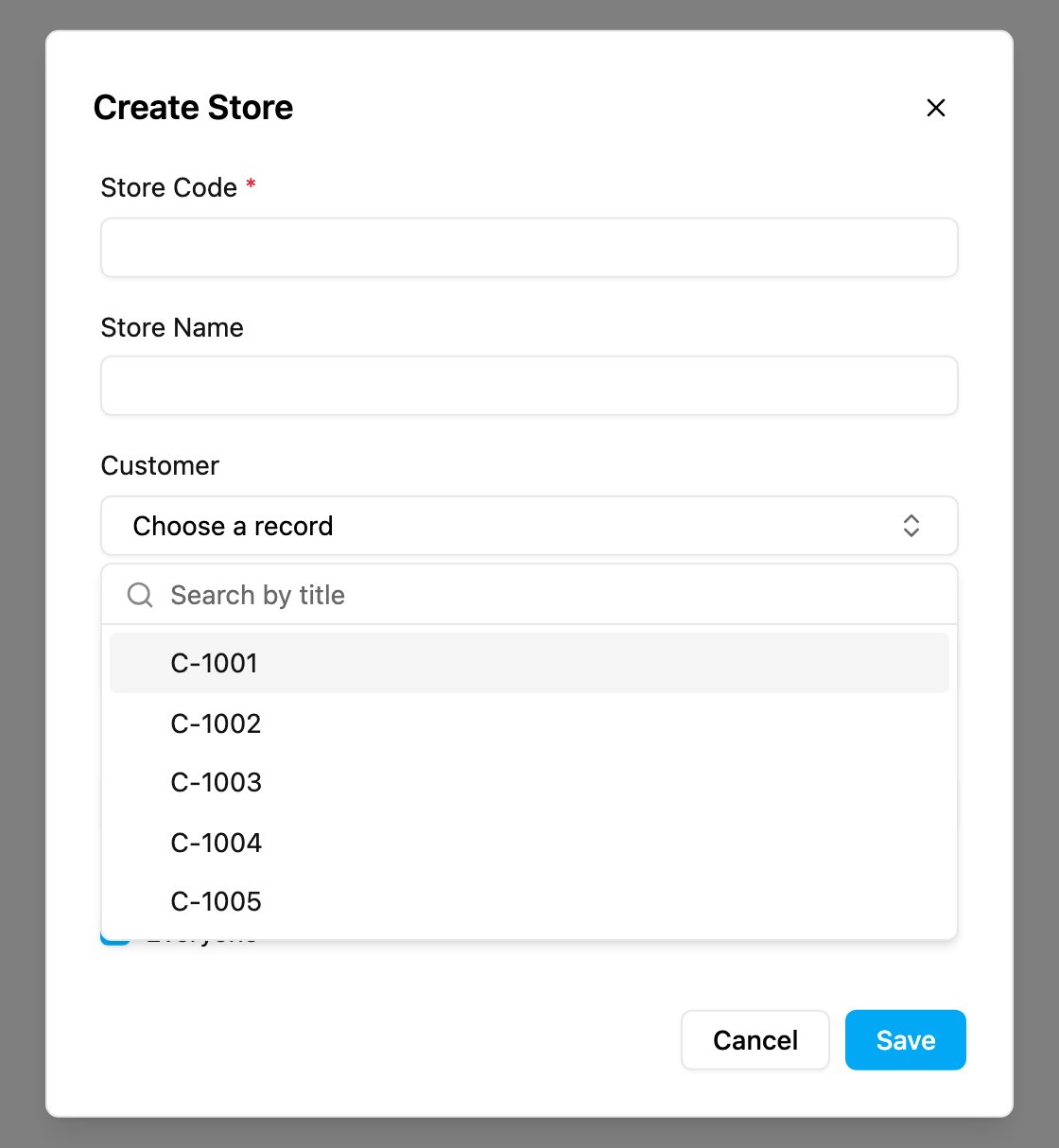
A data type can have a **Relation** field that points to records of another data type. For example, each *Store* can point to the *Customer* who owns it. You set the relation up on the data type; see [Field types](/pages/workflow/data-type/field-types). This page explains how relations behave when you add and read records.
Required permission:
* View data source
* Create data, Edit data source (to set a link)
## Choose a linked record
When a data type has a relation field, its record form shows a picker for it.
* Click **Choose a record** to open the list of records of the linked data type.
* Type in **Search by title** to find a record. The list searches as you type and shows the results page by page, so it works for data types with many records.
* A relation set to **One** holds a single record. A relation set to **Many** lets you tick several.
* Click **Clear selection** to remove the link.
* If the list can't be loaded, the picker says *Could not load the list to choose from*. Close the form and try again.
If the linked data type is limited by hub, the picker shows only records from the hub you are working in.
## The other side of a link
A link is stored only on the record that holds the relation field. The linked record shows it as a read-only list:
* The *Customer* record lists every *Store* that points to it.
* You can't change that list from the *Customer*. Edit the *Store* to change or remove its link.
* If nothing points to the record yet, the list shows **None**.
## Extra information on built-in data
The built-in data types **User**, **Hub**, **Role**, **Vehicle** and **Task Type** can carry extra fields that you define, such as an employee number for a user or a region for a hub.
1. Open **Workflow › Data Type** and edit the built-in data type. Add the fields you need. Until you do, the data source shows *No custom columns yet. Add fields to this Master Data in Data Types.*
2. Open **Workflow › Data Source** and pick that data type. Each row is the extra information for one user, hub, role, vehicle or task type.
3. Click **New**, then **Choose an entity** to pick which user, hub, role, vehicle or task type the information belongs to. Type part of a name to search, for example part of a vehicle's plate number. Fill in the fields and click **Save**.
To change an entry, open the row menu and choose **Edit**. Choosing **Delete** asks *Delete this entry?*. This removes only the extra information. The user, hub, role, vehicle or task type itself is not deleted.
The same extra fields also appear where you edit users and hubs in Settings, under **Extended data**.
This documentation is built and hosted on [Mintlify](https://mintlify.com), a developer documentation platform.