> ## Documentation Index
> Fetch the complete documentation index at: https://docsv4.mile.app/llms.txt
> Use this file to discover all available pages before exploring further.
# Exporting Records
> Download the records of a data type as a spreadsheet.
Required permission:
* View data source
* Export Data Source
## Export from Data Source
1. Open **Workflow › Data Source** and pick the data type.
2. Optionally type in the search box. Only the matching records are exported.
3. Click **Export**.
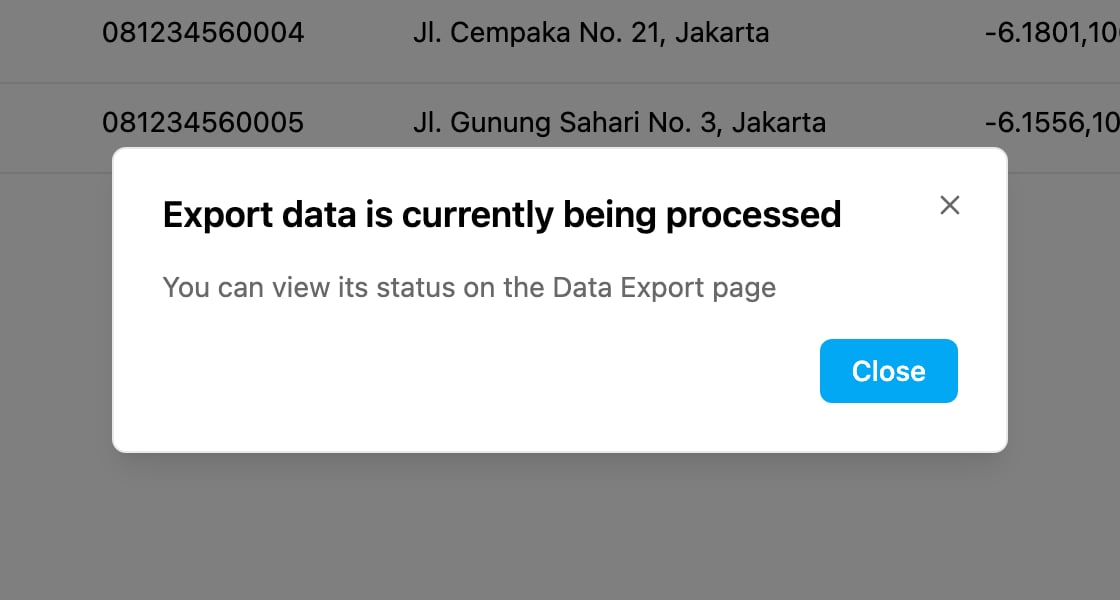
The export runs in the background, so the app tells you where to follow it instead of downloading the file straight away.
Click **Data Export page** in the message to open **Export & Import › Export**. Your export appears there, and you download the file when it's ready. See [Export](/pages/export-import/export).
## What the file contains
* **Columns:** the fields marked **Show on table** on the data type, the same columns you see in the list.
* **Records:** the records matching your search. For a data type limited by hub, only the records of the hub you are working in are included.
To choose the columns yourself, or to filter more precisely, start the export from **Export & Import › Export** and choose **Data Source** there.
**Export** is greyed out when you don't have the **Export Data Source** permission, or when no data type is selected.
This documentation is built and hosted on [Mintlify](https://mintlify.com), a developer documentation platform.