> ## Documentation Index
> Fetch the complete documentation index at: https://docsv4.mile.app/llms.txt
> Use this file to discover all available pages before exploring further.
# On Geofence Entry
> Send a webhook when a field worker enters a geofence and stays for its dwell time.
**On Geofence Entry** runs when a field worker's GPS position enters one of your [geofences](/pages/settings/geofence) and stays inside it for that geofence's dwell time. It tells a dashboard, WMS or ERP the moment a worker arrives at a store, warehouse, customer site or restricted area.
The event belongs to the **Location History** group, like On Start Trip and On Finish Trip: it's driven by the positions the field app reports, not by a task action.
Required permission:
* View automation
* Create automation
* View geofence
## Availability
Geofence is still rolling out and is only turned on for selected organizations. If yours is not included, the geofence menus don't appear and **On Geofence Entry** is not offered in the **Event** list. Contact support to have your organization included.
## Constraints
1. **Webhook only.** Webhook is the only automation type this event allows.
2. **A geofence group is required.** The automation watches exactly one **Geofence Group**. It runs only for geofences in that group, so different groups can feed different systems. One automation can't watch more than one group.
3. **No rules.** The geofence group is the automation's only scope.
## When it runs
1. The field app reports a GPS position.
2. The position is checked against your active geofences.
3. If the worker has just entered a geofence, they are recorded as inside and the dwell clock starts.
4. Once the worker has been inside for at least the geofence's **dwell time**, the entry runs and the webhook is sent.
A dwell time of 0 runs on the first position inside the zone. A higher dwell time means a worker who only drives through never triggers it.
**It runs once per visit.** More positions from inside the same geofence send nothing. The worker must leave and come back to trigger it again.
## Set it up
1. In [Geofence](/pages/settings/geofence), draw the geofences to watch, put them in a geofence group, set each one's dwell time and make sure they're active. Inactive geofences are ignored.
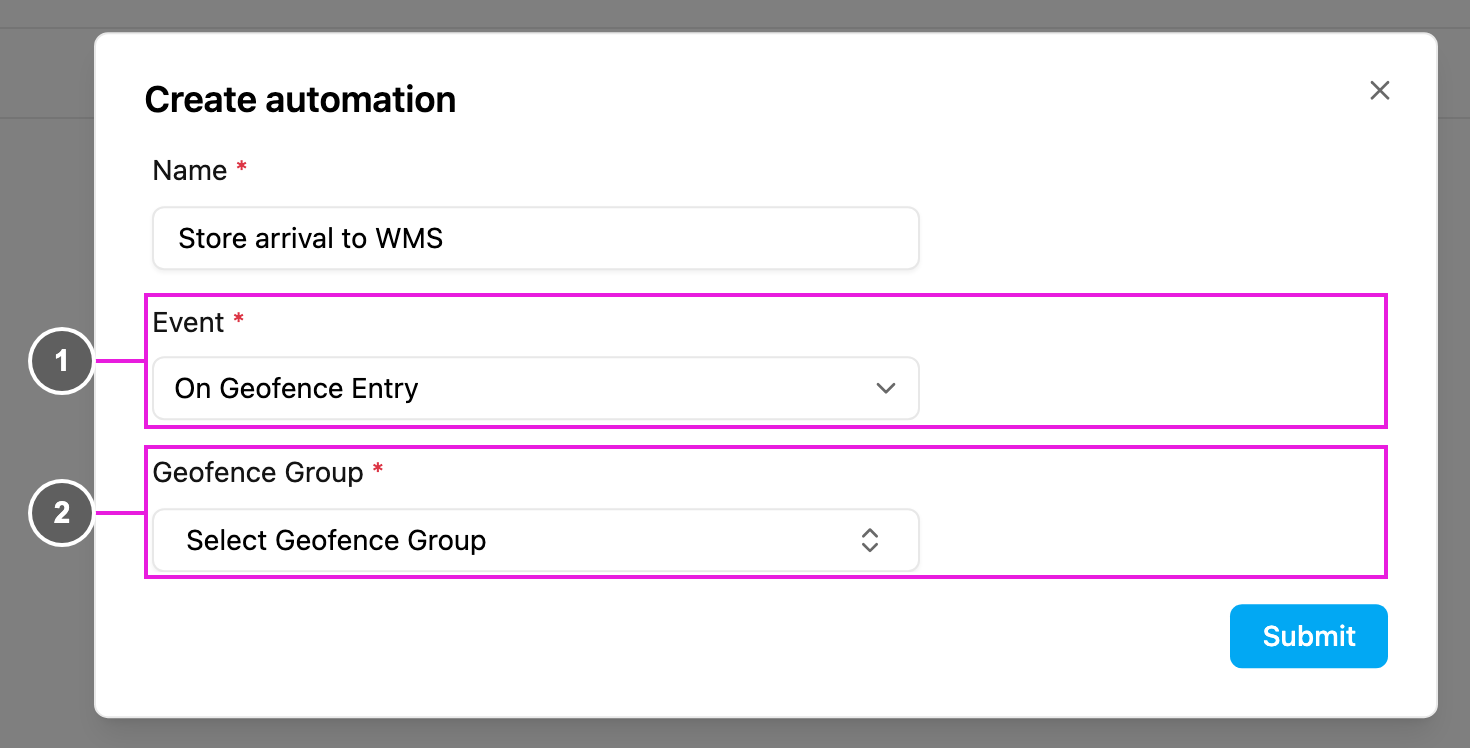
2. On **Workflow › Automation**, click **New**.
1. **Event**: **On Geofence Entry**.
2. **Geofence Group**: required. The group to watch.
Then choose **Automation Type** › **Webhook**, fill in the [webhook](/pages/workflow/automation/actions/webhook) **URL** (for example `https://api.example.com/webhook/geofence-entry`) and an `Authorization` header if your endpoint needs one, and click **Submit**. Test it by having a field worker enter a geofence of the group and stay for the dwell time.
## Webhook payload
The request body is the location record with the geofence details added:
```json theme={null}
{
"_id": "663b2c3d4f1a2b3c4d5e6f80",
"eventName": "entry_geofence",
"email": "driver@example.com",
"organizationId": "660a1b2c4f1a2b3c4d5e6f03",
"taskId": null,
"lat": -6.2088,
"lon": 106.8456,
"speed": 0,
"createdFrom": "app",
"isLatest": true,
"createdTime": "2026-07-20T08:15:00.000Z",
"geofenceId": "gf_123",
"geofenceName": "Store A Sudirman",
"geofenceGroupId": "66c1a4f2d3b19f0012ab77e4",
"geofenceGroup": "Visit Store",
"dwellMinutes": 5
}
```
### Geofence fields
| Field | Type | Description |
| - | - | - |
| `eventName` | string | Always `entry_geofence` for this event. |
| `geofenceId` | string | The geofence that was entered. |
| `geofenceName` | string | Its name. |
| `geofenceGroupId` | string | ID of the group, the value the automation is scoped to. |
| `geofenceGroup` | string | **Name** of the group, for display. Don't use it in place of `geofenceGroupId`. |
| `dwellMinutes` | integer | The geofence's dwell time setting, not the time actually spent inside. |
### Location fields
| Field | Type | Description |
| - | - | - |
| `_id` | string | ID of the location record that produced the crossing. |
| `email` | string | The field worker's email. |
| `organizationId` | string | Your organization ID. |
| `taskId` | string | The task the worker was on, or `null`. |
| `lat`, `lon` | number | Position at the crossing. |
| `speed` | number | Reported speed. |
| `createdFrom` | string | Where the position came from: `app` or `api`. |
| `isLatest` | boolean | Whether this was the worker's newest position. |
| `createdTime` | string | When the position was reported. |
Your endpoint must answer with HTTP 200, for example `{ "status": "received" }`.
## Tracking markers
When an entry matches one of your automations, a marker is also added to the worker's tracking timeline on the Tracking page, so the crossing is visible in the web app. Markers appear **only when an automation matched**: geofences without an On Geofence Entry automation on their group show no markers.
## Troubleshooting
**The event never runs.**
* Check that the automation and the geofence are both active.
* The worker may not have stayed for the dwell time. Lower it and test again; a drive-through doesn't count.
* The worker was already inside, so the entry was already sent. They must leave completely and come back.
* Check that the geofence is in the group chosen on the automation.
* Your organization may not be in the geofence rollout.
**It runs once and not again.** This is intended: one entry per visit.
**The webhook receives nothing.** Check the URL is reachable from the internet, check the authentication header, and read the response in the [log](/pages/workflow/automation/log).
## Questions
**Can one automation watch several geofence groups?** No. Create one automation per group.
**Does the worker need a task?** No. The event comes from the GPS position; `taskId` is `null` when no task is in progress.
**Can I use Create Task or Notification with this event?** No. Webhook is the only automation type allowed.
This documentation is built and hosted on [Mintlify](https://mintlify.com), a developer documentation platform.