> ## Documentation Index
> Fetch the complete documentation index at: https://docsv4.mile.app/llms.txt
> Use this file to discover all available pages before exploring further.
# Creating an automation
> Fill in the automation form: name, event, task type, automation type, rules and automation detail.
On **Workflow › Automation**, click **New**. The **Create automation** form opens.
Required permission:
* View automation
* Create automation
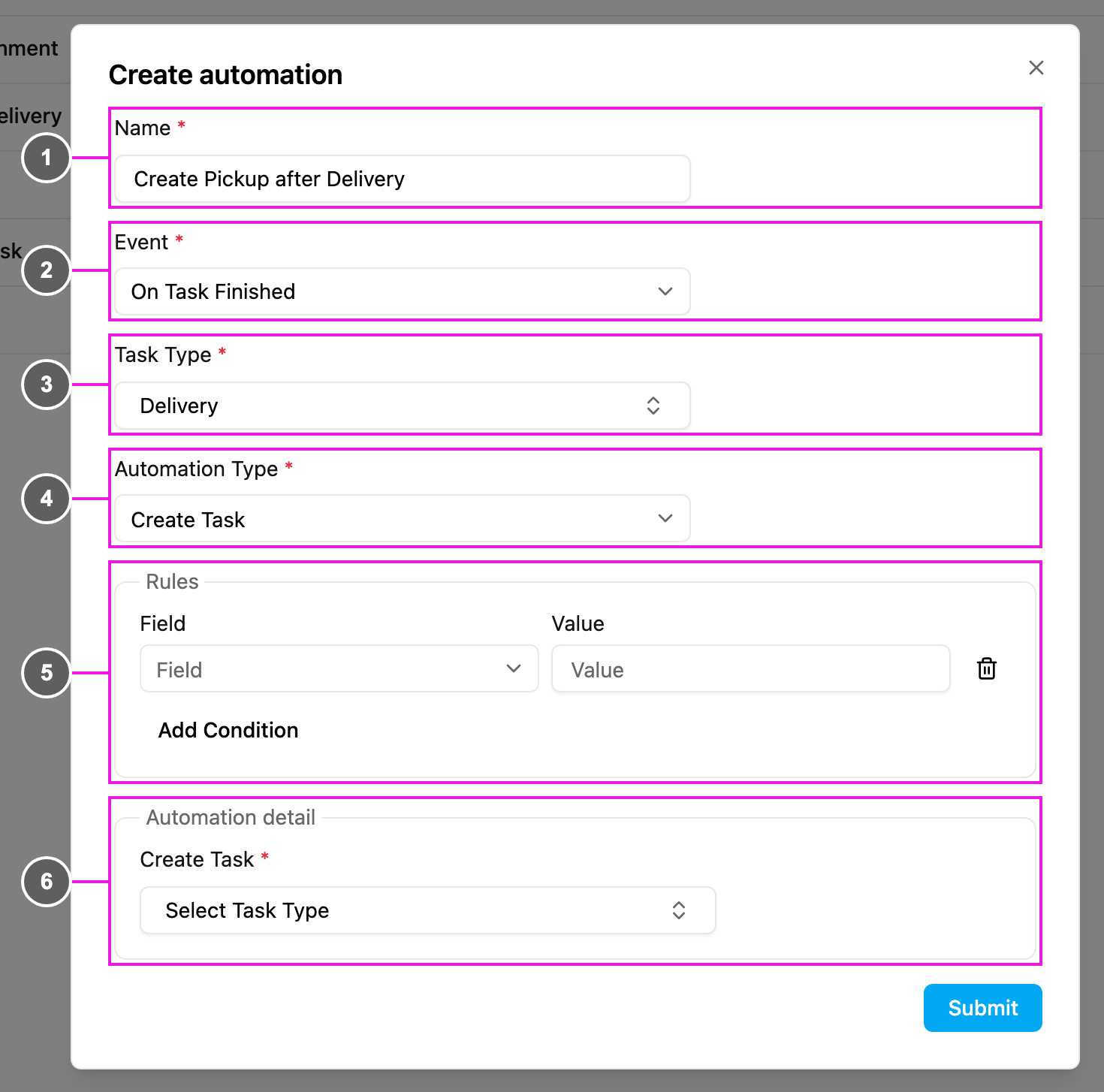
The form shows its fields one step at a time: pick the **Event** first, then what it watches (task type, data type or geofence group), then the **Automation Type**. **Rules** and **Automation detail** appear once the automation type is chosen.
1. **Name**: required. Use a unique, specific name so the automation is easy to tell apart in the list, for example "Create Pickup after Delivery".
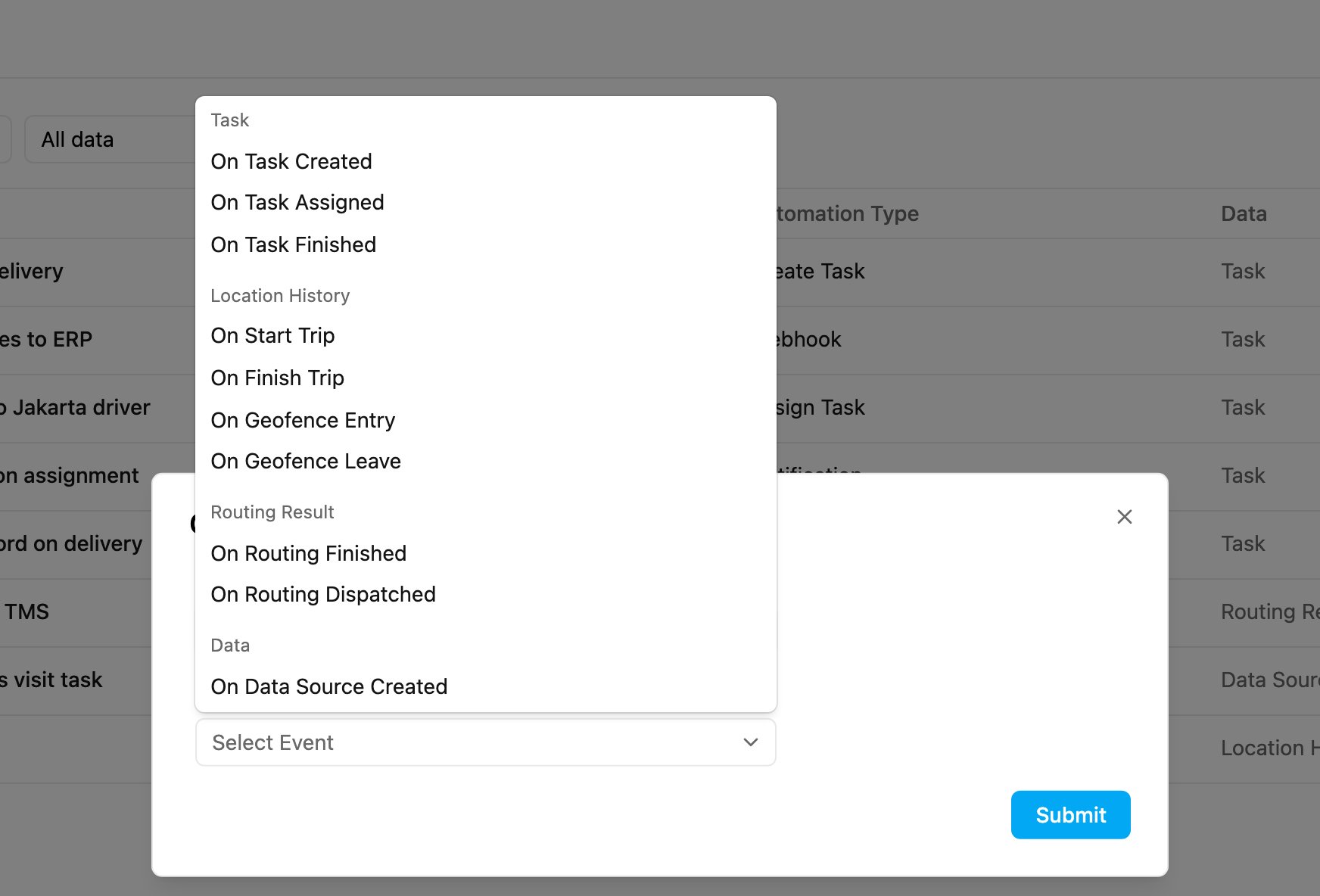
2. **Event**: required. What starts the automation. See [Events](#events) below.
3. **Task Type**: required for the three task events. The automation runs only for tasks of this task type: with **Delivery**, a Pickup or Visit task never triggers it. The field changes with the event:
* Task events (On Task Created, On Task Assigned, On Task Finished): **Task Type**.
* On Data Source Created: **Trigger Data Type**, the data type whose new records start the automation.
* On Geofence Entry and On Geofence Leave: **Geofence Group**.
* Trip and routing events: no extra field.
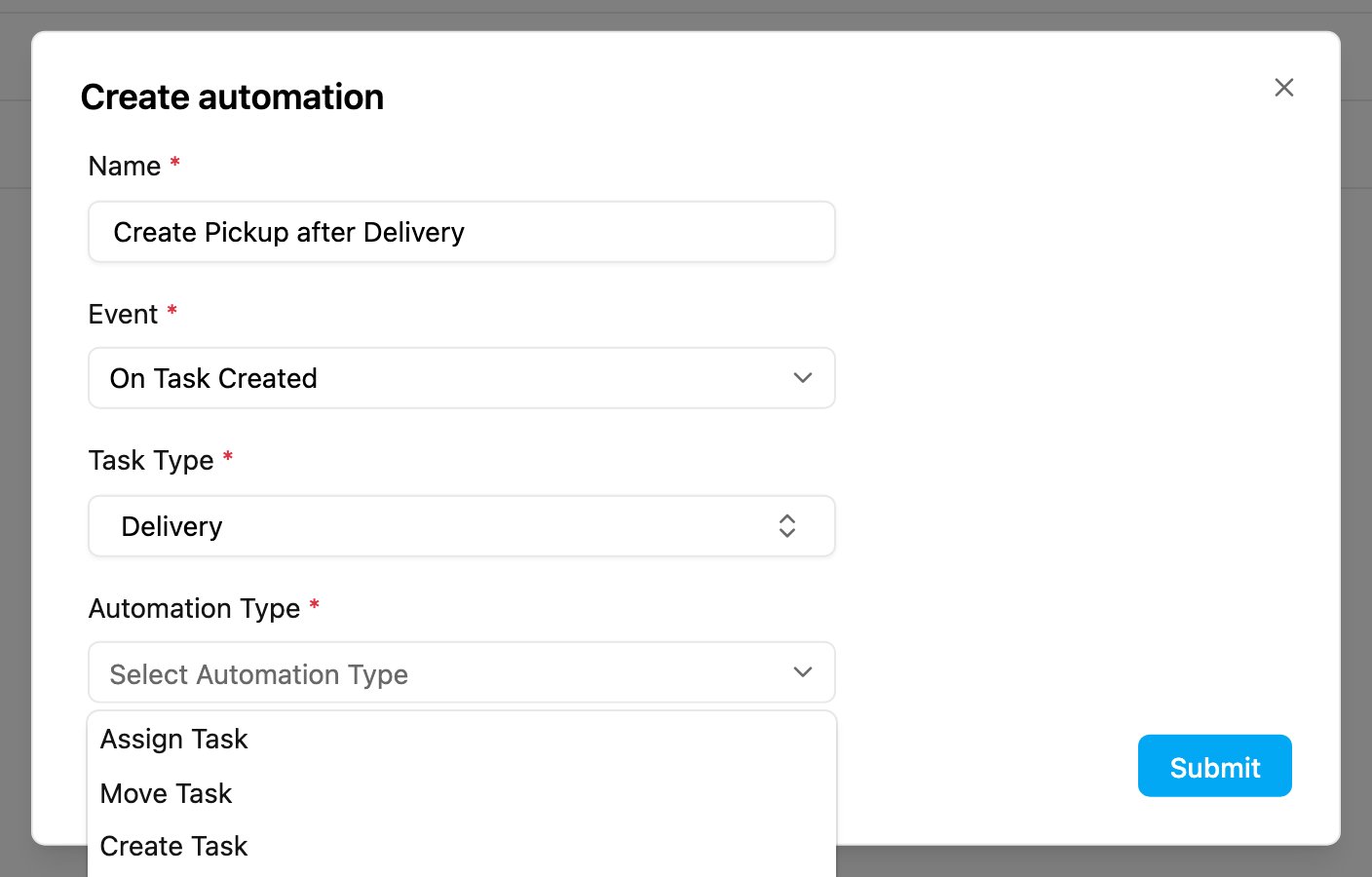
4. **Automation Type**: required. What the automation does. Only the types the chosen event allows are offered. See [Automation types](#automation-types) below.
5. **Rules**: optional conditions. See [Rules](/pages/workflow/automation/rules).
6. **Automation detail**: the settings of the chosen automation type, for example which task type to create and how to fill it. Each action has its own page.
Click **Submit**. The new automation appears in the list. Switch it on with its **Active** switch if it is off.
## Events
The events are grouped by what they watch:
| Group | Event | Runs when | Scoped by |
| - | - | - | - |
| Task | [On Task Created](/pages/workflow/automation/events/on-task-created) | A task is created. | Task Type |
| | [On Task Assigned](/pages/workflow/automation/events/on-task-assigned) | A task is assigned to a user. | Task Type |
| | [On Task Finished](/pages/workflow/automation/events/on-task-finished) | A task is finished. | Task Type |
| Location History | [On Start Trip](/pages/workflow/automation/events/on-start-trip) | A field worker starts a trip in the field app. | none |
| | [On Finish Trip](/pages/workflow/automation/events/on-finish-trip) | A field worker finishes a trip. | none |
| | [On Geofence Entry](/pages/workflow/automation/events/on-geofence-entry) | A field worker enters a geofence and stays for its dwell time. | Geofence Group |
| | [On Geofence Leave](/pages/workflow/automation/events/on-geofence-leave) | A field worker leaves a geofence they had entered. | Geofence Group |
| Routing Result | [On Routing Finished](/pages/workflow/automation/events/on-routing-finished) | Route optimization finishes. | none |
| | [On Routing Dispatched](/pages/workflow/automation/events/on-routing-dispatched) | A routing result is dispatched. | none |
| Data | [On Data Source Created](/pages/workflow/automation/events/on-data-source-created) | A data source record is created. | Trigger Data Type |
## Automation types
The list only offers the automation types that the chosen event allows. For On Task Created it offers Assign Task, Move Task, Create Task, Create and Assign Task, Webhook, Notification and Update Task. The full matrix is on the [introduction](/pages/workflow/automation/introduction#events-and-actions-at-a-glance).
The **Event** and the **Automation Type** cannot be changed after the automation is saved. To use a different event or type, create a new automation.
This documentation is built and hosted on [Mintlify](https://mintlify.com), a developer documentation platform.