> ## Documentation Index
> Fetch the complete documentation index at: https://docsv4.mile.app/llms.txt
> Use this file to discover all available pages before exploring further.
# Update Task
> Change fields of each new task automatically.
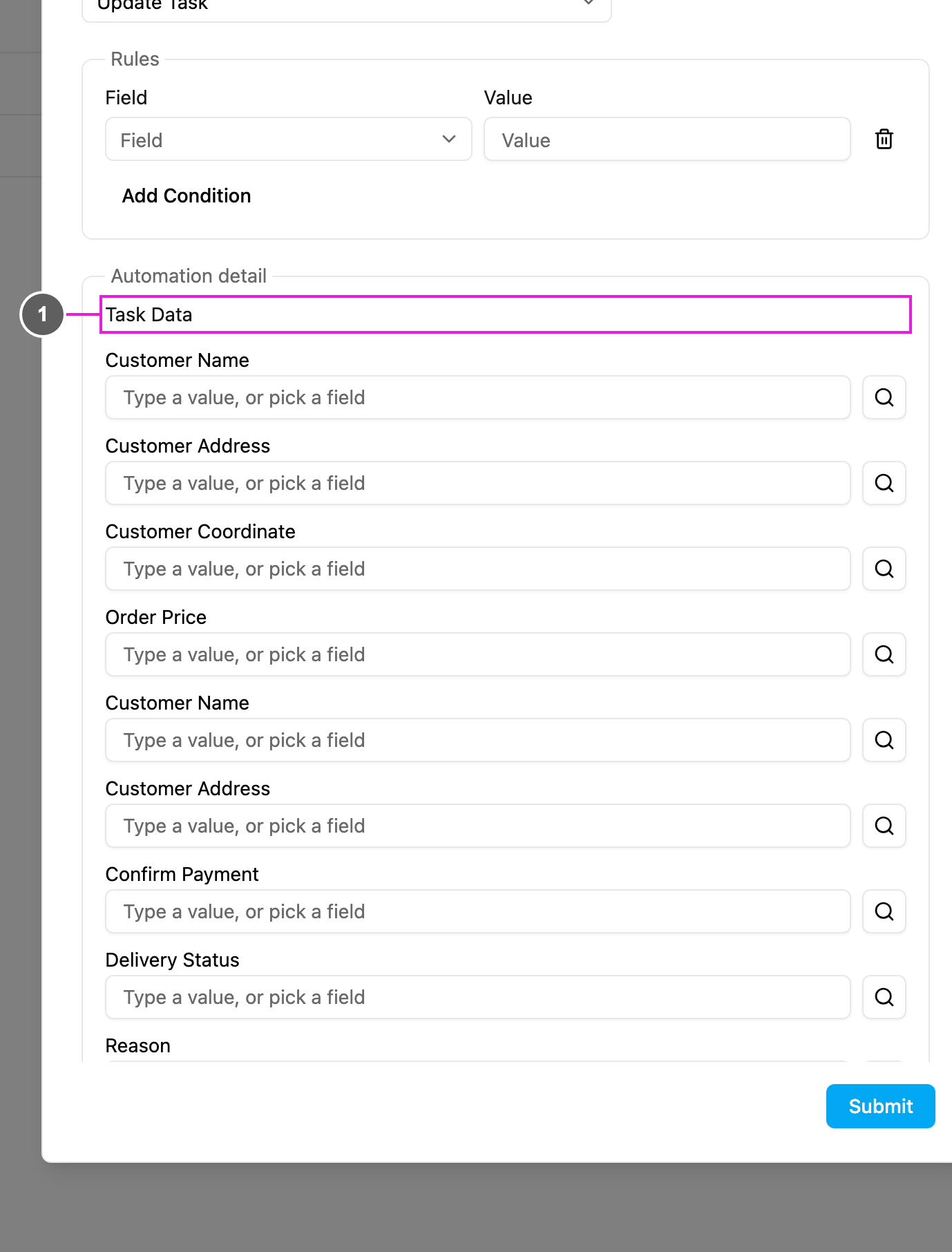
**Update Task** changes fields of the task that started the automation. Use it to fill in or correct values as soon as a task is created: set a fixed value, or copy one field into another.
Available for: **On Task Created** only.
Required permission:
* View automation
* Create automation
## Automation detail
1. **Task Data**: every field of the automation's own task type. For each field you want to change, type a fixed value or click the search icon to copy a field, exactly as in [Create Task](/pages/workflow/automation/actions/create-task#filling-a-field).
Only the fields you fill in are changed. Fields left empty keep the value the task already has.
## Examples
| Scenario | Rule | Field | Value |
| - | - | - | - |
| Flag VIP orders | Customer Name = Toko Maju Jaya | Priority | High (fixed) |
| Copy an address | none | Delivery Address | Customer Address (copied) |
| Default a status | none | Delivery Status | Waiting (fixed) |
## Troubleshooting
**Fields don't change.** Check that the automation is **Active**, its task type matches, the rules don't exclude the task, and the field has a value in **Task Data**. Then look at the [log](/pages/workflow/automation/log).
This documentation is built and hosted on [Mintlify](https://mintlify.com), a developer documentation platform.