> ## Documentation Index
> Fetch the complete documentation index at: https://docsv4.mile.app/llms.txt
> Use this file to discover all available pages before exploring further.
# Notification
> Send a WhatsApp message, an SMS or an email automatically when a task event happens.
**Notification** sends a message when the automation runs: a WhatsApp message, an SMS or an email. Use it to keep customers, field workers and managers informed in real time, for example sending the tracking link when a driver is assigned.
Available for: **On Task Created**, **On Task Assigned** and **On Task Finished**.
Required permission:
* View automation
* Create automation
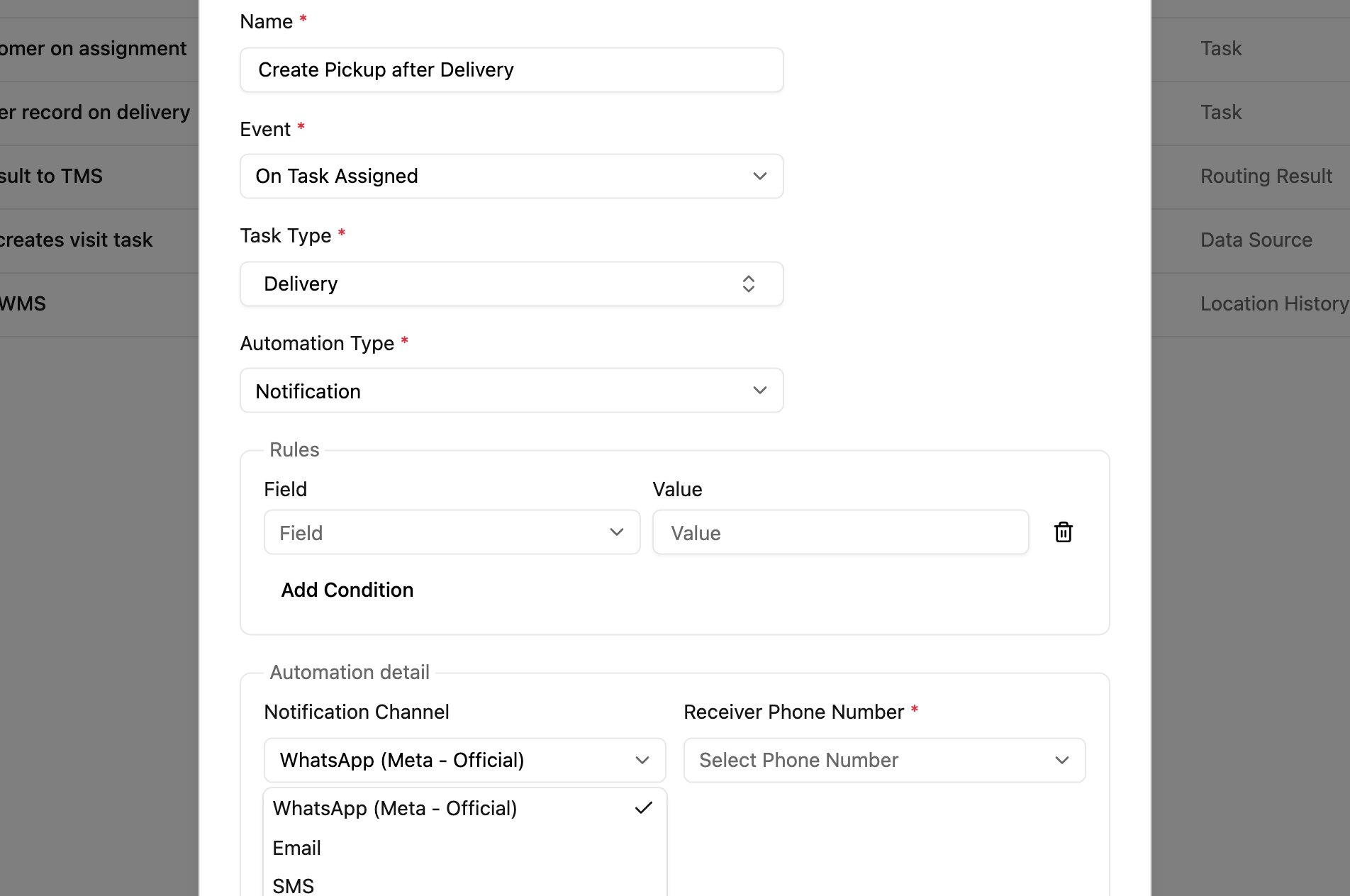
## Notification Channel
Pick the channel in **Notification Channel**. The fields below it change with the channel:
| Channel | Sends | Fields | Page |
| - | - | - | - |
| **WhatsApp** | A WhatsApp message to a phone number on the task. | Receiver Phone Number, Message (and API Key for Fonnte) | [WhatsApp](/pages/workflow/automation/actions/notification-whatsapp) |
| **SMS** | A text message to a phone number on the task. | Receiver Phone Number, Message | [SMS](/pages/workflow/automation/actions/notification-sms) |
| **Email** | An email to up to 50 recipients. | To, Cc, Bcc, Subject, Email Body | [Email](/pages/workflow/automation/actions/notification-email) |
Which channels you see depends on your account:
* Accounts with the official sender see **WhatsApp (Meta - Official)**, **Email** and **SMS**. WhatsApp messages go out from the official WhatsApp number; no key is needed.
* Other accounts see **WhatsApp (Fonnte)** only, and send through their own Fonnte account with its **API Key**.
## Message placeholders
WhatsApp and SMS messages start with this default text:
```
Greeting, we are from {{ organization name }} and will be delivering to your location. Track your delivery here {{ tracking link }}. Thank you
```
Placeholders in `{{ }}` are replaced with real values when the message is sent:
| Placeholder | Replaced with |
| - | - |
| `{{ organization name }}` | Your organization's name. |
| `{{ tracking link }}` | The task's public tracking link. |
Edit the text freely, keeping the placeholders you need. Email has its own, larger set of variables.
## Use cases
* **Customer updates**: tell the customer when their delivery is created, when a driver is assigned, and when it's delivered.
* **Team alerts**: tell team members when high-priority tasks are created or assigned to them.
* **Status updates**: send order progress and completion confirmations to customers or stakeholders.
## Good practice
* Test with a task of your own before switching the automation on, and check that the placeholders are filled in.
* Keep messages short and clear.
* Make sure phone numbers on the task are in a format the channel can deliver to (with country code).
* Create one automation per event to send a different message at each step.
## Questions
**What if the phone number on the task is empty or invalid?** Nothing is sent for that task. Validate the phone number field in your task type.
**Can a WhatsApp message or SMS go to several people?** Each automation sends to the one phone number field you choose. Create another automation for another field. Email can send to up to 50 recipients at once.
This documentation is built and hosted on [Mintlify](https://mintlify.com), a developer documentation platform.