> ## Documentation Index
> Fetch the complete documentation index at: https://docsv4.mile.app/llms.txt
> Use this file to discover all available pages before exploring further.
# Create Task
> Create a new task of another task type, filled from the record that started the automation.
**Create Task** creates a new task whenever the automation runs. It chains work together: a finished delivery creates its pickup, a finished service creates its inspection, a new order record creates its delivery.
Available for: **On Task Created**, **On Task Assigned**, **On Task Finished** and **On Data Source Created**.
Required permission:
* View automation
* Create automation
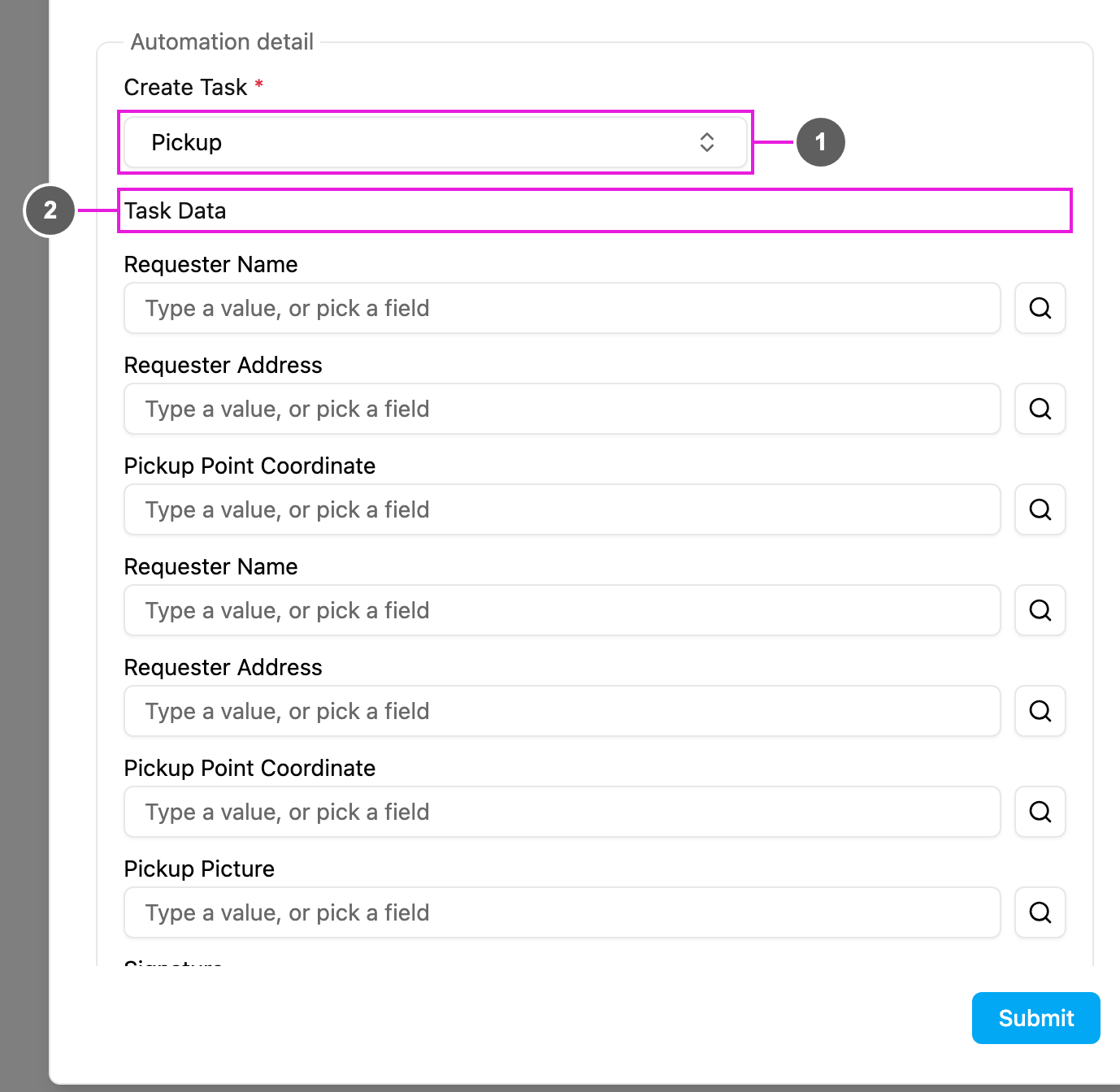
## Automation detail
1. **Create Task**: required. The task type of the new task. The trigger's own task type is not offered, so an automation can't create the very tasks it watches.
2. **Task Data**: every field of the chosen task type, listed by title. Fill in each field the new task should have. Required fields of the task type must get a value, either fixed or copied.
## Filling a field
Each field of **Task Data** takes a fixed value, a value copied from the trigger, or nothing:
* **Fixed value**: type in the box ("Type a value, or pick a field") and press **Enter** or click **Add**. Every new task gets this value. Example: Priority › High.
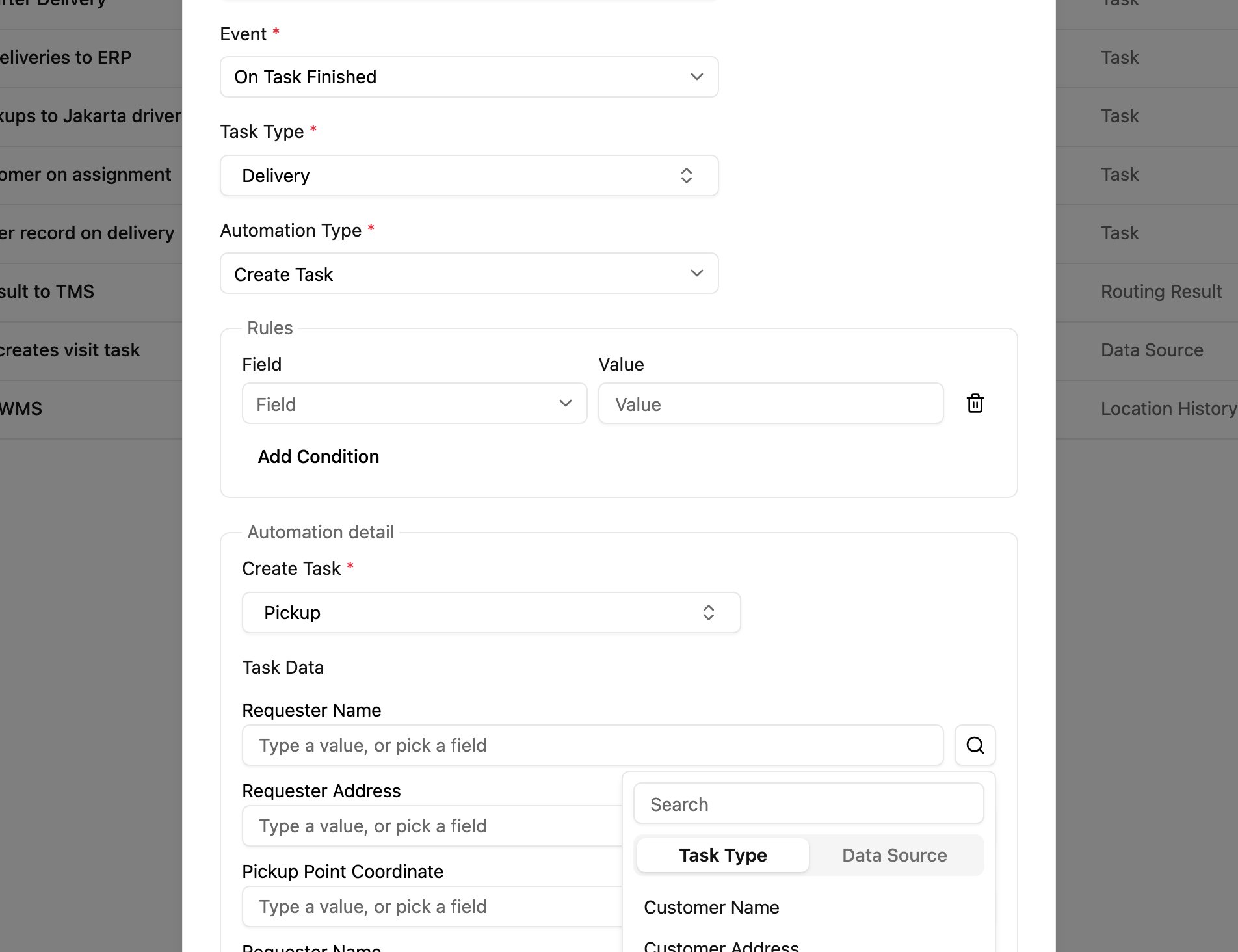
* **Copied value**: click the search icon next to the box and pick a field. The value of that field on the record that started the automation is copied into the new task when it runs. The list has two tabs:
* **Task Type**: the fields of the trigger's task type (or of the trigger data type, for On Data Source Created).
* **Data Source**: fields of data sources linked to the trigger task type, for example the address of the customer chosen on the task.
* **Empty**: leave the box empty for optional fields.
A filled value shows in the box; click its clear button to remove it and choose again.
You can map any field to any field. Map like to like where you can (text to text, coordinate to coordinate) so the values make sense in the new task.
## How it works
1. The event happens (a task is created, assigned or finished, or a record is created).
2. The [rules](/pages/workflow/automation/rules), if any, are checked.
3. A new task of the **Create Task** task type is created.
4. Its fields are filled with the fixed and copied values.
5. The task appears on the Task page, unassigned and ready for assignment.
* The new task is created **unassigned**. To also assign it, use [Create and Assign Task](/pages/workflow/automation/actions/create-and-assign-task).
* For task events, the new task is created in the same hub as the trigger task.
* The new task is a separate task: it is not linked to the trigger task.
## Examples
**Pickup after delivery**
| Setting | Value |
| - | - |
| Event | On Task Created |
| Task Type | Delivery |
| Create Task | Pickup |
| Requester Name | Customer Name (from Delivery) |
| Requester Address | Customer Address (from Delivery) |
| Pickup Point Coordinate | Customer Coordinate (from Delivery) |
**Quality inspection after service**
| Setting | Value |
| - | - |
| Event | On Task Finished |
| Task Type | Home Cleaning |
| Create Task | Quality Inspection |
| Customer Name | Customer Name (from Home Cleaning) |
| Service Location | Service Address (from Home Cleaning) |
| Completion Date | Service Date (from Home Cleaning) |
**Follow-up sales from canvassing**
| Setting | Value |
| - | - |
| Event | On Task Finished |
| Task Type | Field Canvassing |
| Create Task | Field Sales |
| Prospect Name | Canvassed Name |
| Prospect Contact | Contact Number |
| Interest Level | Survey Result |
Add a rule such as Survey Result = Interested so that only hot leads get a follow-up.
**Documentation from a data source**
| Setting | Value |
| - | - |
| Event | On Data Source Created |
| Trigger Data Type | Customer Database |
| Create Task | Customer Documentation |
| Name | Customer Name (from the record) |
| ID | Customer ID (from the record) |
## Good practice
* Name automations after the workflow, for example "Create Pickup when Delivery is created".
* Prefer copied values over typed ones, so the new task matches the trigger.
* Use [rules](/pages/workflow/automation/rules) so tasks are created only when needed; automations without rules can create a lot of tasks.
* Avoid loops: Task A creating Task B while Task B creates Task A.
* Test with a sample task and check the result, then watch the [log](/pages/workflow/automation/log).
## Troubleshooting
**No task is created.**
* Check that the automation is **Active** and its event and task type match the trigger.
* Check that the rules don't exclude the trigger.
* Make sure every required field of the new task type has a value.
**The new task has empty fields.** The copied field was empty on the trigger, or the wrong field is mapped. Check the trigger's values and the mapping.
**Too many tasks are created.** Add rules, and look for overlapping automations on the same event and task type.
**The wrong task type is created.** Edit the automation and check **Create Task**.
This documentation is built and hosted on [Mintlify](https://mintlify.com), a developer documentation platform.