> ## Documentation Index
> Fetch the complete documentation index at: https://docsv4.mile.app/llms.txt
> Use this file to discover all available pages before exploring further.
# Create and Assign Task
> Create a new task, place it in a hub and assign it to a user, all in one automation.
**Create and Assign Task** creates a new task, places it in a hub and assigns it to a user straight away, so the new task never sits unassigned. Use it when the next step should go to a known person: the same driver, the person who assigned the work, or a fixed team lead.
Available for: **On Task Created** and **On Task Finished**.
Required permission:
* View automation
* Create automation
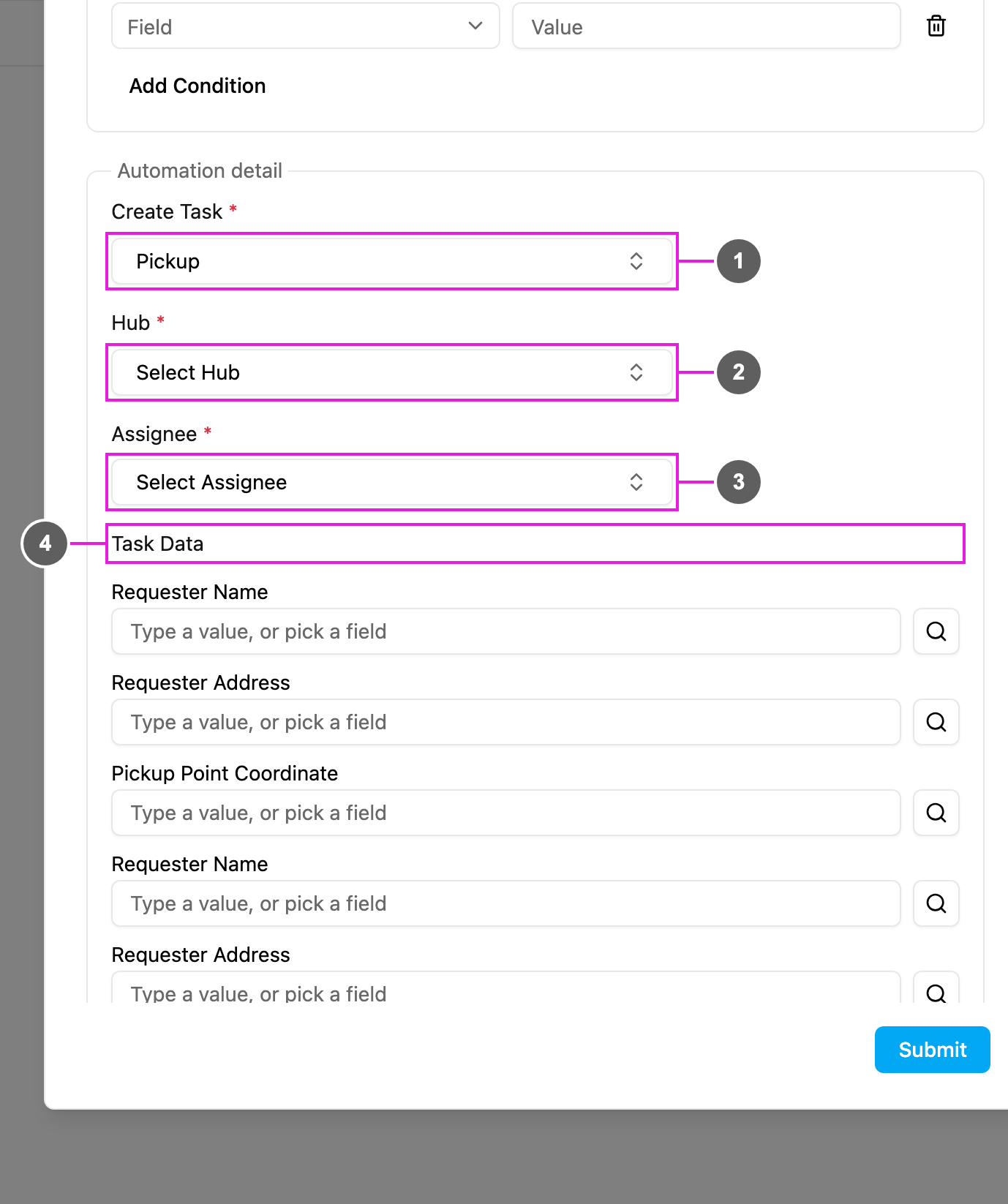
## Automation detail
1. **Create Task**: required. The task type of the new task. The trigger's own task type is not offered.
2. **Hub**: required. The hub the new task is created in. See [Hub options](#hub-options).
3. **Assignee**: required. Who the new task is assigned to. See [Assignee options](#assignee-options).
4. **Task Data**: the fields of the new task. Type a fixed value, or click the search icon to copy a field of the trigger, or leave an optional field empty. It works exactly as in [Create Task](/pages/workflow/automation/actions/create-task#filling-a-field).
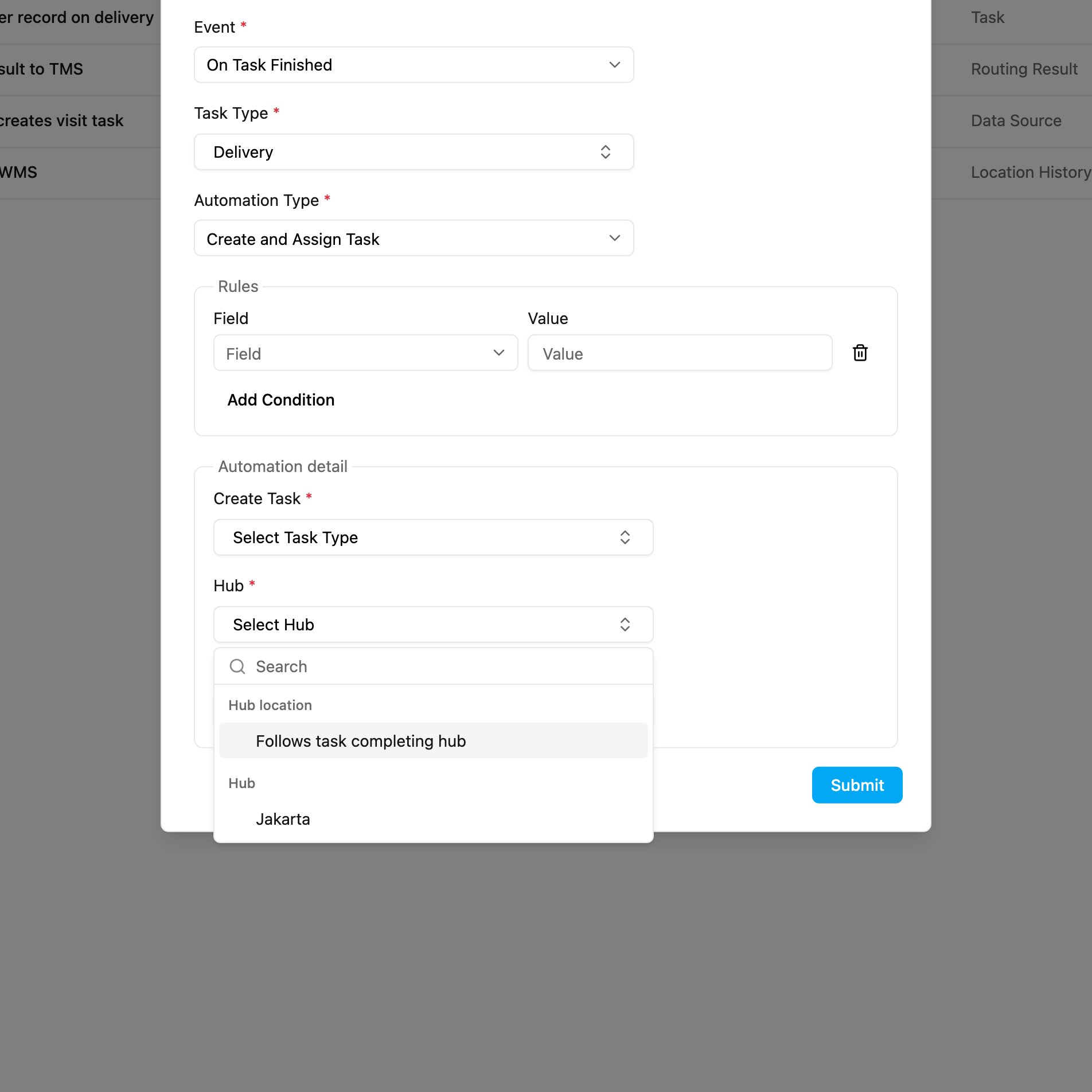
## Hub options
The list has two groups:
* **Hub location**: a hub taken from the trigger task when the automation runs.
* **Follows task creator's hub** (On Task Created): the hub where the trigger task was created.
* **Follows task completing hub** (On Task Finished): the hub where the trigger task was finished.
* **Hub**: a fixed hub of your organization, for example **Jakarta**. Every new task goes there.
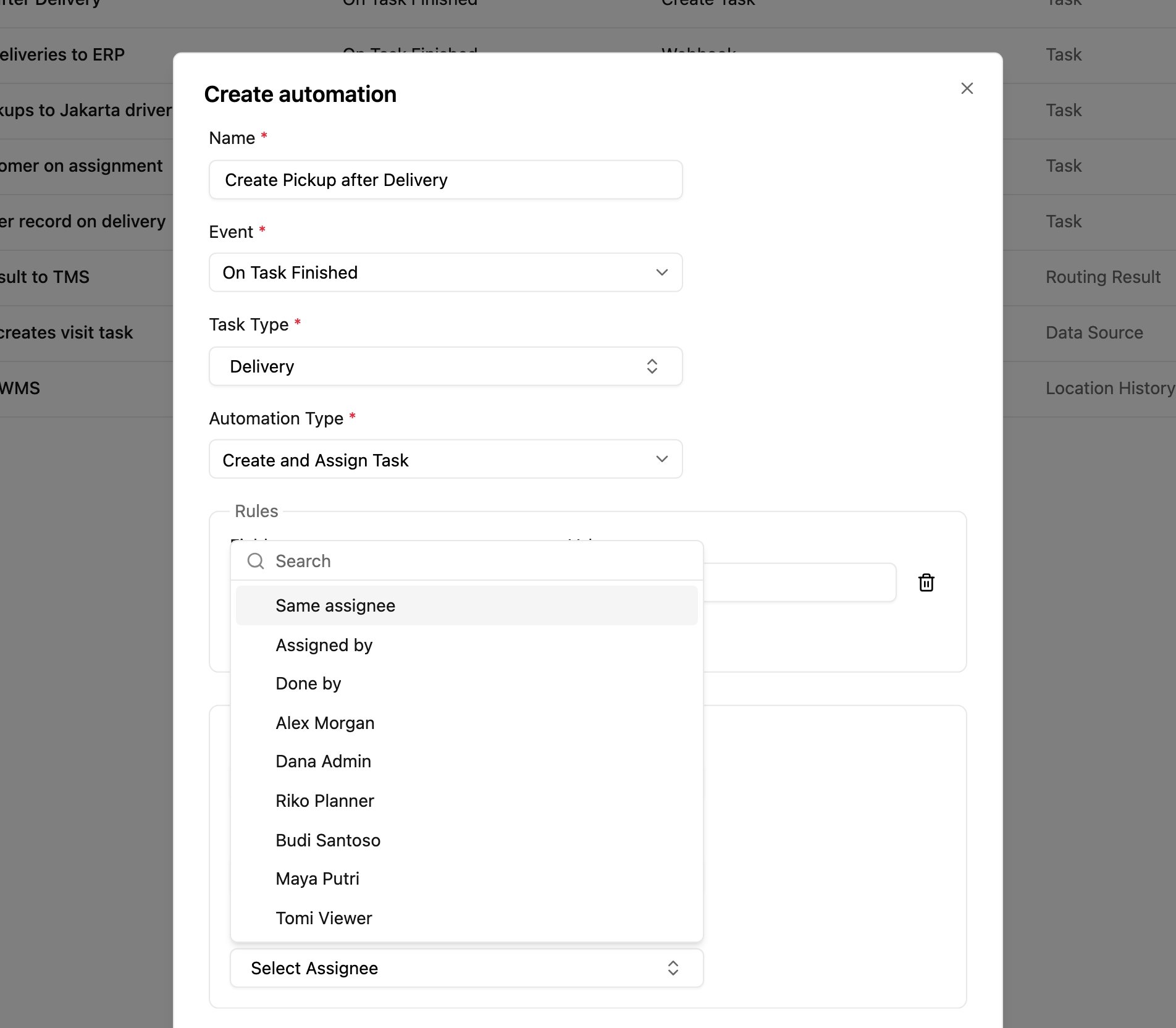
## Assignee options
The first three options take the person from the trigger task when the automation runs:
| Option | The new task goes to |
| - | - |
| **Same assignee** | The user assigned to the trigger task. |
| **Assigned by** | The user who assigned the trigger task. |
| **Done by** | The user who finished the trigger task. |
Below them is the list of users. Picking a user means every new task always goes to that person.
## How it works
1. The event happens and the [rules](/pages/workflow/automation/rules), if any, are checked.
2. A new task of the **Create Task** task type is created in the chosen hub.
3. Its fields are filled with the fixed and copied values.
4. It is assigned to the chosen user straight away and appears in their task list in the field app.
* The assigned user must have access to the hub and permission to work on tasks of that task type.
* With **Same assignee**, **Assigned by** or **Done by**, the trigger task must have that person, otherwise the new task can't be assigned.
* The new task is separate from the trigger task. The assignee may get a notification, depending on their settings.
## Examples
**Same driver picks up after delivering**
| Setting | Value |
| - | - |
| Event | On Task Finished |
| Task Type | Delivery |
| Create Task | Pickup |
| Hub | Follows task completing hub |
| Assignee | Same assignee |
| Requester Name | Customer Name (from Delivery) |
| Requester Address | Customer Address (from Delivery) |
| Pickup Point Coordinate | Customer Coordinate (from Delivery) |
**Inspection for the QA lead**
| Setting | Value |
| - | - |
| Event | On Task Finished |
| Task Type | Home Cleaning |
| Create Task | Quality Inspection |
| Hub | QA Hub |
| Assignee | the QA team lead (a user) |
| Customer Name / Service Location / Completion Date | copied from Home Cleaning |
**Hot leads for the sales manager**
| Setting | Value |
| - | - |
| Event | On Task Finished |
| Task Type | Field Canvassing |
| Create Task | Field Sales |
| Hub | Sales Hub |
| Assignee | the sales manager (a user) |
| Prospect Name / Prospect Contact / Interest Level | Canvassed Name / Contact Number / Survey Result |
**Documentation for a new customer**
| Setting | Value |
| - | - |
| Event | On Task Created |
| Task Type | New Customer Onboarding |
| Create Task | Customer Documentation |
| Hub | Follows task creator's hub |
| Assignee | the documentation lead (a user) |
## Troubleshooting
**No task is created or assigned.**
* Check that the automation is **Active**, the event and task type match, and the rules don't exclude the trigger.
* Make sure every required field of the new task type has a value.
* Check that the assigned user still exists and is active.
**The task is created but not assigned.**
* With Same assignee, Assigned by or Done by, check that the trigger task had that person.
* Give the user access to the chosen hub and the task type.
**The wrong user is assigned.** Edit the automation and check **Assignee** (Same assignee and Assigned by are different people), and look for other automations on the same event.
**The new task has empty fields, or too many tasks are created.** See [Create Task troubleshooting](/pages/workflow/automation/actions/create-task#troubleshooting).
This documentation is built and hosted on [Mintlify](https://mintlify.com), a developer documentation platform.