> ## Documentation Index
> Fetch the complete documentation index at: https://docsv4.mile.app/llms.txt
> Use this file to discover all available pages before exploring further.

# How to Share Public Tracking

This guide explains how to share task tracking information with external users who don't have MileApp accounts.

<Note>
  Required permission:

  * View Task
</Note>

## Finding the Task ID

Every task in MileApp has a unique Task ID that serves as the access key for public tracking.

**Step 1: Navigate to the Task page**

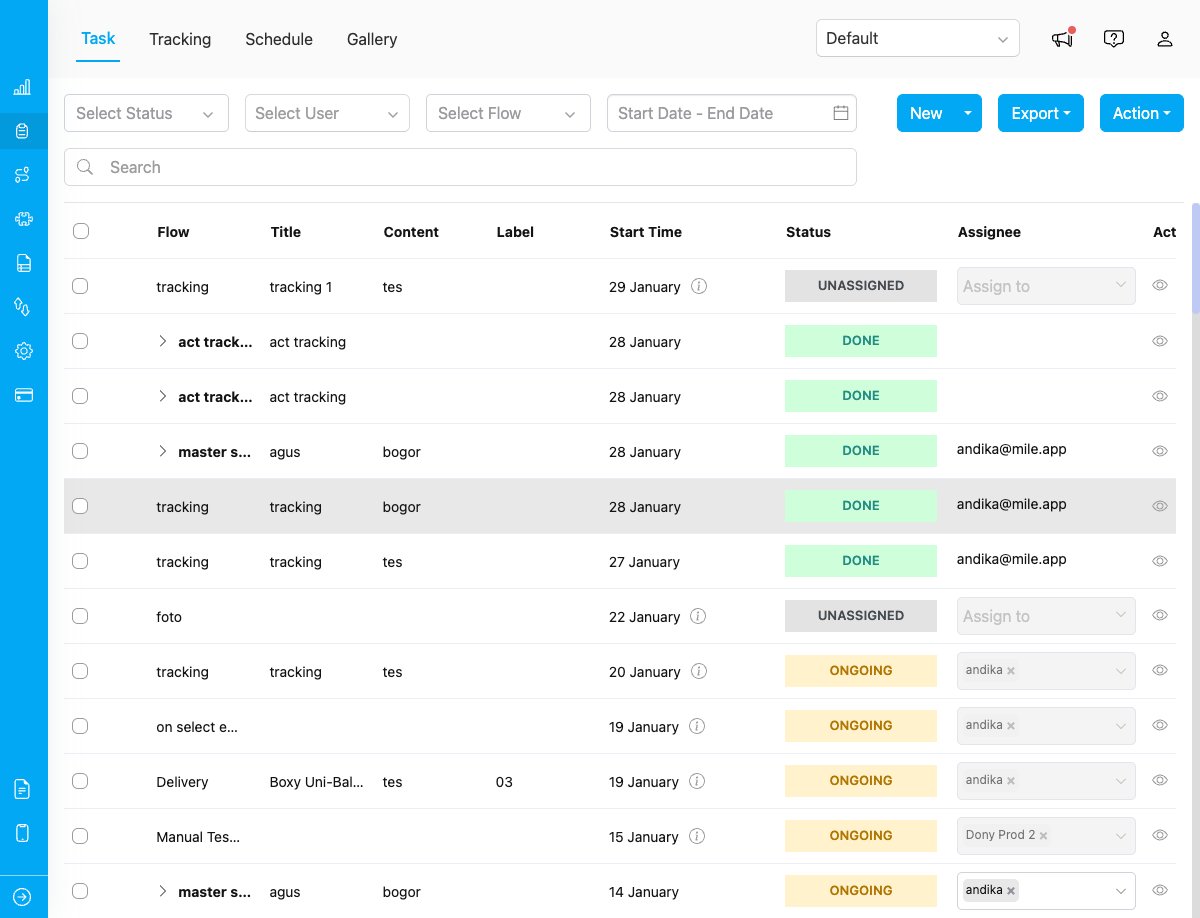
Go to the [Task page](https://web.mile.app/data/task) from the main menu.

<div align="center">
  <img src="https://mintcdn.com/mileappv4/smRmpBQnF7a5271v/images/task-list-page.png?fit=max&auto=format&n=smRmpBQnF7a5271v&q=85&s=4d1ca20ba8962a93bb8d80d7c6e3ffcd" alt="Task List Page" width="600" data-path="images/task-list-page.png" />

  <p><i>Task list showing all tasks in the selected hub</i></p>
</div>

**Step 2: Open Task Details**

Click on any task to open the task details panel.

<div align="center">
  <img src="https://mintcdn.com/mileappv4/p9ZfSbKRE9fCvdMV/images/portal-input-with-taskid.png?fit=max&auto=format&n=p9ZfSbKRE9fCvdMV&q=85&s=8f1d947ab7abae853ce891a4b9e3d7f1" alt="Task Details with ID" width="600" data-path="images/portal-input-with-taskid.png" />

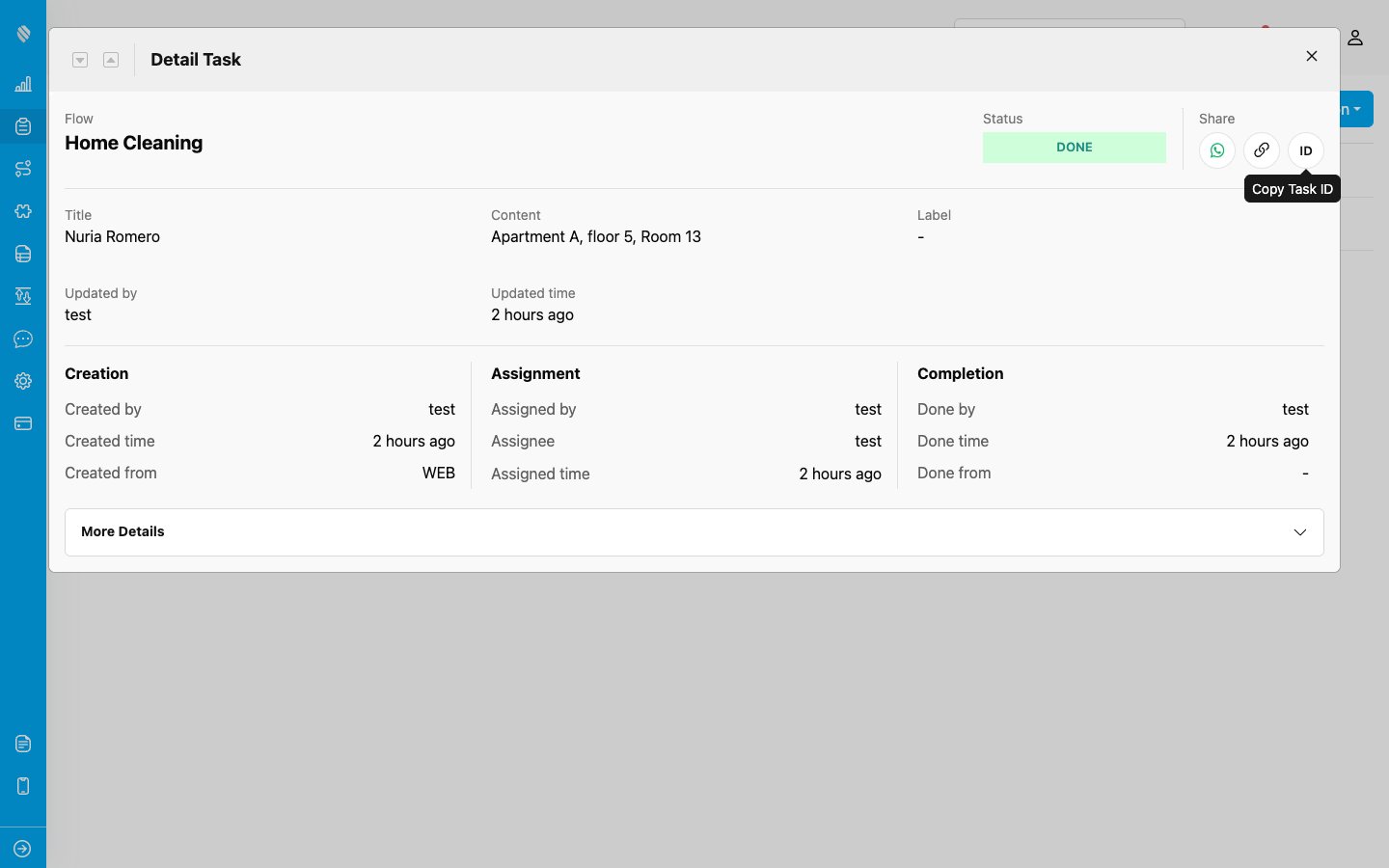
  <p><i>Task details panel displaying the Task ID</i></p>
</div>

**Step 3: Copy the Task ID**

In the task details panel, find the **Share** row. It holds three circular buttons: **WhatsApp**, a link icon, and **ID**. The link icon copies the complete tracking URL, while the **ID** button copies the Task ID by itself. Click the **ID** button to copy the Task ID to your clipboard.

The Task ID format is typically a 24-character hexadecimal string, for example:

```
66abcdef12345679ab0c74d2
```

## Sharing Options

Once you have the task ID, you can share tracking access in several ways:

### Option 1: Direct URL (Recommended)

Share the complete tracking URL with the task ID included:

```
https://web.mile.app/tracking/{taskId}
```

Replace `{taskId}` with the actual task ID. For example:

```
https://web.mile.app/tracking/66abcdef12345679ab0c74d2
```

**Benefits:**

* One-click access for recipients
* No need to copy and enter the task ID manually
* Easy to share via email, messaging apps, or SMS

### Option 2: Portal Access + Task ID

Direct users to the public tracking portal and provide the task ID separately:

1. **Portal URL:** `https://web.mile.app/tracking`
2. **Task ID:** `66abcdef12345679ab0c74d2`

Users will need to:

1. Visit the portal URL
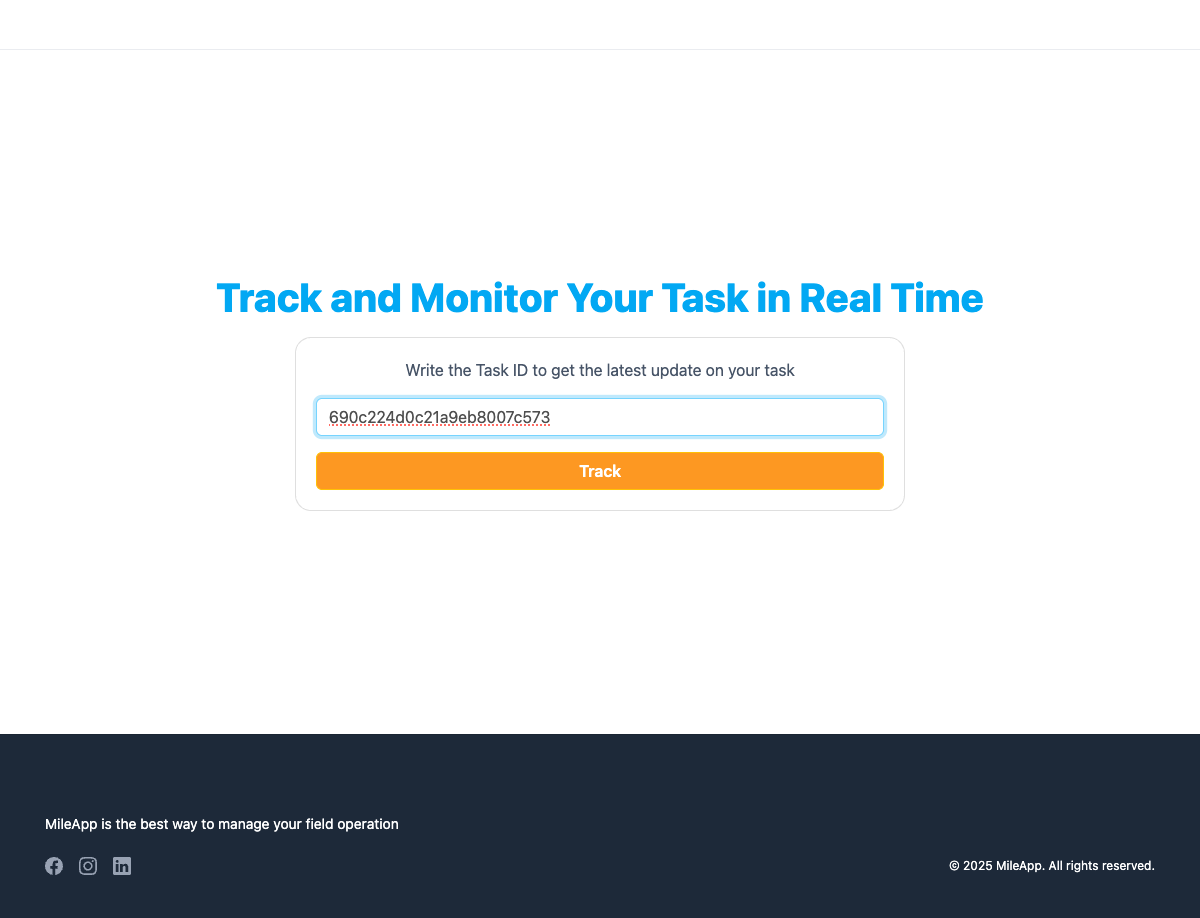
2. Enter the task ID in the input field
3. Click the "Track" button

<div align="center">
  <img src="https://mintcdn.com/mileappv4/p9ZfSbKRE9fCvdMV/images/portal-input-with-taskid.png?fit=max&auto=format&n=p9ZfSbKRE9fCvdMV&q=85&s=8f1d947ab7abae853ce891a4b9e3d7f1" alt="Portal Input Form" width="600" data-path="images/portal-input-with-taskid.png" />

  <p><i>Public tracking portal with task ID input field</i></p>
</div>

**Benefits:**

* Useful when verbally sharing the task ID
* Works well for support scenarios
* Can be used if the direct link is not available

### Option 3: Using Share Button in Task Detail (Easiest)

The quickest way to share public tracking is using the built-in share feature in the task detail panel:

1. Open the task from the task list
2. Choose your sharing method:
   * **WhatsApp**: Share directly via WhatsApp
   * **Copy Link**: Copy the public tracking URL to your clipboard
   * **ID**: Copy the Task ID on its own, without the rest of the URL

<div align="center">
  <img src="https://mintcdn.com/mileappv4/4-4k1mCQWAH9iJzs/images/task/share-copy-task-id.png?fit=max&auto=format&n=4-4k1mCQWAH9iJzs&q=85&s=3f62cb402d5f203fc498d55996411945" alt="Task Detail Share Button" width="600" data-path="images/task/share-copy-task-id.png" />
</div>

<p><em>The Share section in the task detail: WhatsApp, Copy Link, and ID, which copies the Task ID on its own</em></p>

**Benefits:**

* Fastest method - no need to manually copy task ID
* Direct integration with WhatsApp for instant sharing
* Automatically generates the complete tracking URL
* One-click copy link functionality
* One-click copy of the Task ID alone, for the portal + Task ID flow in Option 2

## Best Practices

**1. Share Immediately After Task Creation**

Send the tracking link as soon as the task is created so customers can monitor from the start.

**2. Include Clear Instructions**

Provide simple instructions on what recipients can expect to see and how to use the tracking page.

**3. Set Expectations**

Inform users about:

* When the task will be updated
* What information they'll see
* How often location updates occur

**4. Protect Task IDs**

While public tracking is designed for external sharing, treat task IDs as sensitive information. Only share with intended recipients.

**5. Test Before Sharing**

Always test the tracking link before sharing to ensure it works correctly and displays the expected information.

## What Recipients Will See

When external users access the public tracking page, they will see:

1. **Task Information**
   * Title
   * Content/Description
   * Label/Category

2. **Task History Timeline**
   * All status changes with timestamps
   * Task events (assigned, started, completed)
   * Display notes for each action

3. **Map View** (if location data available)
   * Current task and field user location
   * Route information

4. **Task Details** (based on flow configuration)
   * Media
   * Bill information
   * List information

For more information about what data is displayed on the public tracking page, see the [Public Tracking Information](/pages/task/public-tracking/public-tracking-information) guide.

## Troubleshooting

**"Task not found" error**

This occurs when:

* The task ID is incorrect or incomplete
* The task has been deleted
* There's a typo in the task ID

**Solution:** Double-check the task ID and ensure it's copied correctly.

**"Unable to load task data"**

This may happen due to:

* Network connectivity issues
* Server maintenance

**Solution:** Ask the user to refresh the page or try again later. If the issue persists, you can contact [support team](https://mile.app/en/support).

## Related

* [Introduction to Public Tracking](/pages/task/public-tracking/introduction-to-public-tracking)
* [Public Tracking Information](/pages/task/public-tracking/public-tracking-information)
* [Creating Tasks](/pages/task/creating-task/manual-task-input/manual-task-input)


This documentation is built and hosted on [Mintlify](https://mintlify.com), a developer documentation platform.