> ## Documentation Index
> Fetch the complete documentation index at: https://docsv4.mile.app/llms.txt
> Use this file to discover all available pages before exploring further.
# User
> See everyone who can sign in to your organization, and find people by role, team, name or email.
**Settings › User** lists the people who can sign in to your organization: office staff on the web app and field workers on the field app. From here you invite people, change their role, hubs and teams, and turn their access on or off.
Required permission:
* View user
## The user list
The list shows the users of the hub selected in the top bar.
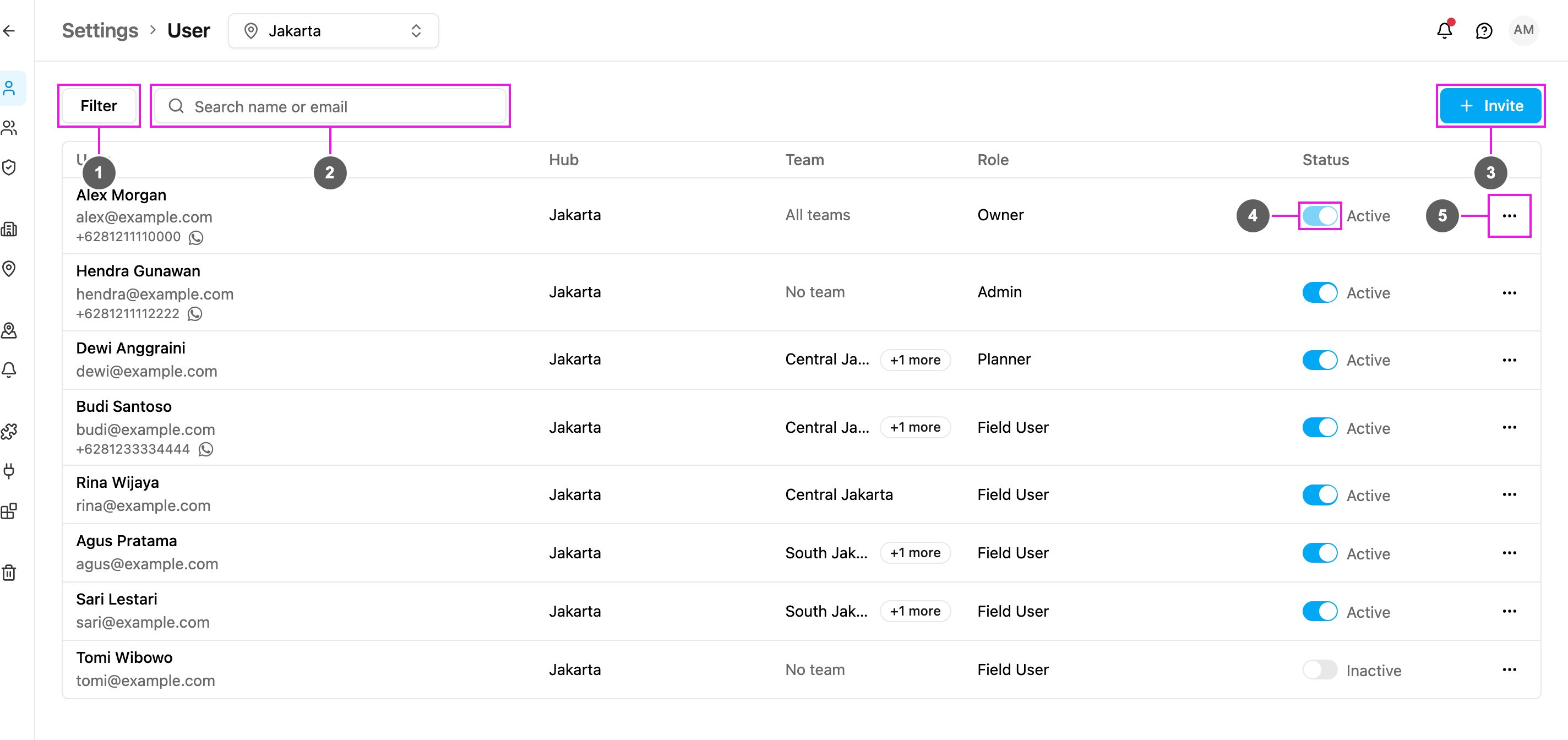
1. **Filter**: show only users with a given role or in a given team.
2. **Search name or email**: find a user by part of their name or email.
3. **Invite**: add people to the organization. See [Inviting Users](/pages/settings/user/inviting-users).
4. **Status**: turn a user's access on or off. See [Managing Users](/pages/settings/user/managing-users#activate-or-deactivate-a-user).
5. **More actions**: edit, reset password, reset cloud authenticator, unlock or delete the user. See [Managing Users](/pages/settings/user/managing-users).
| Column | Shows |
| - | - |
| **User** | The user's name, email and phone number. **You** marks your own account. Click the WhatsApp icon beside a phone number to message the user on WhatsApp. |
| **Hub** | The hubs the user can work in. More than one shows as *+N more*. |
| **Team** | The teams the user belongs to, or *No team*. An owner shows *All teams*, because an owner reaches every team. |
| **Role** | The user's role, such as Owner, Admin, Planner or Field User. See [Permission](/pages/settings/permission/introduction). |
| **Status** | **Active**, **Inactive**, **Invited** (the invitation hasn't been accepted yet) or **Declined**. A locked account shows **Locked**. |
## Filter and search
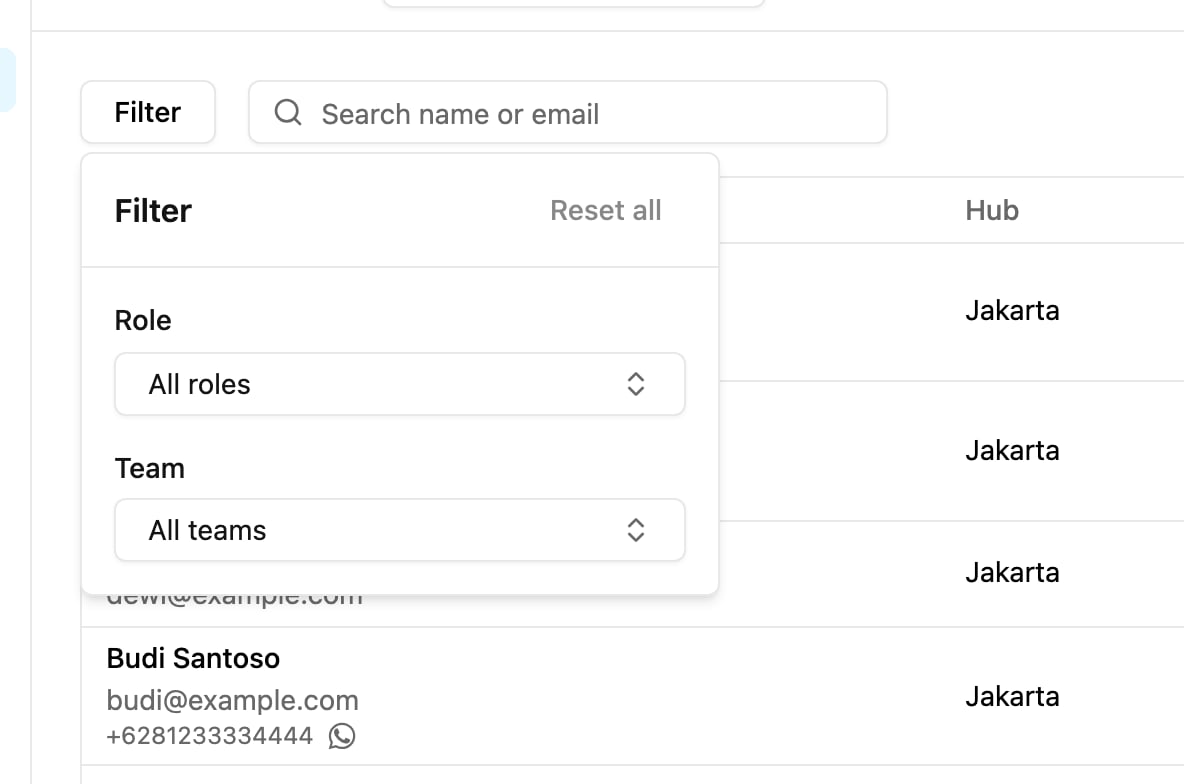
Click **Filter** and choose a **Role**, a **Team**, or both. Click **Reset all** to clear them.
Type in **Search name or email** to find a user. If matching users work in other hubs, the list says *Found in other hubs* and offers to switch to that hub. Switching hubs changes what every page shows.
## In this section
* [Inviting Users](/pages/settings/user/inviting-users)
* [Managing Users](/pages/settings/user/managing-users)
This documentation is built and hosted on [Mintlify](https://mintlify.com), a developer documentation platform.