> ## Documentation Index
> Fetch the complete documentation index at: https://docsv4.mile.app/llms.txt
> Use this file to discover all available pages before exploring further.
# Trash
> See what was deleted in the last 30 days, when, by whom, and the record as it was.
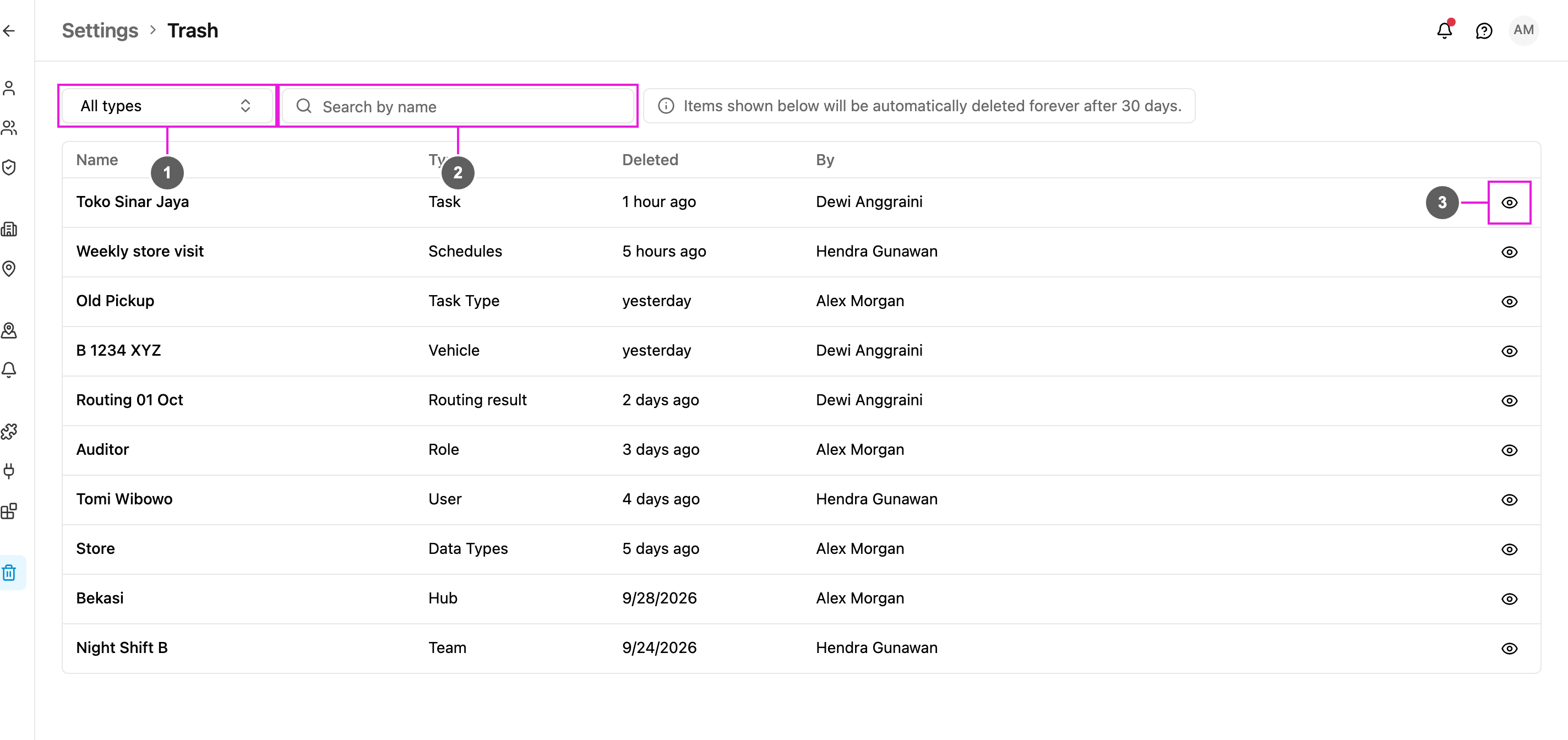
**Trash** lists the items deleted in your organization in the last 30 days. After 30 days they are deleted forever.
Open **Settings › Trash**.
Required permission:
* View trash
1. **Type**: show only one type of deleted item, or **All types**.
2. **Search by name**: find a deleted item by its name.
3. **View record**: open the deleted item as it was when it was deleted.
The note next to the search reads *Items shown below will be automatically deleted forever after 30 days.*
## Columns
| Column | What it shows |
| - | - |
| **Name** | The name of the deleted item, such as a task title, a user's name or a vehicle plate. |
| **Type** | What kind of item it was. See the list below. |
| **Deleted** | When it was deleted: relative for recent items (*1 hour ago*, *yesterday*), then the date. |
| **By** | The user who deleted it. |
The count above the table shows how many items match the current filter.
## Types of deleted items
The **Type** filter covers:
1. **Task Schedule**
2. **Role**
3. **Task**
4. **Task Type**
5. **Automation**
6. **Routing result**
7. **Data**
8. **Data type**
9. **User**
10. **Vehicle**
11. **Hub**
12. **Team**
13. **Geofence**
14. **Custom module**
15. **Location history**
## View a deleted record
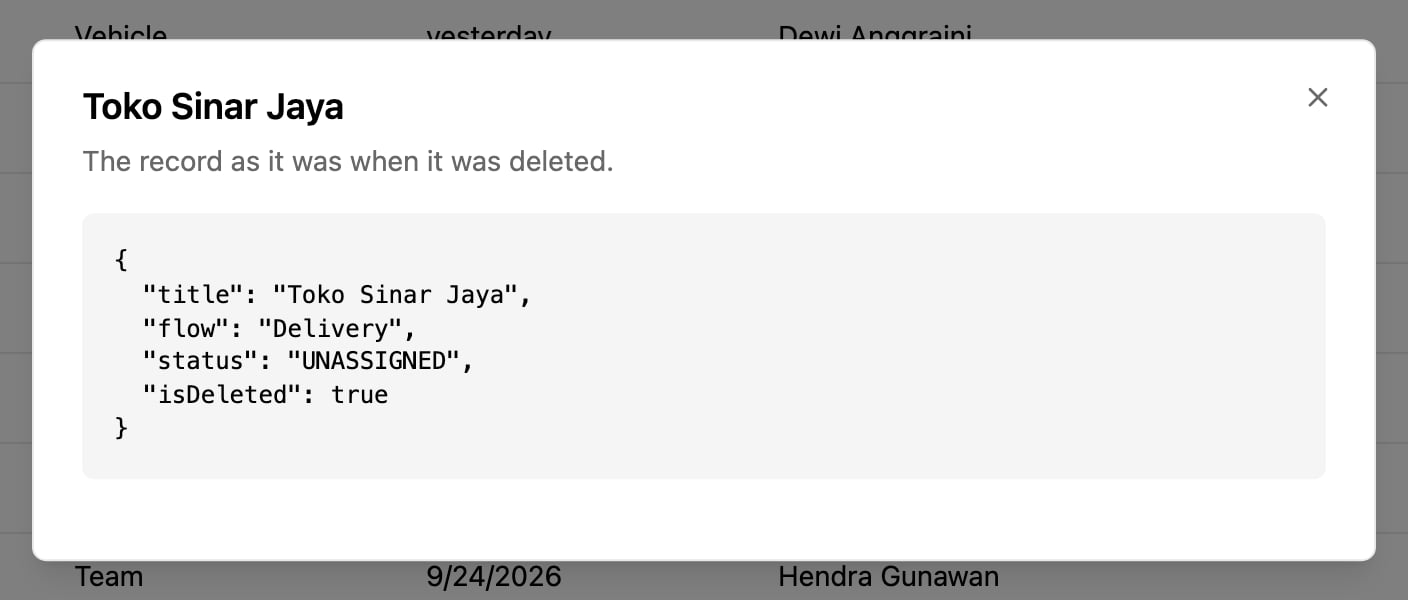
Click **View record** (the eye button) on a row.
The dialog shows the record as it was when it was deleted, in JSON format. It's a structured view of every field the item had, so you can check exactly what was removed or copy values you still need. Click **Close** or the **×** to go back.
Trash is a read-only record. Deleted items cannot be restored from it. To bring something back, create it again, using the record as a reference.
This documentation is built and hosted on [Mintlify](https://mintlify.com), a developer documentation platform.