> ## Documentation Index
> Fetch the complete documentation index at: https://docsv4.mile.app/llms.txt
> Use this file to discover all available pages before exploring further.
# Team
> Group users who work together inside a hub, and limit who can see and assign whom.
A **team** is a group of users inside one hub. Teams make task management more granular: a user who belongs to a team only sees, and can only assign work to, people in their own teams and people who have no team.
* Teams are **optional**. If you don't create any, nothing is restricted.
* Users **without a team** are not restricted: they see everyone, and anyone can assign tasks to them.
* **Owners** automatically reach every team in the organization.
* A user can belong to **more than one team**.
## The team list
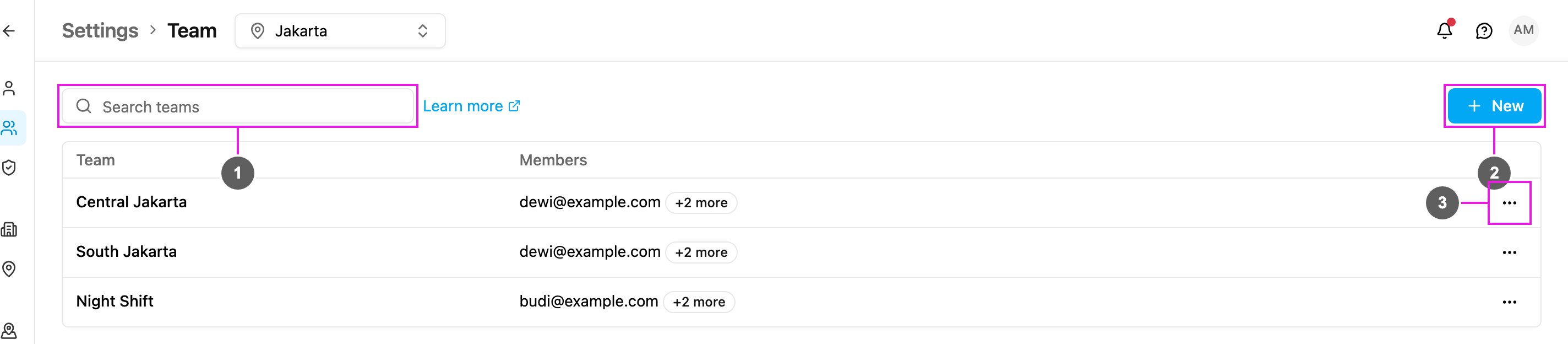
Open **Settings › Team**. The list shows the teams in the hub selected in the top bar; switch hubs to see another hub's teams.
Required permission:
* View team
1. **Search teams**: find a team by name.
2. **New**: create a team.
3. **More actions**: **Edit** or **Delete** the team.
The table has two columns:
| Column | What it shows |
| - | - |
| **Team** | The team name. |
| **Members** | The first members of the team, with **+N more** when there are others. *Nobody yet* means the team is empty. |
The count above the table shows how many teams the hub has.
## Create a team
Required permission:
* View team
* Create team
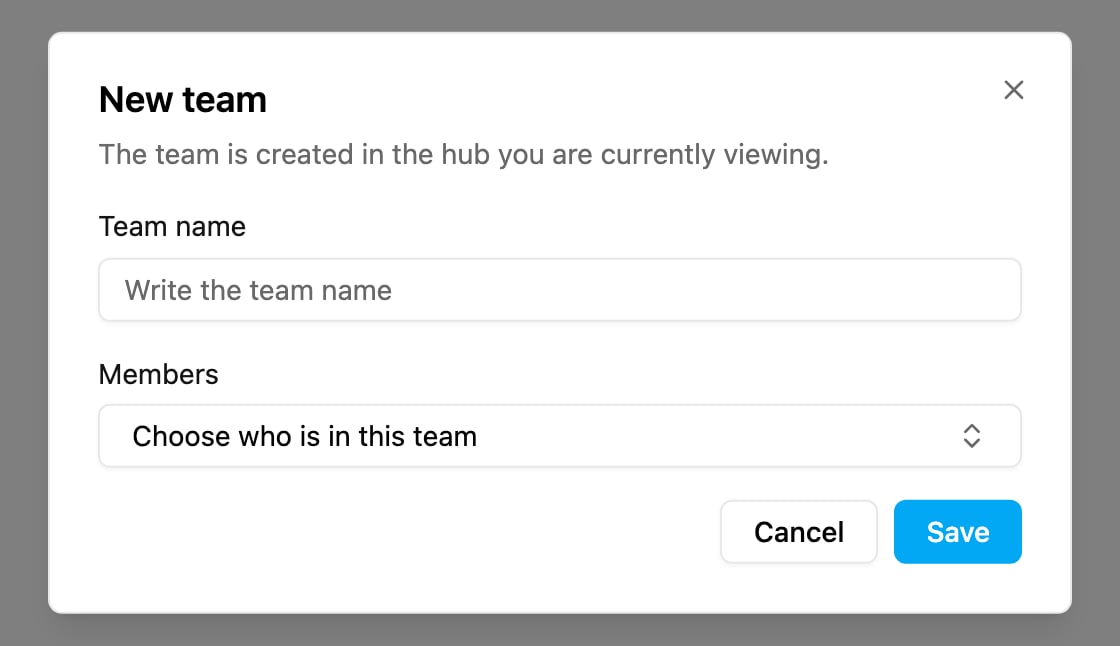
Click **New**.
1. **Team name**: a unique name that reflects your structure, such as a division, a shift or an area. A team needs a name.
2. **Members**: choose who is in the team. The list offers the users of the hub you are viewing; search it by name, or pick **Everyone in this hub**.
3. Click **Save**.
The team is created in the hub you are currently viewing. If your plan does not include more teams, you'll see *Your plan does not include more teams. Contact us to upgrade.*
The user who creates a team is automatically a member of it, so you can keep working with it straight away.
## Edit a team
Required permission:
* View team
* Edit team
Open **More actions** on the team's row and choose **Edit**. Change the **Team name** or add and remove **Members**, then click **Save**. Changes are saved together when you press Save. If you close the dialog with unsaved changes, you're asked to **Discard** them or **Keep editing**.
Renaming a team updates it everywhere it appears, for example in assignee pickers.
## Delete a team
Required permission:
* View team
* Delete team
Open **More actions** and choose **Delete**, then confirm. This cannot be undone. The deleted team is kept for 30 days in [Trash](/pages/settings/trash) for reference.
A team that still has members can't be deleted: the dialog says how many people are still on it. Move them to another team, or remove them from the team, first.
## Assign teams to users
You can also set a user's teams from **Settings › User**: open the user's **More actions › Edit** and choose their **Teams**. See [Managing Users](/pages/settings/user/managing-users).
* Each team belongs to one hub, so the picker groups teams under the hub that owns them. Team names can repeat across hubs, and the hub heading tells them apart.
* Give the user the hub before you add them to that hub's team.
## How teams limit assignment
Teams decide which users appear in every assignee dropdown, including the ones in **Task**, **Automation**, **Task Schedule**, **Vehicle**, **Routing result**, **Tracking** and **Data**. When you assign a task to a team, its members are filled in for you, and each member is shown in the task list.
1. **Users without a team** are not restricted. They can see, and be seen by, every user in the organization, and anyone can assign tasks to them.
2. **Users with a team** see users who have no team and users who share at least one team with them.
3. **Assigning across teams** is not possible: a user can't pick or assign tasks to someone outside their own teams (other than users with no team).
4. **Creating a team** makes you a member of it. If you create Team A and Team B, you're a member of both.
5. **Owners** get access to every team automatically, including teams created later and teams created by others. They see all users and all tasks in the organization. This applies to every owner, including newly invited ones, no matter who registered the organization.
If you don't see **Team** in the settings menu, ask an admin to turn on **View team** for your role in [Permission](/pages/settings/permission/introduction).
This documentation is built and hosted on [Mintlify](https://mintlify.com), a developer documentation platform.