> ## Documentation Index
> Fetch the complete documentation index at: https://docsv4.mile.app/llms.txt
> Use this file to discover all available pages before exploring further.
# Access and Sign-in
> Multi-factor authentication, single login, mobile-only access and location tracking for a role.
These permissions control how and where people with a role sign in, and how the field app tracks them. Set them on **Settings › Permission** for the role, then click **Save**. Use **Search permissions** to jump to each one.
Required permission:
* View permission
* Edit permission
## Multi-factor authentication
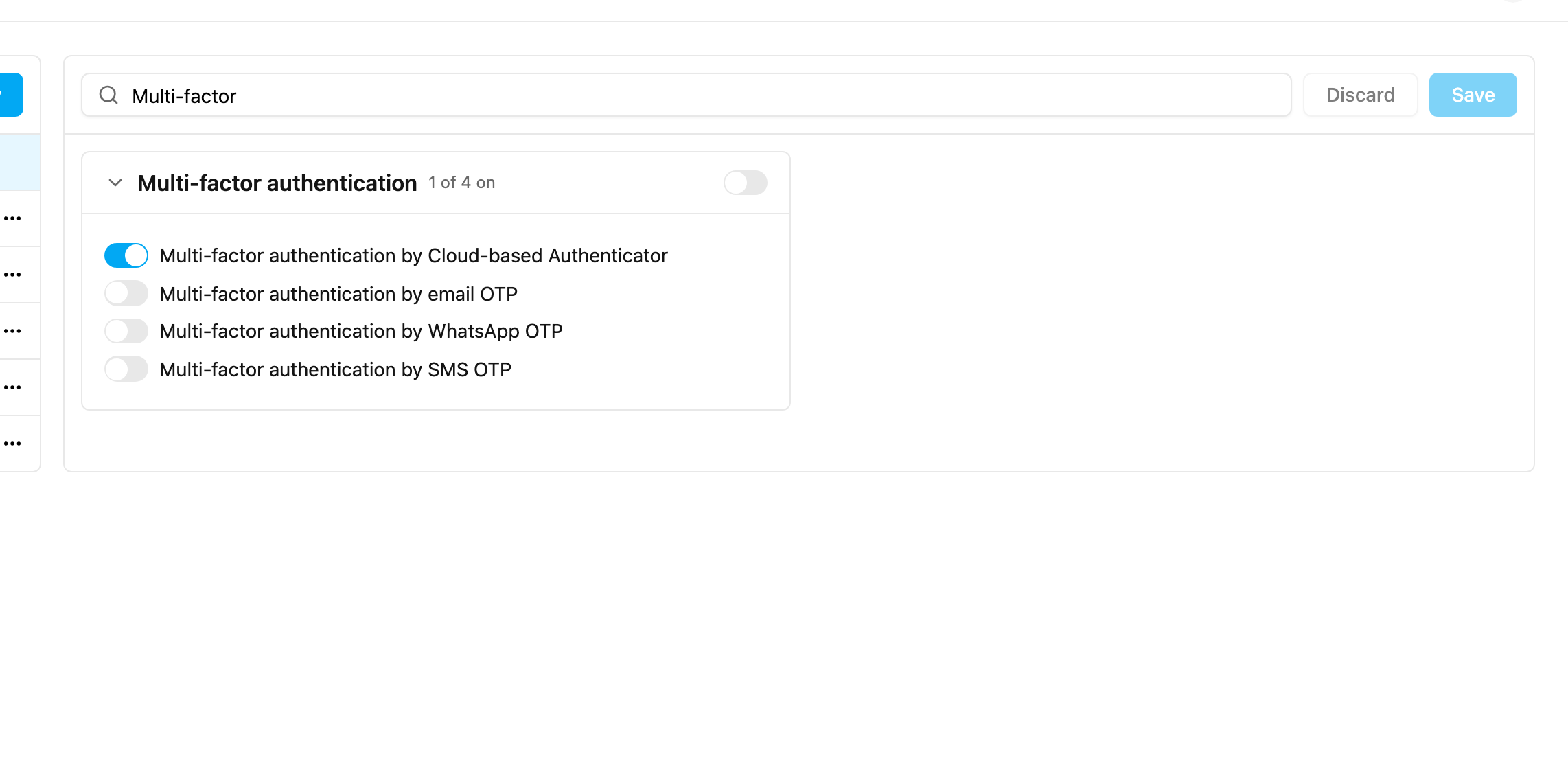
Require a second step when people with this role sign in. Each method is its own switch, so you can allow more than one.
| Switch | Second step |
| - | - |
| **Multi-factor authentication by Cloud-based Authenticator** | A code from an authenticator app such as Google Authenticator. The user sets it up from their profile menu; see [Password and Sign-in Security](/pages/account/password-and-security). |
| **Multi-factor authentication by email OTP** | A one-time code sent to the user's email. |
| **Multi-factor authentication by WhatsApp OTP** | A one-time code sent by WhatsApp. |
| **Multi-factor authentication by SMS OTP** | A one-time code sent by SMS. |
If a user loses their authenticator app, an admin can reset it from **Settings › User**. See [Managing Users](/pages/settings/user/managing-users#reset-cloud-authenticator).
## Single Login
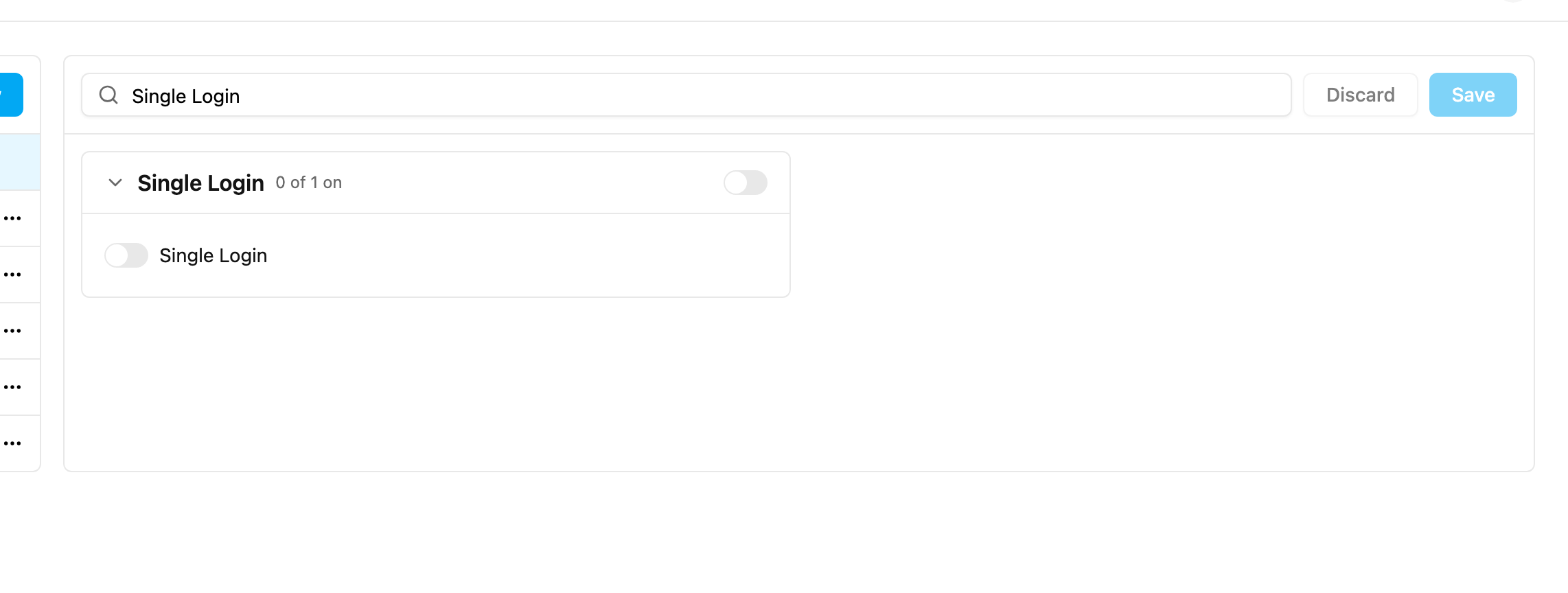
Allow only one active session per user. When **Single Login** is on and a user signs in on another device, every earlier session is **signed out automatically**. This applies to the web app and the field app.
## Mobile App Access Only
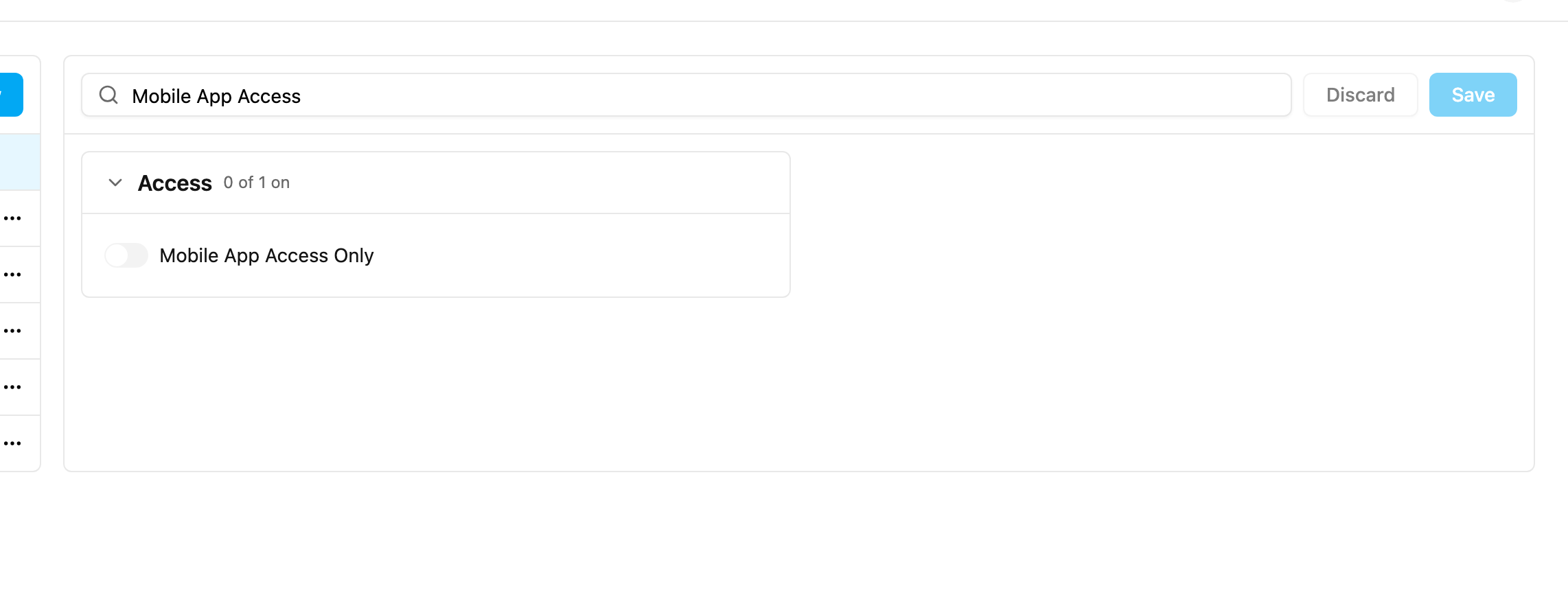
People with a role that has **Mobile App Access Only** can sign in only on the field app. Signing in on the web app is refused, with a message telling them to ask their admin for web access.
It suits drivers and other field workers who never need the web app, and organizations that must keep office data off personal browsers. When it's off (the default), people can sign in on both.
## Location Tracking (Start Trip and End Trip)
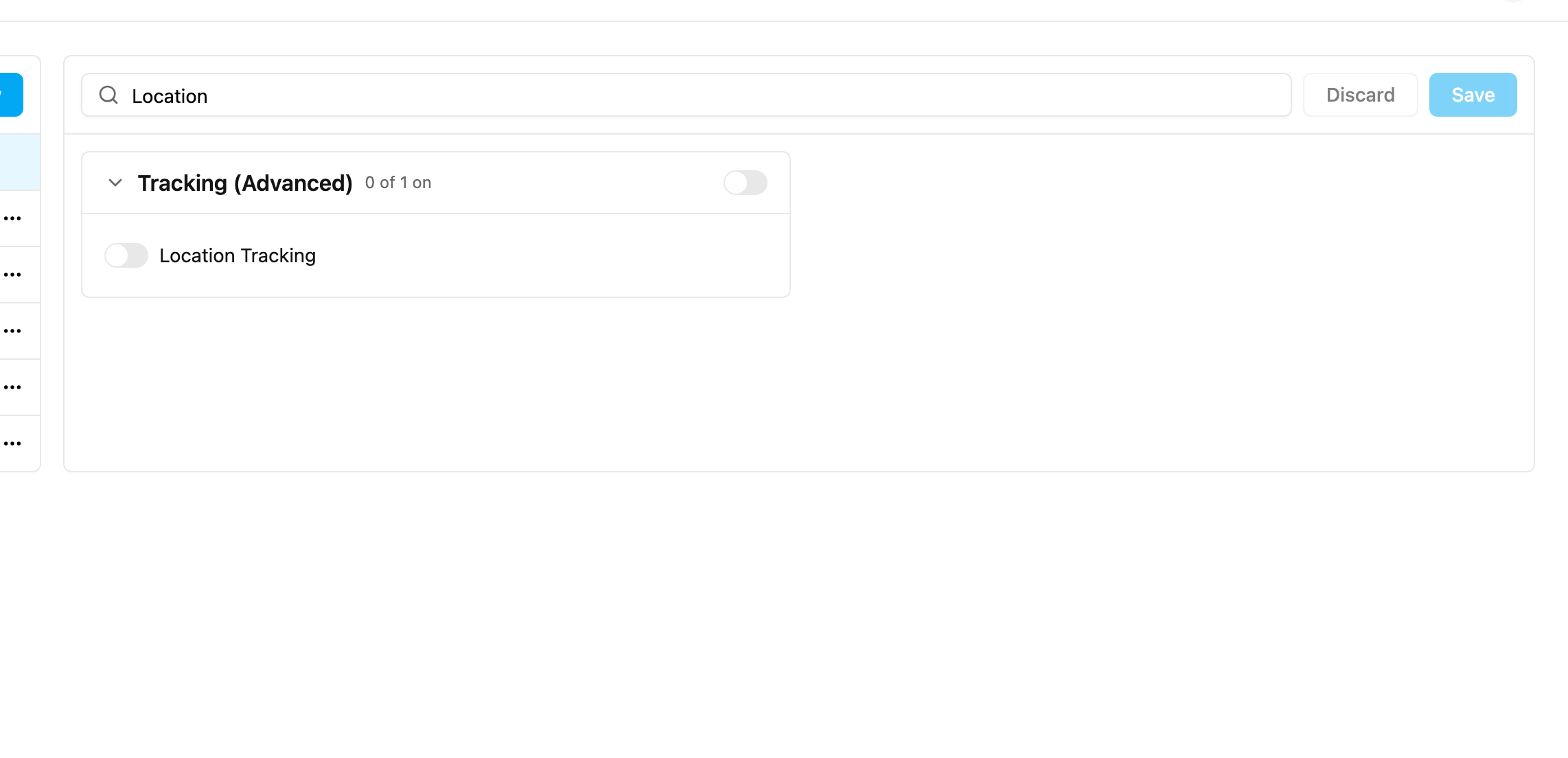
**Location Tracking** in the **Tracking (Advanced)** group turns on trip-based tracking in the field app.
When it's **on**, field workers tap **Start Trip** before they begin their tasks and **End Trip** when they finish. Their location is recorded only between the two, and shows on [Tracking](/pages/monitoring/tracking/introduction). Turning it on shows three settings:
* **Location tracking**: how often the location is recorded.
| Mode | Records the location |
| - | - |
| **Power saving** | Every 10 minutes, at least 10 metres apart. Saves battery. |
| **Balanced** | Every 3 minutes, at least 20 metres apart. Balances accuracy and battery. |
| **High accuracy** | Every minute, at least 10 metres apart. Uses the battery quickly. |
* **Start radius** (metres): how far from the hub a trip may start. For example, with 500 a field worker must be within 500 metres of the hub to start.
* **End radius** (metres): how far from the hub a trip may end.
Zero means anywhere: with both radii at 0, trips can start and end from any location.
When it's **off**, the field app records only the coordinates captured with each task, and doesn't track the field worker between tasks.
This documentation is built and hosted on [Mintlify](https://mintlify.com), a developer documentation platform.