> ## Documentation Index
> Fetch the complete documentation index at: https://docsv4.mile.app/llms.txt
> Use this file to discover all available pages before exploring further.
# Accurate
> Sync Accurate Online and the app in both directions: Sales Orders become tasks, and finished tasks create Delivery Orders.
The **Accurate** integration connects your organization to **Accurate Online** (Accurate.id), the Indonesian cloud accounting platform by CPSSoft. Once connected, data moves in **two directions**:
* **Pull into the app**: a Sales Order created in Accurate becomes a task automatically.
* **Send to Accurate**: finishing that task creates a Delivery Order in Accurate.
Each direction is set up with its own **rules**, and you can use one direction or both. The full round trip:
1. A **Sales Order** is created in Accurate.
2. It is **pulled** into the app as a task.
3. The task is **done and delivered** in the field app.
4. A **Delivery Order** is **sent** back to Accurate, linked to the Sales Order.
Required permission:
* View integration
* Create integration (to connect and to add rules)
* Edit integration (to turn rules on or off and repair them)
* Delete integration (to delete rules and disconnect)
The **Accurate** card is offered to selected accounts only. If you don't see it on **Settings › Integration**, contact support.
## Before you begin
1. **An Accurate Online account**: the cloud version, which provides the Open API this integration uses.
2. **At least one business (data usaha)** set up in your Accurate Online account.
3. **Create integration** permission in the web app.
4. **One Accurate account per organization**: an Accurate account holds a single active connection at a time, so connecting it to a second organization ends the first connection. Use a separate Accurate account for each organization you want to sync.
## Step 1: Connect your Accurate account
1. Open **Settings › Integration**.
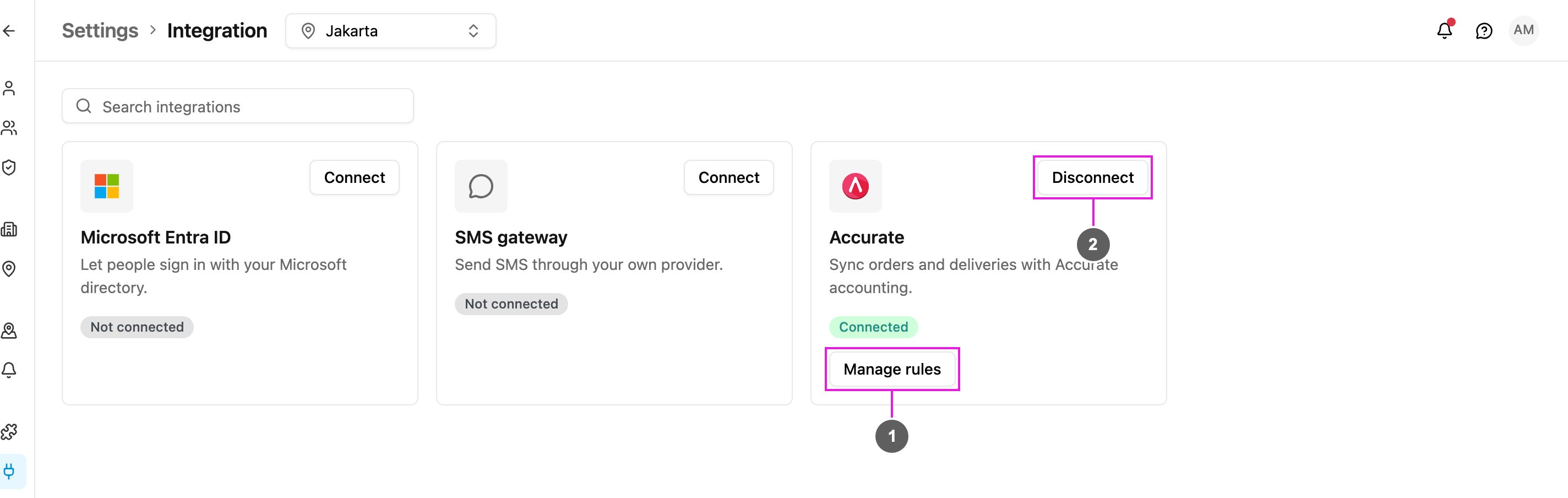
2. On the **Accurate** card, click **Connect**.
3. You're taken to Accurate's authorization page. Sign in with your Accurate credentials and click **Grant Access**.
4. Accurate sends you back to **Settings › Integration**. The card now shows **Connected**.
1. **Manage rules**: opens **Accurate rules**, where you add, turn on or off, repair and delete the sync rules.
2. **Disconnect**: ends the connection. See [Disconnect](#disconnect).
The businesses in your Accurate account come with the connection. Each rule targets **one business**, because values such as Customer, Item and Branch are records that live inside a single company. To sync a second company, add a second rule for it.
## Step 2: Open the rules
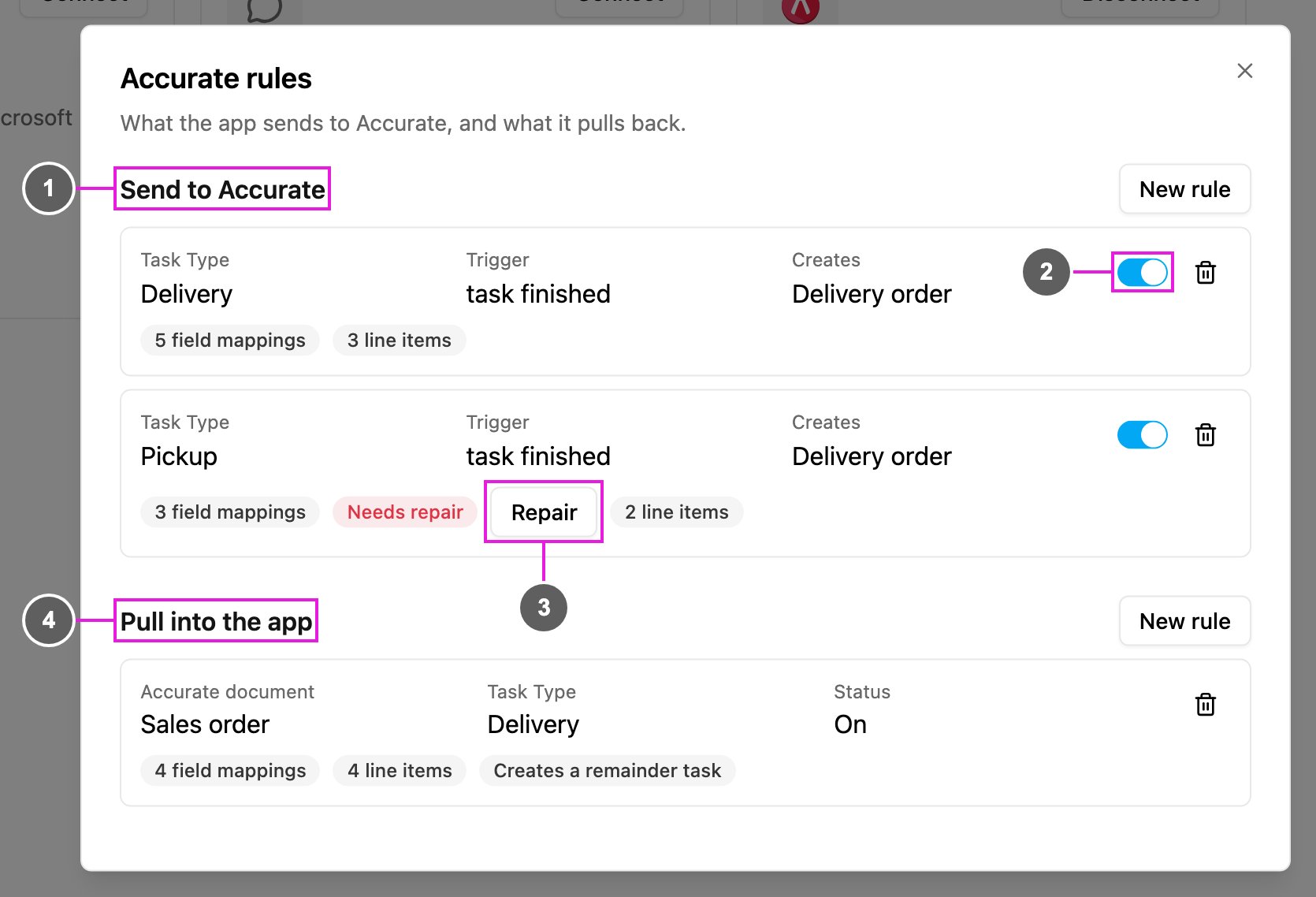
Click **Manage rules** on the card.
1. **Send to Accurate**: rules that create a record in Accurate when something happens to a task. Each rule shows its **Task Type**, **Trigger** and what it **Creates**, with badges for the number of field mappings and line items. *No rules send anything to Accurate yet.* means there are none.
2. **On / off switch**: turns a send rule on or off without deleting it. The toast *Rule turned on.* or *Rule turned off.* confirms it.
3. **Needs repair** and **Repair**: every send rule runs through an automation the app creates for it. If that automation was edited or deleted on the Automation page, the rule shows **Needs repair**. Click **Repair** and it is rebuilt (*Rule repaired.*).
4. **Pull into the app**: rules that turn an Accurate document into a task. Each rule shows its **Accurate document**, **Task Type** and **Status** (**On** or **Off**), with badges for field mappings, line items and **Creates a remainder task** when that option is on. *No rules pull anything from Accurate yet.* means there are none.
Each section has its own **New rule** button. The bin icon on a rule deletes it: see [Delete a rule](#delete-a-rule).
## Step 3: Add a rule that pulls Sales Orders in
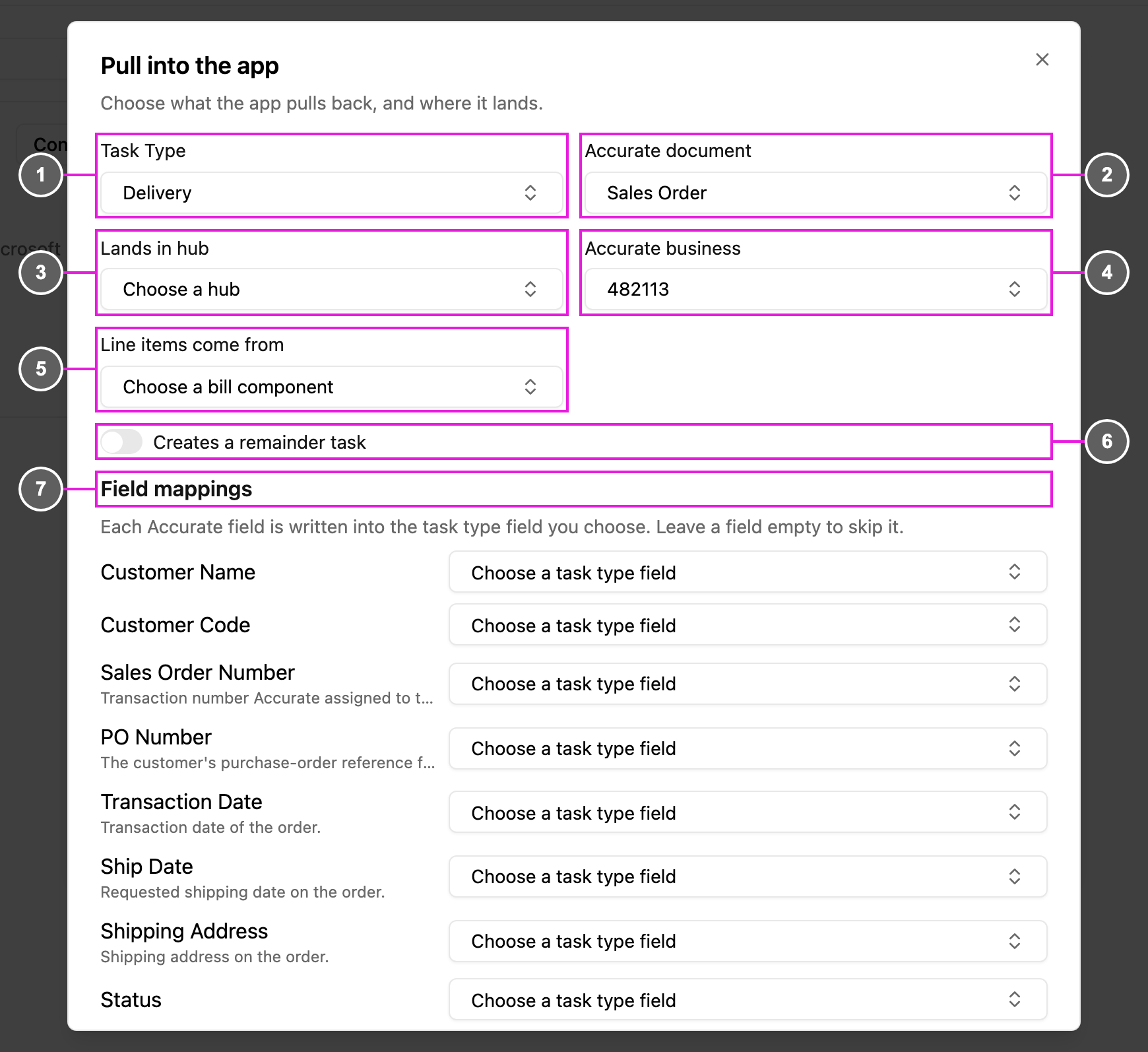
Click **New rule** under **Pull into the app**.
1. **Task Type**: the task type new tasks are created in.
2. **Accurate document**: **Sales Order**.
3. **Lands in hub**: the hub the new tasks belong to.
4. **Accurate business**: the business the Sales Orders come from.
5. **Line items come from**: the **Bill** component that receives the order's item rows. See [Bill](/pages/workflow/task-type/components/bill/introduction).
6. **Creates a remainder task**: turn this on and a Sales Order that is only partly delivered raises a new task for what's still owed. See [Partial delivery and the remainder task](#partial-delivery-and-the-remainder-task).
7. **Field mappings**: every field the Sales Order offers gets a row, such as **Customer Name**, **Customer Code**, **Sales Order Number**, **PO Number**, **Transaction Date**, **Ship Date**, **Shipping Address** and **Status**. For each one you want, choose the task type field it is written into. Leave a row empty to skip it.
Below the field mappings, **Line items** lists the Accurate item columns, such as **Item Code**, **Item Name**, **Line Description**, **Quantity**, **Unit Price** and **Total Price**. Next to each, type the name of the row field on the Bill component that receives it, for example `qty`.
Click **Save**. The toast *Rule created.* confirms it.
The same Accurate document and business can feed **several task types**. One Sales Order then creates one task in **each** of them.
## Step 4: Add a rule that sends Delivery Orders back
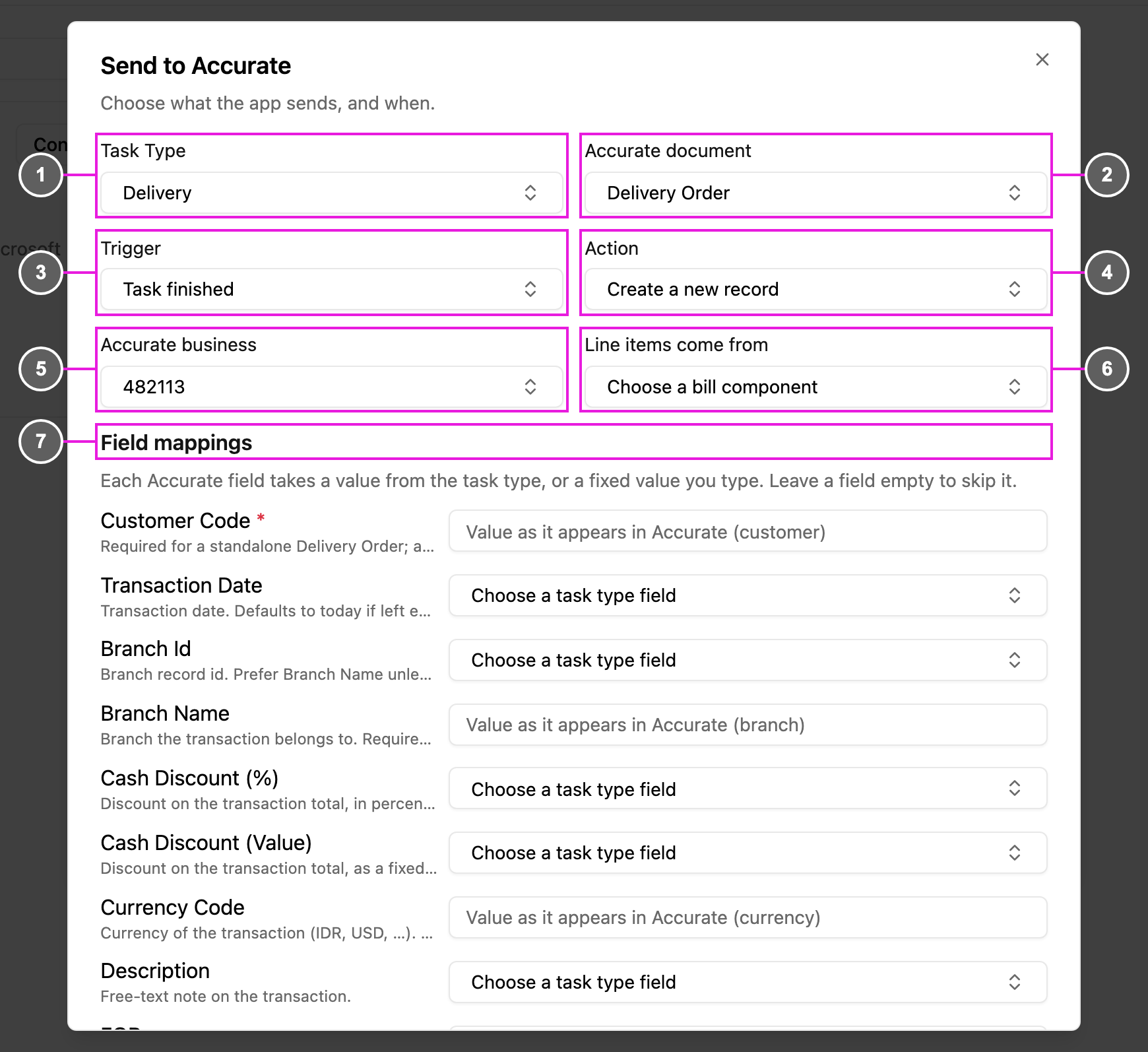
Click **New rule** under **Send to Accurate**.
1. **Task Type**: the task type whose tasks are sent.
2. **Accurate document**: **Delivery Order**.
3. **Trigger**: when the record is sent: **Task created**, **Task assigned** or **Task finished**. Use **Task finished** so the record carries what the driver actually delivered.
4. **Action**: **Create a new record** or **Update an existing record**.
5. **Accurate business**: the business the record is created in.
6. **Line items come from**: the **Bill** component whose rows become the Delivery Order's items.
7. **Field mappings**: every Accurate field the Delivery Order accepts gets a row, with a short note under its name. Fields marked **\*** are required by Accurate.
There are two kinds of row:
* **Choose a task type field**: the value is taken from a field of the task type, for example **Transaction Date** or **Description**.
* **Value as it appears in Accurate (…)**: fields that point at a record that already exists in Accurate, such as **Customer Code**, **Branch Name**, **Currency Code**, **Payment Term**, **Carrier** and **FOB**, take a fixed value. Type it exactly as it appears in Accurate, for example the customer's code (not its name).
Below the field mappings, **Line items** lists the Delivery Order's item columns, such as **Item Code** and **Unit Price** (both required by Accurate), **Quantity**, **Unit**, **Line Description**, **Line Notes**, **Warehouse**, **Department** and **Project**. Next to each, type the name of the Bill row field that fills it.
Click **Save**. If a required Accurate field is still empty, the dialog lists what's missing: *Accurate needs these before it will accept the record: …*. Otherwise the toast *Rule created.* confirms it.
A Delivery Order sent for a task that was **pulled in from a Sales Order** links back to that Sales Order and advances its fulfilment. Its **customer** and **branch** are taken from the Sales Order itself, so you don't need to map them for this round trip; a fixed **Customer Code** is only used for tasks that didn't come from a Sales Order. If the task's Bill contains a row that wasn't on the original Sales Order, that row is added to the Sales Order first, which can increase the order's total.
**Branch** matters when your Accurate business has more than one branch: Accurate requires a branch on a Delivery Order in a multi-branch company. For a single-branch company it isn't needed.
## Which fields can be mapped
Accurate stores five kinds of value: text, whole number, money, true/false and date. Map a field only if it holds **one** such value. The rules are the same in both directions.
**Input components**, by their type:
| Type | Can be mapped | Fills which Accurate fields |
| - | - | - |
| Text | Yes | Text fields |
| Address | Yes | Text fields, e.g. Shipping Address |
| Phone Number | Yes | Text fields |
| URL | Yes | Text fields |
| Number | Yes | Number and money fields |
| Currency | Yes | Money fields |
| Date | Yes | Date fields |
| Date Time | Yes | Date fields. Accurate stores a date only, so the time is dropped |
| Time | Text only | Text fields only. It has no date, so it can never fill a date field |
| Coordinate | Text only | Text fields only, as the raw coordinate text |
**Other components:**
| Component | Can be mapped |
| - | - |
| Select | Yes, into text fields. If several options are chosen, they arrive as one comma-separated line |
| Bill | Line items only, never a single field. Each Bill row becomes one order item |
| Photo, Capture, Video, Voice Note, Signature, View, Subpage, Subflow, Timer, OTP | No |
Components that hold a file or a picture, group other components, or only display something have no value for Accurate to record. See [Components](/pages/workflow/task-type/components/introduction).
## Syncing happens automatically
**Send to Accurate.** Saving a send rule creates an automation in the background, named *\[Accurate] Task Type → Document*, for example *\[Accurate] Delivery → Delivery Order*. You can see it on the Automation page, but you don't need to manage it. From then on, every task of that task type that reaches the trigger is sent to Accurate. Any Bill item that doesn't exist in Accurate yet is created there when the task is sent, so you don't need to create every product in Accurate first.
**Pull into the app.** Once a pull rule exists, Accurate tells the app whenever a Sales Order in that business changes:
* **Created**: a task is created in each mapped task type, in the hub you chose.
* **Edited**: the linked task is updated. No duplicate is created, however many times the order changes.
* **Deleted**: the linked task is deleted.
A task that is already **Done** is never changed or deleted by a later edit in Accurate, so completed field work is protected.
### Partial delivery and the remainder task
A driver can deliver less than the order asked for: on the Bill, the quantity starts at the ordered amount and can be lowered. The Delivery Order records what was actually handed over, and the Sales Order keeps the difference outstanding.
With **Creates a remainder task** on, the app raises a new task for that outstanding quantity as soon as the first task finishes. It carries the same customer, address and mappings, with a Bill holding only what's still owed. Deliver it partly again and the cycle repeats, each time leaving a smaller remainder, until the Sales Order is fully delivered and shows **Processed** in Accurate.
With it off, a partial delivery simply closes the task. The Sales Order still shows the outstanding quantity in Accurate, and you decide what happens next.
### Serial numbers
Some Accurate items are **serial-managed**: each unit has its own serial or batch number, and Accurate rejects a Delivery Order that doesn't carry one serial per delivered unit. For send rules that already supply serials, serial matching is forgiving of surplus and strict on shortfalls: extra or unrecognized serials are ignored, and only delivering **fewer** valid serials than the line's quantity fails the send, with a message naming the item. A send rule for serial-managed items can't be set up from this dialog yet; contact support to set one up.
## Example: a complete round trip
This walkthrough follows one order the whole way.
1. **Two rules.** In **Manage rules**, a task type named **Delivery** has a pull rule (Sales Order) and a send rule (Delivery Order, trigger **Task finished**).
2. **A Sales Order in Accurate.** Your sales team creates a Sales Order as usual: a customer, the items and the quantities. It appears in Accurate's Sales Order list as **Waiting on Process**.
3. **The task appears.** Within about half a minute a task is in your task list, created from the API, with the customer details already filled in. Its **Bill** shows every order line with item, quantity and price.
4. **The field work.** The task is assigned and done in the field app like any other. On the Bill page the driver confirms the quantity actually delivered, lowering it when the delivery is partial.
5. **The task finishes.** Finishing the task is what triggers the send.
6. **The Delivery Order arrives in Accurate.** It's created automatically with the delivered items and quantities, for the same customer and branch as the Sales Order.
7. **The Sales Order closes itself.** Once everything is delivered, the Sales Order shows **Processed** in Accurate.
What this gives you:
* An order raised by your sales team reaches the driver without anyone re-typing it.
* The quantity the driver confirms is the quantity your books record.
* The Sales Order closes itself once delivery is complete, so your accounting stays current on its own.
## Managing the integration
### Turn a rule on or off
Use the switch on a send rule. A rule that is off keeps its mappings and starts sending again when you turn it back on.
### Delete a rule
Required permission:
* View integration
* Delete integration
Click the bin icon on the rule. *Delete this rule?* warns that the app stops syncing this task type with Accurate. Click **Delete**. Documents already in Accurate and tasks already created stay where they are.
There is no edit button on a rule: to change one, add the new rule, then delete the old one.
### Reconnect
The card shows **Reconnect** when the connection still exists but needs to be authorized again, for example when a new capability needs a permission your connection predates. Click it, sign in to Accurate and grant access again. Reconnecting refreshes the permissions and **keeps every rule**.
If Accurate ended the connection, for example because the same Accurate account was connected to another organization, the card shows **Not connected** and **Connect**. Connect again to resume syncing, and see [Before you begin](#before-you-begin) on keeping one Accurate account per organization.
### Disconnect
Click **Disconnect** on the card and confirm. Your **rules are kept**. Disconnecting removes the stored credentials and pauses syncing in both directions; connecting again resumes it. Use **Reconnect** instead if you only need to refresh permissions.
To also remove the app's access on the Accurate side, open your Accurate account, go to **Aplikasi Terhubung** (Connected Applications), and remove it there.
## Good to know
* **A task type can carry both directions.** The same task type can hold a Sales Order pull rule and a Delivery Order send rule, which is exactly the round trip above.
* **Keep rules in step with your task types.** If a task type is edited after a rule is saved and a mapped field is gone, replace the rule with one that points at the new field.
* **Syncing is go-forward.** A rule starts working on the next order or task, so create the rule before the work you want synced.
This documentation is built and hosted on [Mintlify](https://mintlify.com), a developer documentation platform.