> ## Documentation Index
> Fetch the complete documentation index at: https://docsv4.mile.app/llms.txt
> Use this file to discover all available pages before exploring further.
# Managing Routing Schedules
> Read the schedule list, check what the last run did, and edit or delete a schedule.
## The schedule list
Required permission:
* View Schedule (Routing Schedule)
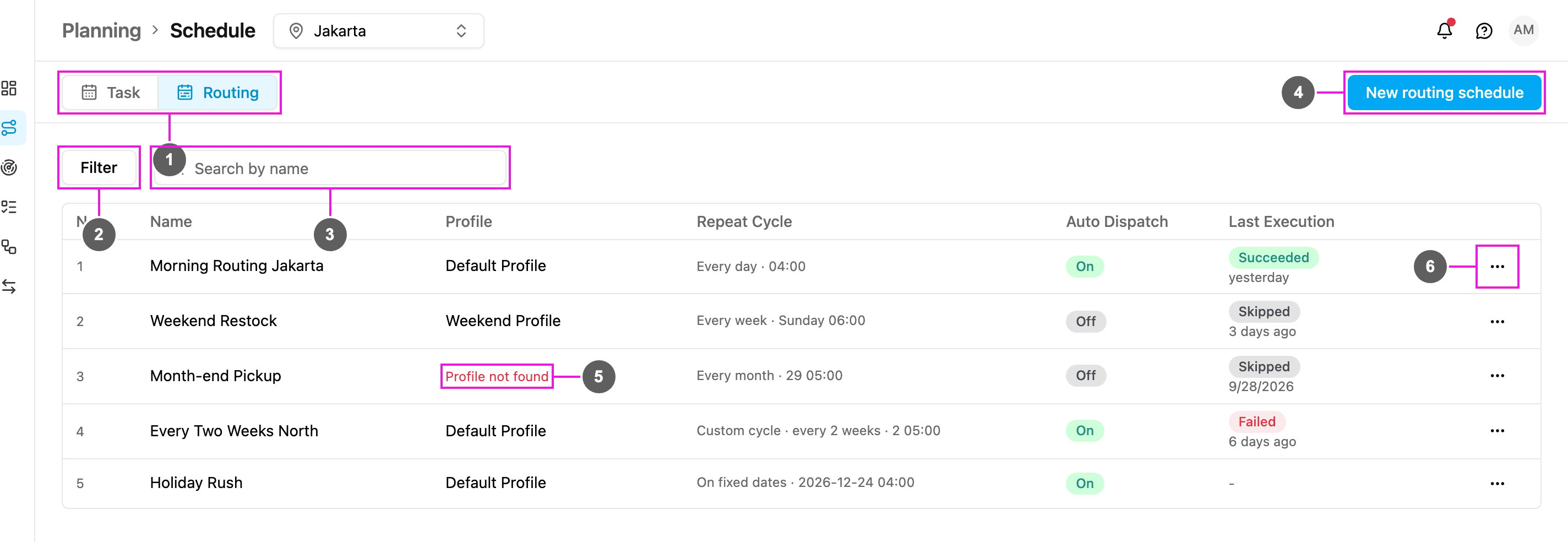
Open **Planning › Schedule** and click the **Routing** tab. The list follows the hub picker in the top bar, so it shows the routing schedules of the hub you are working in.
1. **Task / Routing**: switch between task schedules and routing schedules.
2. **Filter**: show only schedules whose last run has a given status. Click **Reset all** to clear it.
3. **Search by name**: find a schedule by part of its name. The search and the filter work together.
4. **New routing schedule**: create a schedule. See [Creating a Routing Schedule](/pages/planning/schedule/routing-schedule/creating).
5. **Profile not found**: the profile this schedule used has been deleted. The schedule is skipped on every run until you edit it and choose a profile that exists.
6. **Routing schedule actions**: **View**, **Edit** or **Delete** the schedule.
The table has these columns:
| Column | Shows |
| - | - |
| **No.** | The row number. |
| **Name** | The name you gave the schedule. |
| **Profile** | The configuration profile the schedule uses, or **Profile not found** in red. |
| **Repeat Cycle** | How often the schedule runs and at what times, for example *Every day · 04:00* or *Custom cycle · every 2 weeks*. |
| **Auto Dispatch** | **On** or **Off**. This is read-only in the list on purpose: turning it on sends routes straight to your field workers, so it can only be changed in the edit form. |
| **Last Execution** | The outcome of the most recent run and how long ago it was. See below. |
The count above the table shows how many schedules there are, or how many match your filters.
## Last execution
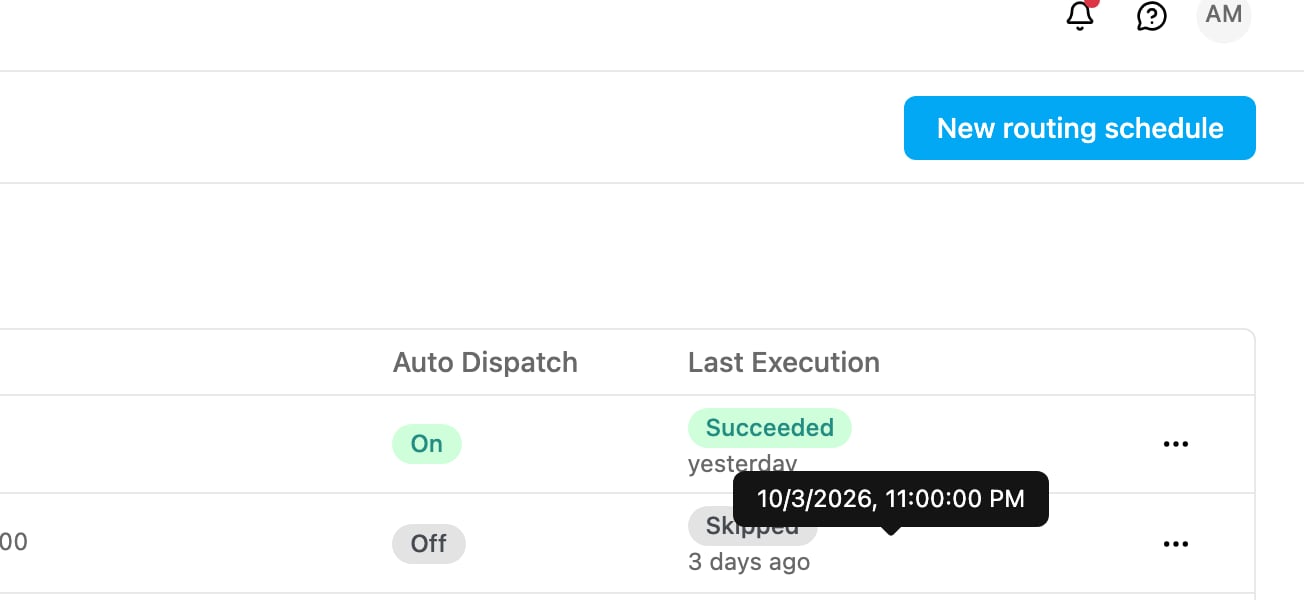
This is the column to read when a schedule isn't producing what you expect. It shows a badge for the last run. Hover it to see the exact time of that run.
| Badge | Meaning |
| - | - |
| **Succeeded** (green) | The optimization finished. If Auto Dispatch was on, the routes were dispatched too. |
| **Running** (grey) | The run has started and is still working. A large hub takes a while; the badge changes when it finishes. |
| **Skipped** (grey) | The run didn't start. Nothing was created and nothing was dispatched. The reason is in the schedule's detail. |
| **Failed** (red) | The run started but the optimization didn't finish. Nothing was dispatched. |
A schedule that hasn't run yet shows *Not run yet*.
The list shows only the **most recent** run. To see everything a schedule has produced over time, open [Planning › Routing › Result](/pages/planning/routing/result/introduction), where every scheduled result is listed with the others.
## View a schedule
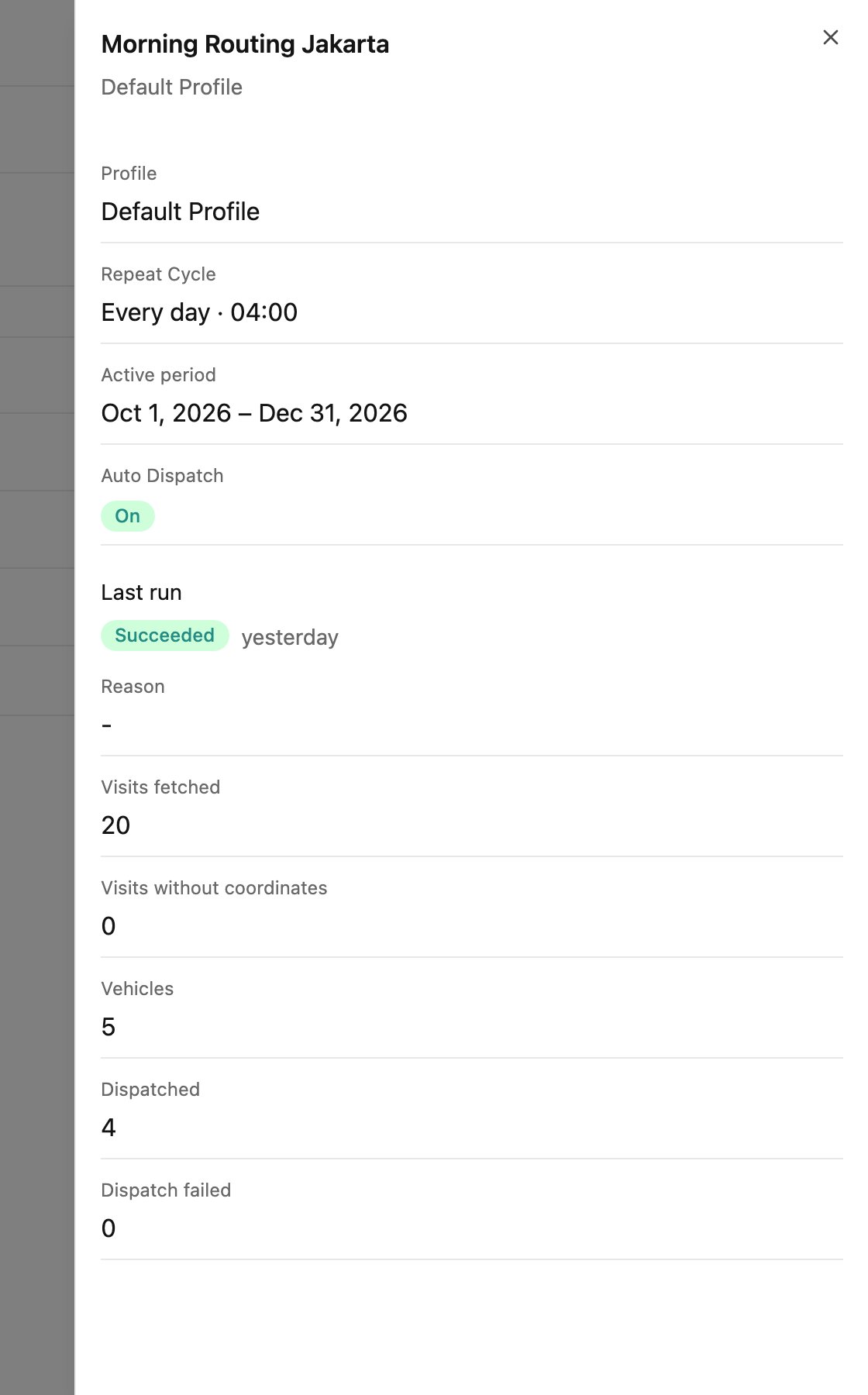
Choose **View** from the row menu to open the schedule's detail.
| Field | Shows |
| - | - |
| **Profile** | The configuration profile used. |
| **Repeat Cycle** | How often and at what times. |
| **Active period** | The dates the schedule runs between, or *Runs on its own fixed dates*. |
| **Auto Dispatch** | **On** or **Off**. |
| **Last run** | The status badge and how long ago it was. |
| **Reason** | Why the last run was skipped or failed. Empty for a successful run. |
| **Visits fetched** | How many visits the last run picked up. |
| **Visits without coordinates** | How many of them had no coordinate and were left out. |
| **Vehicles** | How many vehicles the profile provided. |
| **Dispatched** / **Dispatch failed** | With Auto Dispatch on: how many vehicles' routes were sent, and how many could not be sent. |
### Why a run was skipped or failed
When a run can't go ahead, it is skipped instead of left half-finished, and the reason is recorded in **Reason**.
| Reason | What it means | What to do |
| - | - | - |
| **No visit found** | There were no active visits at the hub when the run started. | Normal on a quiet day. If you expected visits, check the [Visit](/pages/planning/routing/visit) page. |
| **Profile has no vehicle** | The profile has no vehicle selected. | Open the profile and select the vehicles this hub uses. The next run picks them up. |
| **Configuration profile not found** | The profile has been deleted. | Edit the schedule and choose a profile that exists. |
| **Hub not found** | The hub the profile belongs to no longer exists. | Choose a profile on an existing hub. |
| **Visit limit reached** | The run would go past the visit allowance of your plan. | Check your plan usage with your admin, or reduce the visits in this run. |
| **Active vehicle limit reached** | The profile has more active vehicles than your plan allows. | Select fewer vehicles on the profile, or ask your admin about the plan. |
| **Previous run is still ongoing** | An earlier run of the same schedule hadn't finished yet. | Space the run times further apart so each run has time to finish. |
Two reasons show as **Failed**, because the run did start:
| Reason | What it means | What to do |
| - | - | - |
| **Route optimization failed** | The optimization itself didn't complete. | Optimize the same hub by hand from the Visit page to see the error, and contact support if it continues. |
| **Unexpected error** | Something went wrong that couldn't be classified. | Contact support with the schedule name and the time of the run. |
A skipped or failed run is never retried automatically. The schedule simply runs again at its next scheduled time.
## Edit a schedule
Required permission:
* View Schedule (Routing Schedule)
* Edit Schedule (Routing Schedule)
Choose **Edit** from the row menu. The same form opens with the current values, titled **Edit routing schedule**. Every field can be changed, including the profile. Click **Save**.
Changes take effect from the **next** run. A run already in progress is not affected.
You rarely need to edit a schedule just because the routing must change. Vehicles, constraints and optimization settings live on the configuration profile, and each run reads the profile fresh, so editing the profile is usually enough.
## Delete a schedule
Required permission:
* View Schedule (Routing Schedule)
* Delete Schedule (Routing Schedule)
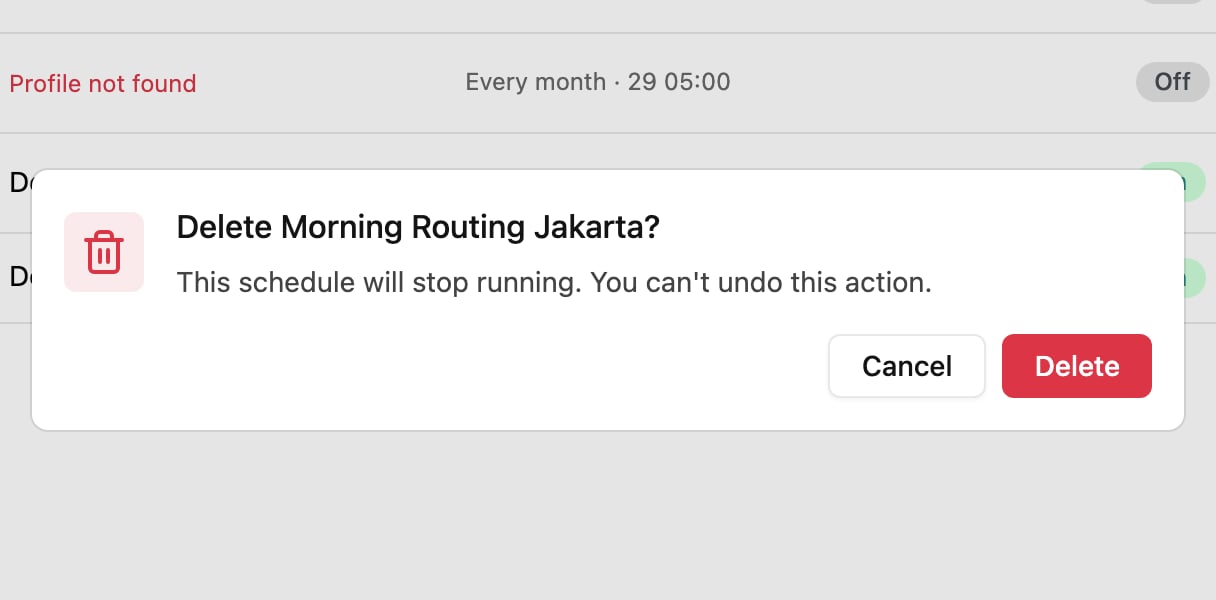
Choose **Delete** from the row menu. The app asks for confirmation.
Click **Delete** to confirm. The schedule stops running at once and disappears from the list. Results it produced earlier are **not** deleted: they stay in **Result** and can still be opened and dispatched.
Deleting is the way to stop a schedule; there is no on/off switch. If you might want it back later, note its profile, name and repeat cycle before deleting it.
This documentation is built and hosted on [Mintlify](https://mintlify.com), a developer documentation platform.