> ## Documentation Index
> Fetch the complete documentation index at: https://docsv4.mile.app/llms.txt
> Use this file to discover all available pages before exploring further.
# Manage Task Schedules
> Read the task schedule list, check the last run, and view, edit or delete a schedule.
## The schedule list
Required permission:
* View schedule
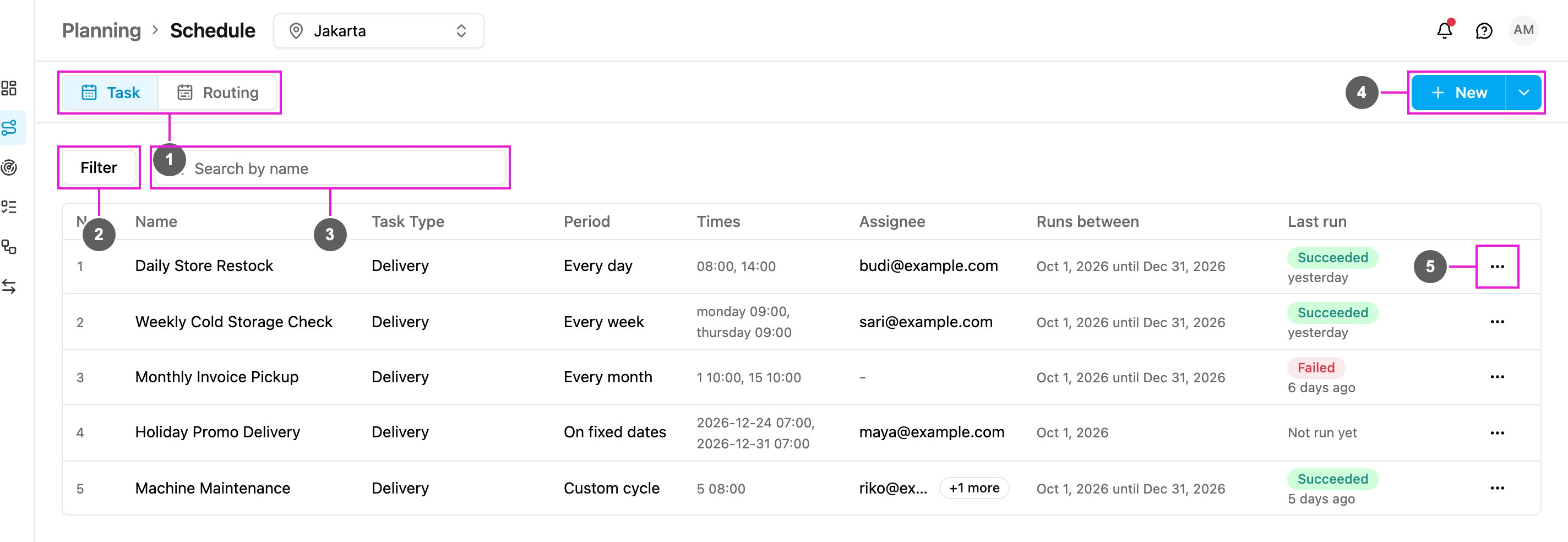
Every schedule you create appears in the table on **Planning › Schedule › Task**.
The table has these columns:
| Column | Shows |
| - | - |
| **No.** | Row number. |
| **Name** | The name of the schedule. |
| **Task Type** | The task type the schedule creates tasks from. |
| **Period** | The repeat cycle: Every day, Every week, Every month, On fixed dates or Custom cycle. |
| **Times** | When it runs, in your time zone: times of day, weekday and time (for example "monday 09:00"), day of month and time (for example "1 10:00"), or date and time. |
| **Assignee** | Who the tasks are assigned to. "+1 more" means more people; a dash means the tasks are created unassigned. |
| **Runs between** | The active period, from **Active from** until **Active until**. |
| **Last run** | The result of the most recent run, and how long ago it was. |
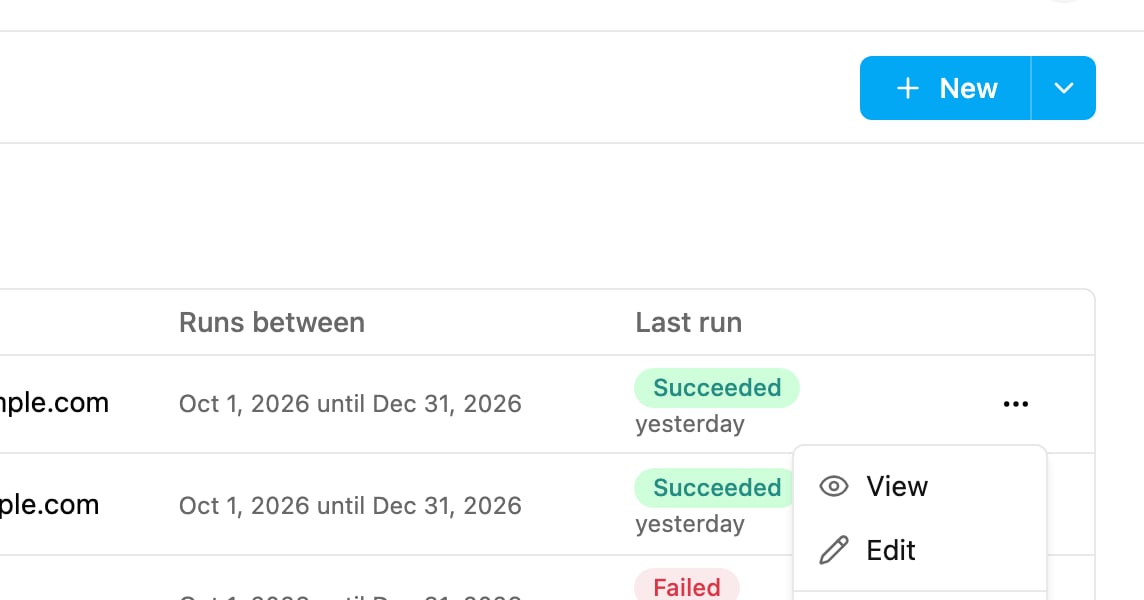
| **⋯** (Actions) | View, Edit and Delete. |
The list shows 50 schedules per page; use the page buttons at the bottom when there are more. The count above the pager tells you how many schedules there are, or how many match your filters.
## Last run
The **Last run** column shows a badge for the most recent run:
| Badge | Meaning |
| - | - |
| **Succeeded** | The task was created. |
| **Failed** | The run did not create the task. |
| **Scheduled** | The run is waiting to happen. |
| **Not run yet** | The schedule hasn't run since it was created. |
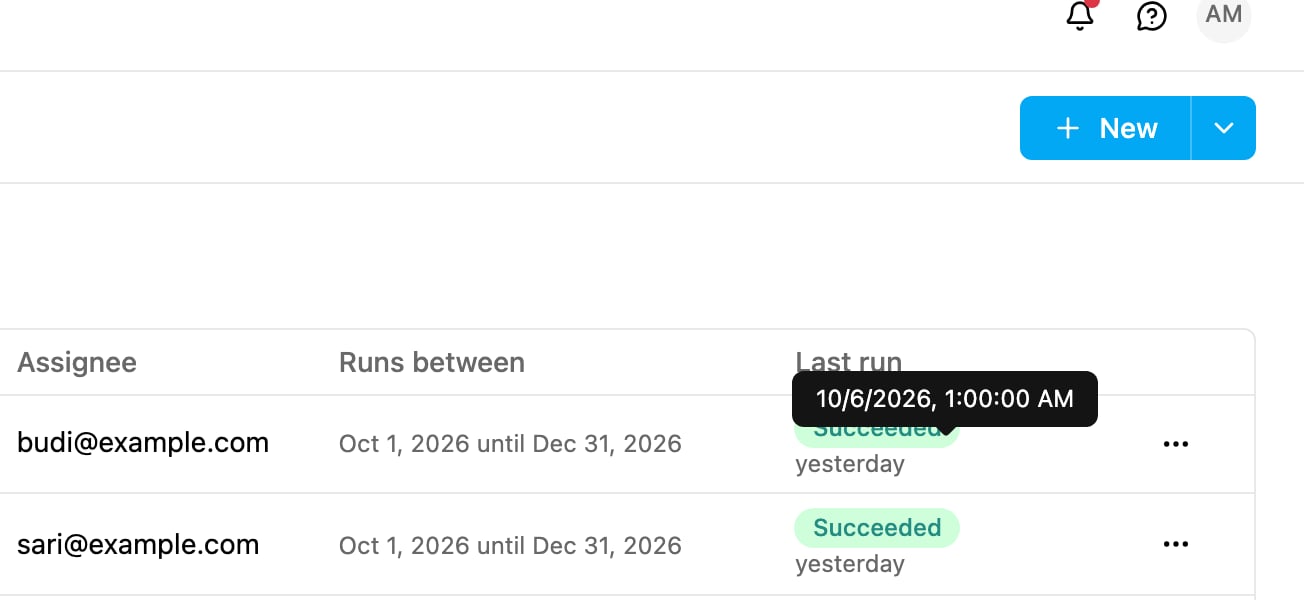
Hover over the time under the badge, for example "yesterday", to see the exact date and time of the run.
## Filter and search
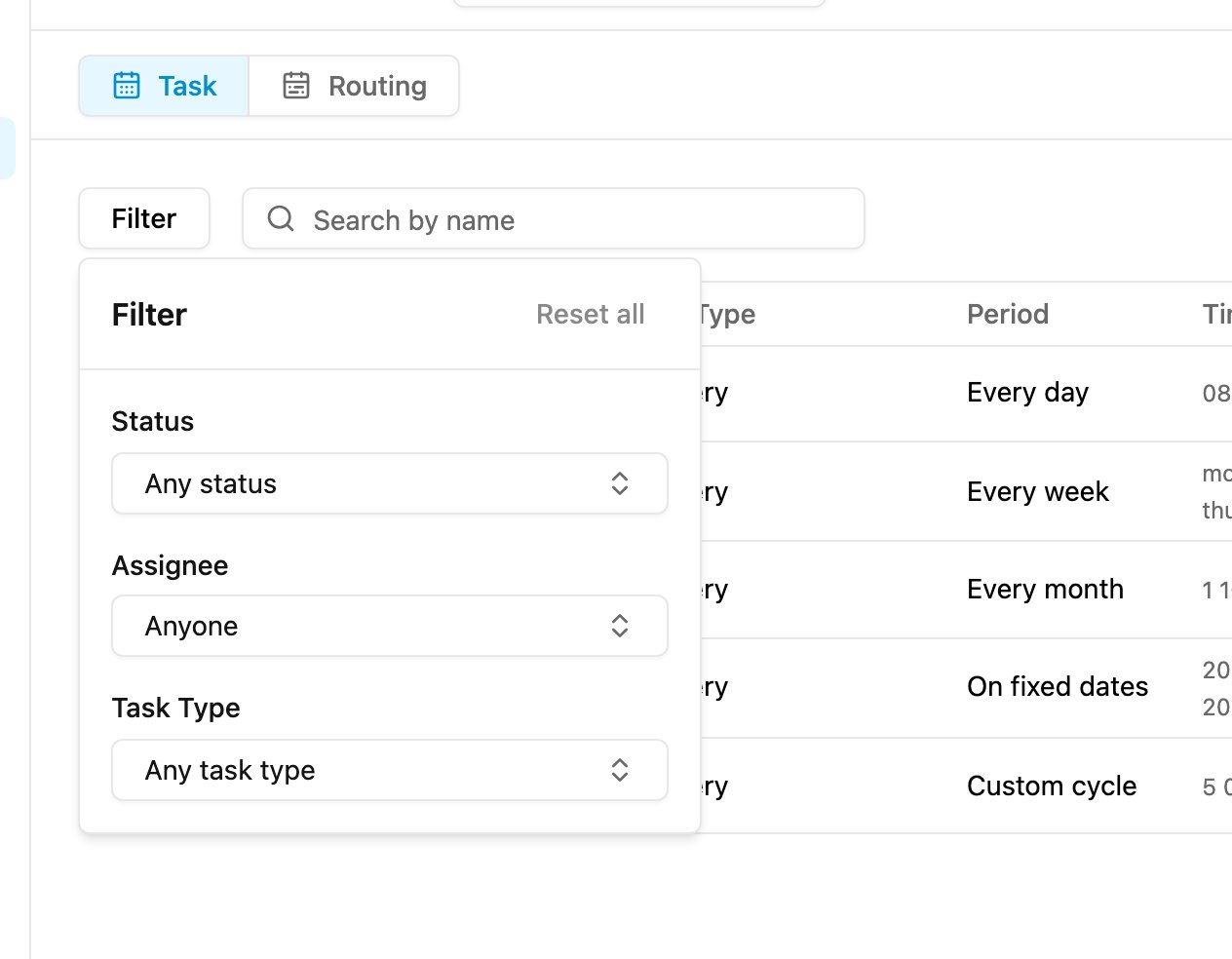
Click **Filter** to narrow the list.
* **Status**: the last run status: Succeeded, Failed or Scheduled.
* **Assignee**: schedules assigned to a person.
* **Task Type**: schedules of one task type.
**Reset all** clears the filters. Each active filter also shows as a chip you can remove one at a time. Type in **Search by name** to find a schedule by part of its name. Filters and search combine.
## View
Click **⋯** on a schedule and choose **View**.
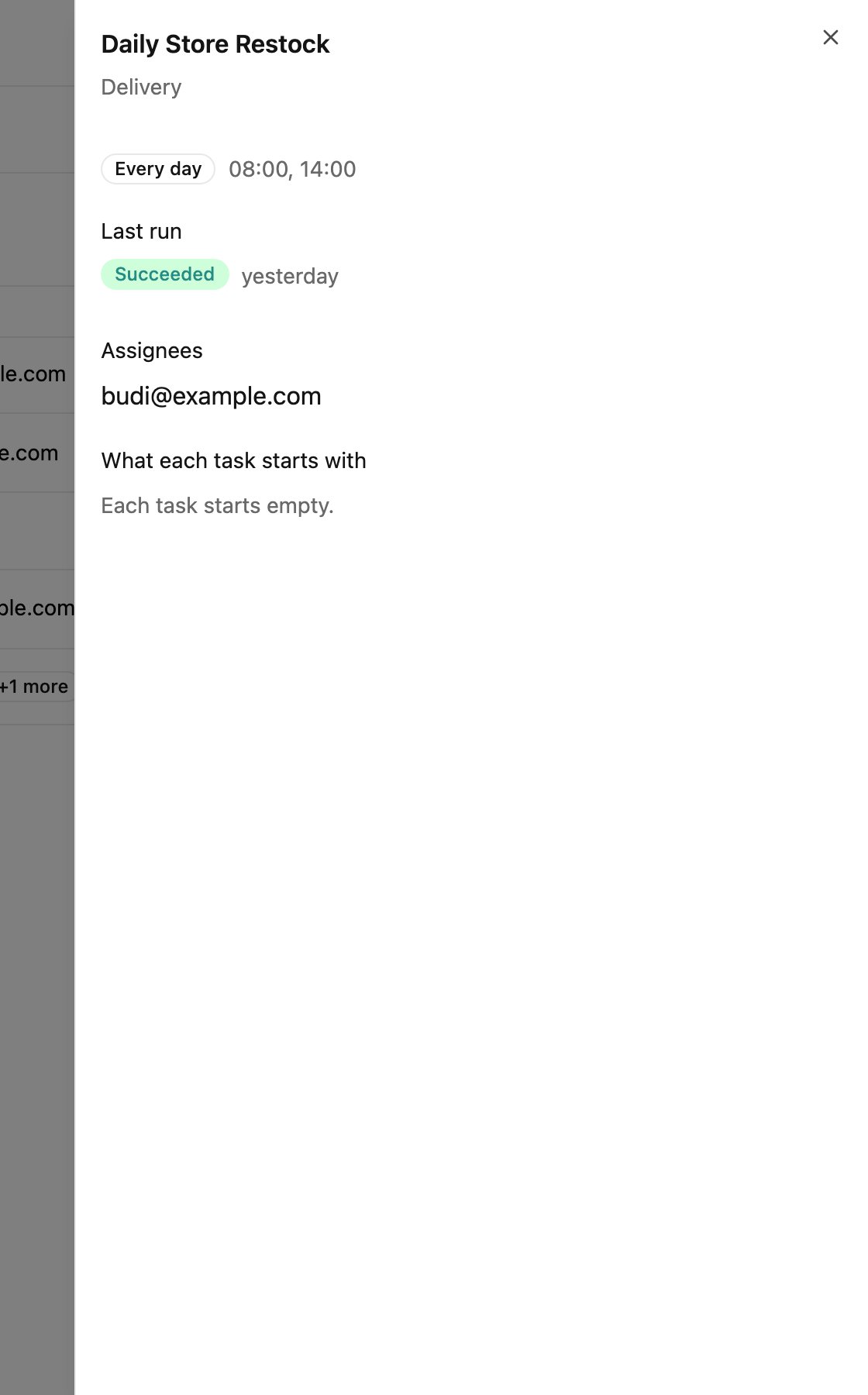
The schedule opens in a side panel:
* The name and task type of the schedule.
* The repeat cycle and its times.
* **Last run**: the last run status and when it ran.
* **Assignees**: who each task is assigned to, or that tasks arrive unassigned.
* **What each task starts with**: the values copied into every task, or "Each task starts empty."
## Edit
Required permission:
* View schedule
* Edit schedule
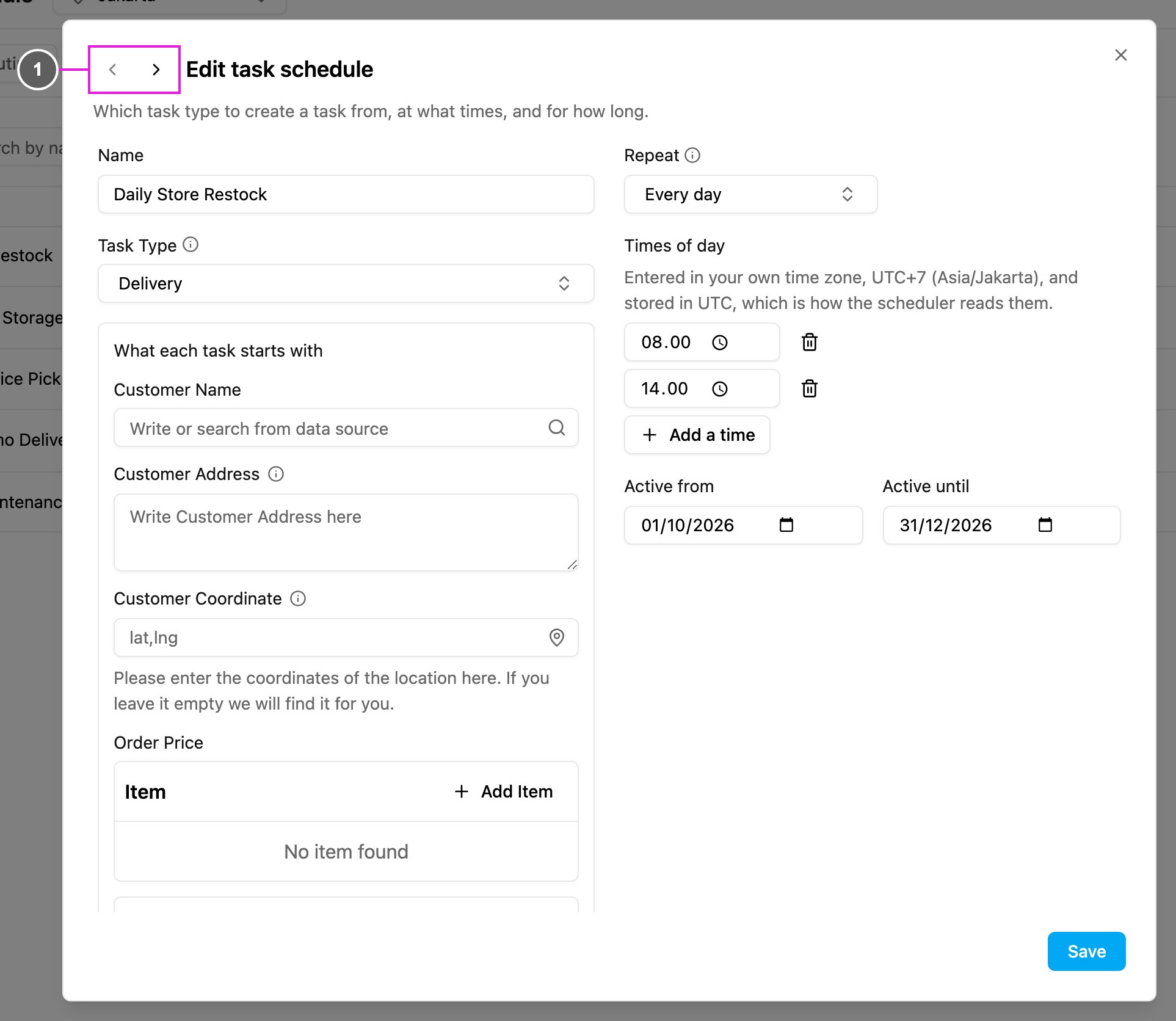
Click **⋯** on a schedule and choose **Edit**. The same form you used to create it opens with its current values, and every field can be changed.
1. **Previous schedule / Next schedule**: move to the schedule before or after this one in the list without closing the form.
Click **Save**. The message "Task schedule saved." confirms the change. Changes apply from the next run.
## Delete
Required permission:
* View schedule
* Delete schedule
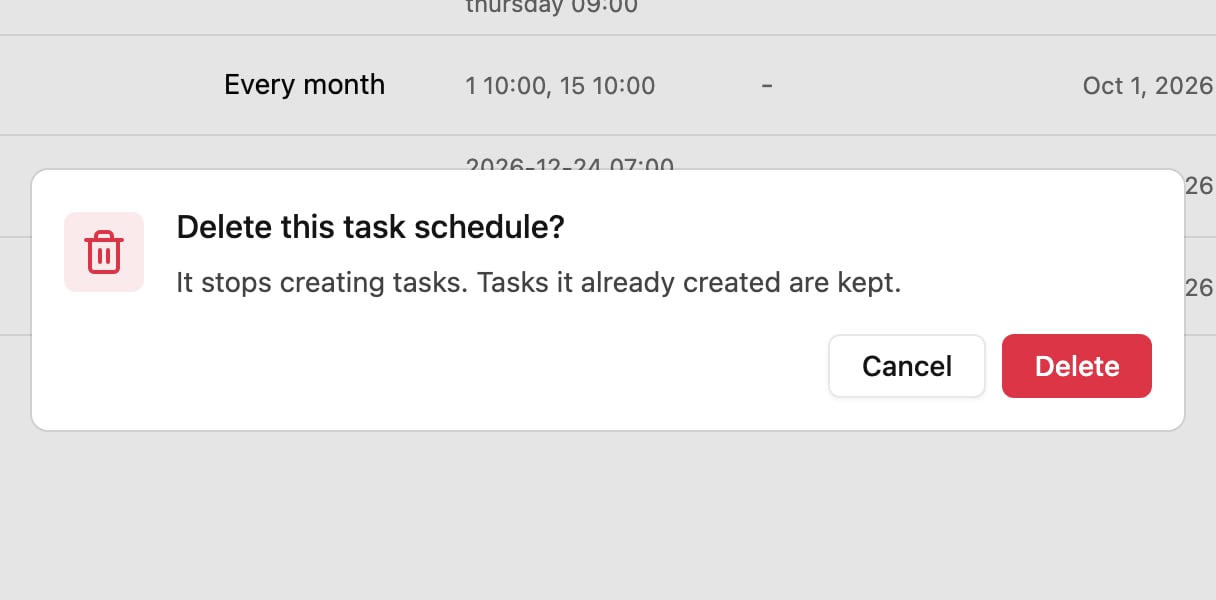
Click **⋯** on a schedule and choose **Delete**. Confirm with **Delete**.
The schedule stops creating tasks. Tasks it already created are kept.
There is no pause switch. To stop a schedule for a while, edit its **Active until** date, or delete it.
This documentation is built and hosted on [Mintlify](https://mintlify.com), a developer documentation platform.