> ## Documentation Index
> Fetch the complete documentation index at: https://docsv4.mile.app/llms.txt
> Use this file to discover all available pages before exploring further.
# Visit
> Check the visits you want to plan, fix their details and start the optimization.
A **visit** is a place a field user has to go: a delivery address, a pickup point, a home visit, a store call and so on. Visits are not created on this page. They come from your tasks: every **Unassigned** or **Ongoing** task of a task type whose [route configuration](/pages/workflow/task-type/configuration) is set appears here as a visit. To add a visit, create a task on the [Task](/pages/activities/task/create-task) page.
Open **Planning › Routing › Visit**. The list always shows the visits of the hub picked at the top of the page.
Required permission:
* View task (see the visits)
* Edit task (edit or delete a visit)
* Route optimization (click **Optimize**)
## Visit page
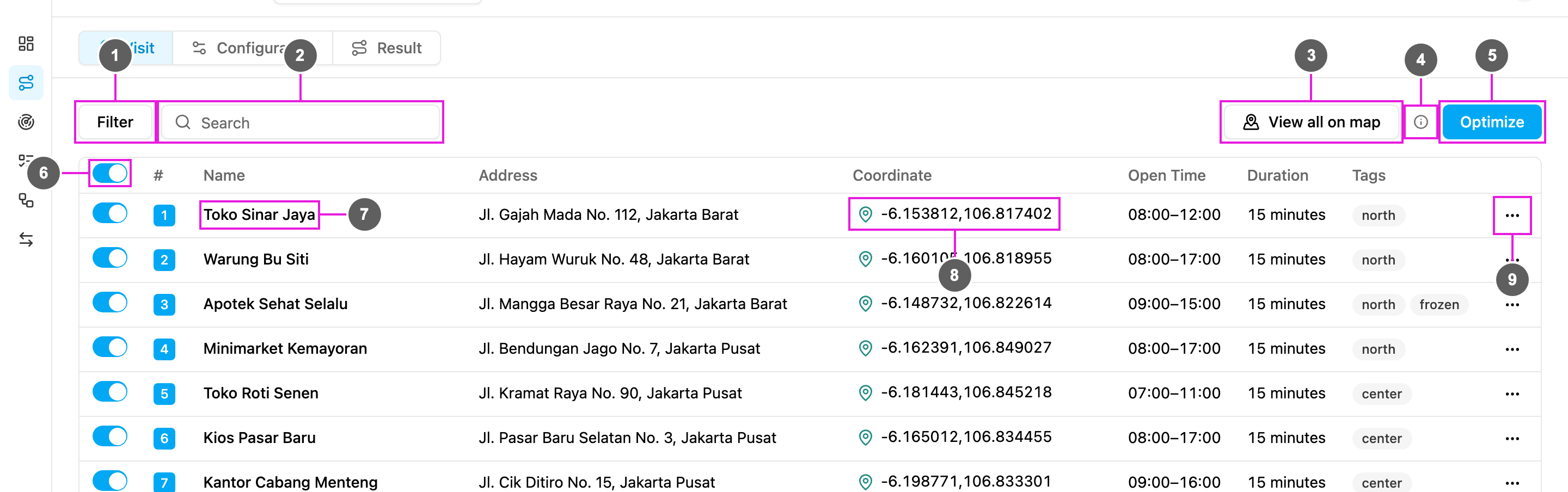
1. **Filter**: narrow the list down. A number on the button shows how many filters are on. See [Filtering visits](#filtering-visits).
2. **Search**: find a visit by name or address.
3. **View all on map**: open every visit on a map in a dialog. See [Visits on the map](#visits-on-the-map).
4. **Active configuration**: hover the info icon to see the configuration that the next run will use, with each option shown as on or off.
5. **Optimize**: sends the switched-on visits and the vehicles of the active configuration to the optimization. Hover it to open the link to [Configuration](/pages/planning/routing/configuration/introduction).
6. **Select all visits**: include or exclude every visit at once. Each row also has its own switch. Only switched-on visits are sent to the optimization; the others stay in the list for a later run.
7. **Name**: the visit's name. The number on its left is the visit's position in the list and its pin number on the map: blue when the visit is included, grey when it is switched off, red when it has no usable coordinate. When the name shows **(Not set)**, the task type has no component mapped to **Visit Name**. Hover the info icon to open the task type and set it, or type a name in [Edit Visit](#editing-a-visit). A truck icon appears when the visit already belongs to a vehicle from an earlier run (see [Dynamic routing](/pages/planning/routing/introduction#dynamic-routing)); hover it to see the vehicle.
8. **Coordinate**: the visit's location, with a [location pin](#location-pin) that tells you whether the coordinate is usable.
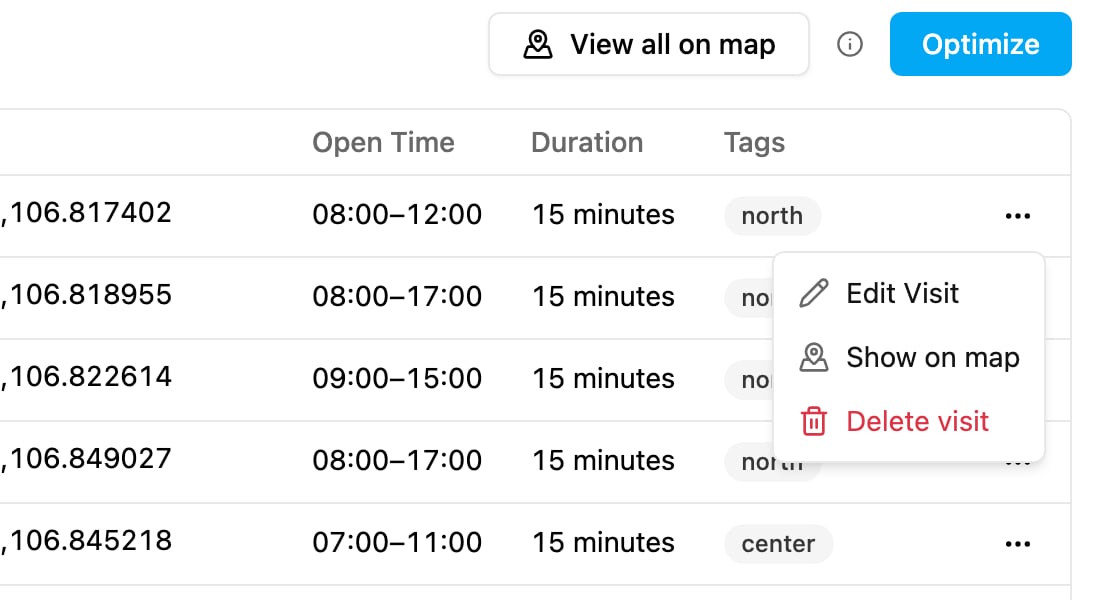
9. **Actions** (⋯): **Edit Visit**, **Show on map** and **Delete visit**.
The table also shows each visit's **Address**, **Open Time**, **Duration** and **Tags**. Drag a row by its handle to change the visit order; the optimization receives the visits in that order. The list shows 20 visits per page, with **Previous page** and **Next page** below it. On a phone, each visit is shown as a card with the same values and actions.
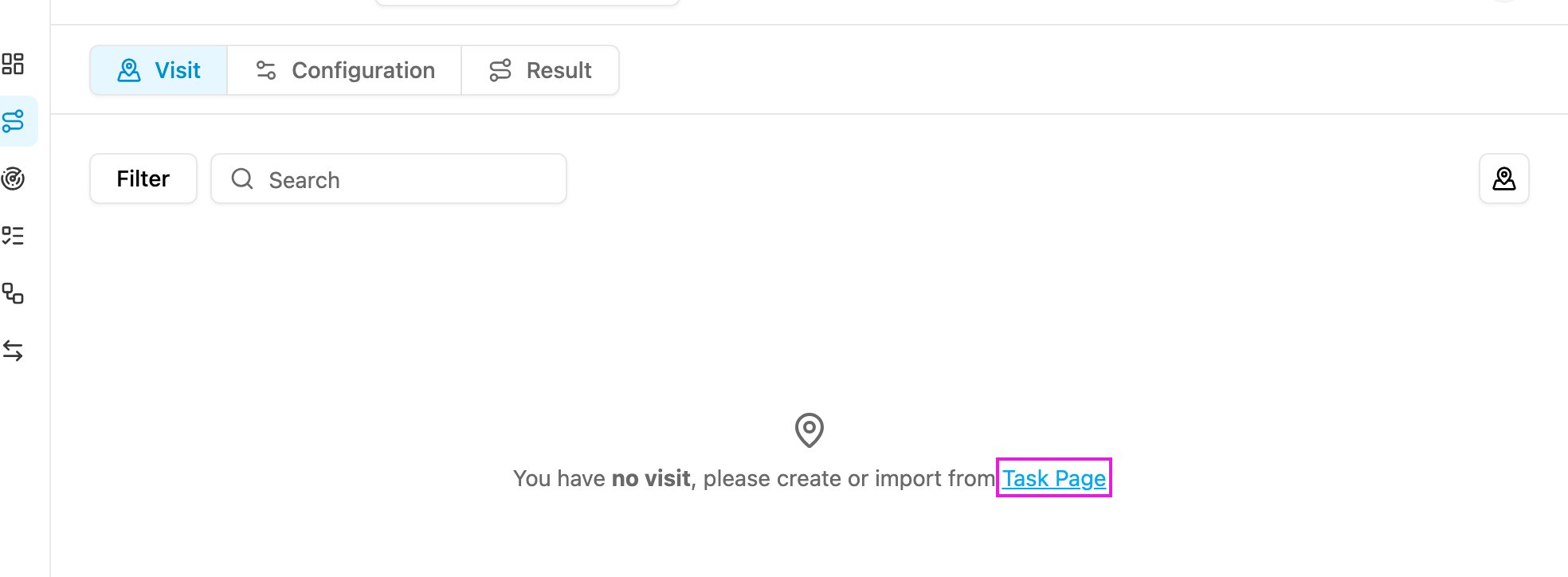
When a hub has no vehicles yet, the button reads **Input Vehicle** and its hint links to Configuration. When there are no visits, the page shows **You have no visit, please create or import from Task Page**.
### Location pin
The pin next to each coordinate tells you whether the visit has a usable coordinate:
* **Green**: **Location Success**. The visit has a valid coordinate.
* **Yellow**: the coordinate was found from the address (with its accuracy), or **Location Manually Set near Hub**. Check it on the map.
* **Spinning**: **Searching Location** from the address.
* **Red**: **Location Unidentified**. The visit has no coordinate and the address could not be located, so it cannot be routed. Click the red pin and choose **Set Manually** to type a coordinate, or **Auto Set Location** to locate it from the address again. Rewriting the address in a clearer form also helps.
Setting a coordinate needs the **Edit task** permission.
### Date
When **Odd Even** is turned on in the active configuration, a **Date** field appears next to **Optimize**. Pick the day you are planning for: the optimization uses it to know whether that day is odd or even, so it applies the right plate restriction. See [Odd Even](/pages/planning/routing/configuration/odd-even).
## Filtering visits
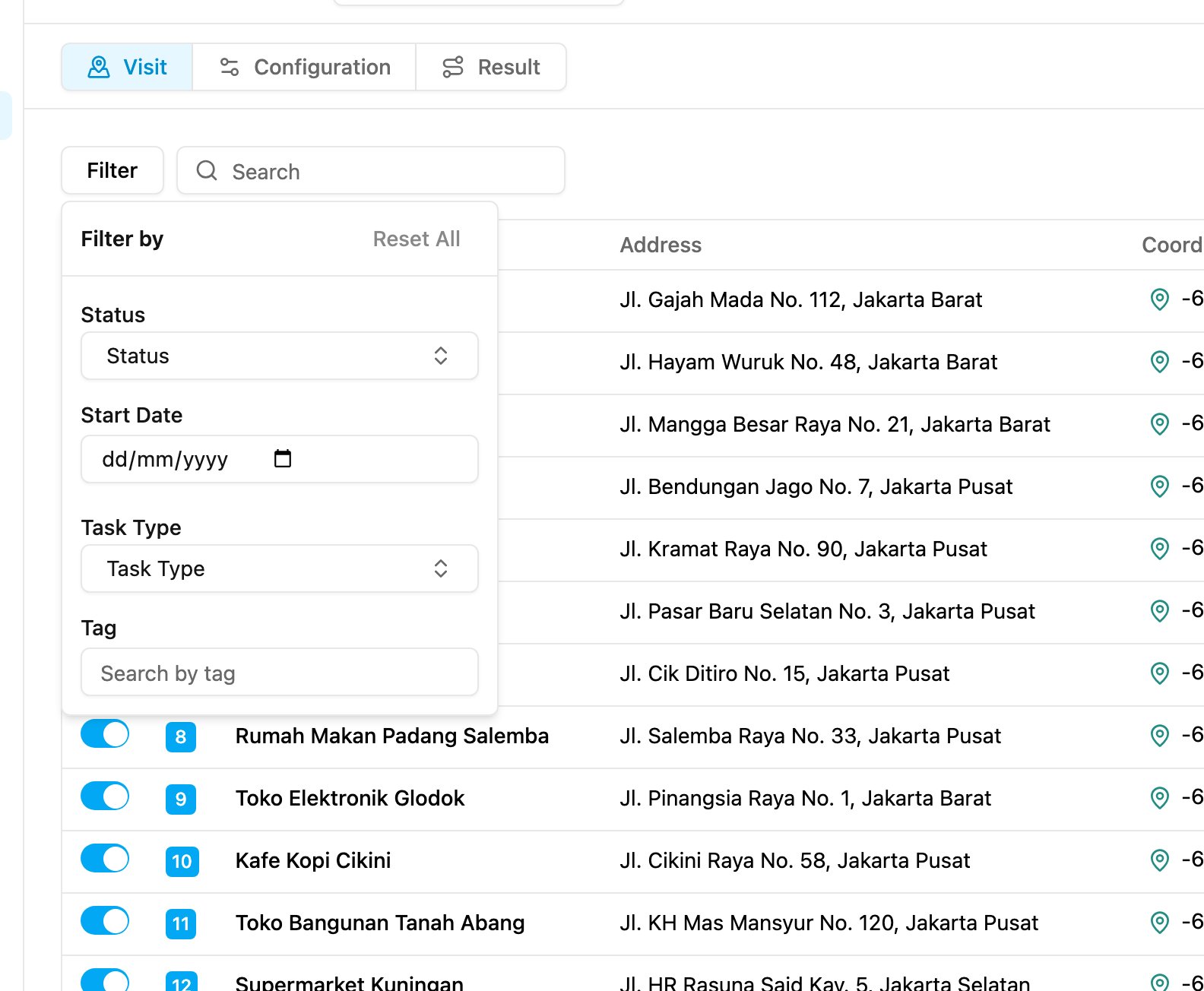
Type in **Search** to find a visit by name or address. Click **Filter** to filter by:
* **Status**: **Unassigned** or **Ongoing**.
* **Start Date**: the task's start date.
* **Task Type**: the task types that have visits in the list.
* **Tag**: the visit tags.
Searches are not case-sensitive. Changing a filter takes you back to the first page. Click **Reset All** to clear the filters.
## Visits on the map
Click **View all on map**, or **Show on map** in a visit's ⋯ menu, to open the map in a dialog.
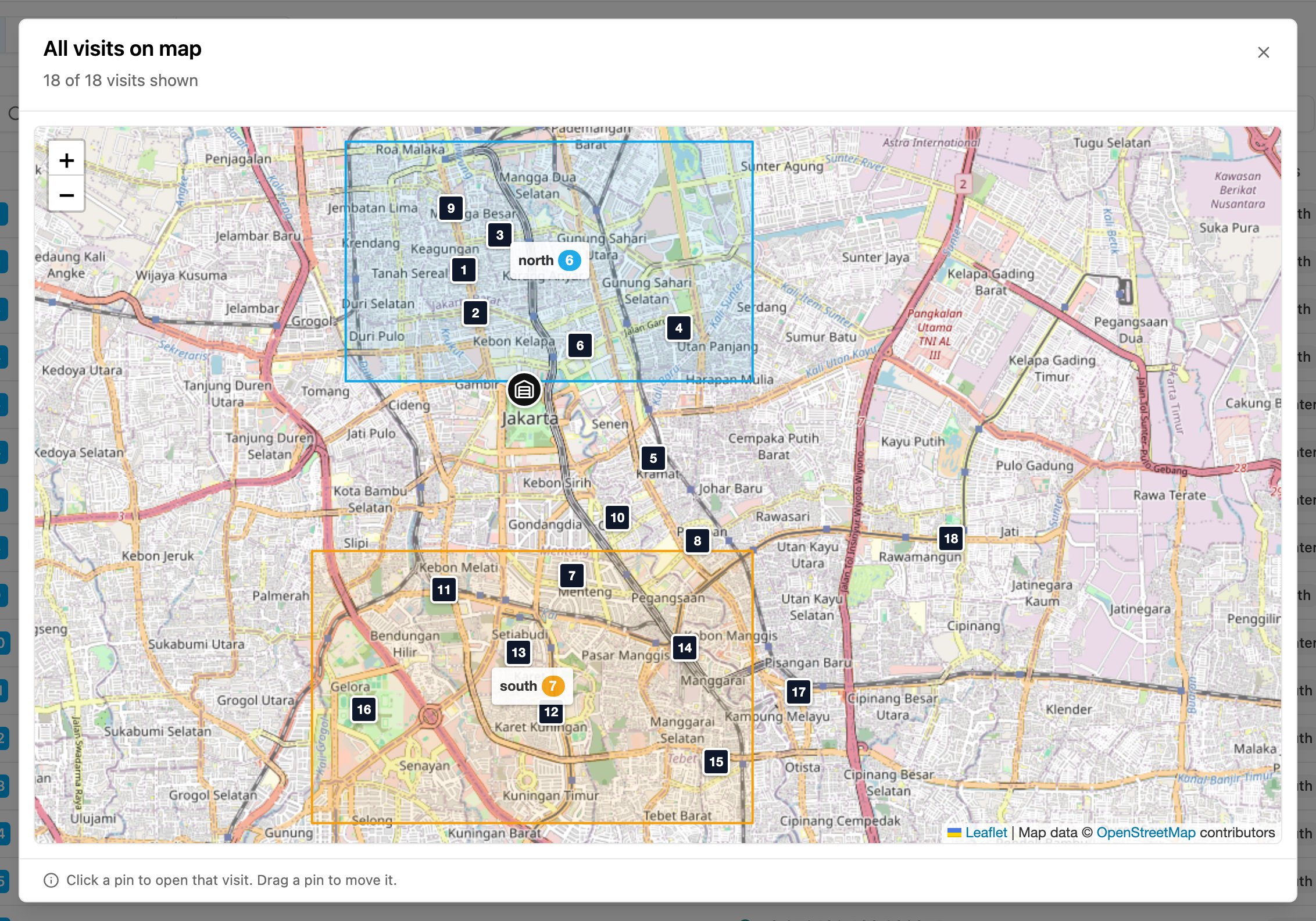
* **All visits on map** shows every visit as a numbered pin, with the hub as the building icon. Shaded areas are the [geotagging](/pages/planning/routing/configuration/geotagging) zones switched on in the active profile, each with the number of visits inside it. The line under the title says how many visits are shown, for example **18 of 18 visits shown**, how many have no location, and how many filters are on.
* **Visit on map** (from **Show on map**) zooms in on one visit and opens its popup.
* **Click a pin** to open the visit's popup: its name and address, a switch to include or exclude it, arrows to step to the previous or next visit, and **Edit** to open [Edit Visit](#editing-a-visit).
* **Drag a pin** to move the visit. The app asks **Move this visit?** before it replaces the coordinate with the place you dropped it on. Click **Cancel** to put the pin back.
## Editing a visit
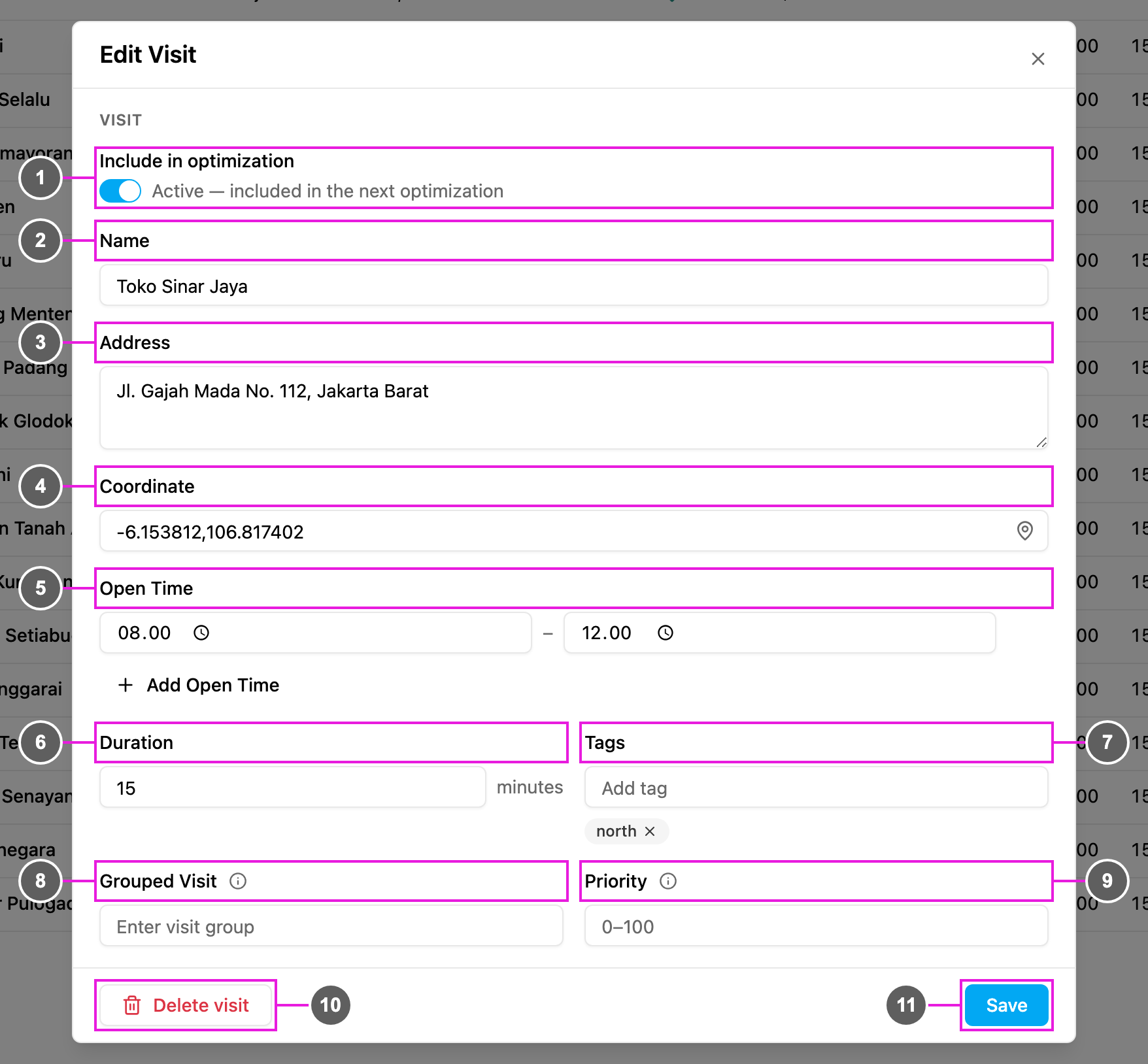
Click ⋯ on a visit and choose **Edit Visit**, or click **Edit** in its map popup.
1. **Include in optimization**: the same switch as on the row. **Active** means the visit goes into the next optimization.
2. **Name**: the customer, receiver or store name. Required.
3. **Address**: the full address. Keep it valid, so the app can locate the visit when it has no coordinate.
4. **Coordinate**: the location, written as `latitude,longitude`, for example `-6.21462, 106.84513`.
5. **Open Time**: when the place can be visited, for example 08:00 to 12:00. Click **Add Open Time** to add another window, for example when a store closes over lunch. The optimization only plans the visit inside these windows.
6. **Duration**: the visit (unloading) time in minutes, the time spent at the location before leaving for the next stop. A whole number from 0 to 9999.
7. **Tags**: the visit is only given to vehicles with all of its tags. Type a tag and press Enter; each tag shows as a chip you can remove with its ×. Up to 10 tags, and the same tag can't be added twice.
8. **Grouped Visit**: visits with the same group are given to the same vehicle. See [Visit Group](/pages/planning/routing/configuration/visit-group).
9. **Priority**: the order of visits inside the same group, a whole number from 0 to 100 (0 by default). A lower number is visited earlier.
10. **Delete visit**: delete the visit. See [Deleting a visit](#deleting-a-visit).
11. **Save**: keep your changes. The app confirms with **Data *name* has been updated successfully.**
Below the visit fields, a **Capacity constraint** section has one field per [capacity constraint](/pages/planning/routing/configuration/capacity-constraint) chosen in the configuration, for example **Weight** in kg. An empty value counts as 0.
Nothing changes until you click **Save**. If you close the dialog after changing something, the app asks **Discard changes?** first.
Name, Address and Coordinate are the basic data for routing. If the task type does not map them, the name shows **(Not set)** and the other fields are empty. You can type them here before you optimize.
Values for fields the task type does not map are **temporary**: the optimization uses them, but they are not saved to the task and are not written to the task when you dispatch. Hover the info icon next to such a field to see this. To keep the values, map the fields in the task type's [route configuration](/pages/workflow/task-type/configuration).
## Deleting a visit
Choose **Delete visit** in a visit's ⋯ menu or in **Edit Visit**, and confirm **Delete this visit?**. Deleting a visit deletes its task, so the visit disappears from both the Task page and the Visit page. You can also delete the task from the [Task](/pages/activities/task/introduction) page.
## Optimize
Choose the visits, check the active configuration, then click **Optimize**. The optimization runs in the background, so you can keep working. When it finishes, the new result opens in the [Result](/pages/planning/routing/result/introduction) tab.
The optimization does not start when:
* no visit is selected: **Please select at least 1 (one) visit**.
* none of the selected visits has a valid coordinate: **Valid coordinate on visit is not found.**
* the configuration has no vehicle switched on: **No vehicle selected. Please go to the Configuration page to set up a vehicle.**
* your plan does not include more optimizations: **Your plan does not cover this optimisation. Please upgrade to continue.**
* your plan's route limit is reached: an **Upgrade Plan** dialog says **You have reached your maximum route limit on your plan.** Click **Upgrade now** to change plan, or contact your sales representative.
These messages appear as notifications. When the problem is in the configuration, the message links straight to the Configuration page. **Optimize** also stays disabled while the task type's field mapping can't be loaded.
This documentation is built and hosted on [Mintlify](https://mintlify.com), a developer documentation platform.