> ## Documentation Index
> Fetch the complete documentation index at: https://docsv4.mile.app/llms.txt
> Use this file to discover all available pages before exploring further.
# Search, Filter, Delete
> Find a result, filter results by date, rename, export and delete them.
The result list on the left of the **Result** tab holds every optimization of the hub, newest first.
Required permission:
* View result
* Edit result (rename)
* Delete result
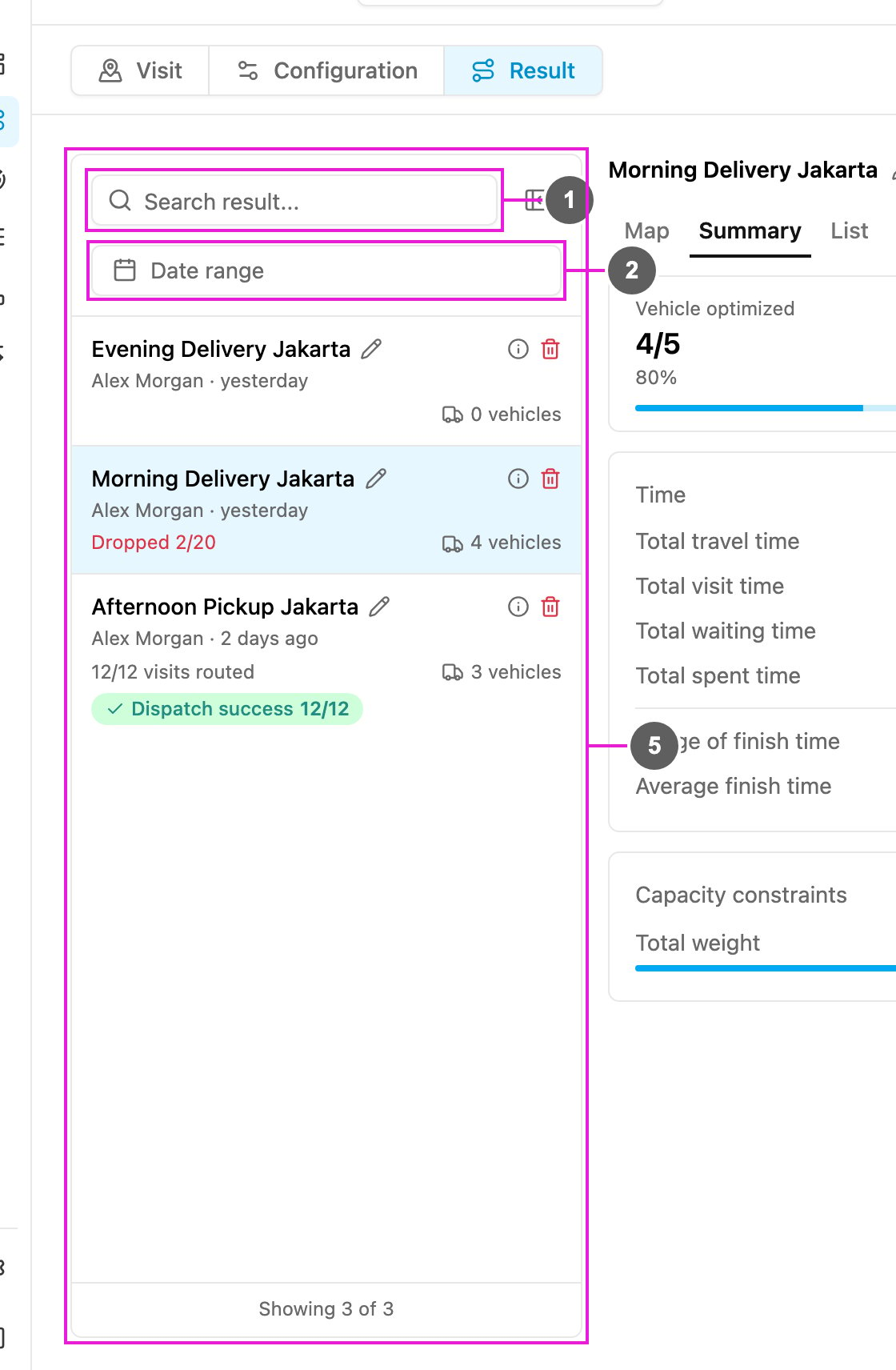
1. **Search result...**: find a result by name. The icon next to it collapses the list to give the result more room.
2. **Date range**: show only results created between two dates. **Clear date** removes the filter.
3. **Result card**: the name (click the pencil to rename it), who created it and when, and the number of vehicles. Hover the info icon to see the **Configuration used**. The trash icon deletes the result.
4. **Selected result**: the open result is highlighted. **Dropped 2/20** means 2 of 20 visits could not be routed.
5. **Status**: **12/12 visits routed** when every visit is routed, **Ongoing** while the optimization is still running, **Failed** when it failed, and after dispatching **Dispatch processing...**, **Dispatch success 12/12** or **Dispatch failed**.
**Showing 3 of 3** at the bottom tells you how many results are listed. Click **Load more** to see older ones.
## Deleting a result
Click the trash icon on a result card and confirm **Delete this result?**. The result is deleted and you can't undo this action. Deleting a result does not delete tasks that were already dispatched.
## Exporting a result
Open the result and click **Export** to download it as an Excel file. It has these sheets:
| Sheet | What it contains |
| - | - |
| **Summary** | One row per vehicle with its totals: visits, trips, distance, times, finish time and capacity. |
| One sheet per vehicle | The vehicle's visits in order, with times, address, coordinate, tags, ETA, ETD, order, trip order, capacity, travel, visit and waiting time and distance. |
| **Dropped Visit** | The dropped visits with their data and reason. |
| **Unused Vehicle** | Vehicles that got no visits. |
| **Others** | The configuration used: **Auto Speed**, **Return to Hub**, **Use All Vehicle**, **Multi Trip**, **Clustering**, **Cross Docking**, **Auto Split**, **Auto Merge**, **Odd Even**, **Avoid Toll Roads**, **Default Visit Time**, **Created from** and **Created Date**. |
This documentation is built and hosted on [Mintlify](https://mintlify.com), a developer documentation platform.