> ## Documentation Index
> Fetch the complete documentation index at: https://docsv4.mile.app/llms.txt
> Use this file to discover all available pages before exploring further.
# Editing a Result
> Move visits between vehicles, change their order and edit visit data in a result.
You can adjust a result before you dispatch it: move visits to another vehicle, put dropped visits on a vehicle, change the order, and correct visit data. Every change is kept in the result's [History](/pages/planning/routing/result/introduction#history), so you can restore an earlier version.
Required permission:
* View result
* Edit result
## Moving a visit
Use this to put a dropped visit on a vehicle, or to move a visit from one vehicle to another in the same result.
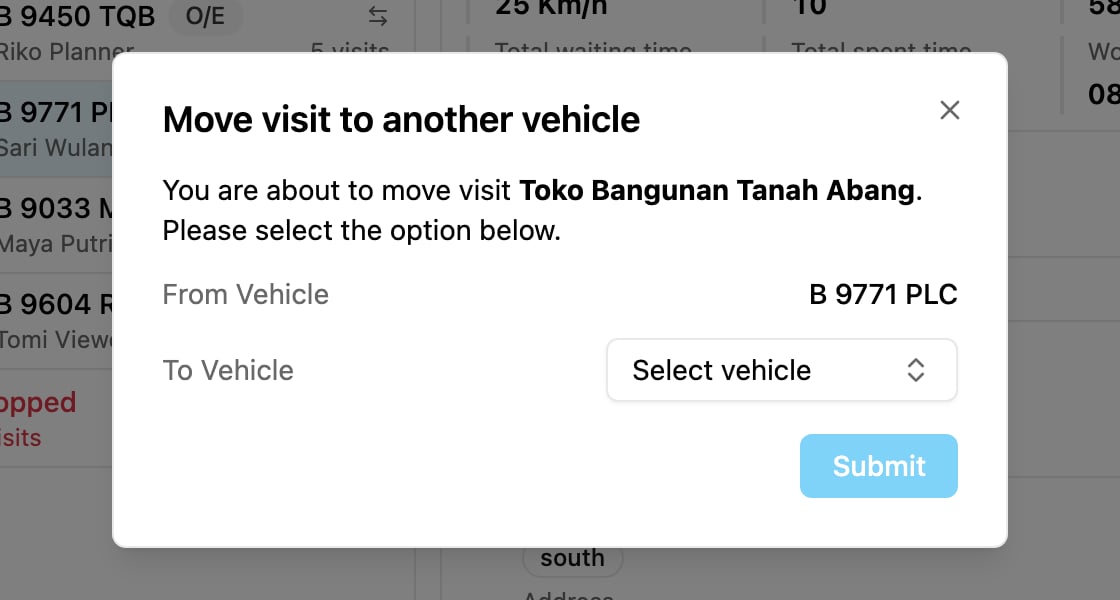
1. In the **List** view, click **Move visit** (the arrows icon) on the visit.
2. In **Move visit to another vehicle**, check the **From Vehicle** and pick the **To Vehicle**. Pick **Drop** to move the visit to the dropped visits instead.
3. Click **Submit**.
The vehicle's times are recalculated. If a vehicle goes over its capacity, you see **Vehicle capacity limit exceeded after recalculation.**, and the vehicle is marked **Over max capacity after move/recalculate**.
## Moving several visits
* **In the list**: tick the visits (**Select visit**), then click **Move selected**. The count shows how many are selected.
* **On the map**: hold **Shift** and drag the mouse to draw a box around the visits.
A **Move visit** dialog lists the selected visits (**Visit Selected**), so you can untick any you picked by mistake. Pick the vehicle, or **Drop**, and confirm.
## Changing the order
In the **List** view, drag a visit by its handle (**Drag to reorder**) to a new position. In the **Gantt** view, drag a block to another place or another vehicle. The times are recalculated after each move.
## Editing a visit
Click **Edit visit** (the pencil) on a visit. **Edit Visit** shows the same fields as the [Visit](/pages/planning/routing/visit#editing-a-visit) page: **Name**, **Address**, **Coordinate**, **Open Time** (with **Add Open Time**), **Visit Time**, **Visit Tags** (up to 10), **Grouped Visit** and **Priority**. Change them and click **Submit**.
**Updating the visit data will not change this routing result.** The task is updated, but the result is not recalculated or optimized again.
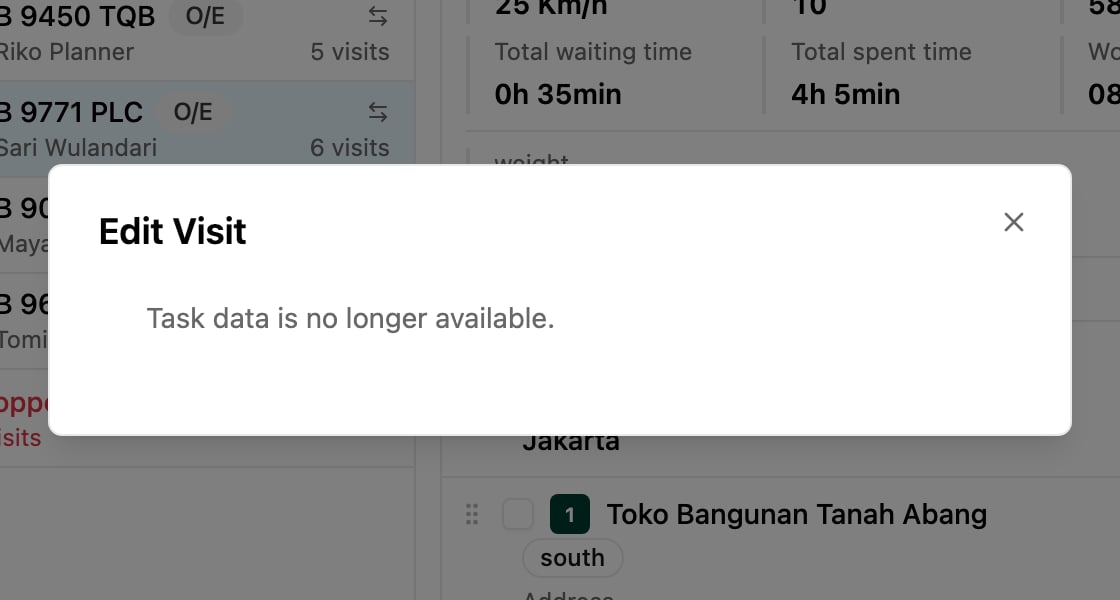
You cannot edit a visit when its task is done (**Task is completed. Data cannot be edited.**), deleted (**Task has been deleted. Data cannot be edited.**) or no longer available (**Task data is no longer available.**).
## Switching vehicles
To swap all visits between two vehicles, see [Switching vehicles](/pages/planning/routing/result/vehicle-detail#switching-vehicles).
This documentation is built and hosted on [Mintlify](https://mintlify.com), a developer documentation platform.