> ## Documentation Index
> Fetch the complete documentation index at: https://docsv4.mile.app/llms.txt
> Use this file to discover all available pages before exploring further.
# Routing
> Let the app decide which vehicle serves which visit, and in what order.
**Routing** plans the most efficient routes for your field users. You give it the visits and your vehicles; it returns, for each vehicle, the visits in the best order, taking into account opening hours, working hours, vehicle capacity and travel time. Fewer wasted trips, lower costs and more predictable days.
The optimization is based on the [Travelling Salesman Problem](https://en.wikipedia.org/wiki/Travelling_salesman_problem) (TSP): it runs many iterations to find the shortest distance with the fewest vehicles, within the parameters you set.
Open **Planning › Routing**. It has three tabs, in the order you use them:
| Tab | What you do there |
| - | - |
| [Visit](/pages/planning/routing/visit) | Check the visits to plan and start the optimization. |
| [Configuration](/pages/planning/routing/configuration/introduction) | Set up your [vehicles](/pages/planning/routing/vehicle) and the rules the optimization follows. |
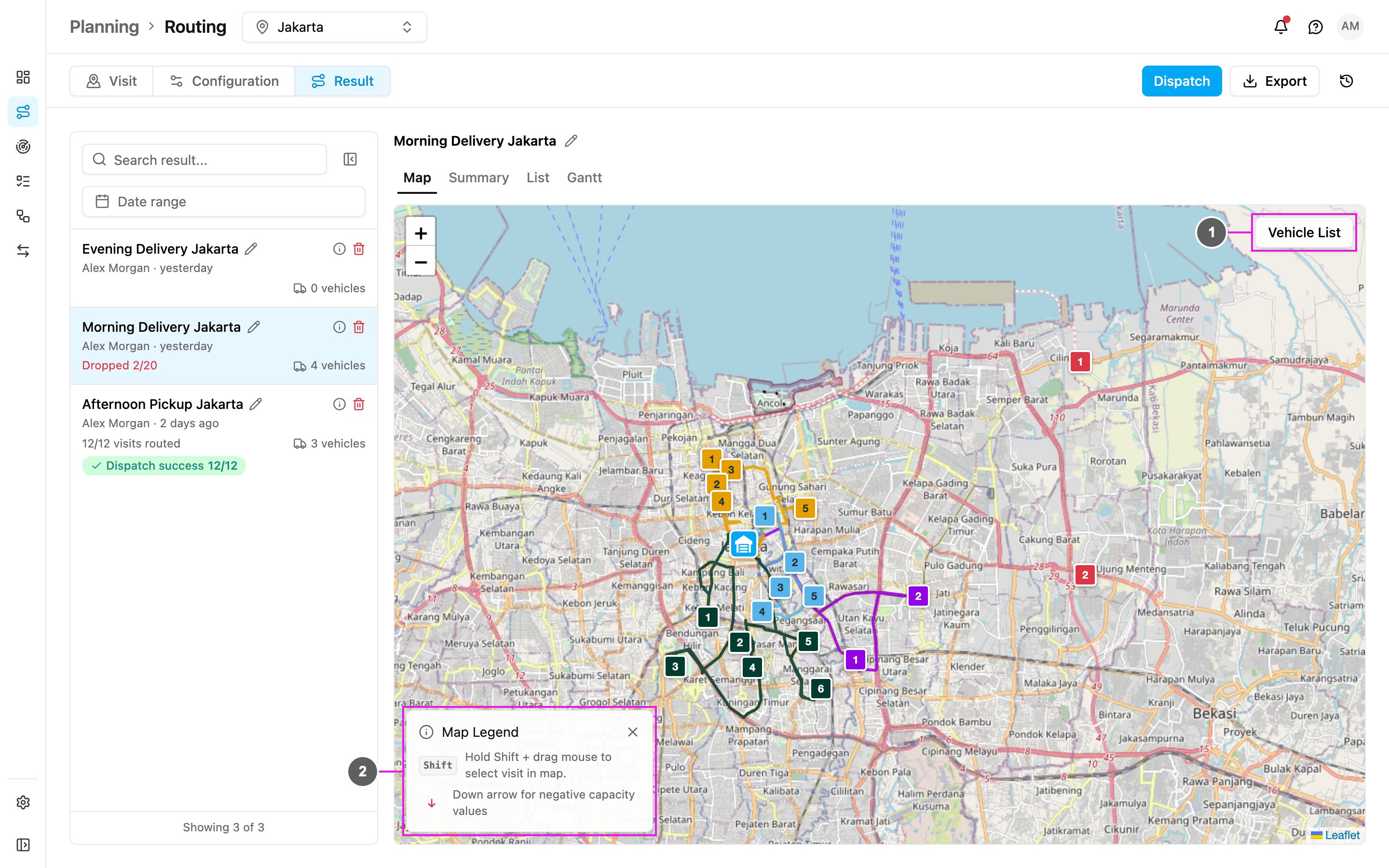
| [Result](/pages/planning/routing/result/introduction) | Review the planned routes, adjust them and [dispatch](/pages/planning/routing/result/dispatch) them as tasks. |
Required permission:
* View vehicle, View configuration (Configuration)
* Route optimization (Optimize)
* View result, Edit result, Dispatch result (Result)
## How it works
Create tasks of a task type whose [route configuration](/pages/workflow/task-type/configuration#route) is set. Each Unassigned or Ongoing task becomes a visit. See [How to Use](/pages/planning/routing/how-to-use).
In **Configuration**, add your vehicles with their working hours, speed, cost and capacity, and choose which ones to use.
In **Visit**, check the visits and click **Optimize**. The optimization runs in the background.
In **Result**, look at the routes, move visits between vehicles if you need to, then dispatch. Each planned visit becomes a task assigned to the vehicle's driver.
## Parameters
Parameters are the inputs the optimization uses to find the best result. You set them on the visit, on the vehicle or in the configuration. Each one is either:
* a **hard constraint**: the result never breaks it, or
* a **soft constraint**: the result may break it when there is no fully feasible solution.
| Parameter | What it does | Set in | Type |
| - | - | - | - |
| [Time window](#time-window) | When in the day a visit can be served. | Visit | Hard |
| [Visit time](#visit-time) | How long the visit takes, in minutes. | Visit | Hard |
| [Tag](#tag) | Visits are served by vehicles with the same tags. | Visit, Vehicle | Hard |
| [Capacity constraint](#capacity-constraint) | What each visit needs and the minimum and maximum each vehicle carries. | Visit, Vehicle | Minimum soft, maximum hard |
| [Working time](#working-time) | When in the day a vehicle may work. | Vehicle | Hard |
| [Cost factor](#cost-factor) | Which vehicles are used first, 0 to 100. 0 is used first. | Vehicle | Hard |
| [Auto speed](#auto-speed) | Speed from historical data, or a speed you set per vehicle (km/h). | Vehicle, Configuration | Hard |
| [Return to hub](/pages/planning/routing/configuration/return-to-hub) | Vehicles end their trip at the hub, within their working time. Otherwise the trip ends at the last visit. | Configuration | Hard |
| [Multi trip](/pages/planning/routing/configuration/multi-trip) | A vehicle may go back to the hub to reload and start another trip the same day. | Configuration | Soft |
| [Clustering](/pages/planning/routing/configuration/clustering) | Reduce the overlap between the areas of different vehicles. | Configuration | Soft |
| [Use all vehicle](/pages/planning/routing/configuration/use-all-vehicle) | Use every vehicle instead of the fewest. | Configuration | Soft |
| [Auto split](/pages/planning/routing/configuration/auto-split) | Split a visit larger than any matching vehicle's capacity into several visits. | Configuration | Soft |
| [Auto merge](/pages/planning/routing/configuration/auto-merge) | Keep visits with the same coordinate on one vehicle. | Configuration | Soft |
| [Visit group and priority](/pages/planning/routing/configuration/visit-group) | Visits of a group stay on one vehicle, ordered by priority (lower first). | Visit | Hard |
## Time window
The time window says when a visit can and should be served, usually so a delivery or pickup happens before the place closes. It sets clear expectations and reduces uncertainty.
**Example**: a store opens at 8 AM and closes at 5 PM. Set the visit's open time to 08:00 – 17:00 and the visit is only planned in that range.
Set it in **Open Time** on the [Visit](/pages/planning/routing/visit#editing-a-visit) page. A visit can have several windows.
## Visit time
How long the vehicle stays at the visit before leaving for the next one, often called **unloading time**. Set it in **Duration** on the Visit page. When a visit has none, the configuration's **Default Visit Time** is used, plus any [Dynamic Visit Time](/pages/planning/routing/configuration/dynamic-visit-time).
## Tag
Tags say which vehicle may serve a visit: a visit only goes to a vehicle that has all of its tags.
* **Road class**: tag visits by the size of road that reaches them (`small`, `medium`, `big`) and give vehicles the matching tags.
* **Dedicated vehicles**: tag cash-on-delivery vehicles and visits `COD` so they are matched together.
Set tags on the visit and on the [vehicle](/pages/planning/routing/vehicle#vehicle-tags). [Geotagging](/pages/planning/routing/configuration/geotagging) can tag visits by area for you.
## Capacity constraint
Capacity decides whether a vehicle can carry the orders. You can measure it in any unit: weight, volume, packs, boxes, frozen weight, chilled weight and so on.
1. Define the constraints and their units in **Configuration › Speed & capacity**.
2. Set each vehicle's minimum and maximum. The maximum is a hard rule; the minimum is soft.
3. Set how much each visit needs. An empty value counts as 0.
A profile can use up to 10 constraints. See [Capacity Constraint](/pages/planning/routing/configuration/capacity-constraint).
## Working time
The hours a vehicle may work. No visit is planned outside them, and with Return to Hub the drive back must fit too. A working time can span several days, to plan multi-day routes in one run. See [Vehicle](/pages/planning/routing/vehicle#working-time).
## Cost factor
A cost multiplier that sets which vehicles are used first. With vehicle A at `1` and vehicle B at `10`, using B counts as ten times more expensive. Give your own fleet a low cost (`0`) and vendor vehicles a higher one (`10`), and your own fleet is used first. See [Vehicle](/pages/planning/routing/vehicle#cost-factor).
## Auto speed
With **Auto Speed**, each vehicle's speed is estimated from historical trips in the area. With **Manual Speed**, you set the speed in km/h, per vehicle or as a default, for example to assume slower traffic than usual. Set it in **Configuration › Speed & capacity**.
When Auto Speed is on, the vehicles' **Speed** field is locked.
## Dynamic routing
Visits that already belong to a vehicle from an earlier, dispatched result keep that vehicle when you optimize again. They show a truck icon on the Visit page. New visits added after the optimization are placed around them, so routes already on the road are not reshuffled. See [How to Use › Adding a task](/pages/planning/routing/how-to-use#4-adding-a-task-without-changing-routes-on-the-road).
## Data retention
Routing results, their history and dispatch results are kept for 1 year from when they are created, then deleted automatically. Export the routing data you need to keep longer.
This documentation is built and hosted on [Mintlify](https://mintlify.com), a developer documentation platform.