> ## Documentation Index
> Fetch the complete documentation index at: https://docsv4.mile.app/llms.txt
> Use this file to discover all available pages before exploring further.
# Auto Split
> Split a visit that is larger than any vehicle can carry, instead of dropping it.
A visit that needs more capacity than any single vehicle has would normally be dropped. With **Auto Split** on, the system splits such a visit into several smaller visits, so the result can serve it in parts instead of dropping it. Only vehicles with **matching tags** are looked at to decide whether a split is needed.
Required permission:
* View configuration
* Edit configuration
## Turning it on
1. Open **Planning › Routing › Configuration** and go to **Optimization**.
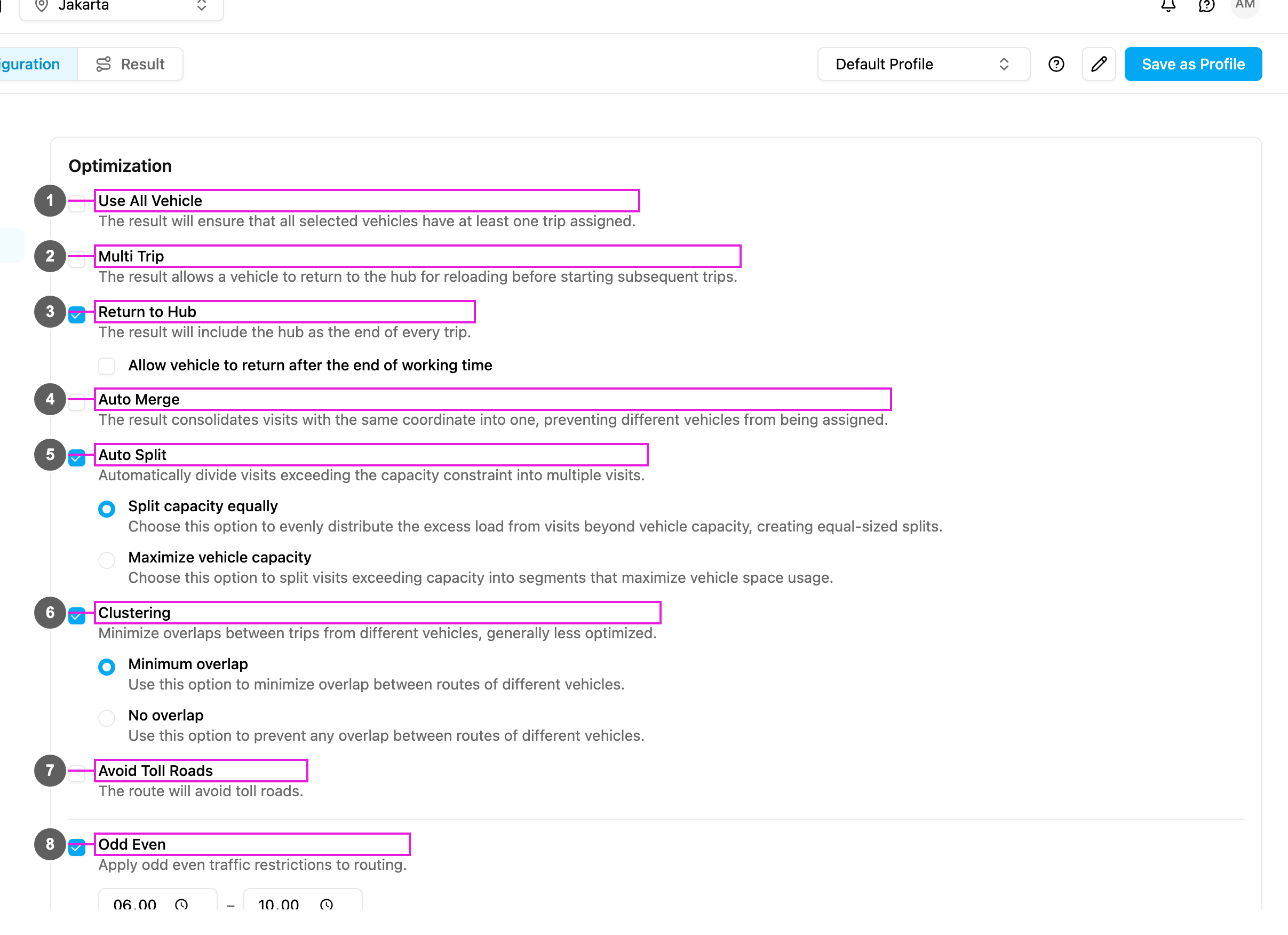
2. Tick **Auto Split** (item 5 in the picture).
3. Choose a split type: **Split capacity equally** or **Maximize vehicle capacity**.
The change is saved as soon as you make it.
## Split types
**Split capacity equally**: **Evenly distribute the excess load from visits beyond vehicle capacity, creating equal-sized splits.**
* Use it when you want a balanced load across vehicles, and your vehicles have similar capacities.
* Example: a 3,500 kg visit split over 2 vehicles gives two parts of 1,750 kg.
**Maximize vehicle capacity**: **Split visits exceeding capacity into segments that maximize vehicle space usage.** The first part fills a vehicle up to its limit and the rest goes to the next part.
* Use it when you want to use as few vehicles as possible, or your vehicles have different capacities.
* Example: a 3,500 kg visit and a vehicle that carries at most 3,000 kg gives a first part of 3,000 kg and a second part of 500 kg.
Only the first capacity constraint of the profile is used to decide the split.
## In the result
Each part appears as its own visit on the vehicle that serves it, marked with a split badge and its split number (**⑂ 1**, **⑂ 2**). For example, with **Split capacity equally** a 3,500 kg visit appears on vehicle 1 as part 1 (1,750 kg) and on vehicle 2 as part 2 (1,750 kg).
When you [export](/pages/planning/routing/result/search-filter-delete#exporting-a-result) the result, the **Others** sheet shows the Auto Split type that was used.
## Dispatching split visits
When you [dispatch](/pages/planning/routing/result/dispatch), a new task is created for each part, with its share of the capacity, and the original task's capacity is updated to match. The task details show the split type and split number.
Keep in mind:
1. Map the capacity constraint to a component of the task type in its [route configuration](/pages/workflow/task-type/configuration). Otherwise the capacity on the [Visit](/pages/planning/routing/visit) page is empty, and you have to type it in by hand.
2. If a split part ends up in the dropped visits, the original task is kept and stays **Unassigned**.
3. Because dispatch creates new tasks for the parts, it can fail when you have reached your task quota.
4. With [Auto Merge](/pages/planning/routing/configuration/auto-merge) also on, visits with identical coordinates are not split across different vehicles.
This documentation is built and hosted on [Mintlify](https://mintlify.com), a developer documentation platform.