> ## Documentation Index
> Fetch the complete documentation index at: https://docsv4.mile.app/llms.txt
> Use this file to discover all available pages before exploring further.
# Auto Merge
> Keep visits at the same coordinate on one vehicle, back to back.
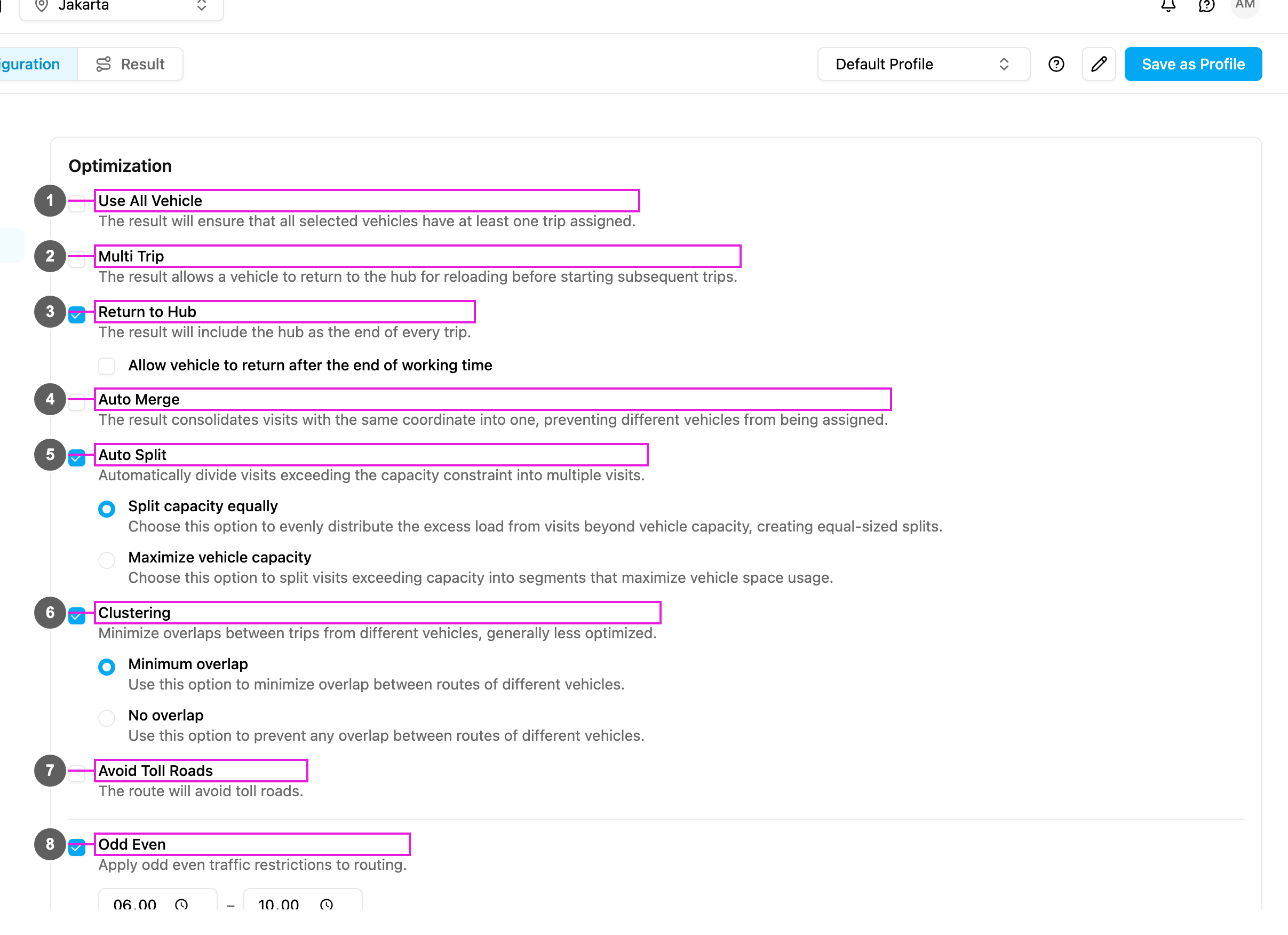
With **Auto Merge** on, visits with exactly the same coordinate are given to the **same vehicle, one right after another**. Without it, the optimization may split the orders of one customer over different vehicles.
Required permission:
* View configuration
* Edit configuration
## Turning it on
1. Open **Planning › Routing › Configuration** and go to **Optimization**.
2. Tick **Auto Merge** (item 4 in the picture).
The change is saved as soon as you make it.
From then on, visits with identical coordinates are no longer given to different vehicles.
**Example**: the visits "Toko Sinar Jaya" and "Toko Sinar Jaya – Gudang" both have the coordinate `-6.153812,106.817402`. With Auto Merge they are served by the same vehicle, one after the other.
Auto Merge does not combine the visits into one task. Each visit stays a separate visit and task; they are only kept together on one vehicle.
## With Auto Split
When [Auto Split](/pages/planning/routing/configuration/auto-split) is also on, visits with identical coordinates are not split across different vehicles, so merged visits stay together.
This documentation is built and hosted on [Mintlify](https://mintlify.com), a developer documentation platform.