> ## Documentation Index
> Fetch the complete documentation index at: https://docsv4.mile.app/llms.txt
> Use this file to discover all available pages before exploring further.
# Notifications and Help
> The bell, the help menu, the assistant and your profile menu in the top bar.
Three buttons on the right of the top bar are on every page: the bell, the help button and your profile.
## Notifications
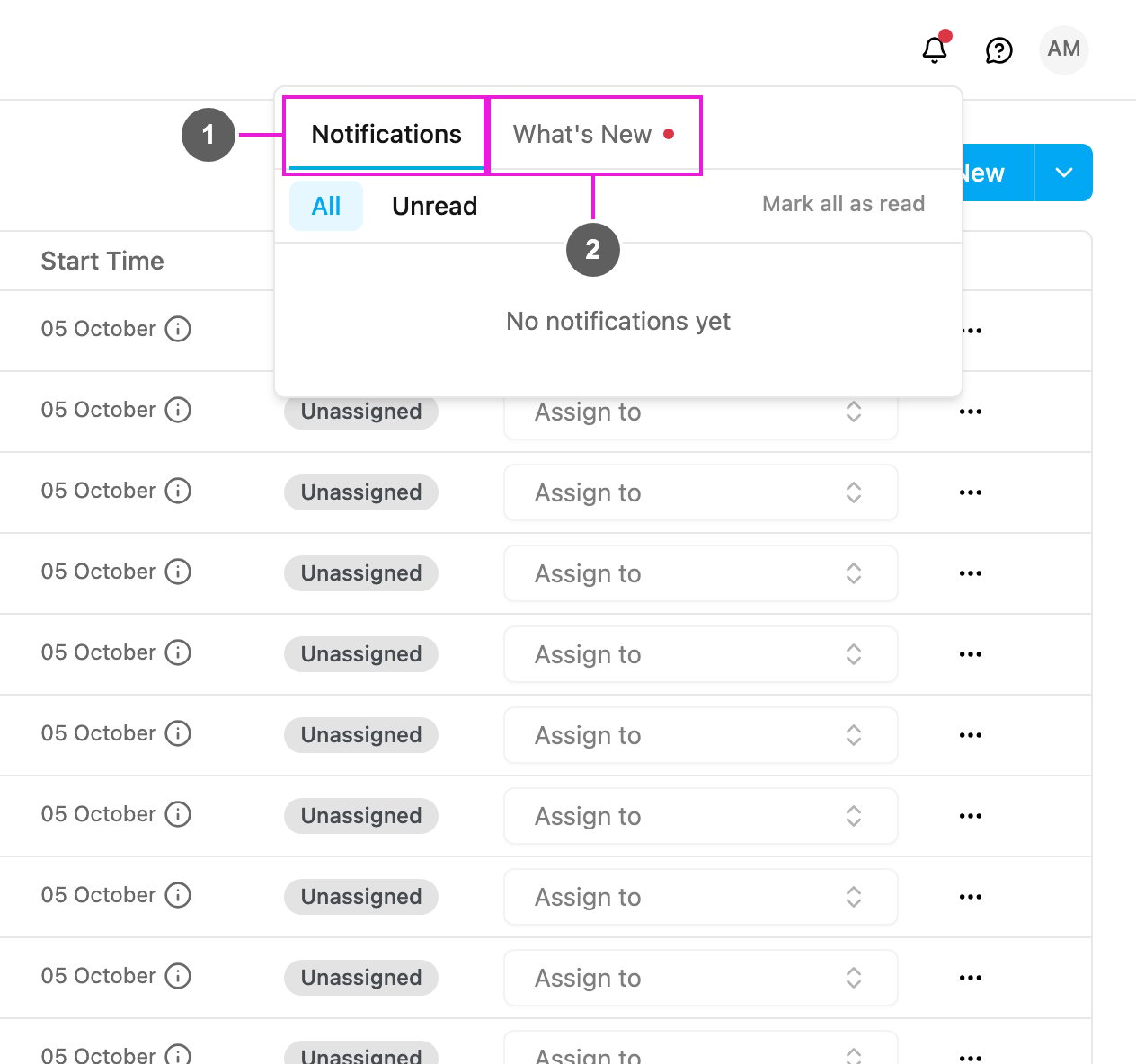
Click the bell in the top bar. A red dot on the bell means there is something you have not read.
1. **Notifications**: alerts and messages meant for you, such as an emergency alert (SOS) sent by a field user.
* **All** and **Unread** switch between every notification and only the ones you have not read.
* Notifications are grouped under **Today** and **Earlier**. Click **Load more** at the bottom to see older ones.
* Click a notification to mark it as read. A notification about a field user opens **Monitoring › Tracking** on that user and that day.
* **Mark all as read** clears the red dot.
2. **What's New**: the release notes of the app, newest first. Each release lists its changes; click **More details** to read the full note. A red dot on the tab means there is a release you have not seen.
The bell updates by itself when a new notification arrives, so you don't need to reload the page.
Emergency alerts also open a pop-up on screen when they arrive. See [Emergency Alerts](/pages/monitoring/tracking/emergency-alerts).
## Help
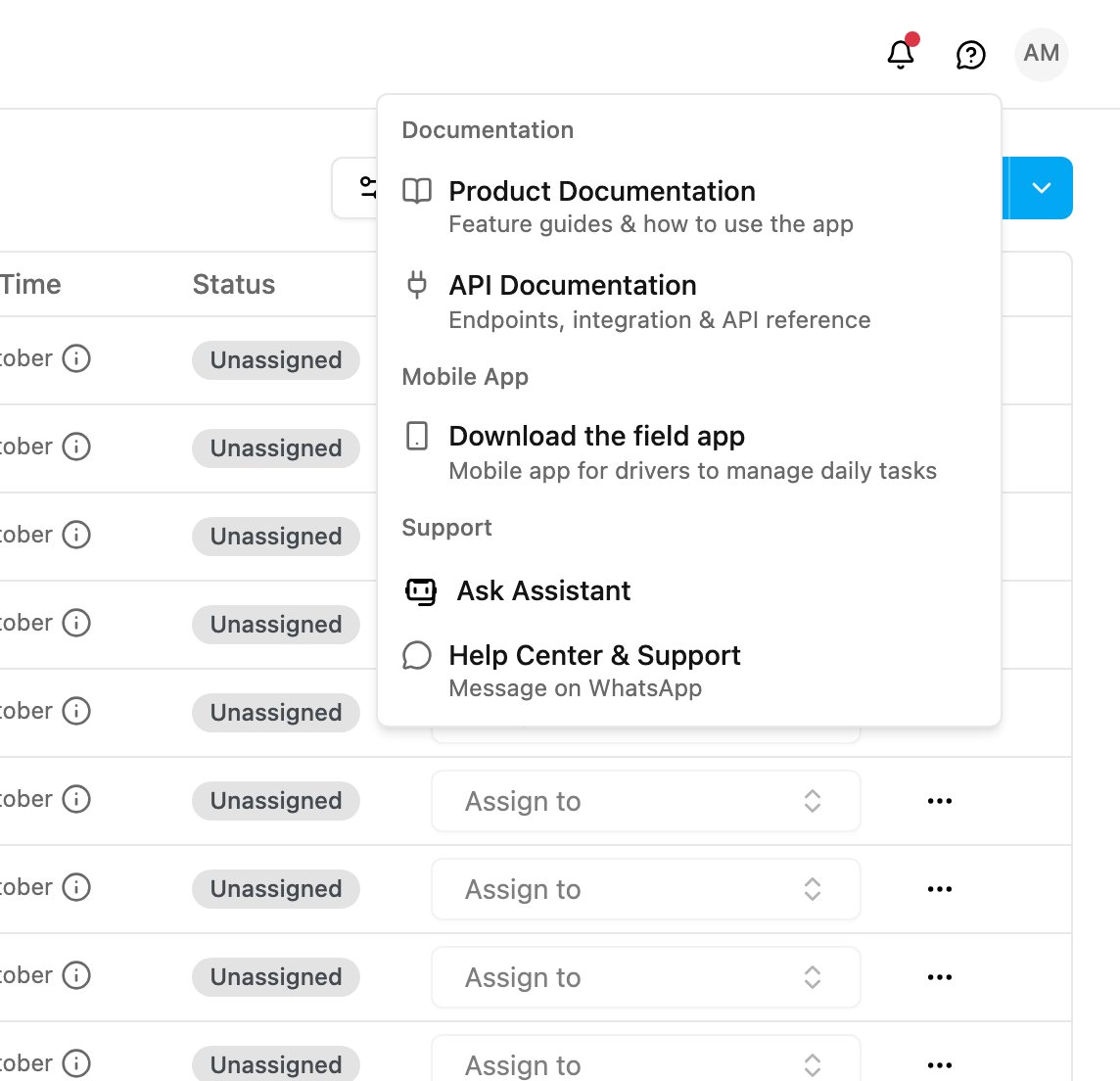
Click the **?** button in the top bar.
| Group | Item | What it does |
| - | - | - |
| **Documentation** | **Product Documentation** | Opens these guides. |
| | **API Documentation** | Opens the API reference, for developers who connect other systems. They sign in with an [access token](/pages/account/access-token). |
| **Mobile App** | **Download the field app** | Shows the QR code and the store links for the field app. See [Get the field app](/pages/getting-started/quick-start#get-the-field-app). |
| **Support** | **Ask Assistant** | Opens a chat where you can ask how to use the app. See below. |
| | **Help Center & Support** | Messages the support team on WhatsApp. |
## Ask Assistant
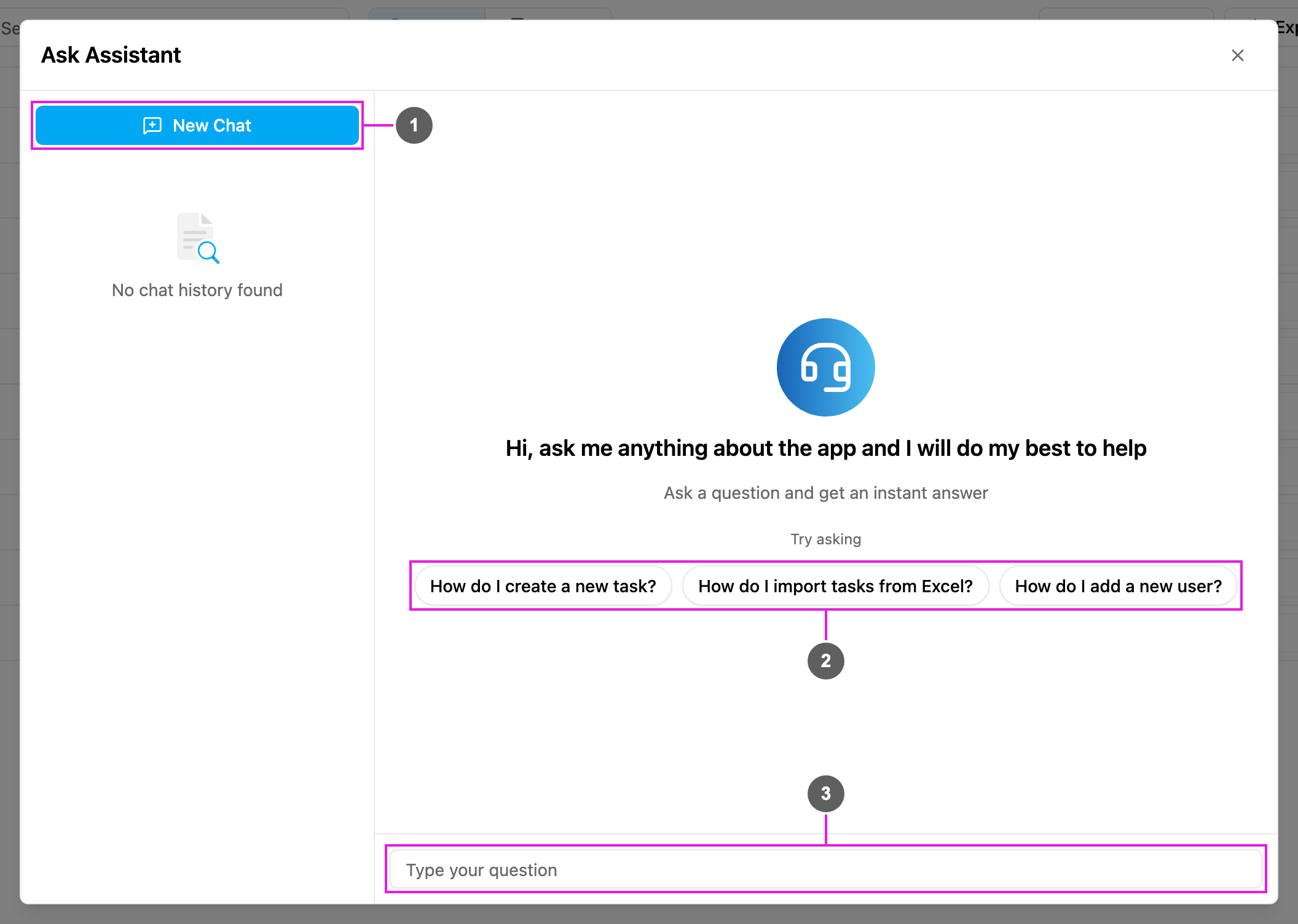
The assistant answers questions about how to use the app, any time of day. Click the **?** button, then **Ask Assistant**.
1. **New Chat**: start a new conversation. Your earlier conversations are listed under it, newest first. Click one to read it again, or delete it.
2. **Try asking**: sample questions such as *How do I create a new task?* Click one to ask it.
3. **Type your question**: write your own question, up to 500 characters, and press **Enter** or click **Send**.
How a conversation works:
* The assistant replies in a few seconds. While it works you see *Analyzing your request...*, then *Generating results*.
* If the assistant can't help, the support team can take over the same conversation. Their replies are marked **Support team**; the assistant's are marked with the assistant's name.
* Rate each conversation as **Helpful** or **Not helpful** to help improve the answers.
* A conversation closes automatically after **30 minutes** without activity, or when the support team marks it **Resolved**. Click **New Chat** to ask something else.
If the assistant can't be reached or takes too long, try again shortly or message the support team on WhatsApp from **Help Center & Support**.
## Your profile menu
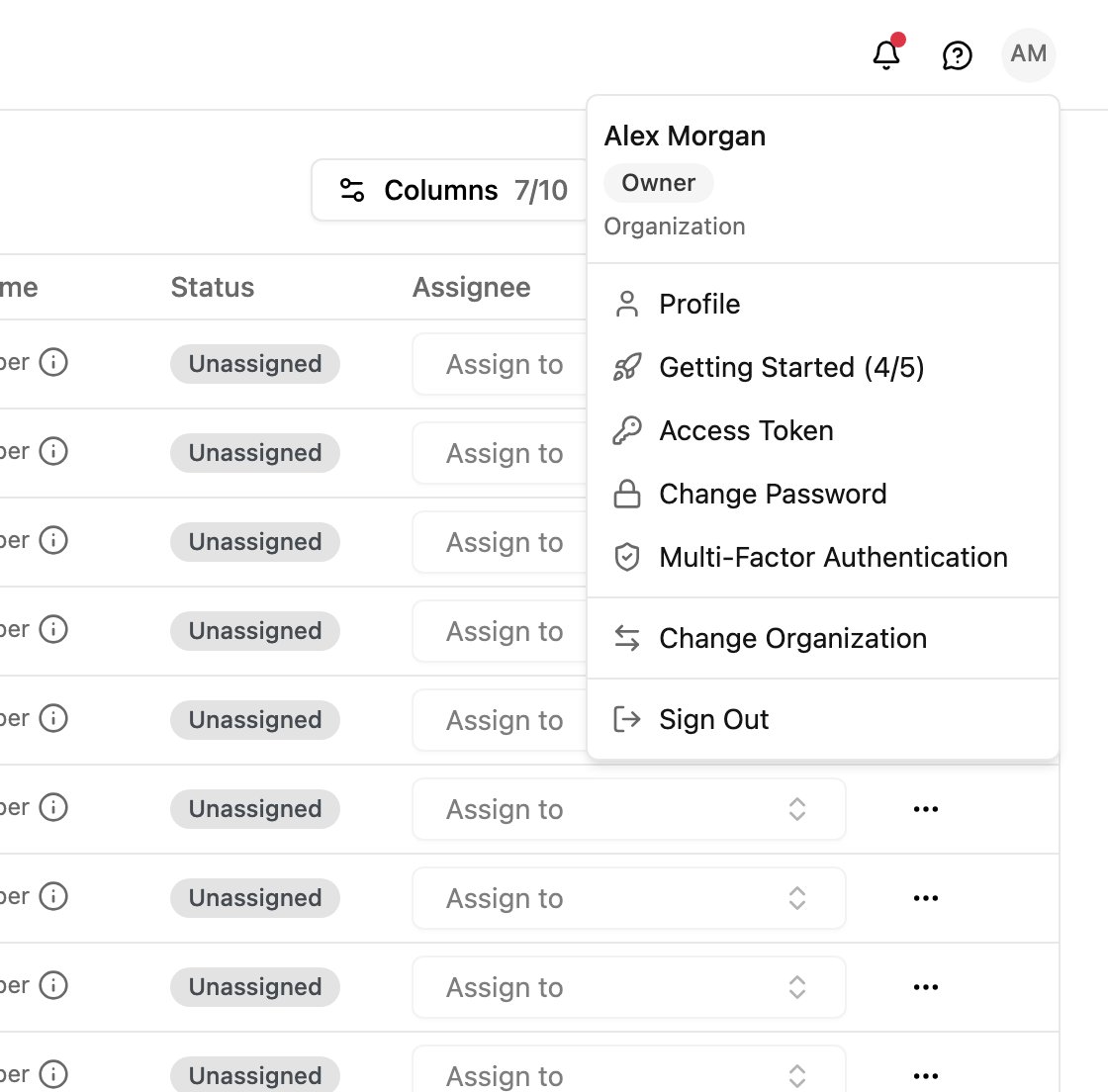
Click your initials in the top right corner. The top of the menu shows your name, your role and your organization.
| Item | What it does |
| - | - |
| **Profile** | Your name, photo and language. See [Profile](/pages/account/profile). |
| **Getting Started** | A short video tour of the app, with your progress. See [Take the tour](/pages/getting-started/quick-start#take-the-tour). |
| **Access Token** | Tokens that let other systems use the API on your behalf. Shown only if your role has **Manage personal access token**. See [Access Token](/pages/account/access-token). |
| **Change Password** | Change your password. See [Password and Sign-in Security](/pages/account/password-and-security). If you have not verified your account yet, verify it first. |
| **Multi-Factor Authentication** | Set up an authenticator app for your sign-in. Shown only if your role has **Multi-factor authentication by Cloud-based Authenticator**. See [Password and Sign-in Security](/pages/account/password-and-security#authenticator-app). |
| **Change Organization** | Switch to another organization you belong to, or create a new one. See [Switching Organization](/pages/account/switching-organization). |
| **Sign Out** | Sign out of the web app on this browser. |
This documentation is built and hosted on [Mintlify](https://mintlify.com), a developer documentation platform.