> ## Documentation Index
> Fetch the complete documentation index at: https://docsv4.mile.app/llms.txt
> Use this file to discover all available pages before exploring further.
# Filters and Columns
> Start an export of tasks or data source records, choose what it covers and which columns the file holds.
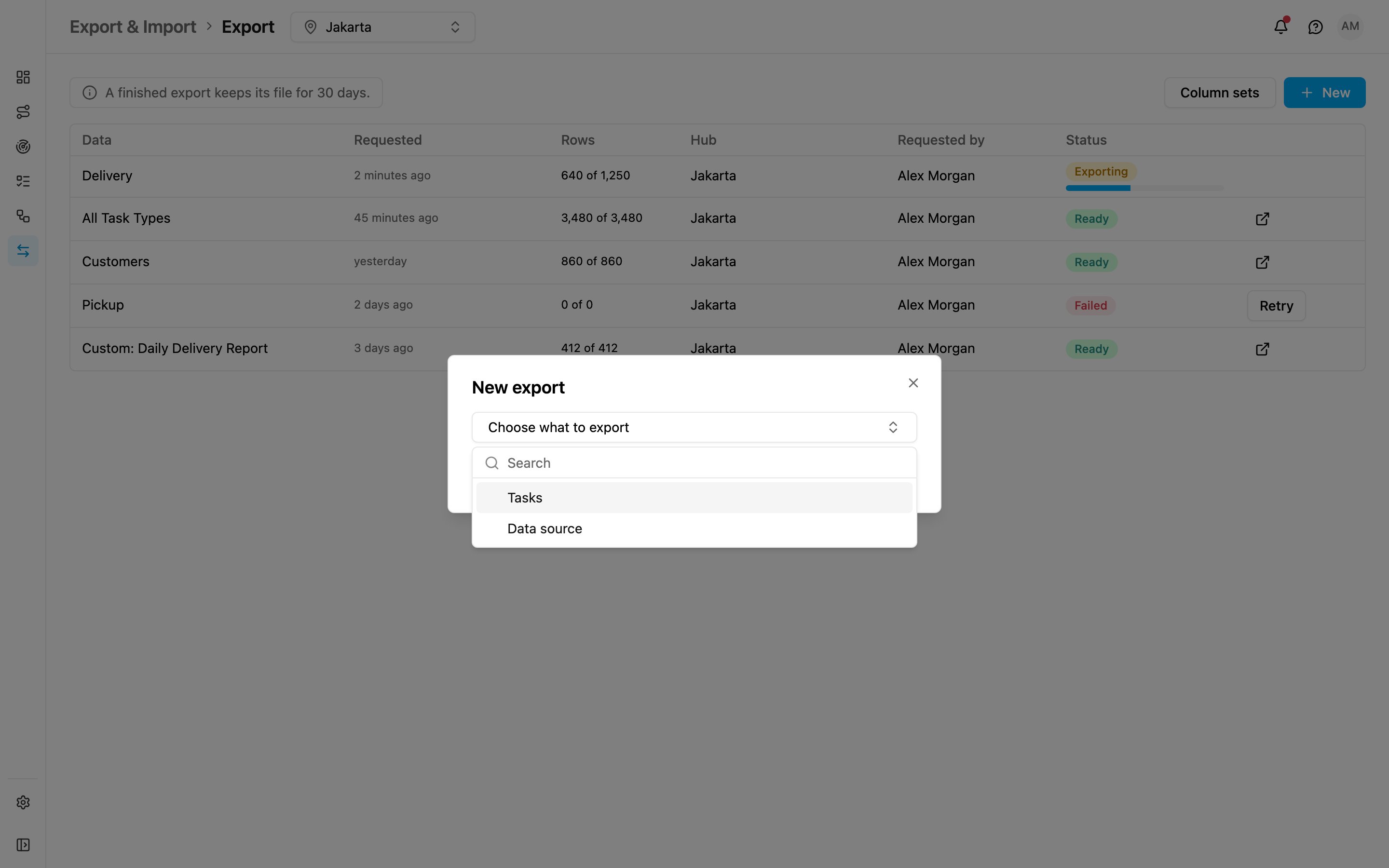
Click **New** on the [Export](/pages/export-import/export) page. The **New export** dialog asks first what to export, then shows only the options that apply.
Required permission:
* View Data Export
* Export task, to export tasks
* Export Data Source, to export data source records
* View custom export template, to pick a saved column set
Under **Choose what to export**, pick **Tasks** or **Data source**.
## Export tasks
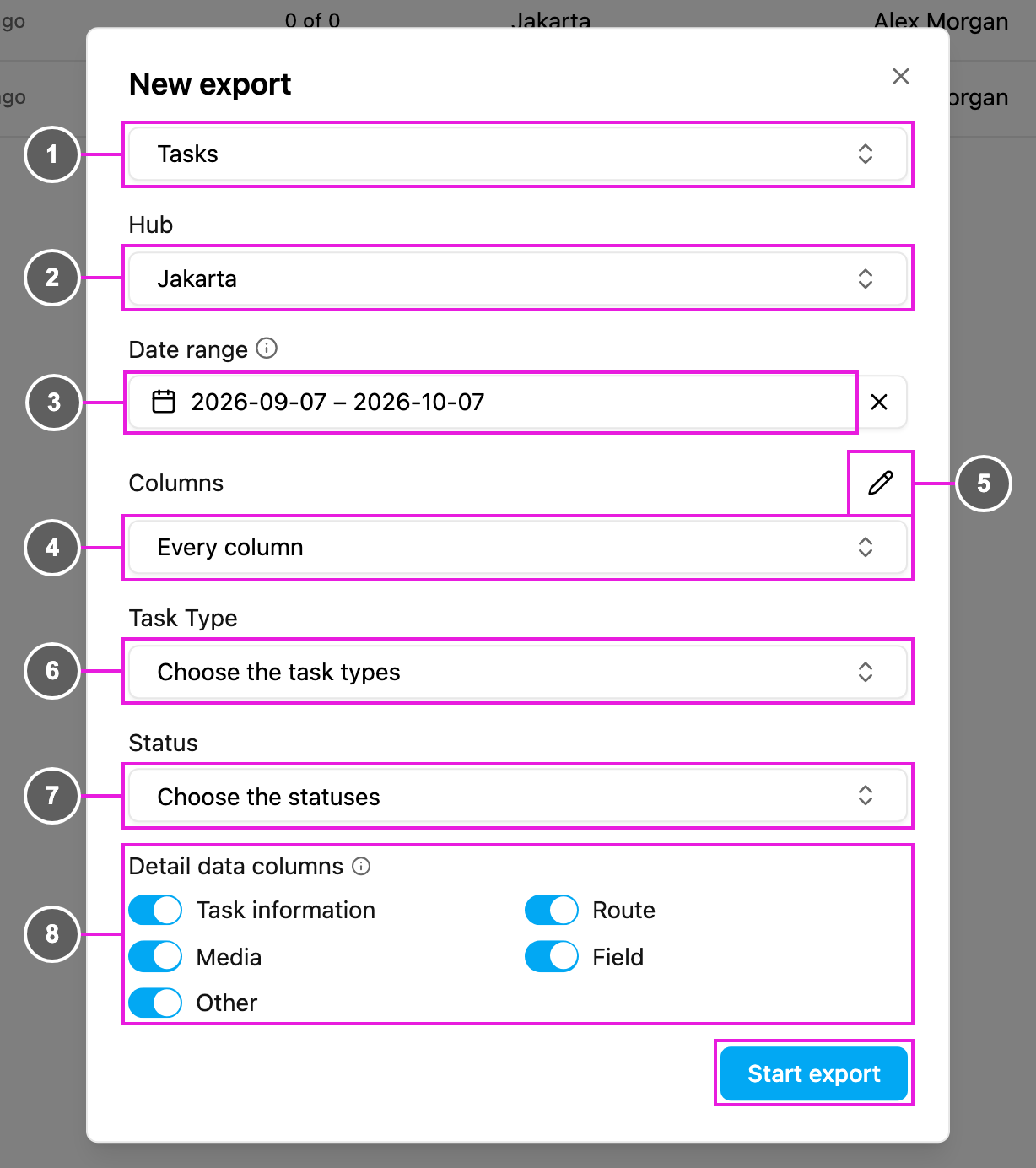
1. **Tasks**: what is exported.
2. **Hub**: the hubs to export from. Pick at least one, or use **Select all hubs**. The rest of the dialog appears once a hub is chosen.
3. **Date range**: tasks within this range are exported. Both a start and an end date are required; it starts at the last 30 days.
4. **Columns**: how the columns are chosen:
* **Every column**: every column of the chosen task types, narrowed by the switches under **Detail data columns**.
* **A saved column set**: the columns, and their order, from a [column set](/pages/export-import/column-sets).
5. **Manage column sets** (pencil): opens the [Column sets](/pages/export-import/column-sets) dialog without leaving the export.
6. **Task Type**: the task types to export, or **Select all task types**. Besides your task types, the list offers **Trip Activity**.
7. **Status**: the task statuses to include: **Unassigned**, **Ongoing** and **Done**.
8. **Detail data columns**: each switch adds or removes one group of columns from the file. Keep at least one on. Your choice is remembered for the next export.
* **Task information**: title, content, label, task type, status, assignee, who created, assigned, updated and finished the task, and when.
* **Route**: ETA, ETD, planned route order, waiting time, distance, distance from hub, split details, assigned vehicle and visit group.
* **Media**: photo, signature, video and other file columns.
* **Field**: the answers your field team entered in the task type's components.
* **Other**: task id, hub, task type id, coordinates, durations, geo lock settings, reference id and other system columns.
Times in the file use the Jakarta time zone (WIB/GMT+7). Click **Start export**. The export appears at the top of the list with the status **Exporting**, and its file follows when it is **Ready**.
### Trip Activity
**Trip Activity** is offered as a source next to your task types. Its columns are **Username**, **Start Trip**, **Start Trip Coordinate**, **End Trip**, **End Trip Coordinate**, **Total Distance (km)** and **Total Duration (minutes)**, and they appear on their own sheet in the file.
* **Select all task types** also selects Trip Activity.
* If you choose specific task types without Trip Activity, only those task types are exported.
### Export with a saved column set
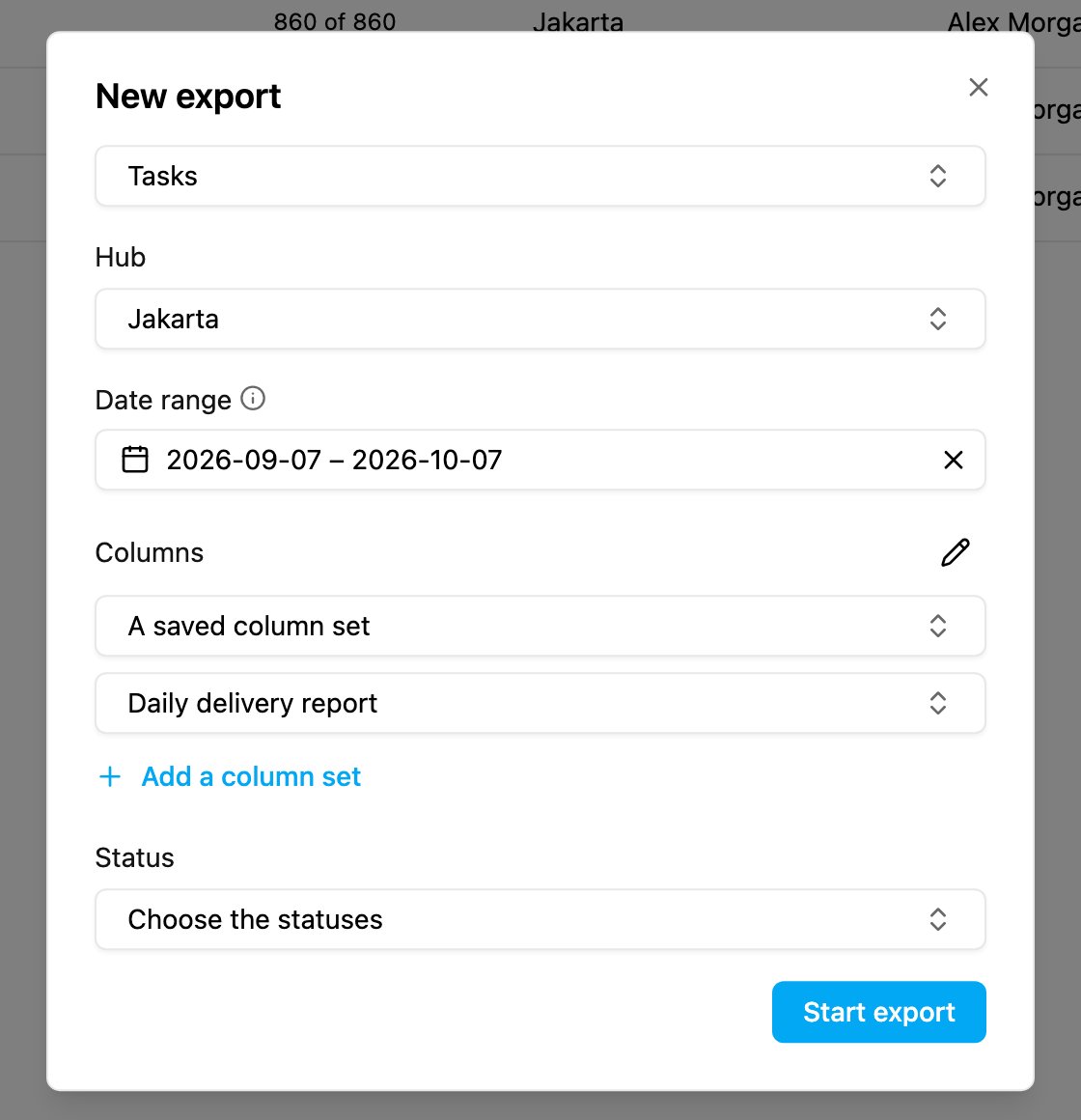
Choose **A saved column set** under **Columns**, then pick the set.
The task types and columns come from the set, so the **Task Type** picker and the **Detail data columns** switches are hidden. Choose the **Status** and click **Start export**. In the list, the export shows as **Custom:** followed by the set's name.
If you have no set yet, click **Add a column set** to build one. See [Column sets](/pages/export-import/column-sets).
## Export data source records
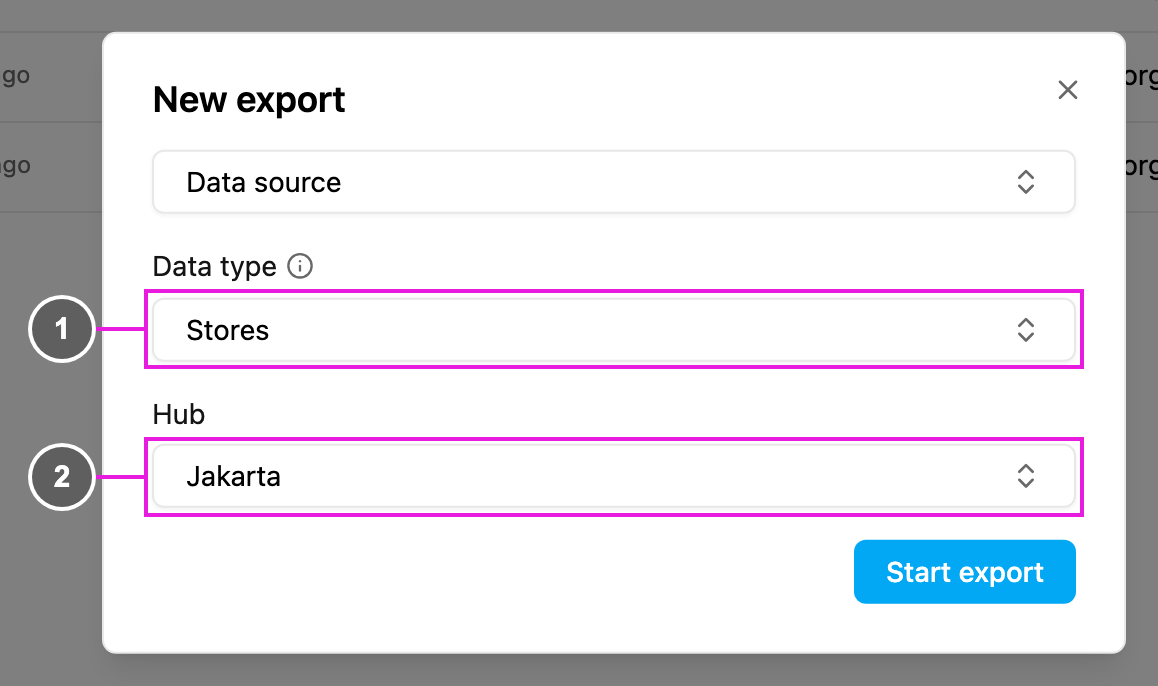
Pick **Data source** under **Choose what to export**.
1. **Data type**: the data type to export. Every column of this data type is exported. Types marked **Common** are shared by every hub.
2. **Hub**: the hubs whose records are exported. It only appears for a data type that is not **Common**.
Click **Start export**.
To export just the tasks on screen, with the filters you already set, use **Export** on the [Task](/pages/activities/task/introduction) page.
This documentation is built and hosted on [Mintlify](https://mintlify.com), a developer documentation platform.