> ## Documentation Index
> Fetch the complete documentation index at: https://docsv4.mile.app/llms.txt
> Use this file to discover all available pages before exploring further.
# Column Sets
> Save a list of columns, in order, and reuse it for every export.
A column set is a saved choice of columns and their order. When you export with a column set, the file holds exactly those columns, left to right in the order you set. Column sets replace the custom export templates of earlier versions.
Click **Column sets** on the [Export](/pages/export-import/export) page, or the pencil next to **Columns** in the **New export** dialog.
Required permission:
* Export task
* View custom export template
* Create custom export template, to build a set
* Edit custom export template, to rename or edit a set
* Delete custom export template, to delete a set
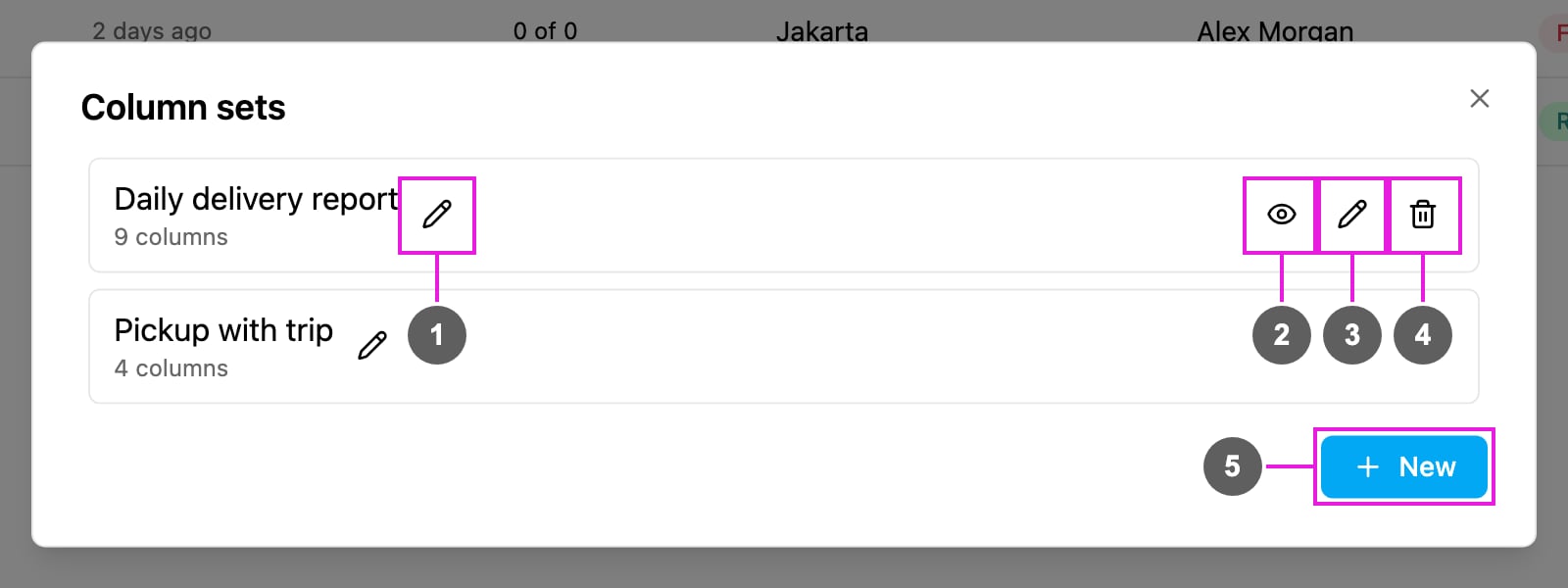
Each row shows the set's name and how many columns it holds.
1. **Rename**: change the name in place. Press Enter to save it, or **Cancel rename**.
2. **View**: see the set's task types and columns, in file order.
3. **Edit**: change the name, task types or columns.
4. **Delete**: remove the set.
5. **New**: build a new set.
When there is no set yet, the dialog reads **No column sets yet**, with **New** below it.
## Build a column set
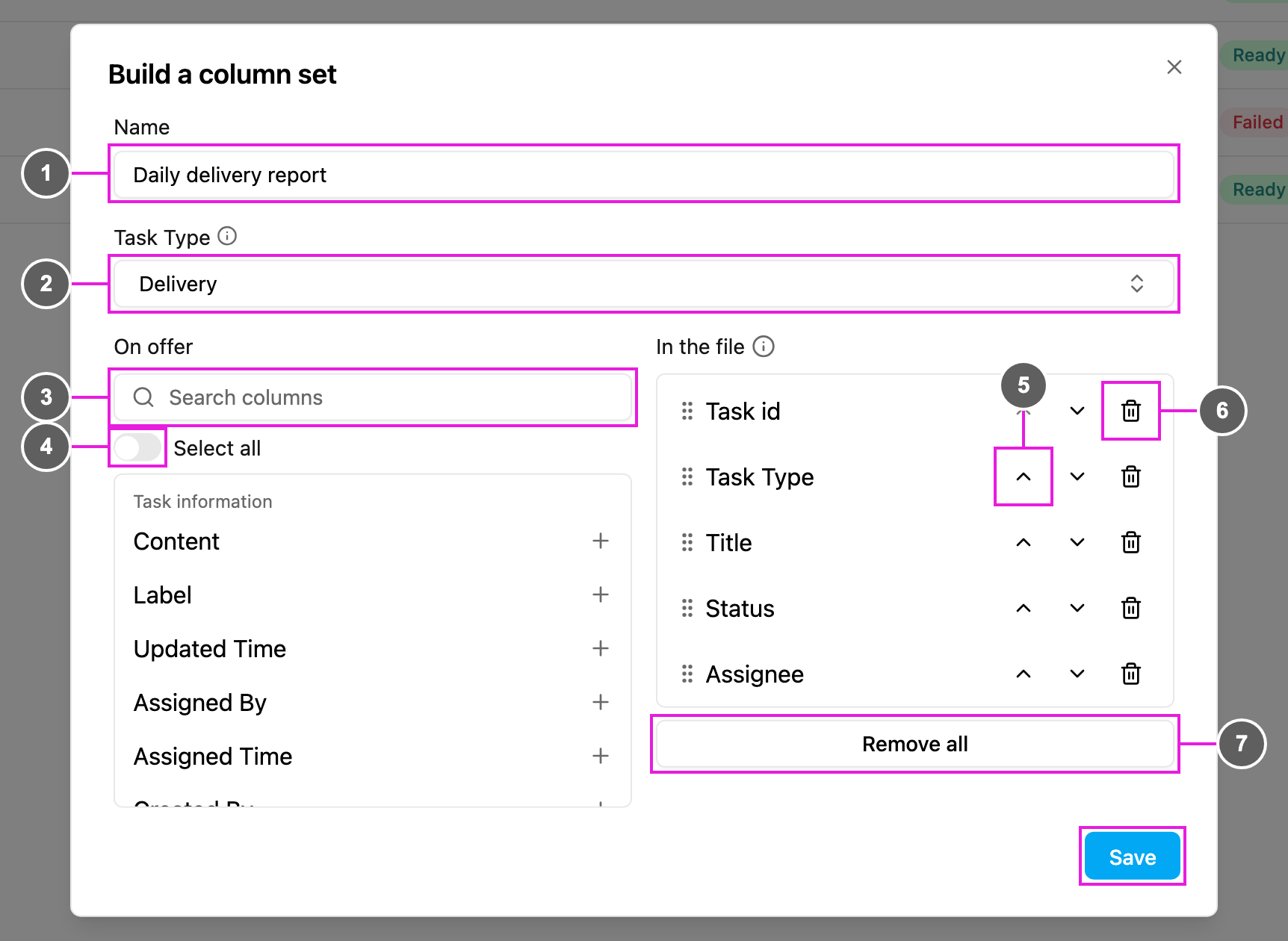
Click **New**, or **Add a column set** in the **New export** dialog.
1. **Name**: a unique name, using only letters, numbers and spaces. Two sets cannot have the same name.
2. **Task Type**: the task types whose columns are on offer. The columns of every chosen task type are merged into one list. Besides your task types, you can pick **Trip Activity**, which adds **Username**, **Start Trip**, **Start Trip Coordinate**, **End Trip**, **End Trip Coordinate**, **Total Distance (km)** and **Total Duration (minutes)**.
3. **Search columns**: find a column under **On offer**. The columns are grouped under **Task information**, **Routing**, **Other**, **Media**, **Field** and **Trip activity**. Click **+** to add one to the file.
4. **Select all**: add or remove every column currently shown.
5. **Move up** and **Move down**: change a column's place. You can also drag a column by its handle. Top to bottom under **In the file** is left to right in the file.
6. **Remove**: take one column out of the file.
7. **Remove all**: take every column out of the file.
Click **Save**. The set appears in the list and in the **New export** dialog straight away.
The number of column sets depends on your plan. When the limit is reached, a message offers **Upgrade now**; otherwise delete a set you no longer need.
## View a column set
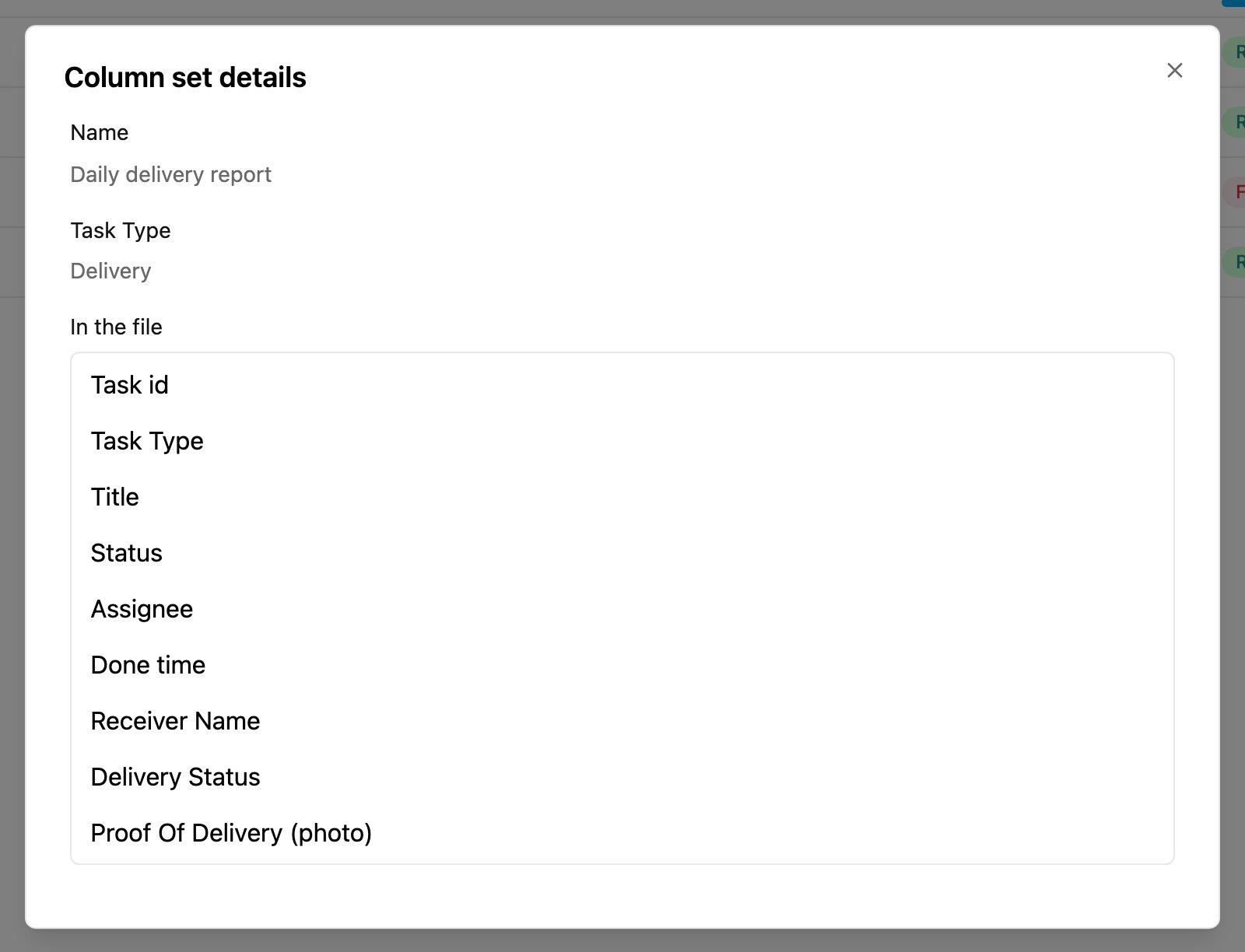
Click **View** on a row to check the order of the columns before you export.
**Column set details** shows the **Name**, the **Task Type** and, under **In the file**, every column in the order it appears in the file.
## Edit a column set
Click **Edit** on a row. The same form as **Build a column set** opens with the set's name, task types and columns. Change them and click **Save**. If you close the form with unsaved changes, you are asked whether to **Discard** them or **Keep editing**.
## Delete a column set
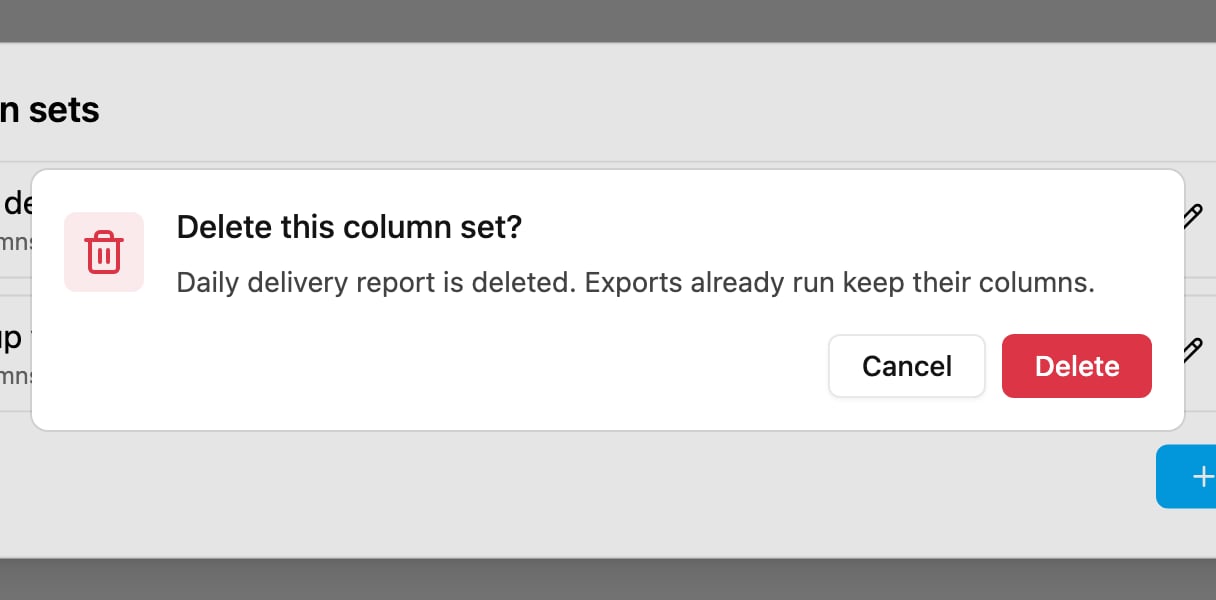
Click **Delete** on a row, then **Delete** to confirm.
Exports already run keep their columns and files. A deleted set cannot be restored, so check it before you delete it.
This documentation is built and hosted on [Mintlify](https://mintlify.com), a developer documentation platform.