> ## Documentation Index
> Fetch the complete documentation index at: https://docsv4.mile.app/llms.txt
> Use this file to discover all available pages before exploring further.
# Insight
> Ask about your operations in plain language and get answers from your own task data.
**Insight** is a chat. Ask a question about your tasks in plain language, such as *How many tasks are overdue?* or *Compare the completion rate by hub for this month*, and the assistant answers from your organization's own task data, with numbers, lists and tables. Open **Analytics › Insight**.
Required permission:
* View AI Insight (to ask questions)
* Delete AI Insight (to delete a conversation)
## Start a conversation
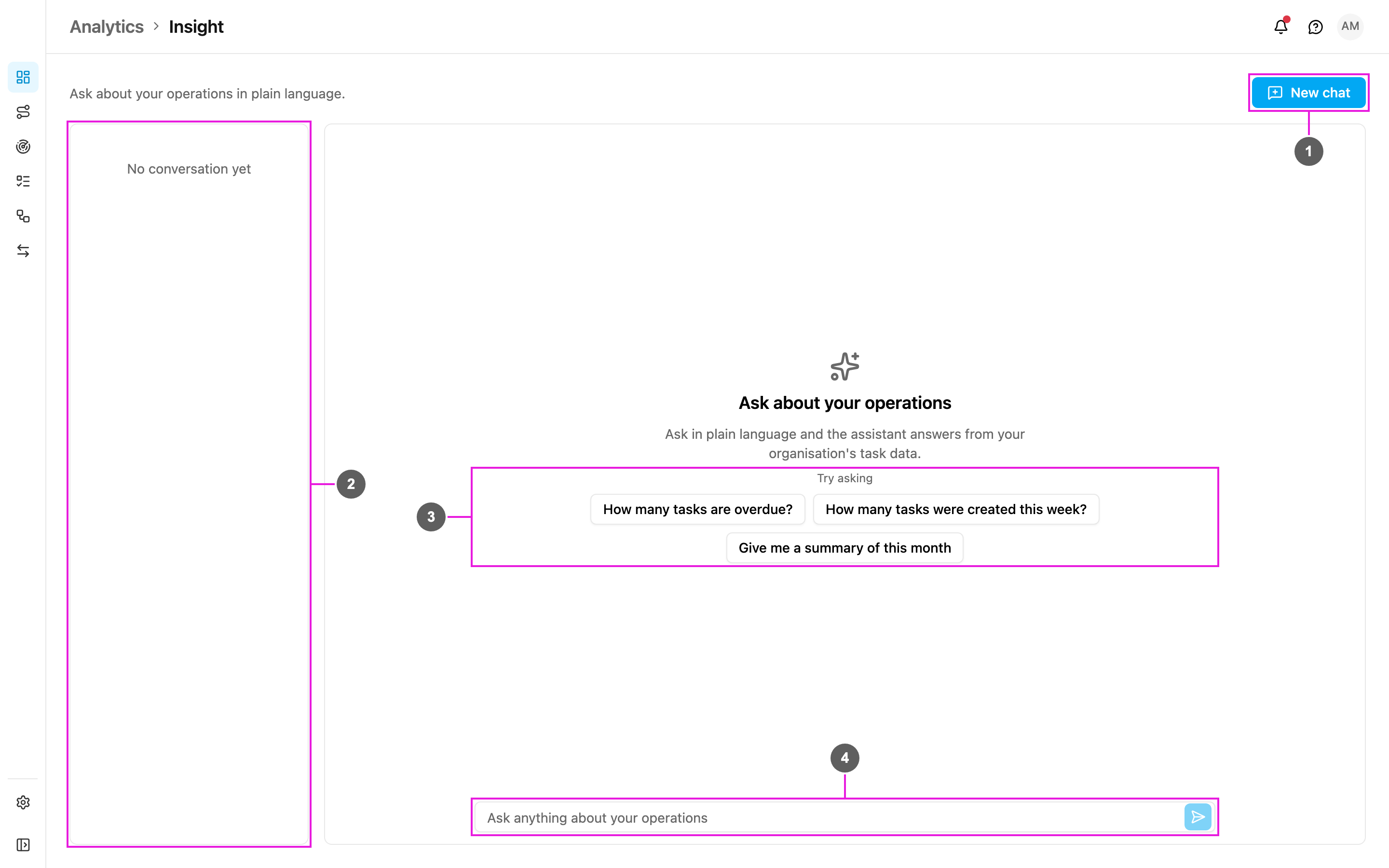
1. **New chat**: start a fresh conversation. It clears the screen and shows the suggested questions again.
2. **Chat history**: your earlier conversations. Before your first question it says *No conversation yet*.
3. **Try asking**: suggested questions to get started. Click one to ask it straight away:
* *How many tasks are overdue?*
* *How many tasks were created this week?*
* *Give me a summary of this month*
4. **Ask anything about your operations**: type your own question and press **Enter** or click **Send**.
While the assistant works, the chat shows *Thinking*.
## A conversation
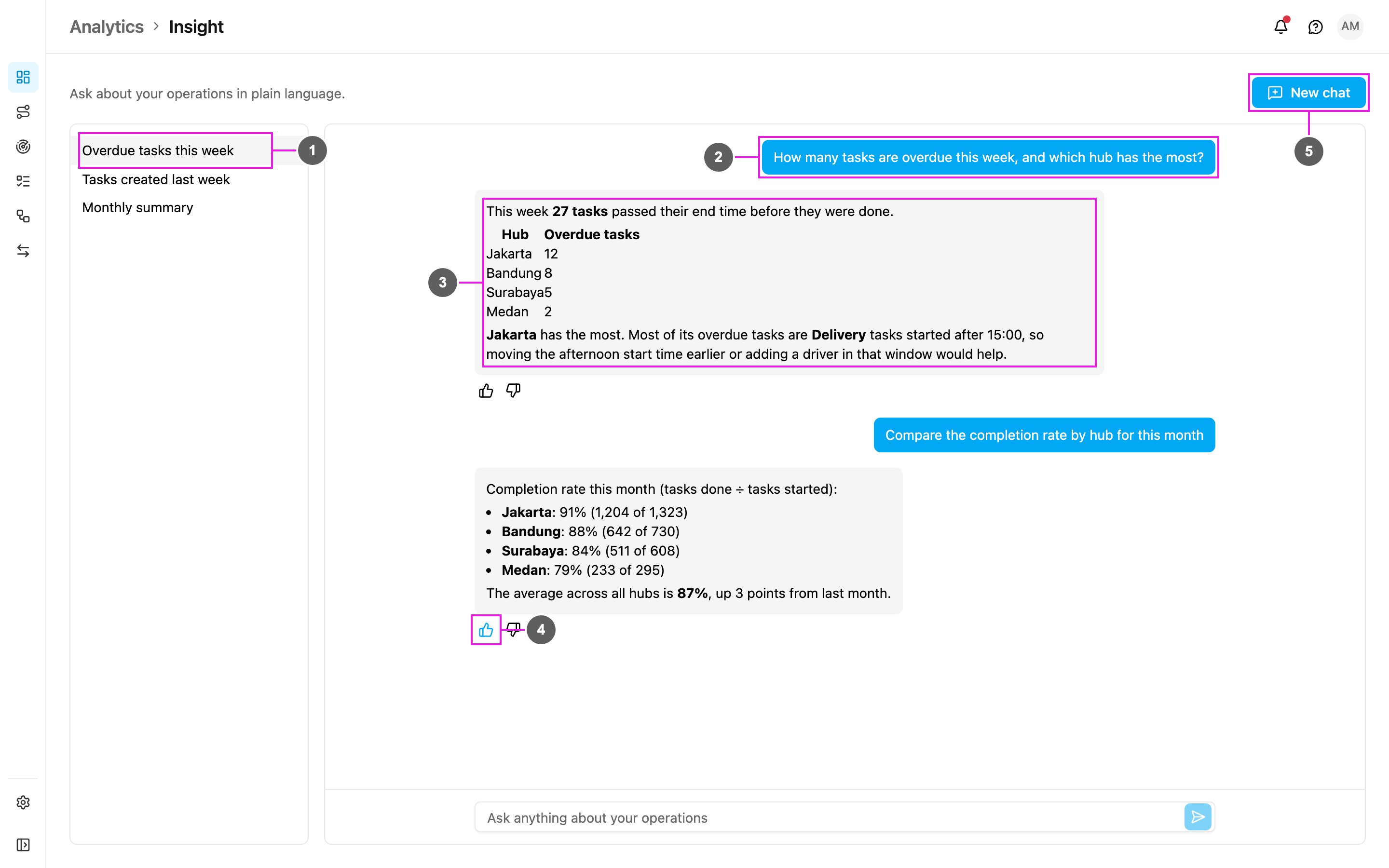
1. **Conversation**: each conversation is saved automatically under a title taken from its first question. Click it to open it again and carry on.
2. **Your question**: on the right.
3. **Answer**: on the left, with figures in bold, lists and tables.
4. **Helpful / Not helpful**: rate the answer with a thumbs up or down. The app says *Thanks for the feedback*. Your ratings help improve the answers.
5. **New chat**: start another conversation.
Ask follow-up questions in the same conversation to dig deeper, for example *Which of those are Delivery tasks?*
On a narrow screen, the history moves behind a **Chat history** button.
## Delete a conversation
1. Find the conversation in the history.
2. Click the trash icon next to it.
3. Confirm with **Delete**. The conversation is removed for good.
## Tips for good answers
* **Name the time range**: *this week*, *this month*, *last 7 days*.
* **Ask about numbers and trends**: counts, completion rates and comparisons between hubs, task types or people work best.
* **Keep questions short and clear.**
* **Try the suggested questions** to see what Insight can do.
* **Ask follow-ups** in the same conversation.
## From the previous version
In the previous version, **AI Insight** opened in a window from the Dashboard page. It is now its own page, **Analytics › Insight**, with the same chat, suggested questions, saved history, deletion and thumbs up or down feedback. The history now lists your recent conversations directly, without a **Load More** button.
This documentation is built and hosted on [Mintlify](https://mintlify.com), a developer documentation platform.