> ## Documentation Index
> Fetch the complete documentation index at: https://docsv4.mile.app/llms.txt
> Use this file to discover all available pages before exploring further.
# Editing a Dashboard
> Add, move, resize and rename widgets, undo mistakes, and save without overwriting someone else's changes.
Open a dashboard and click **Edit**, or choose **Edit** from the dashboard's **⋯** menu in the list. In edit mode you change the layout freely; nothing is saved until you click **Save**.
Required permission:
* Edit dashboard
You can edit your own dashboards. A dashboard someone else shared with you is read-only: duplicate it to get your own copy.
## Edit mode
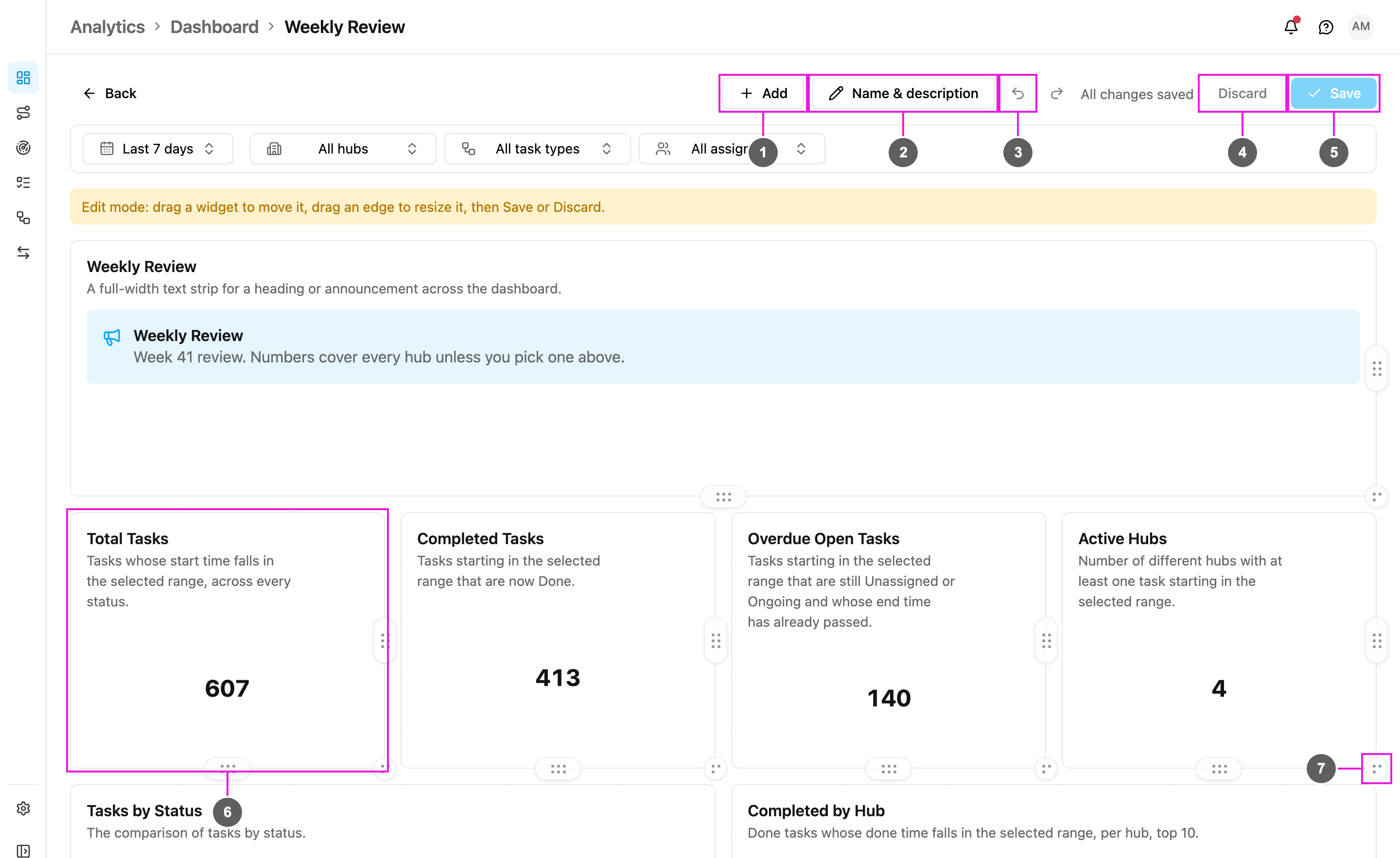
1. **Add**: add a widget from the catalog.
2. **Name & description**: change the dashboard's name and its description (shown in the dashboard list).
3. **Undo / Redo**: step back or forward through your changes. Beside them the page says *Unsaved changes* or *All changes saved*.
4. **Discard**: throw away every change since you clicked Edit. The app asks first.
5. **Save**: save the dashboard.
6. **Move**: drag a widget anywhere on the dashboard. The others make room.
7. **Resize**: drag a widget's right edge to change its width, the bottom edge to change its height, or the corner for both. The dashboard is 12 columns wide.
A yellow bar reminds you that you are in edit mode. If you try to leave with unsaved changes, the app asks *Leave without saving?*
### Using the keyboard
Click a widget so it is selected, then:
* **Arrow keys**: move it.
* **Shift + left or right arrow**: make it narrower or wider.
* **Shift + up or down arrow**: make it shorter or taller.
## Add a widget
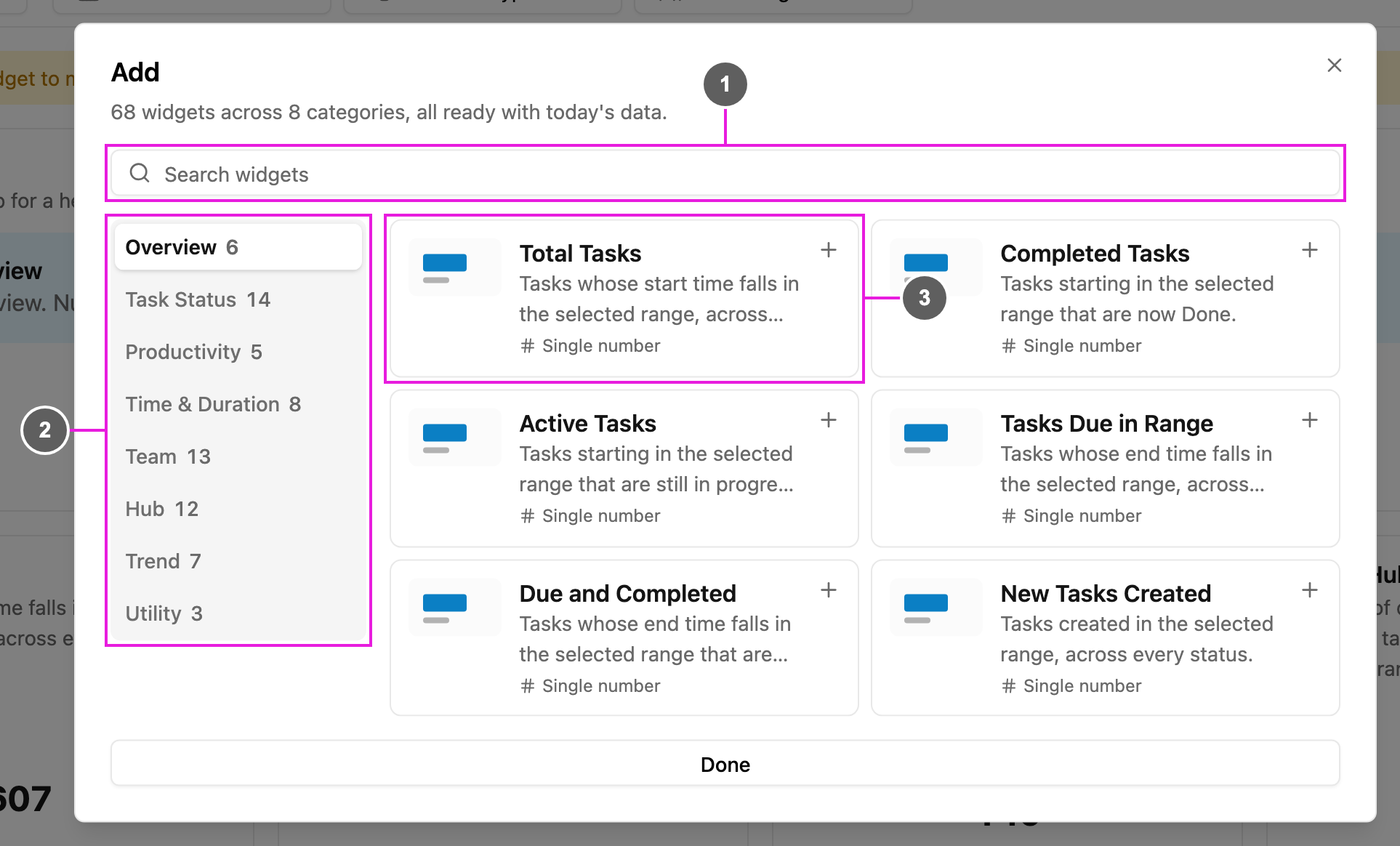
1. **Search widgets**: find a widget by name.
2. **Categories**: Overview, Task Status, Productivity, Time & Duration, Team, Hub, Trend and Utility, with how many widgets each has.
3. **Widget**: its name, what it counts and its visual. Click it to add it to the dashboard.
You can add several widgets before you click **Done**. Each new widget lands at the end of the dashboard; drag it where you want it. Every widget is listed in [Dashboard Widgets](/pages/analytics/dashboard-widgets).
## Change a widget
In edit mode, click a widget's **⋯**:
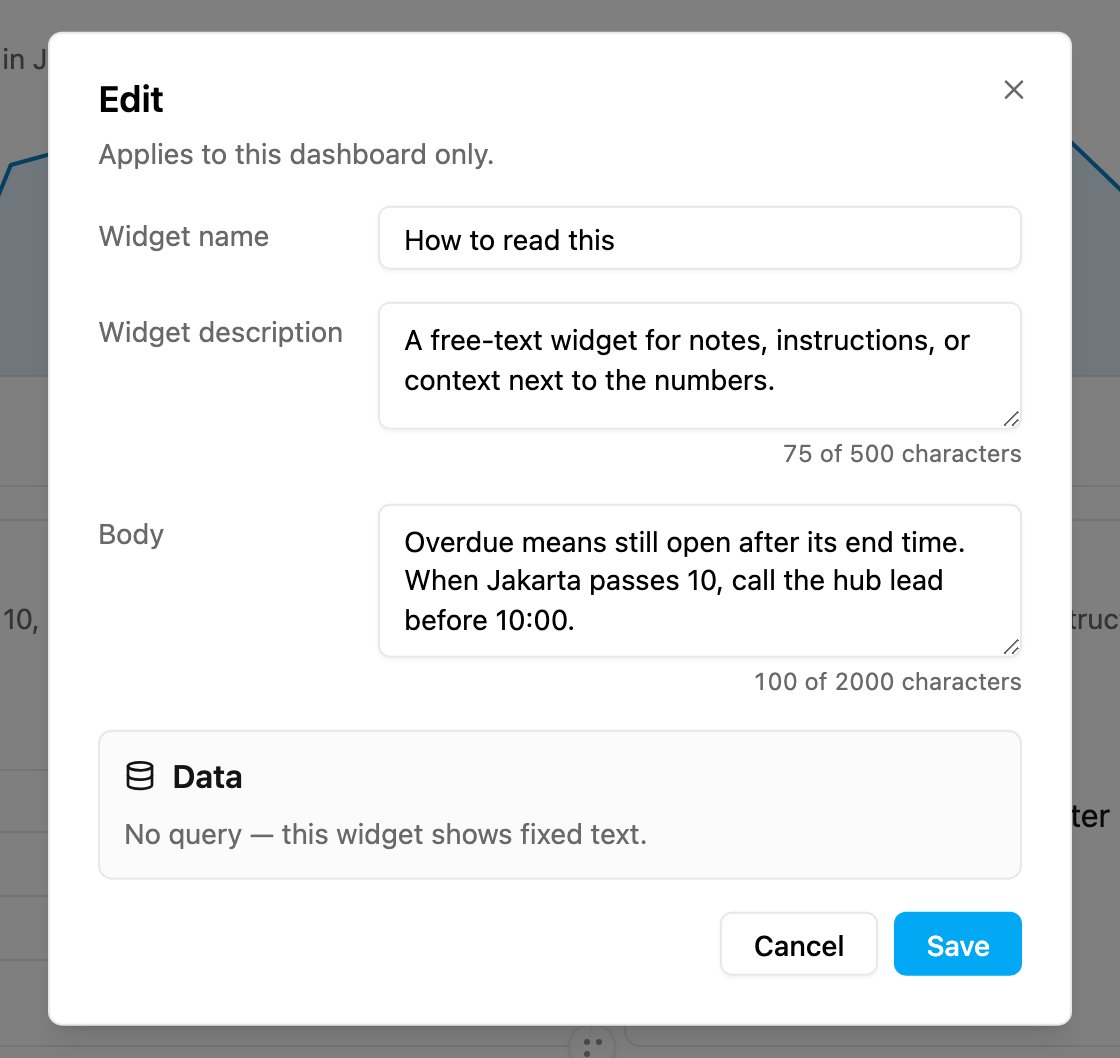
* **Edit**: rename the widget, change its description and, for text and banner widgets, write its text.
* **Duplicate widget**: add a copy next to it, named *Copy of …*.
* **Remove**: take it off this dashboard.
* **Widget name**: the title on the widget. Required.
* **Widget description**: the line under the title, up to 500 characters. Optional.
* **Body**: the text of a **Free text** or **Banner** widget, up to 2,000 characters.
* **Data**: what the widget counts, grouped by what, and with which filters. A text widget says *No query — this widget shows fixed text.*
Changes to a widget apply to this dashboard only.
## Save
Click **Save**. The app says *Dashboard saved*.
### When someone else saved first
If another person saved the same dashboard while you were editing, saving stops and the app shows *This dashboard changed while you were editing*, with who saved and when. Choose:
* **Reload their version**: show their version and throw away your changes.
* **Keep editing**: keep your changes on top of their version. Your next **Save** replaces what they did, so check their changes first.
## Name and description
Click **Name & description** to rename the dashboard or describe what it is for and who reads it. The name is required.
This documentation is built and hosted on [Mintlify](https://mintlify.com), a developer documentation platform.