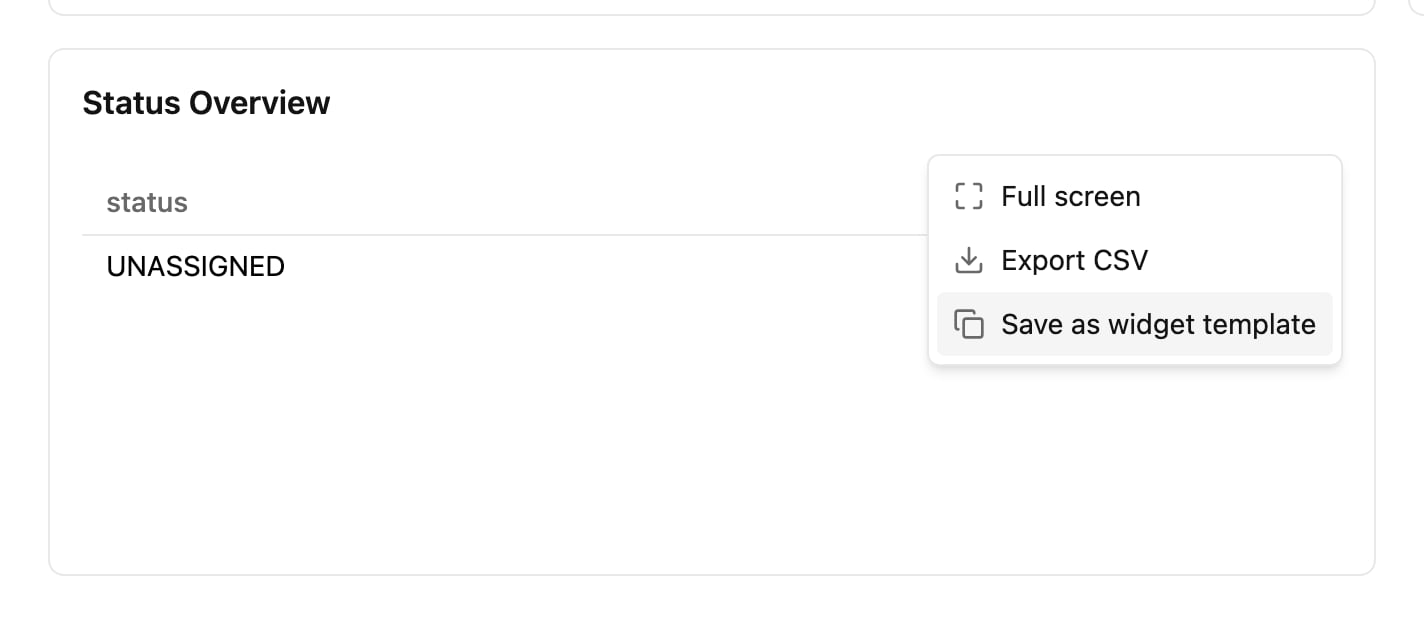
A custom widget's ⋯ menu while viewing the dashboard, with Save as widget template.
3. Check the **Template name**. It starts as the widget's name and can be up to 200 characters. Names do not have to be unique. 4. Optionally change the **Description**, up to 500 characters. 5. Click **Save**. The dialog also shows the widget's visual and what it counts, so you can see what will be copied. Saving a template does not change the widget or the dashboard. The template keeps the widget's filters, including any **Task type** filter. * **While viewing**, the template copies the widget as it was last saved. * **In edit mode**, the template copies the widget as it is now, including a widget you have just added or changed and not saved yet. The dashboard itself stays unsaved: click **Save** or **Discard** for it as usual. If a task type in the widget's **Task type** filter no longer exists, the template is not saved and the dialog stays open. **Save** is always available. If the name is empty when you click it, nothing is saved and the dialog says *A template needs a name.* ## Add a template to a dashboard 1. Open the dashboard and click **Edit**. 2. Click **Add** and open the **Custom** tab. Templates are listed after **Create widget**. You can also find one by name with **Search widgets**. 3. Click the template. Each template tile shows its visual, plus its task type when the template is filtered to exactly one, for example *Table · Delivery*. A template with no task type, or with several, shows its visual only, for example *Table*. The new widget is a copy of the template. Save the dashboard to keep it. The **Add** dialog loads the list each time it opens, so a template a colleague has just saved is already there. ## Edit a template 1. In the **Custom** tab of the **Add** dialog, click the template's **⋯**, then **Edit widget template**. 2. Change the **Template name**, the description, what the widget counts or its visual, then click **Save**.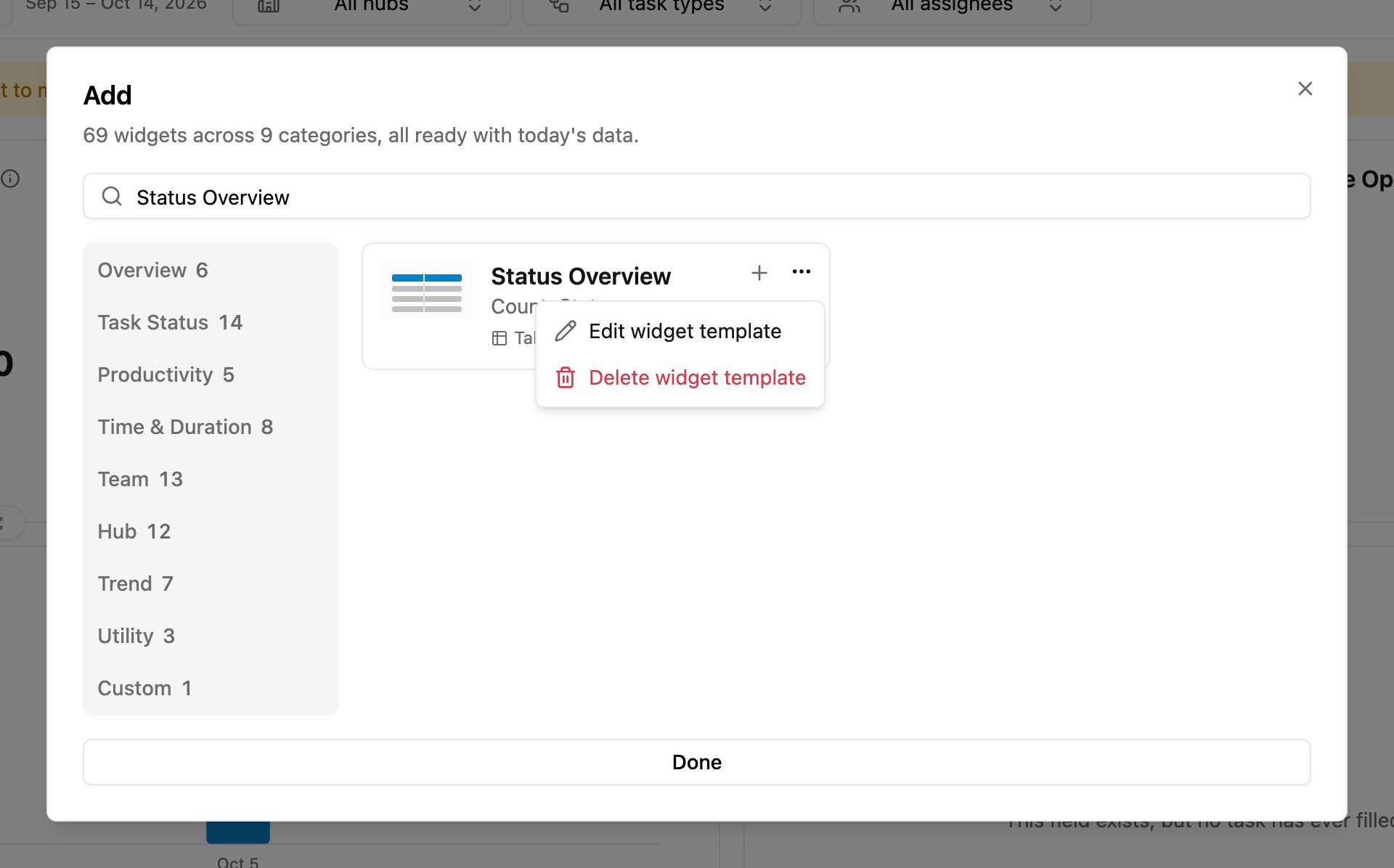
A widget template in the Custom tab, with its ⋯ menu: Edit widget template and Delete widget template.
The dialog opens on the template's saved visual, and you can change its **Task type** filter like any other filter. Its preview uses the dashboard date range only, not the filters of the dashboard you have open, because a template is used on many dashboards: *Preview uses the dashboard date range only.* The change applies to the template only. Widgets already on dashboards keep their own copy. After saving, you return to the **Add** dialog. ## Delete a template 1. In the **Custom** tab of the **Add** dialog, click the template's **⋯**, then **Delete widget template**. 2. Click **Delete** to confirm. The template is removed from the **Custom** tab for everyone in your organization. Widgets already added to dashboards are not affected. This cannot be undone. If someone else deleted the template while you had it open, you see *This widget no longer exists.* and it disappears from the list. This documentation is built and hosted on [Mintlify](https://mintlify.com), a developer documentation platform.