> ## Documentation Index
> Fetch the complete documentation index at: https://docsv4.mile.app/llms.txt
> Use this file to discover all available pages before exploring further.
# Dashboard
> Keep as many dashboards as you need, each with its own widgets and filters, and share them with the roles that use them.
A **dashboard** is a page of widgets that show your task numbers: how many tasks there are, how many are done, which hubs and people carry the work and where overdue work piles up. Open **Analytics › Dashboard** to see every dashboard you can open. You can keep as many dashboards as you need, start each one from a template, and share it with other roles.
Required permission:
* View dashboard
* Add dashboard (to create or duplicate a dashboard)
* Edit dashboard (to change widgets, filters, name and sharing)
* Delete dashboard (to delete a dashboard)
## The dashboard list
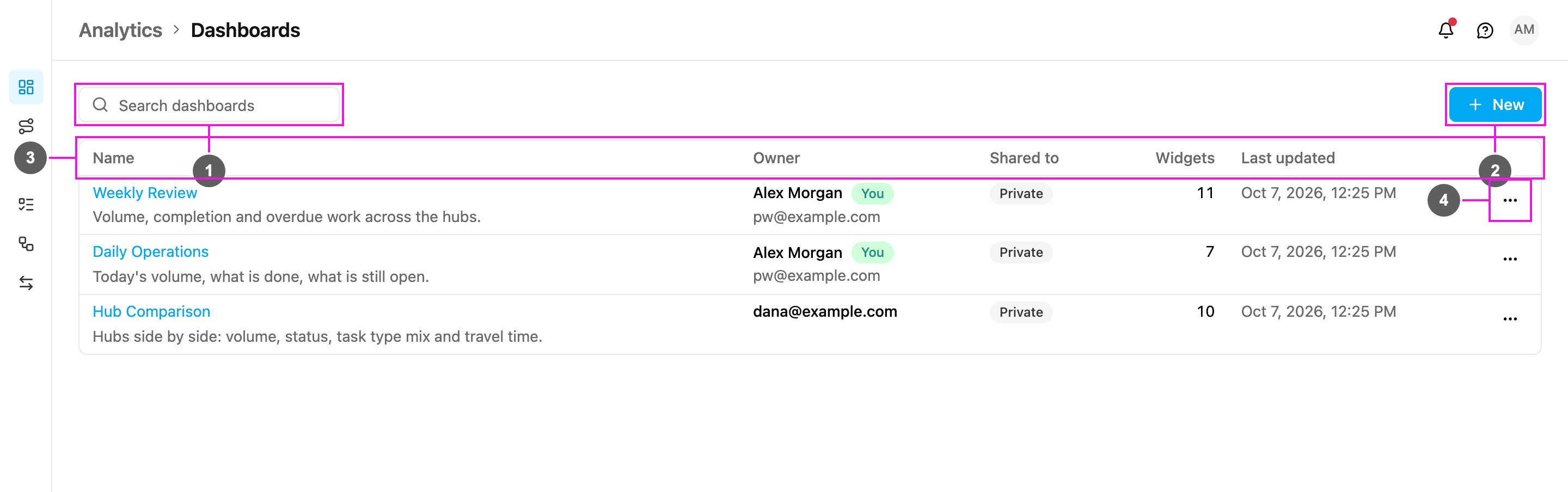
1. **Search dashboards**: find a dashboard by name.
2. **New**: create a dashboard from a template. See [Dashboard Templates](/pages/analytics/dashboard-templates).
3. **Table**: every dashboard you own or that is shared with your role.
4. **⋯**: the actions for one dashboard.
The table has these columns:
| Column | What it shows |
| - | - |
| **Name** | The dashboard name, with its description under it. Click the name to open the dashboard. |
| **Owner** | The person who created the dashboard, with their email. Your own dashboards carry a **You** badge. |
| **Shared to** | **Private** when only the owner can see it, or the roles it is shared with. |
| **Widgets** | How many widgets the dashboard has. |
| **Last updated** | When the dashboard was last saved. |
If nothing matches the search, the list says *No dashboard matches*. With no dashboards at all it says *No dashboards yet* and invites you to start from a template.
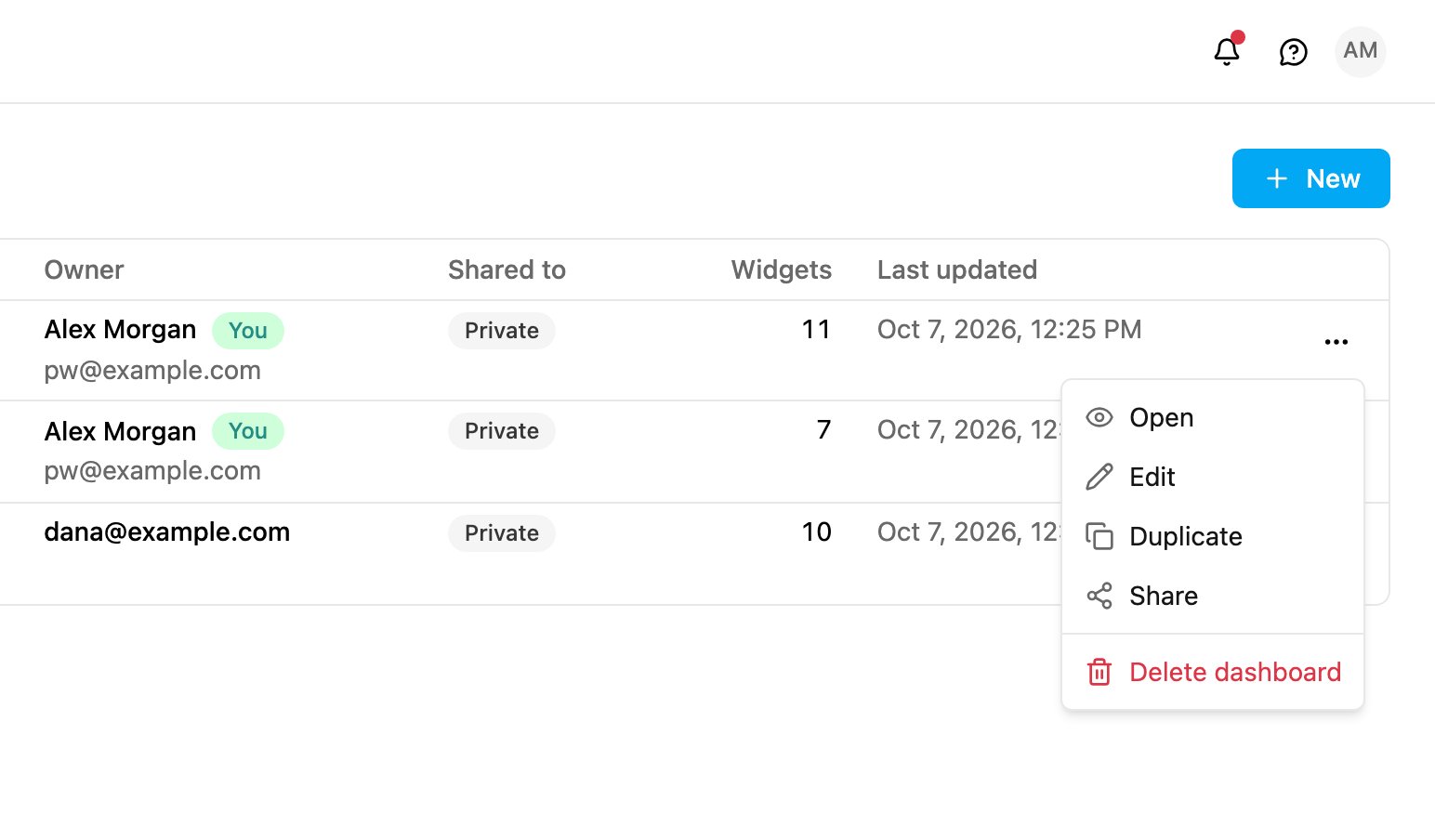
### Dashboard actions
* **Open**: show the dashboard.
* **Edit**: open the dashboard in edit mode. See [Editing a Dashboard](/pages/analytics/editing-a-dashboard).
* **Duplicate**: make your own private copy. The copy is never shared, even when the original is.
* **Share**: choose the roles that can open it. See [Sharing a Dashboard](/pages/analytics/sharing-a-dashboard).
* **Delete dashboard**: remove the dashboard and its layout for everyone it is shared with. This can't be undone.
**Edit**, **Share** and **Delete dashboard** appear only on dashboards you can change. A dashboard someone shared with you is read-only: you can open and duplicate it, but only its owner can edit, share or delete it.
## Reading a dashboard
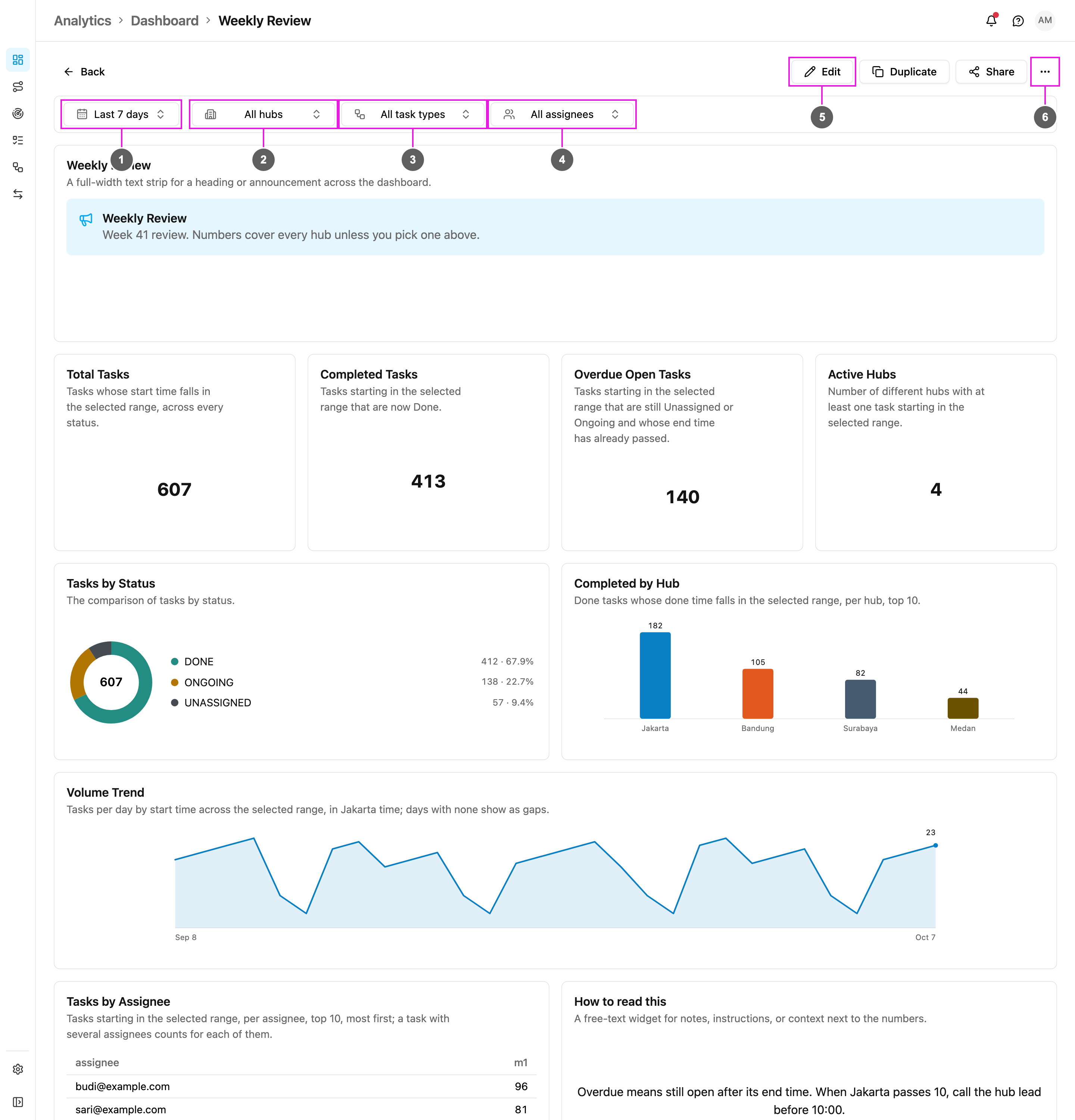
1. **Time range**: the period every widget counts. The default is **Last 30 days**.
2. **Hubs**: **All hubs**, or one or more hubs.
3. **Task Types**: **All task types**, or one or more task types.
4. **Assignees**: **All assignees**, or one or more people.
5. **Edit**: change the widgets. **Duplicate** and **Share** sit beside it.
6. **More dashboard actions**: **Delete dashboard**.
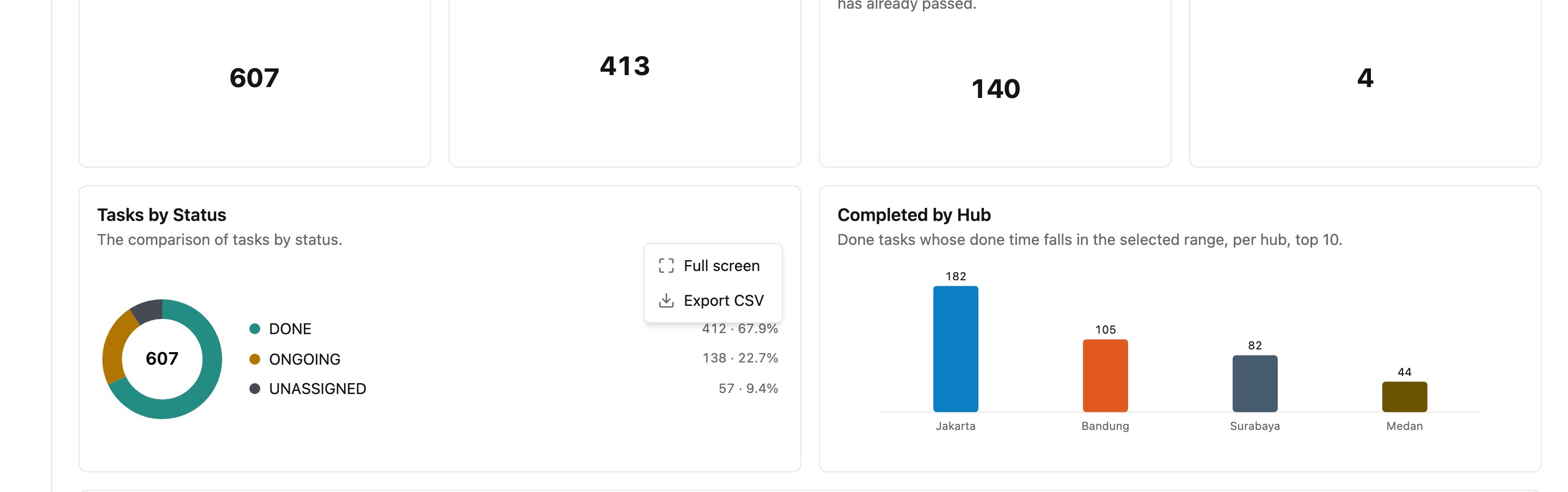
Each widget shows its name and a short description of what it counts, then the numbers. Hover over a chart to see the exact value of a bar, slice or point. Click **Back** to return to the list.
### Filters
The four filters at the top apply to every widget at once.
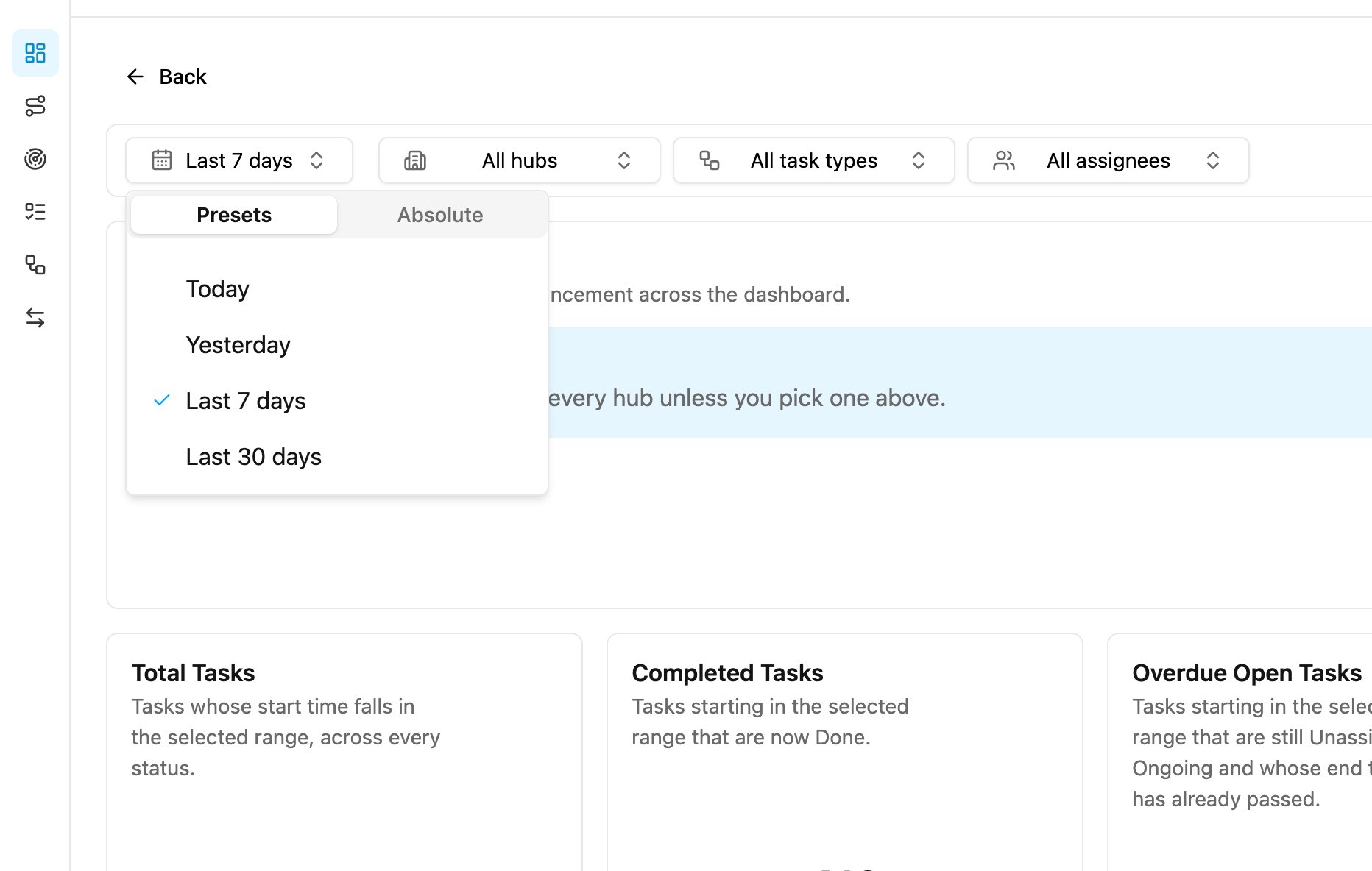
#### Time range
* **Presets**: **Today**, **Yesterday**, **Last 7 days** or **Last 30 days**.
* **Absolute**: pick a **From** and **To** date and click **Apply**. A custom range can be at most **31 days**, counting both the first and the last day: 1–31 January fits, 1 January – 1 February doesn't.
Each widget counts tasks by the time it names in its description. Most use the task's **start time**. Widgets about deadlines use the **end time**, widgets about completions use the **done time**, and **New Tasks Created** uses the time the task was created.
#### Hubs, task types and assignees
* **Hubs**: choose one or more hubs. The list shows only the hubs you have access to, and **All hubs** means all of them. Changing the hubs keeps your task type and assignee filters.
* **Task Types**: choose one or more task types. Empty means every task type.
* **Assignees**: choose one or more people. Empty means everyone.
Each list has a search box. When one of them can't be loaded, the filter already in force stays as it is.
#### Filters are kept in the address
Every filter you choose is written into the page address. Copy the address to send someone exactly the view you are looking at, or bookmark it. When the filters differ from what the dashboard saved, a **Reset filters** button brings back the dashboard's own time range and hubs and clears the task type and assignee filters.
Clicking a bar or slice narrows the whole dashboard to that value, for example to one status or one hub. The page shows *Filtered to …* with a **Clear filter** button.
### Widget options
Hover over a widget and click **⋯** for its options.
* **Full screen**: show the widget alone, larger.
* **Export CSV**: download the numbers behind the widget as a CSV file.
In edit mode the menu also has **Edit**, **Duplicate widget** and **Remove**.
### Widget messages
| Message | Meaning |
| - | - |
| *No data in this range* | Nothing matched. Widen the time range or clear a filter. |
| *Nothing recorded yet* | The field the widget reads has never been filled in on any task. |
| *These numbers couldn't be loaded* | The query failed. Click **Try again**. |
| *This widget took too long* | Try again, or narrow the time range. |
| *Not available for this organisation* | Your plan doesn't include analytics on this data. |
| *Limited data* | Most tasks don't carry a value for this field, so an average can read lower than reality. |
| *Unknown widget* | The widget no longer exists in the catalog. Remove it; the rest of the dashboard is unaffected. |
A widget that can't load never stops the others from showing.
## From the previous version
The task dashboard of the previous version had four fixed charts: **Task Activity**, **Task by Status**, **User Activity** and **User by Status**, filtered by date range (at most 30 days, by task start time), user and task type. Those four charts are now widgets, and the **Default Dashboard** template lays them out the same way:
| Widget | What it shows |
| - | - |
| **Task Activity** | The count of tasks per day, split by task type, so you can see patterns in task creation. |
| **Tasks by Status** | Tasks compared by status, to spot bottlenecks and see work moving through. |
| **User Activity** | For each user: tasks **Assigned**, **Ongoing** and **Done**, and the **Percentage** done. |
| **User by Status** | **Active** (tasks with an assignee) against **Inactive** (tasks with no assignee). |
The date, user and task type filters are still there, as **Time range**, **Assignees** and **Task Types**, and you can now also filter by hub.
## In this section
* [Dashboard Templates](/pages/analytics/dashboard-templates): every starting layout and what it shows.
* [Dashboard Widgets](/pages/analytics/dashboard-widgets): every widget you can add.
* [Editing a Dashboard](/pages/analytics/editing-a-dashboard)
* [Sharing a Dashboard](/pages/analytics/sharing-a-dashboard)
* [Insight](/pages/analytics/insight): ask questions about your tasks in plain language.
This documentation is built and hosted on [Mintlify](https://mintlify.com), a developer documentation platform.