> ## Documentation Index
> Fetch the complete documentation index at: https://docsv4.mile.app/llms.txt
> Use this file to discover all available pages before exploring further.
# Using the Task List
> Find tasks by flow, status, assignee or text, and print their documents.
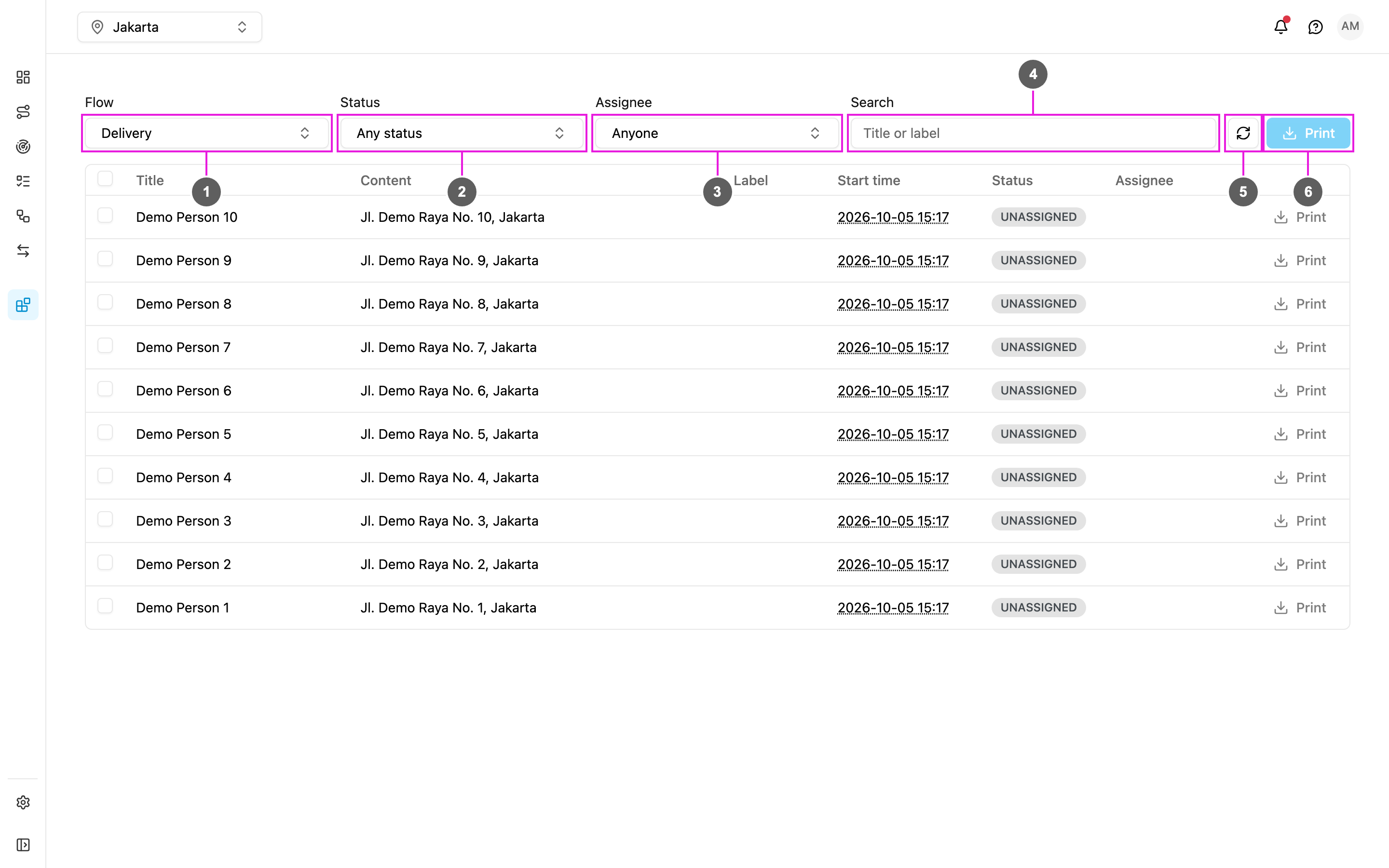
The add-on's **Task List** page lists the tasks of one flow, with filters, and prints documents for one or many of them.
1. **Flow**: tasks are listed per flow, so pick one first. Until you do, the page says "Pick a flow to begin".
2. **Status**: Unassigned, Ongoing or Done. Pick several to combine them.
3. **Assignee**: one user, or **Anyone**.
4. **Search**: the task title or label.
5. **Refresh**: reload the list, keeping your filters.
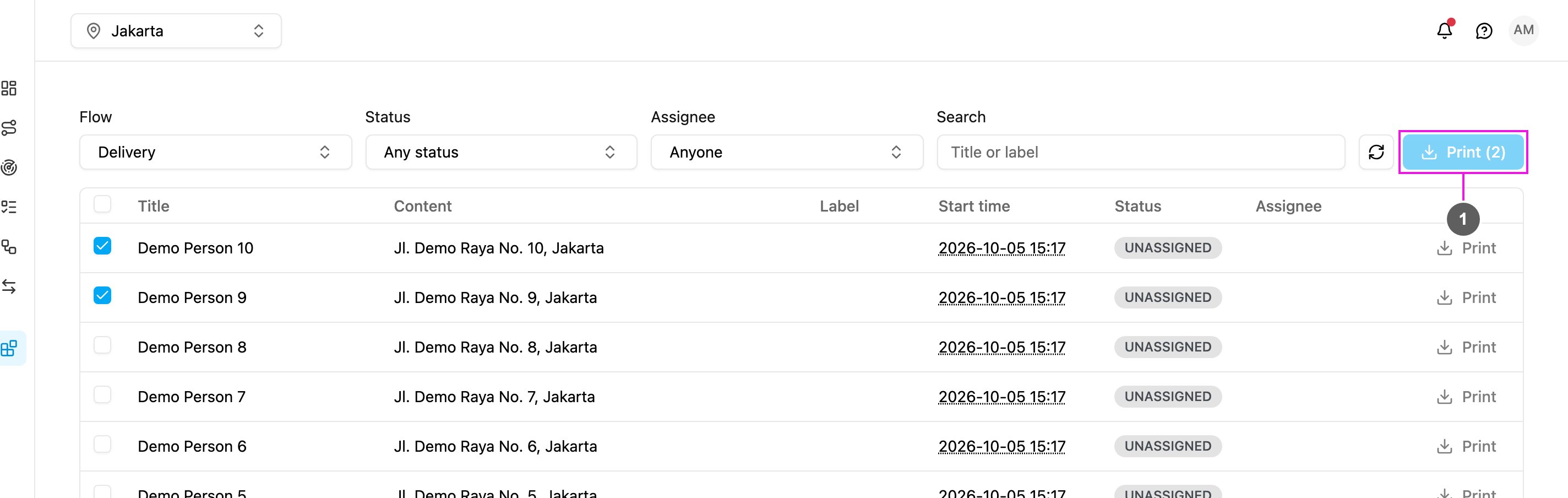
6. **Print**: print the ticked tasks.
All filters apply together. If nothing matches, the page says "No tasks match these filters".
## Columns
| Column | Shows |
| - | - |
| Checkbox | Selects the task for printing. |
| Title | The task title, usually the customer or place. |
| Content | More task details, such as the address. |
| Label | The task's label. |
| Start time | When the task starts. |
| Status | Unassigned, Ongoing or Done. |
| Assignee | Who the task is assigned to. |
| Print | Prints this task. |
Click **Load more** at the bottom to show the next tasks; it says how many of the total are shown. Click a task's title to see its details.
## Printing
Tick the tasks and click **Print (n)**.
See [Printing and Exporting](/pages/add-ons/pdf-generator/printing-and-exporting).
This documentation is built and hosted on [Mintlify](https://mintlify.com), a developer documentation platform.