> ## Documentation Index
> Fetch the complete documentation index at: https://docsv4.mile.app/llms.txt
> Use this file to discover all available pages before exploring further.
# Setting Up PDF Generator
> Run the one-time setup and give roles access to the add-on's pages.
PDF Generator needs a one-time setup before templates can be designed or printed. The first time someone opens the **Builder**, the setup wizard starts. Until setup is done, the **Task List** shows "PDF Generator is not set up yet".
The wizard checks two permissions the add-on reads: **View flow** and **View task**.
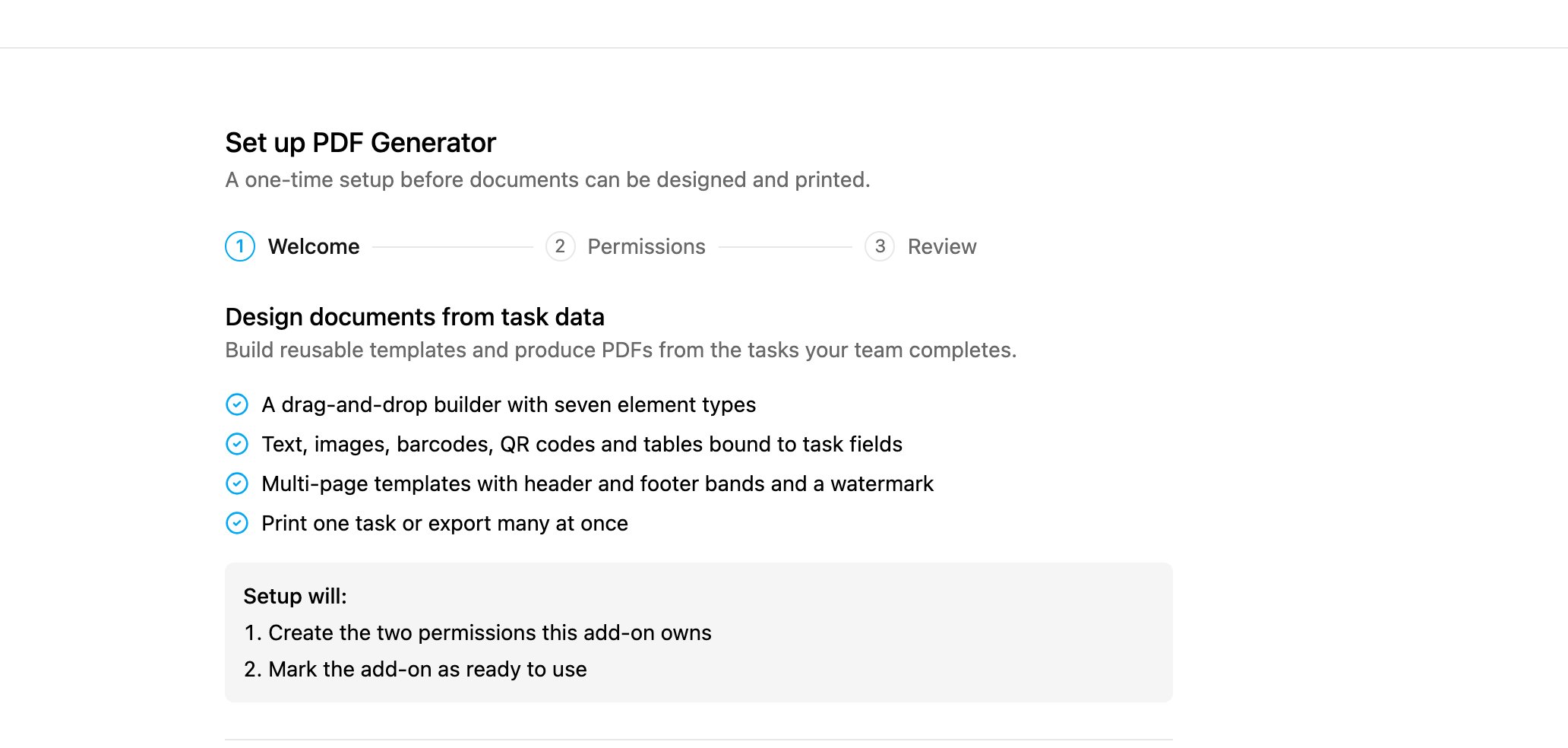
## Step 1: Welcome
The first step lists what the add-on does and what setup will do:
* A drag-and-drop builder with seven element types.
* Text, images, barcodes, QR codes and tables bound to task fields.
* Multi-page templates with header and footer bands and a watermark.
* Print one task, or export many at once.
Setup will create the two permissions the add-on owns and mark it as ready to use. Click **Next**.
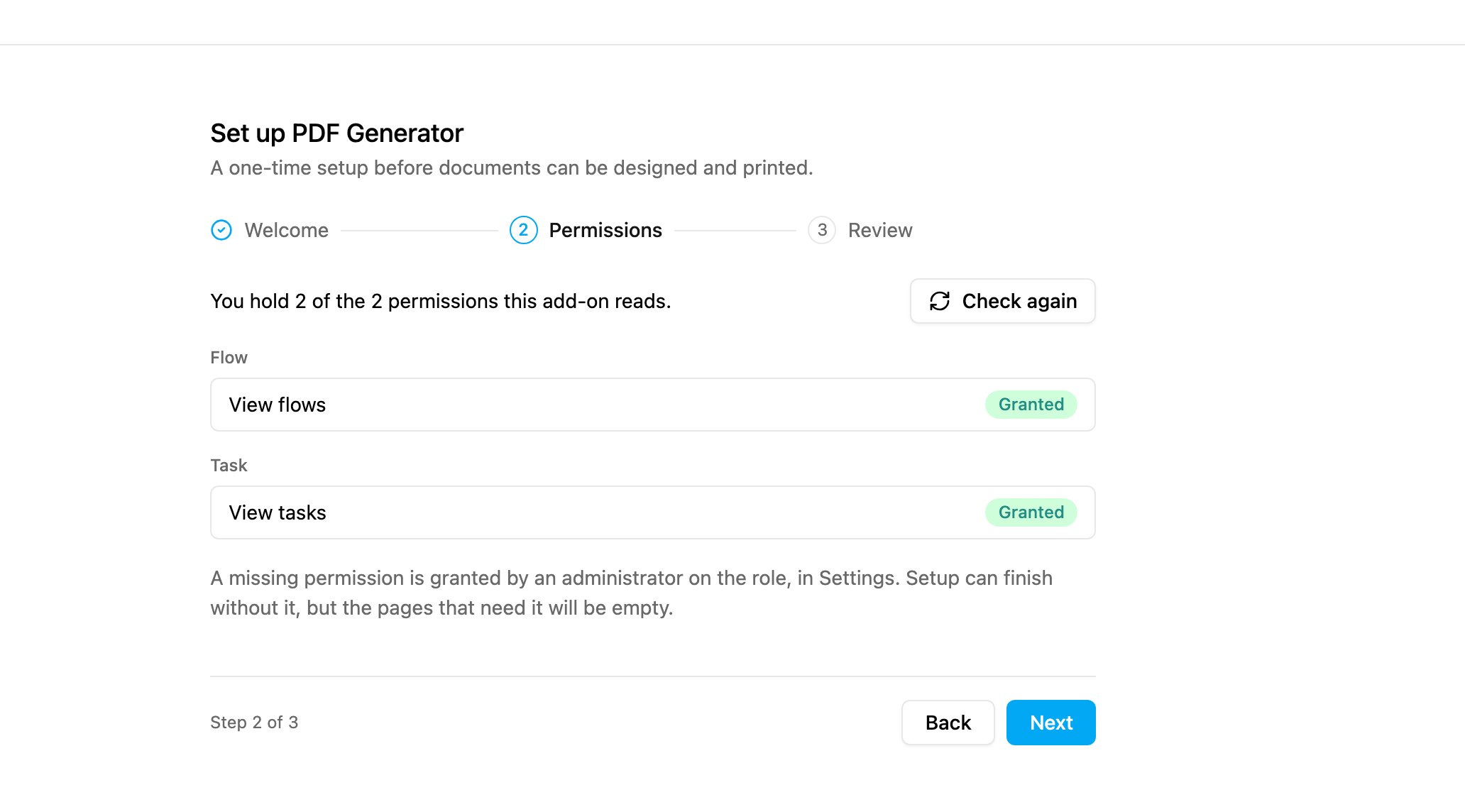
## Step 2: Permissions
| Category | Permission | Status |
| - | - | - |
| Flow | View flows | Granted or Not granted |
| Task | View tasks | Granted or Not granted |
The summary says how many of the two you hold. If one is missing, an administrator grants it on your role in [Permission](/pages/settings/permission/introduction), then click **Check again**. Setup can finish without it, but the pages that need it stay empty. Click **Next**.
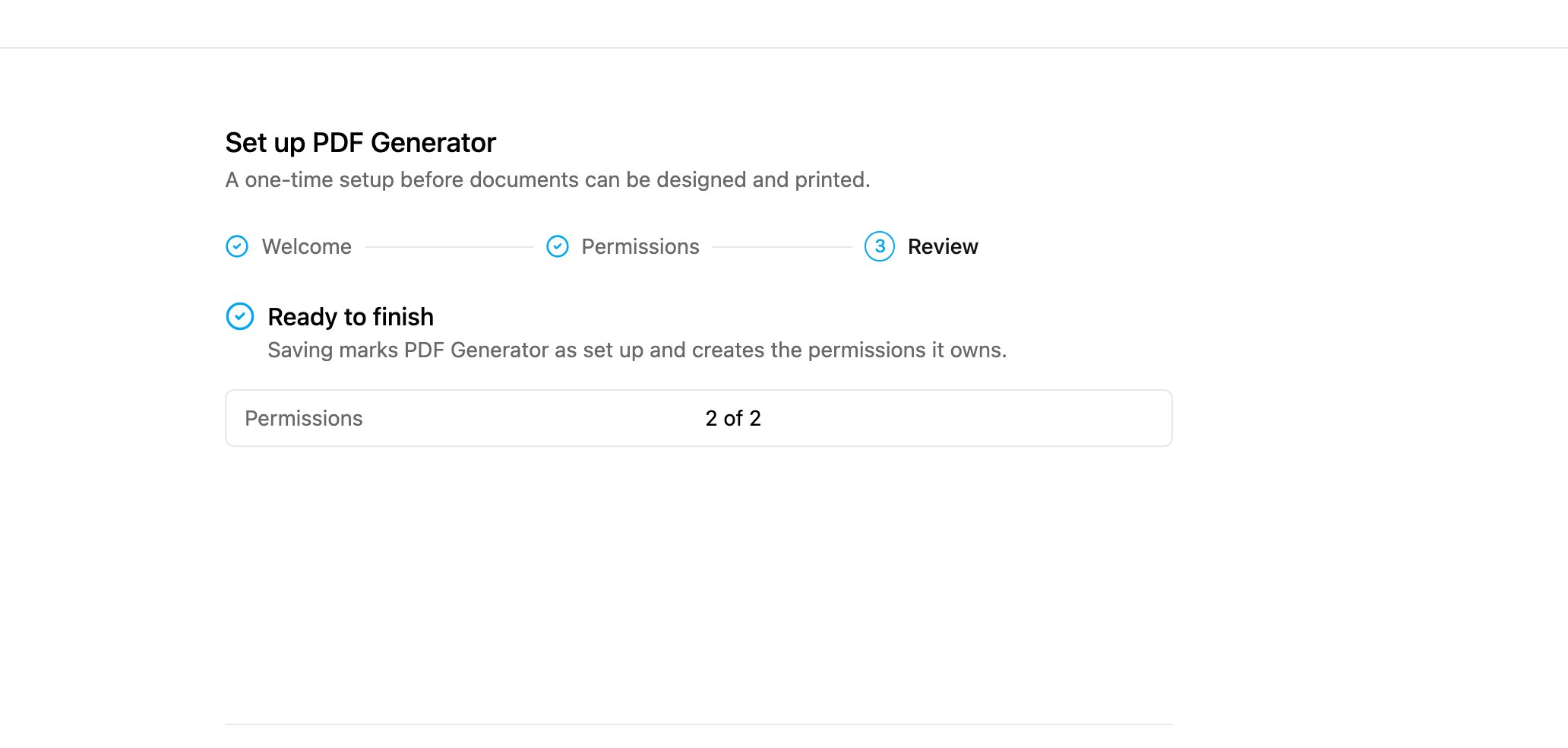
## Step 3: Review
Click **Finish setup**. PDF Generator is marked as set up, its permissions are created, and the Builder opens.
## Page permissions
Setup creates one permission per page and gives both to your own role:
| Permission | Opens |
| - | - |
| **View Builder** | The Builder, for designing templates |
| **View Task List** | The Task List, for printing and exporting |
Give them to other roles in **Settings › Permission**. Someone without them sees "You do not have access to the Builder" or "You do not have access to this page".
## Reset the add-on
To start again, open the Builder, click **Template** and choose **Reset add-on**, then confirm.
Resetting deletes every saved template, every custom page size and every setting of the add-on, and setup runs again. Export the templates you want to keep first (**Template › Export**).
This documentation is built and hosted on [Mintlify](https://mintlify.com), a developer documentation platform.