> ## Documentation Index
> Fetch the complete documentation index at: https://docsv4.mile.app/llms.txt
> Use this file to discover all available pages before exploring further.
# PDF Generator
> Design reusable document templates and produce PDFs from task data.
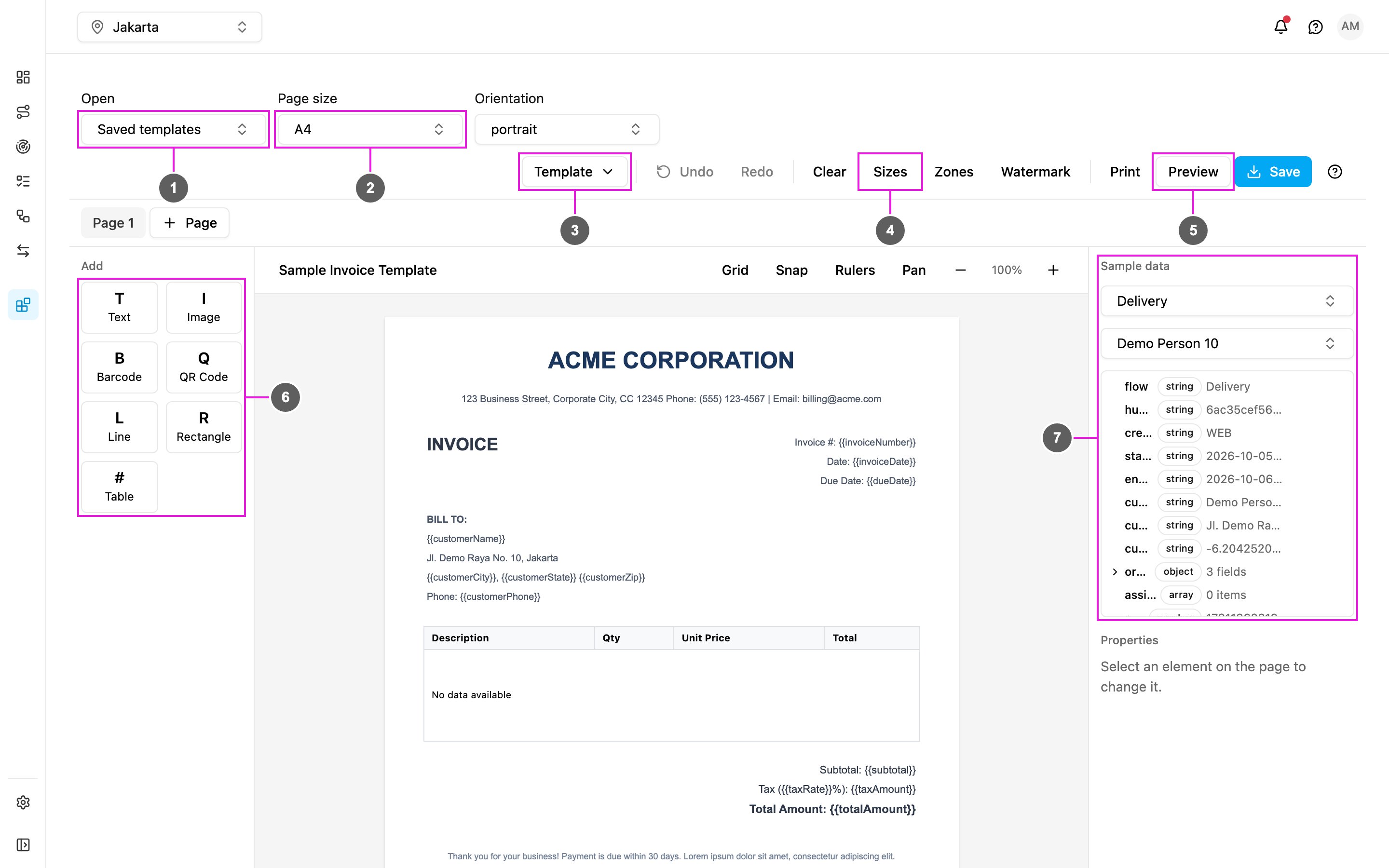
**PDF Generator** lets you design reusable document layouts and produce PDFs from the data your field team captures, such as delivery receipts, invoices, inspection reports or thermal-printer receipts.
In the add-on catalogue this add-on is listed as **PDF Generator V4**. It replaces the PDF Generator of the previous version, with the same two pages under the same addresses.
## Key concepts
| Concept | Meaning |
| - | - |
| **Template** | A reusable layout made of elements, bound to task data. It can span several pages and keeps its page size, orientation, watermark and header/footer bands. |
| **Element** | A building block on the page. Seven types: Text, Image, Barcode, QR Code, Line, Rectangle and Table. |
| **Task field binding** | An element shows fixed text, or a value read from the task. Switch it to **Task field** to bind it. |
| **Multi-page canvas** | Elements belong to one page; elements inside the header or footer band repeat on every page. |
| **Watermark** | Faint text drawn behind everything on every page. |
| **Conditional visibility** | Show an element only when a task value matches a condition, so one template fits several cases. |
## Pages
The add-on has two pages, both under its entry in the left menu:
| Page | Used for | Permission |
| - | - | - |
| **Builder** | Designing templates | View Builder |
| **Task List** | Finding tasks and printing or exporting their documents | View Task List |
## Who uses it
1. **Administrators** add the add-on, run the one-time setup and give roles access to its pages.
2. **Managers** design templates for delivery receipts, inspection reports and other documents.
3. **Operations teams** use the Task List to filter tasks and print or export documents, one at a time or many at once.
## Getting started
1. [Add the add-on](/pages/add-ons/introduction) in **Settings › Add-ons**.
2. [Set it up](/pages/add-ons/pdf-generator/setting-up).
3. [Design a template](/pages/add-ons/pdf-generator/designing-templates).
4. [Print and export](/pages/add-ons/pdf-generator/printing-and-exporting) from the [Task List](/pages/add-ons/pdf-generator/task-list).
This documentation is built and hosted on [Mintlify](https://mintlify.com), a developer documentation platform.