> ## Documentation Index
> Fetch the complete documentation index at: https://docsv4.mile.app/llms.txt
> Use this file to discover all available pages before exploring further.
# Designing Templates
> Place elements, bind them to task data, and build multi-page layouts.
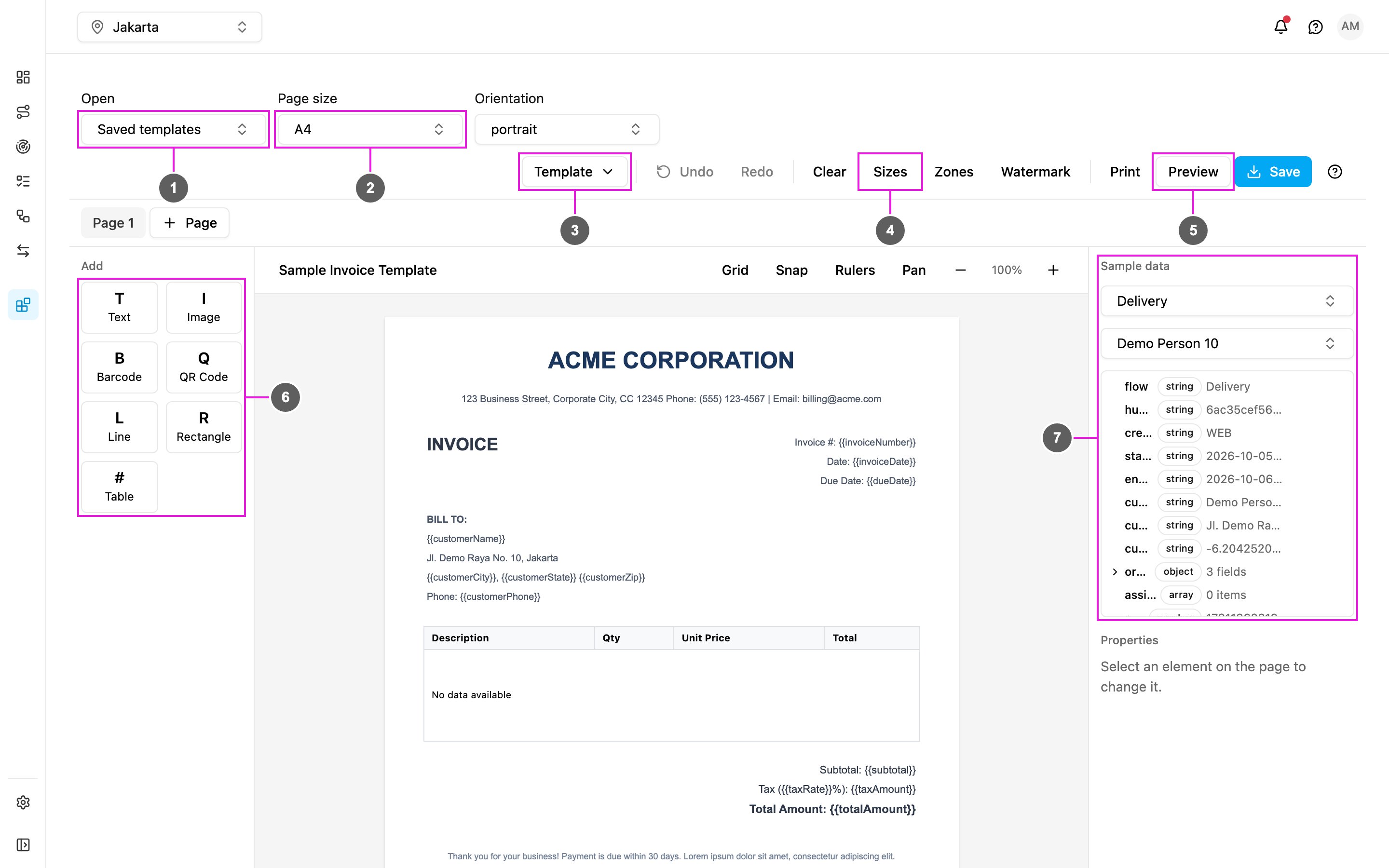
Open the add-on's **Builder** page.
1. **Open**: load one of your saved templates.
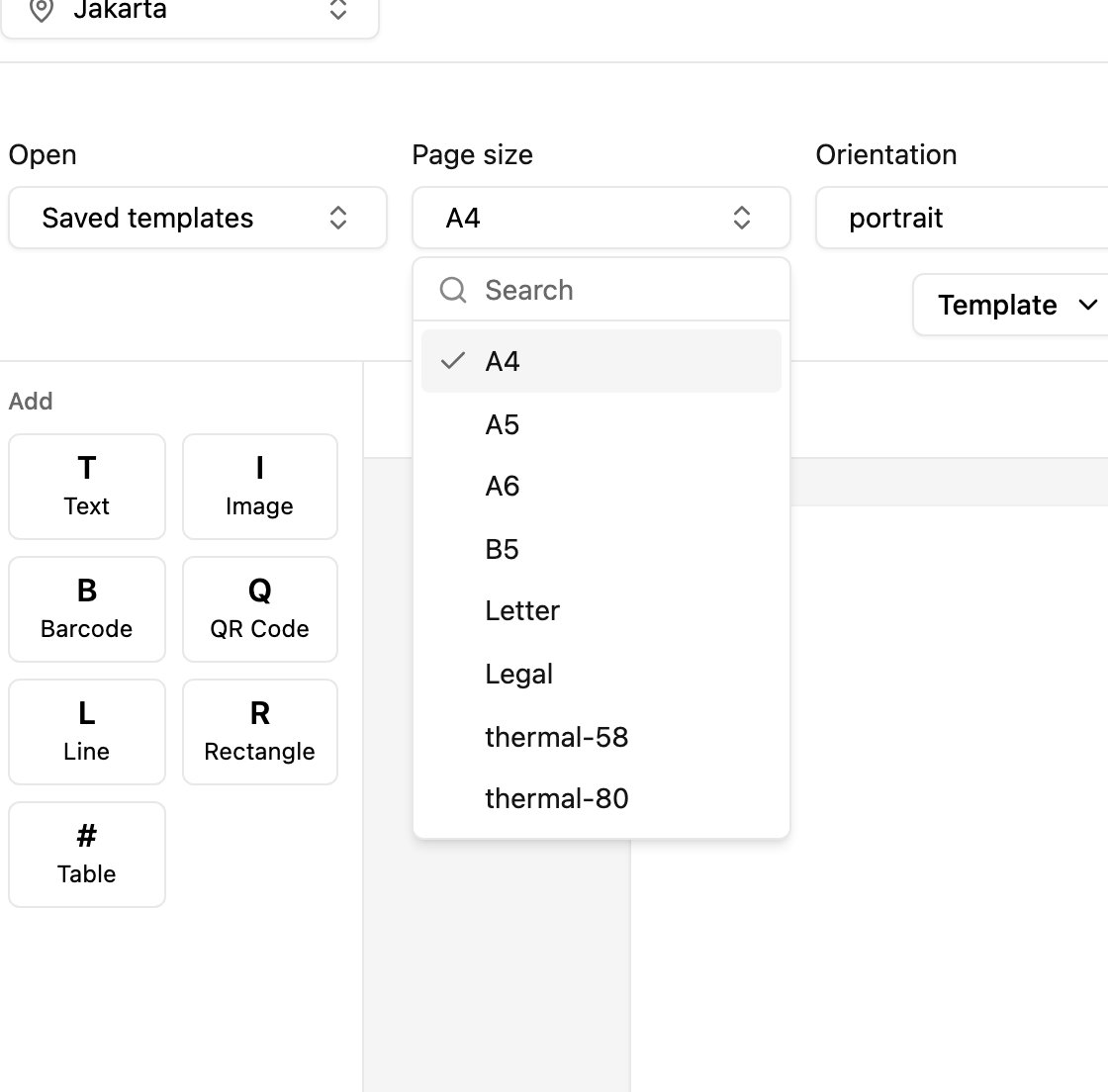
2. **Page size and orientation** of the template.
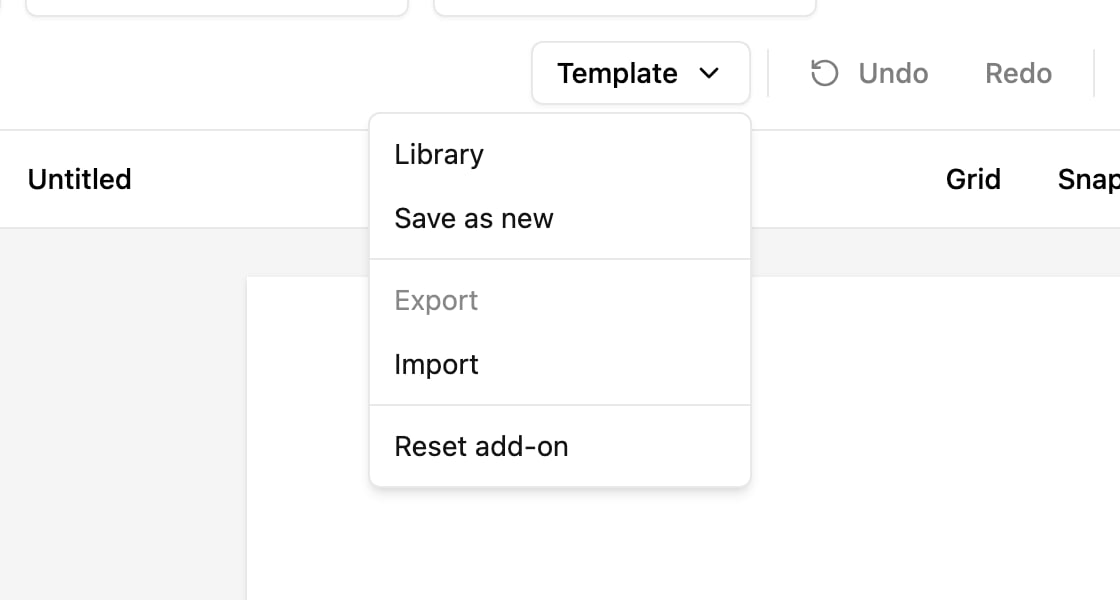
3. **Template** menu: Library, Save as new, Export, Import and Reset add-on.
4. **Sizes**, **Zones** and **Watermark**: custom page sizes, header and footer bands, and the watermark. Beside them are **Undo**, **Redo** and **Clear**.
5. **Print**, **Preview** and **Save**.
6. **Add**: the seven element types.
7. **Sample data**: pick a flow and a task, so bound elements show real values and the task's fields can be browsed.
Under the page are **Grid**, **Snap**, **Rulers**, **Pan** and the zoom controls. The **?** button lists keyboard shortcuts.
## Elements
Click an element type under **Add** to place it on the page.
| Element | What it shows | Settings |
| - | - | - |
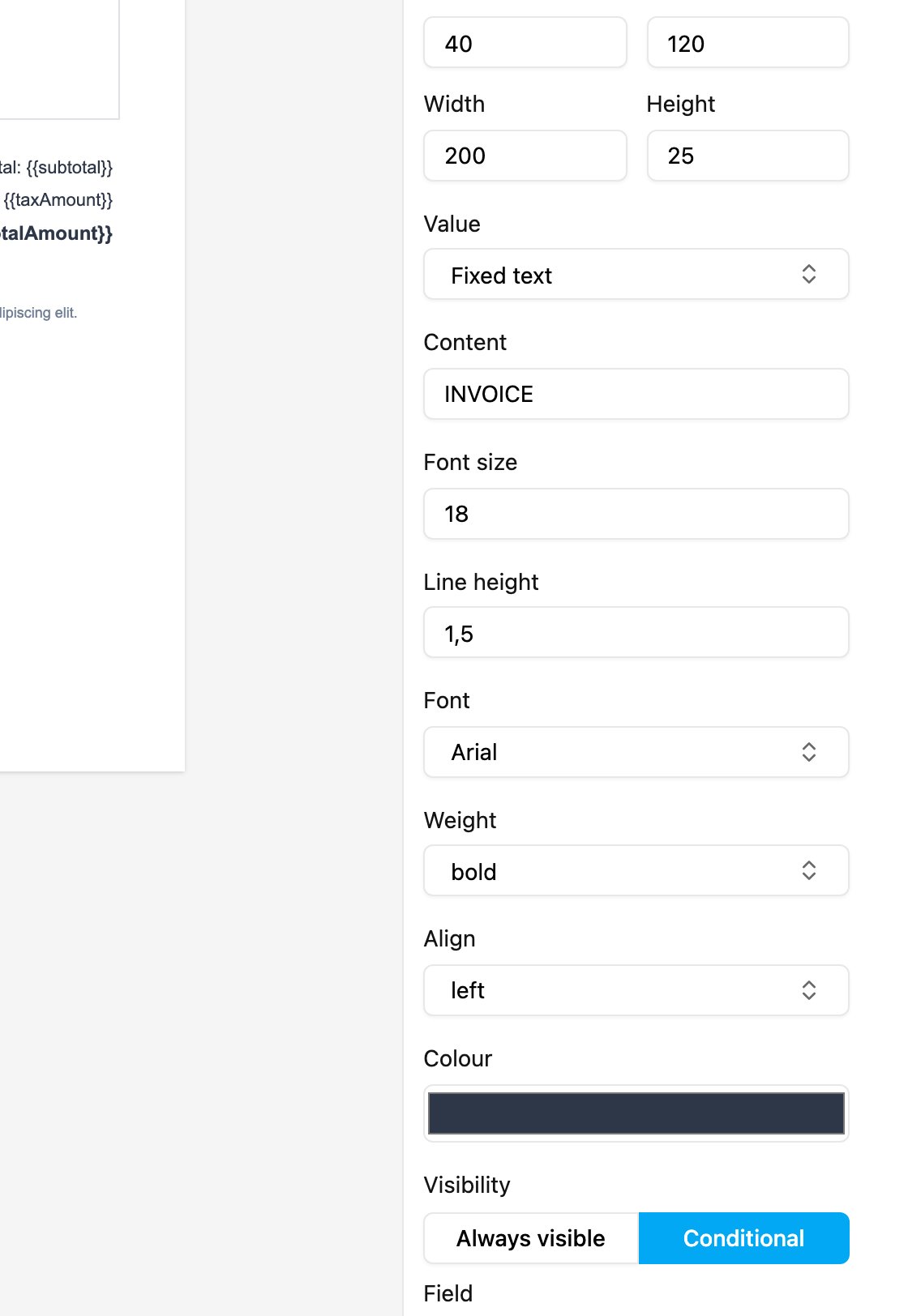
| **Text** | Fixed text, or a task value | Content, font size, line height, font (Arial, Helvetica, Times New Roman, Courier New), weight (normal, bold), align (left, center, right), colour |
| **Image** | An image from a URL, or a task photo or signature | Image URL or task field, fit (contain, cover, fill) |
| **Barcode** | A scannable barcode | Format: CODE128, CODE39, EAN13, EAN8, UPC, ITF14; whether to show the value under the bars |
| **QR Code** | A QR code from fixed text or a task value | Error correction: L, M, Q, H |
| **Line** | A horizontal or vertical line | Thickness, colour, style (solid, dashed, dotted) |
| **Rectangle** | A box | Fill, border colour, border width, corner radius |
| **Table** | Rows read from a list in the task, such as bill items | Rows from, columns, formatting, header background, borders, shaded rows |
Each barcode format checks its value: EAN13 needs 12–13 digits, EAN8 7–8, UPC 11–12, ITF14 13–14; CODE39 accepts A–Z, 0–9 and `- . $ / + %` and space.
## Selecting and editing elements
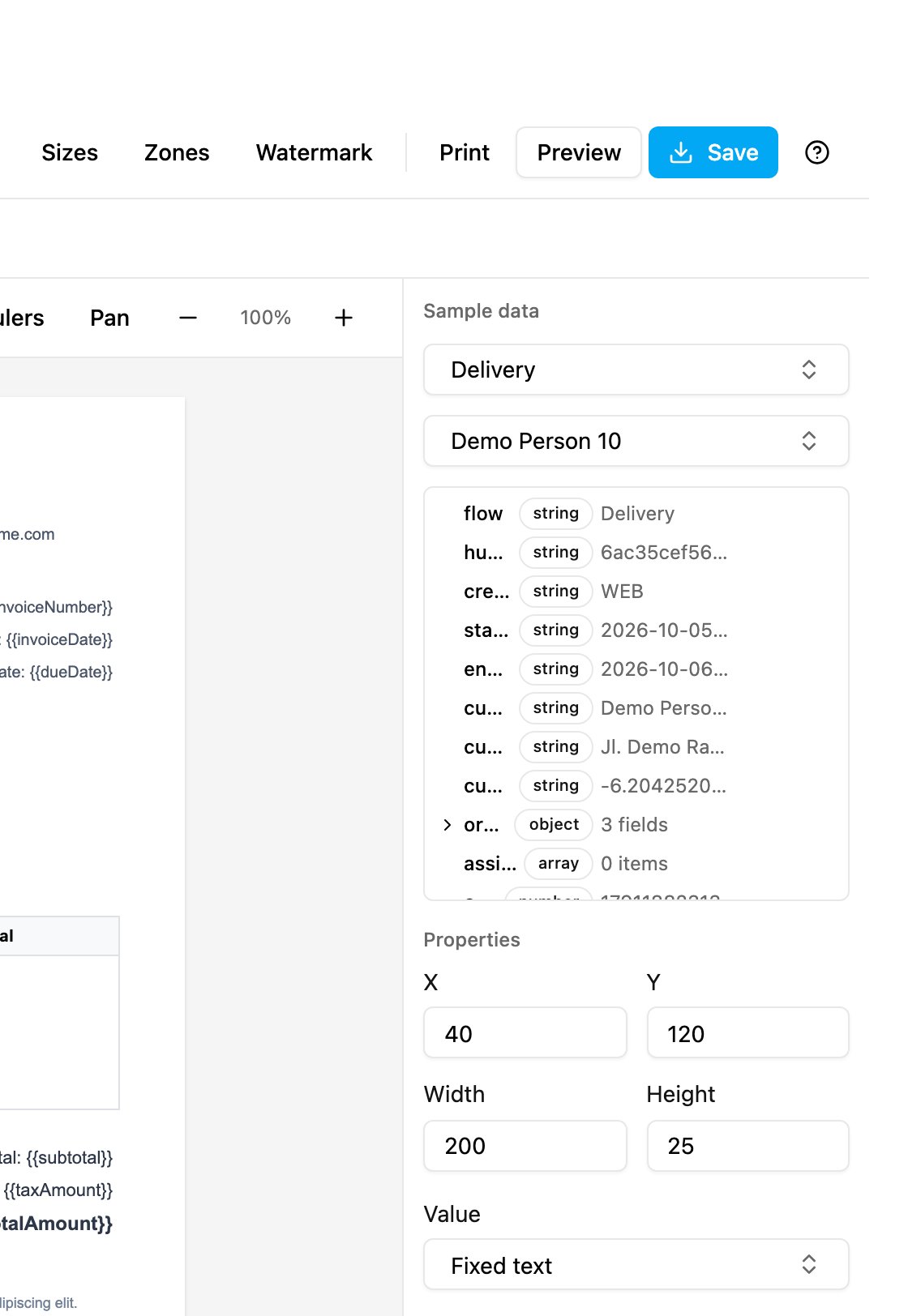
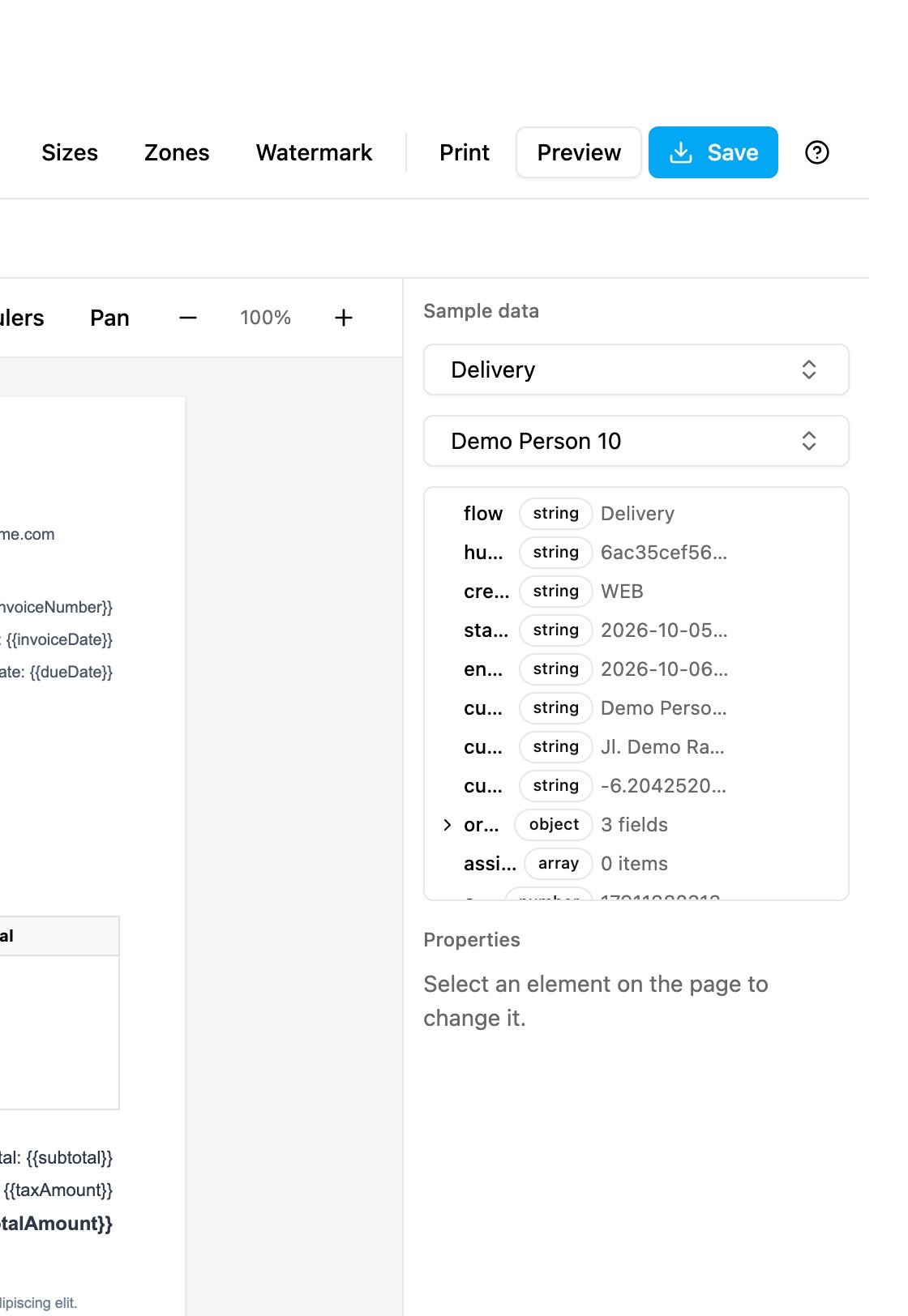
* Click an element to select it. Its settings appear under **Properties** on the right, starting with its position (**X**, **Y**) and size (**Width**, **Height**).
* Drag an element to move it, or drag its handles to resize it.
* Use the arrow keys to move it by one, or Shift and an arrow key to move it by ten.
* Hold Ctrl (Cmd on a Mac) and click to select several elements.
* Press Tab to step through the elements on the page.
## Binding to task data
1. Under **Sample data**, pick a flow and a task.
2. Select an element and set **Value** to **Task field**.
3. Pick the field. The element shows that task's value.
For text, you can also type `{{fieldName}}` inside the **Content** to substitute a value in the middle of a sentence.
The field list shows every field the task carries, with its type (string, number, object, array). Click **Insert** to put a field into the selected element, or copy its path.
Load a sample task first: the field list and the table's **Quick** list are empty until a task is picked.
## Tables
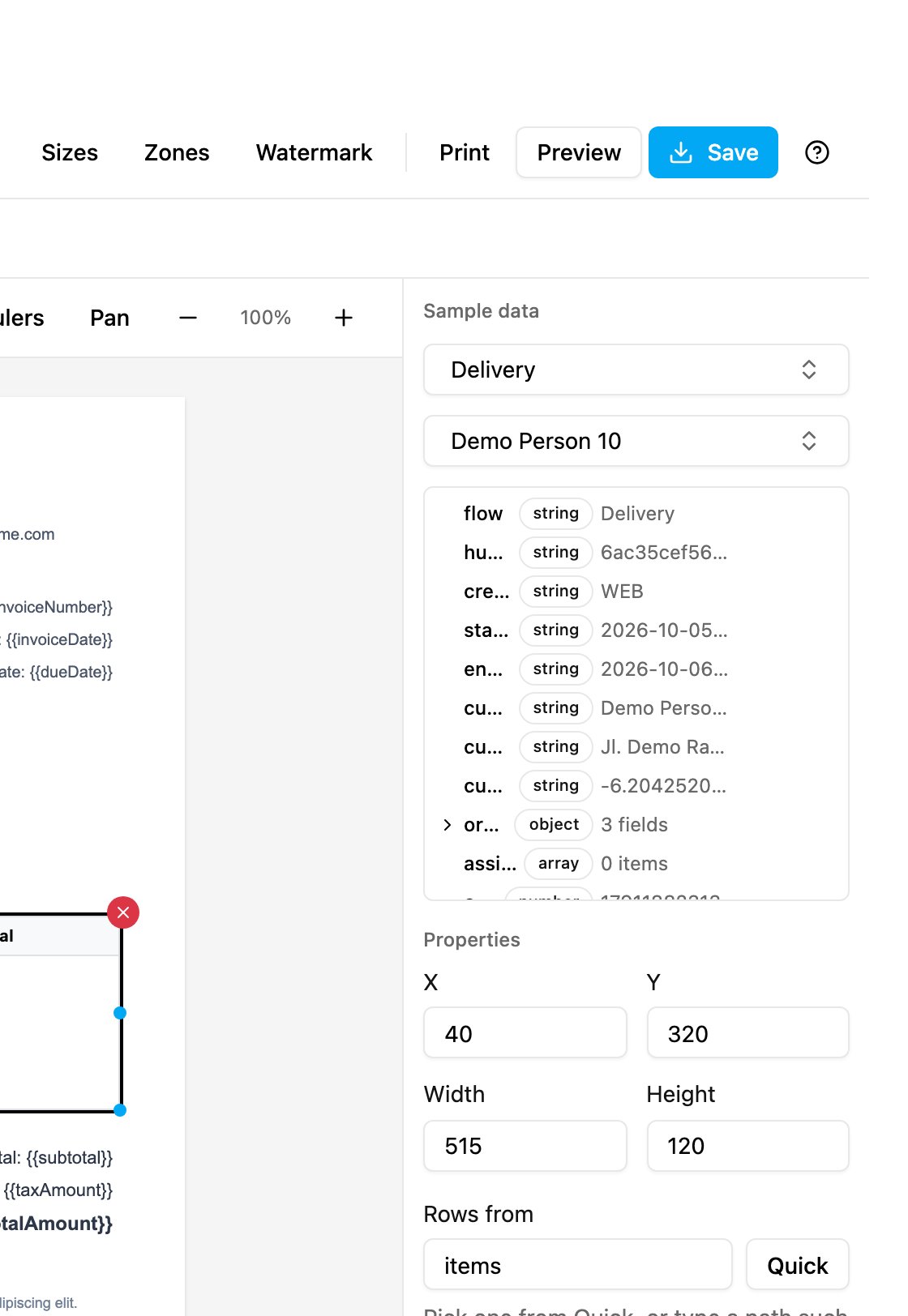
Select a table to set where its rows come from.
1. **Rows from**: the path to a list in the task, such as `items` or `billItem.items`. **Quick** lists the lists found in the loaded task.
2. **Columns**: each with a **Label** and a **Field key**. Click **Auto detect** to create columns from the first row, **Add column** to add one, or remove one.
3. **Formatting** per column: none, Currency, Number or Date.
4. **Header background**, **Show cell borders**, **Show header border** and **Shade alternate rows**.
## Multi-page templates
* Click **Page** next to the page tabs to add a page. Each page is labelled **Page 1**, **Page 2** and so on, with a button to delete it.
* Elements belong to the page they are placed on. Ctrl+A selects everything on the current page only.
* Deleting a page also deletes the elements on it.
## Header and footer
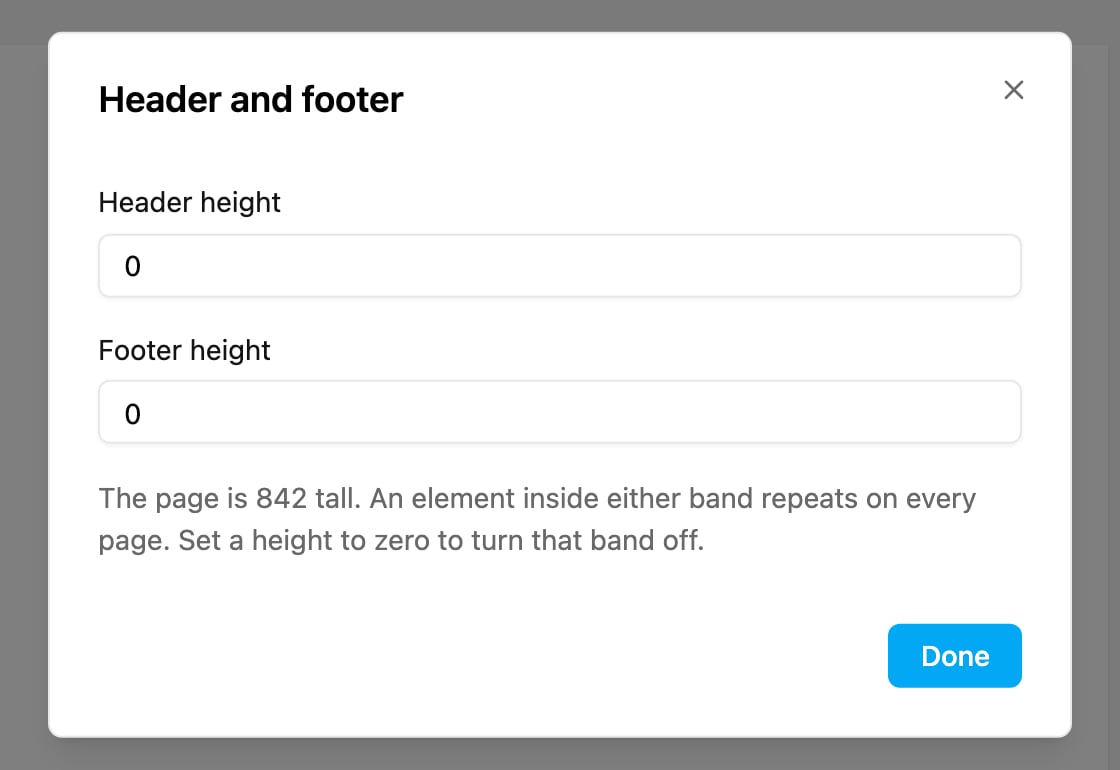
Click **Zones**.
Set the **Header height** and **Footer height**. Any element placed inside either band repeats on every page, which suits logos, document titles and page numbers. Set a height to zero to turn that band off.
Use `{{pageNumber}}` and `{{totalPages}}` in a text element to print "Page 1 of 3". They stay as typed on the Builder page and are filled in on every page of the PDF.
## Watermark
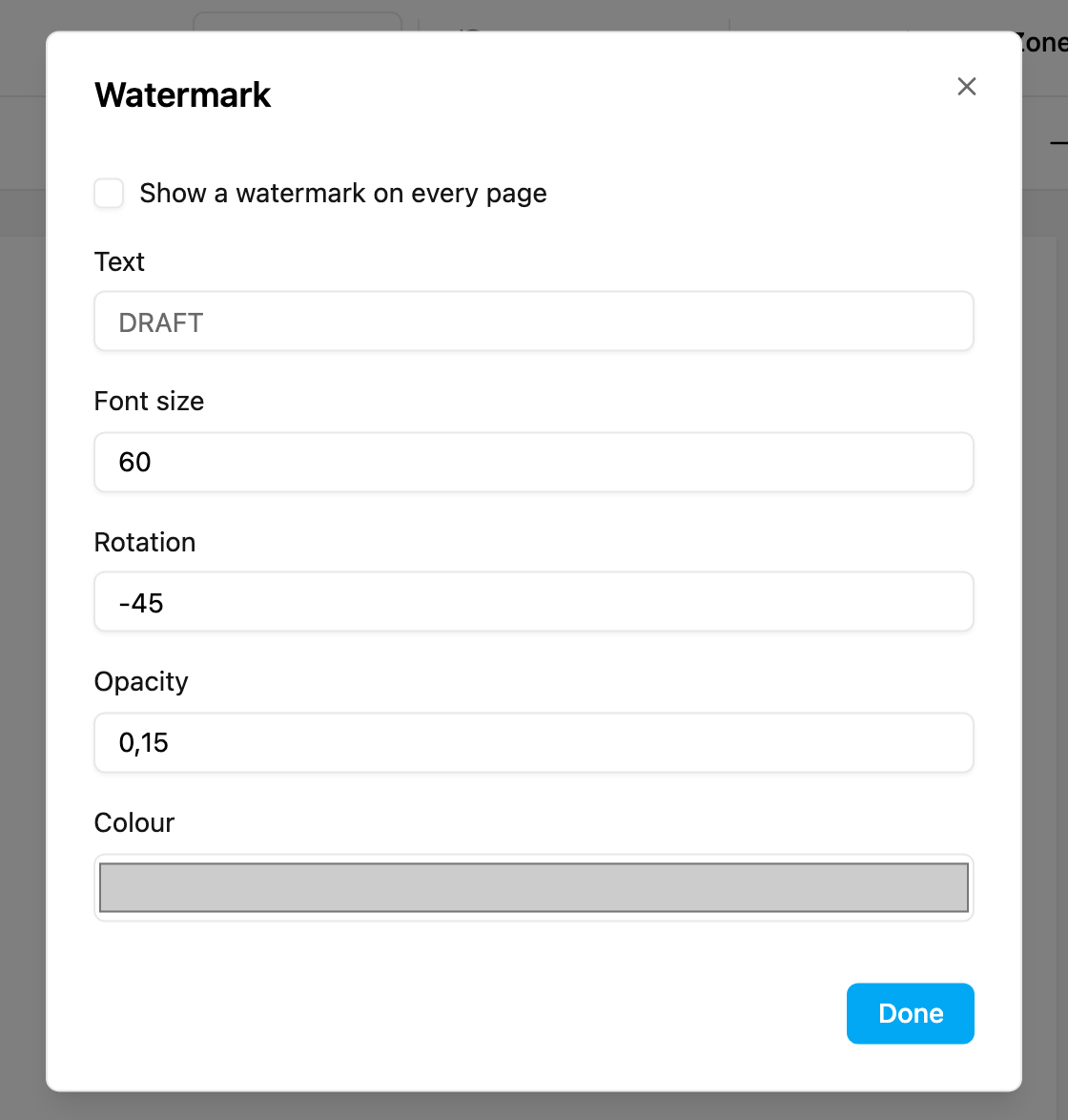
Click **Watermark**.
Turn on **Show a watermark on every page**, then set the **Text**, **Font size**, **Rotation**, **Opacity** and **Colour**. The watermark looks the same on the page, in the preview and in the PDF.
## Conditional visibility
Select an element and, under **Visibility**, choose **Conditional** instead of **Always visible**.
Pick a **Field**, an **Operator** and a **Value**:
| Operator | Shows the element when the field… |
| - | - |
| Equals | is the value |
| Does not equal | is not the value |
| Contains | contains the value |
| Is empty | has no value |
| Is not empty | has any value |
When the condition is not met for the sample task, the element is dimmed on the page so you can still select it. In the preview and the PDF it is left out.
## Grid, snap and alignment
* **Grid** (Ctrl+G) shows grid dots; **Snap** lines elements up with the grid.
* **Rulers** shows measurements; **Pan** lets you drag the page around.
* Ctrl+Shift+H and Ctrl+Shift+V align the selected elements horizontally or vertically.
## Keyboard shortcuts
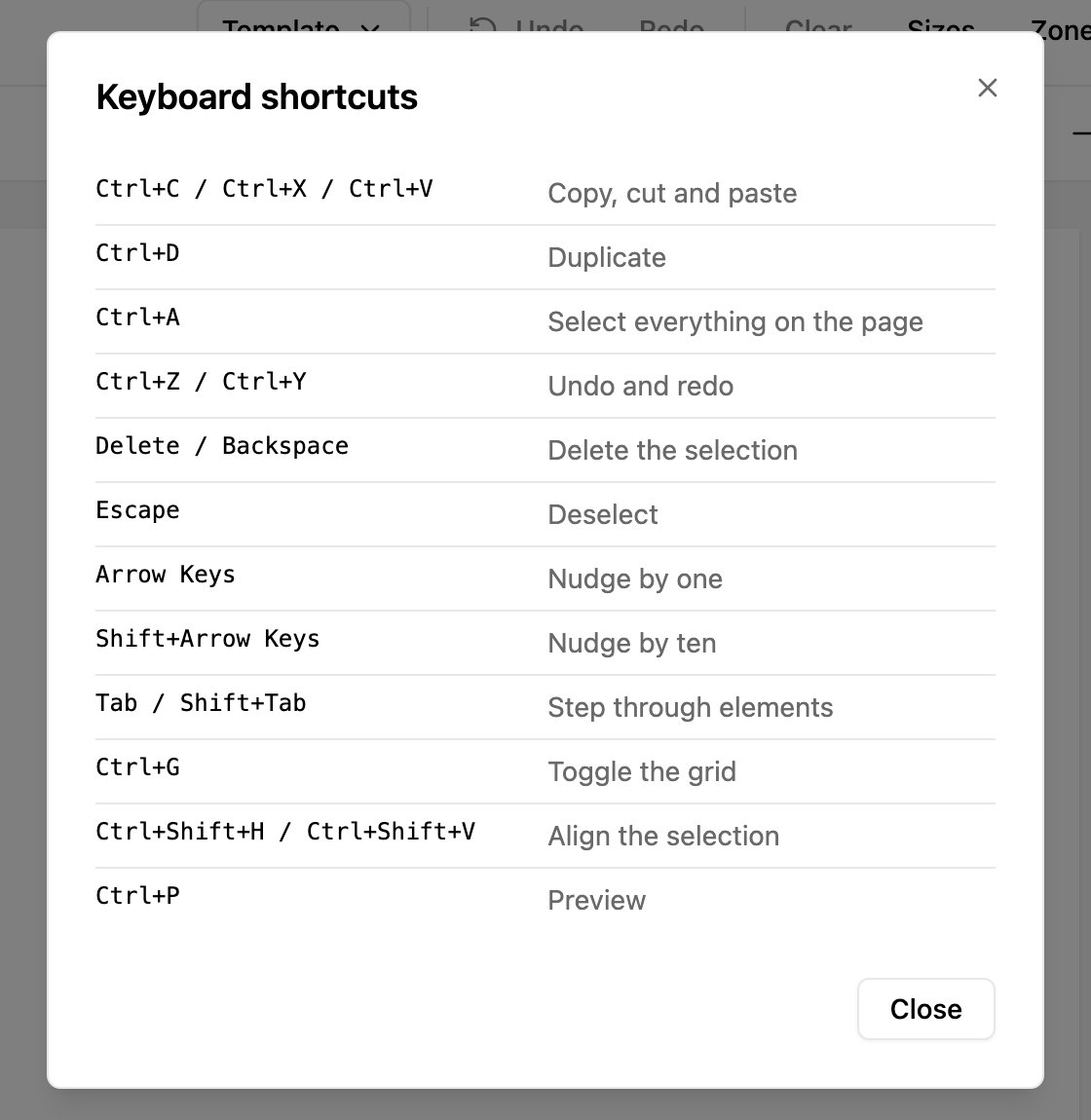
Click **?** to see them.
| Shortcut | Action |
| - | - |
| Ctrl+C / Ctrl+X / Ctrl+V | Copy, cut and paste |
| Ctrl+D | Duplicate |
| Ctrl+A | Select everything on the page |
| Ctrl+Z / Ctrl+Y | Undo and redo |
| Delete / Backspace | Delete the selection |
| Escape | Deselect |
| Arrow keys | Nudge by one |
| Shift+Arrow keys | Nudge by ten |
| Tab / Shift+Tab | Step through elements |
| Ctrl+G | Toggle the grid |
| Ctrl+Shift+H / Ctrl+Shift+V | Align the selection |
| Ctrl+P | Preview |
On a Mac, use Cmd instead of Ctrl.
## Saving templates
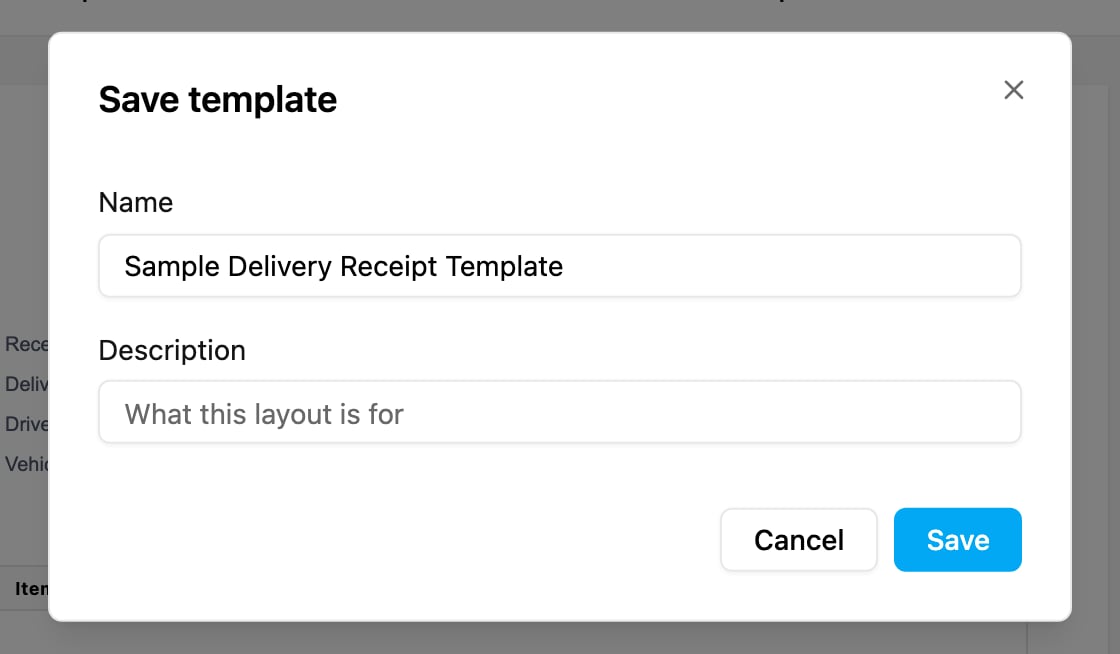
Click **Save**, give the template a **Name** and an optional **Description**, and click **Save**. To keep the original and save your changes as a copy, choose **Template › Save as new**.
Templates are stored for your organization, not in your browser, so everyone with access sees them.
## Template library
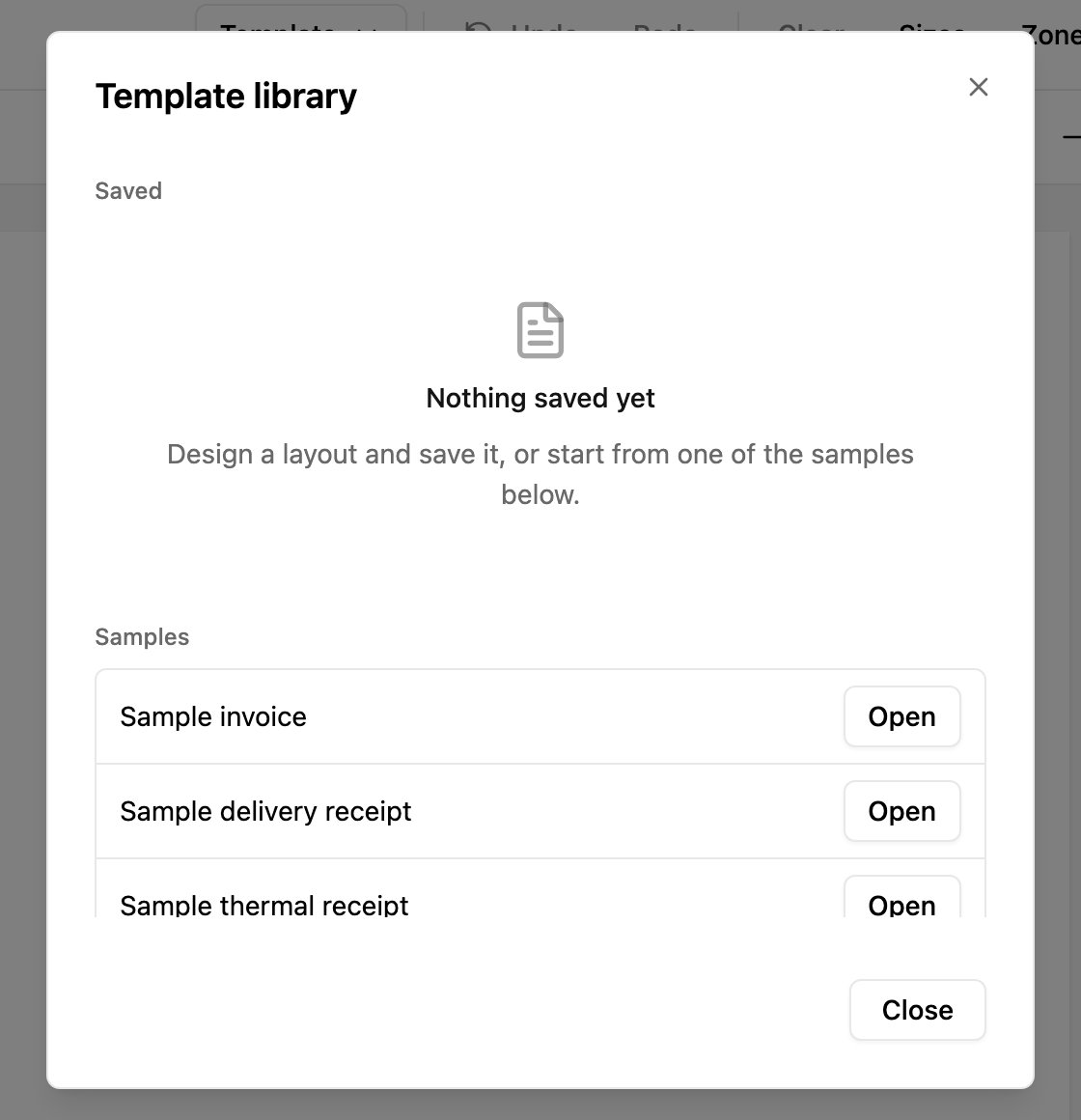
Choose **Template › Library**.
* **Saved**: your templates, with when each was saved. Open one to load it, or delete it.
* **Samples**: ready-made layouts to start from: **Sample invoice**, **Sample delivery receipt** and **Sample thermal receipt** (80 mm).
## Export and import
* **Template › Export** downloads the current template as a `.json` file, with its elements, pages, page size, watermark and header/footer bands.
* **Template › Import** loads a template from such a file, for example to copy it to another organization.
## Page size and orientation
Pick the **Page size** and **Orientation** (portrait or landscape) at the top of the Builder.
| Size | Use |
| - | - |
| A4, A5, A6, B5 | Standard paper |
| Letter, Legal | US paper |
| thermal-58, thermal-80 | 58 mm and 80 mm receipt printers |
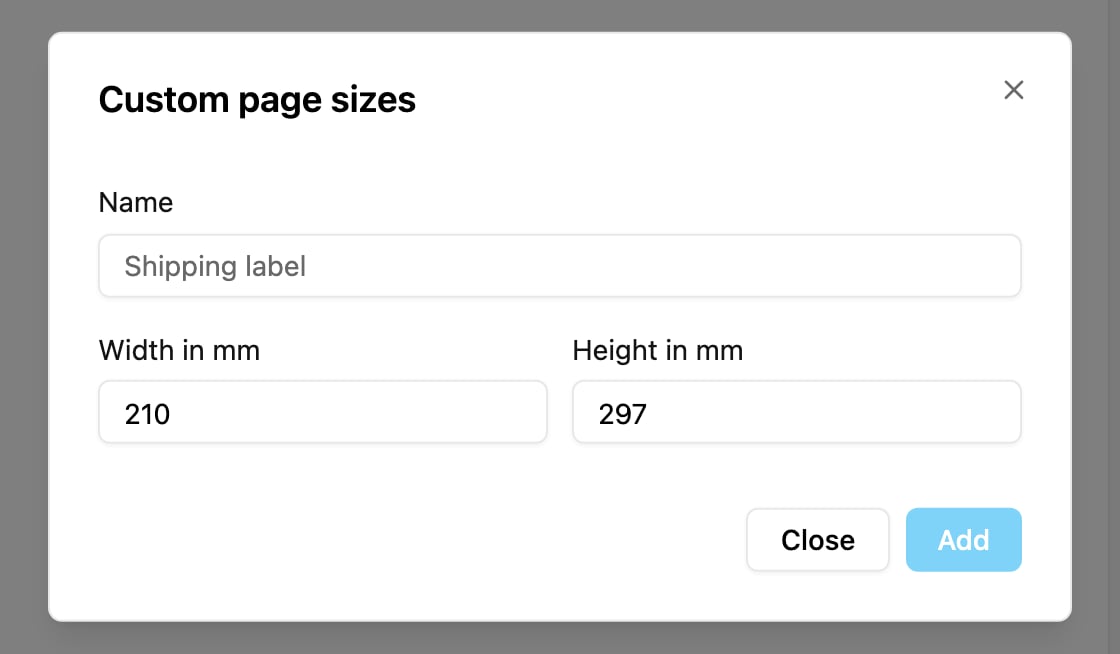
Click **Sizes** to add your own size, with a **Name** and a **Width** and **Height** in millimetres. Custom sizes can be edited and deleted, and appear in the page size list.
This documentation is built and hosted on [Mintlify](https://mintlify.com), a developer documentation platform.