> ## Documentation Index
> Fetch the complete documentation index at: https://docsv4.mile.app/llms.txt
> Use this file to discover all available pages before exploring further.
# Add-ons
> Add extra features to your organization from the add-on catalogue.
**Add-ons** extend the app with features built for a particular way of working, such as designing printable documents from task data. You add them from a catalogue; each one then gets its own entry in the left menu.
Open **Settings › Add-ons**.
Required permission:
* Create custom module (to add an add-on)
* Delete custom module (to remove one)
* View Add-on, Create Add-on, Edit Add-on, Delete Add-on (to publish your own add-ons)
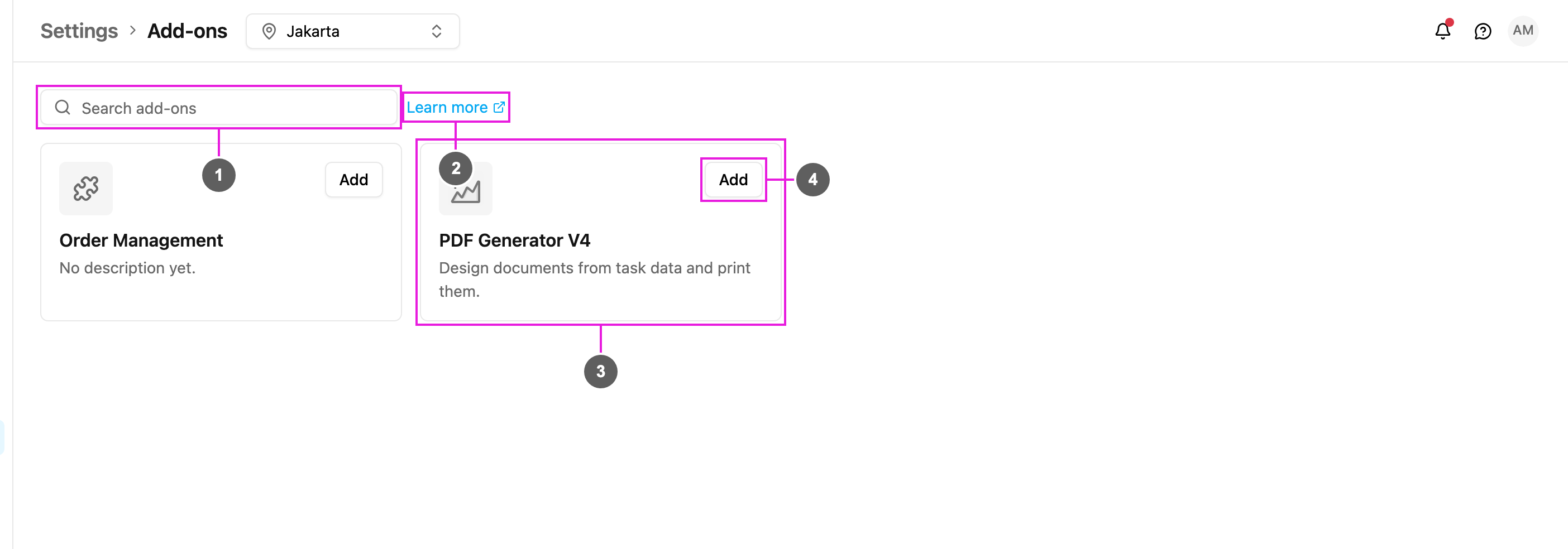
1. **Search add-ons**: find an add-on by name.
2. **Learn more**: opens this guide.
3. **Add-on card**: its icon, name and description.
4. **Add**: add it to your organization. Once added, the card shows **Configure** and **Remove** instead.
## Available add-ons
| Add-on | What it does |
| - | - |
| [PDF Generator](/pages/add-ons/pdf-generator/introduction) | Design multi-page document templates (invoices, delivery receipts, thermal receipts) and print or export them as PDF from task data. |
| Order Management | Orders and order types: adds **Activities › Order** and **Workflow › Order Type**. See [Order](/pages/activities/order/introduction) and [Order Type](/pages/workflow/order-type/introduction). |
The catalogue shows only add-ons built for this version of the app. Add-ons from the previous version that have not been rebuilt yet are not offered.
## Add an add-on
1. Click **Add** on the add-on's card.
2. Check the name and address, then save.
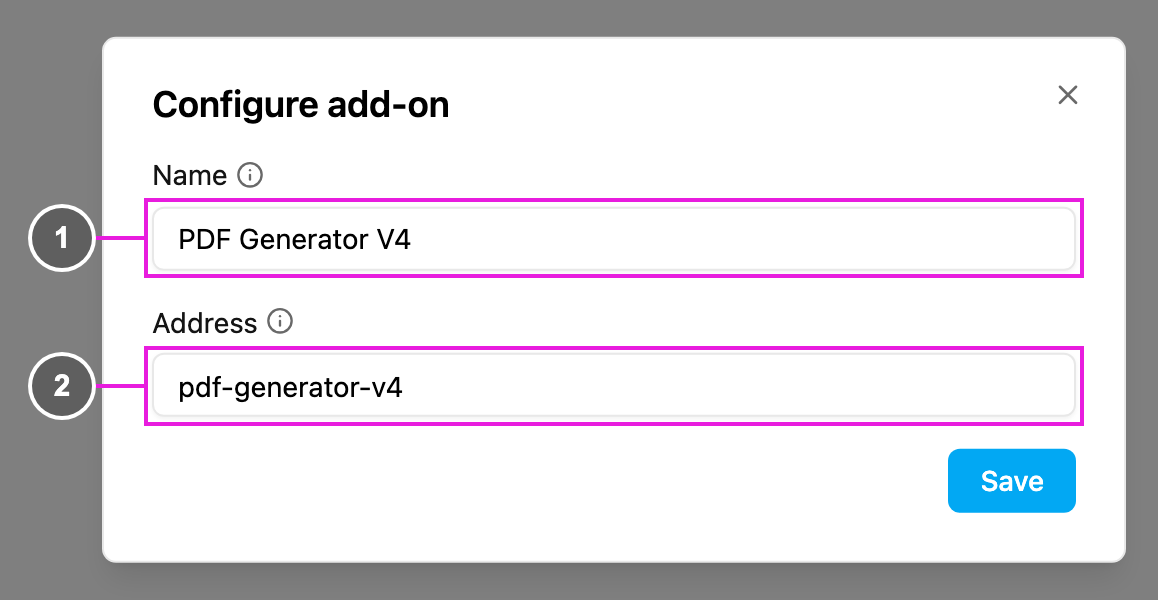
1. **Name**: what your organization calls the add-on. It is the label of its entry in the left menu.
2. **Address**: the last part of the page address the add-on opens at. It follows the name until you change it, and two add-ons cannot use the same address.
The add-on appears in the left menu. Its pages open at `/addons//`. A new permission, **View** followed by the add-on name, is created at the same time: give it to the roles that should open the add-on in [Permission](/pages/settings/permission/introduction).
## Change an add-on's name or address
Click **Configure** on the card, change the **Name** or **Address** and save. Unlike the previous version, you no longer have to remove the add-on and add it again to rename it, and the roles that could open it keep their access.
## Remove an add-on
Click **Remove** on the card and confirm. The add-on disappears from your navigation. You can add it again later.
Removing an add-on deletes its menu entry and its permission. Data the add-on saved for your organization, such as PDF templates, is kept and is there again if you add it back.
## Publish your own add-on
Organizations that build add-ons (an allowlisted group) see more on this page:
* **New**: upload an add-on with its **Name**, **Description**, **Plugin bundle** (one JavaScript file), an optional square **Icon**, and the **Organization ID** that owns it. Leaving the organization empty publishes it to the catalogue for every organization.
* **Status** filter: **Published** or **Unpublished**.
* On each card, **Edit**, **Publish** or **Unpublish**, and **Delete**. Deleting removes the add-on for every organization and cannot be undone.
* **Preview as customer**: shows the catalogue as other organizations see it, with only published add-ons.
An add-on is a single JavaScript bundle built with the plugin SDK. Bundles made for the previous version of the app cannot run here and are hidden from the catalogue.
This documentation is built and hosted on [Mintlify](https://mintlify.com), a developer documentation platform.