> ## Documentation Index
> Fetch the complete documentation index at: https://docsv4.mile.app/llms.txt
> Use this file to discover all available pages before exploring further.

# Setting Up PDF Generator

PDF Generator requires a one-time setup before you can start designing templates. The Setup Wizard verifies your permissions and activates the add-on for your organization.

<Note>
  The Setup Wizard checks for two platform permissions: **View flows** and **View tasks**. Make sure your role has these before starting.
</Note>

## Starting the Setup Wizard

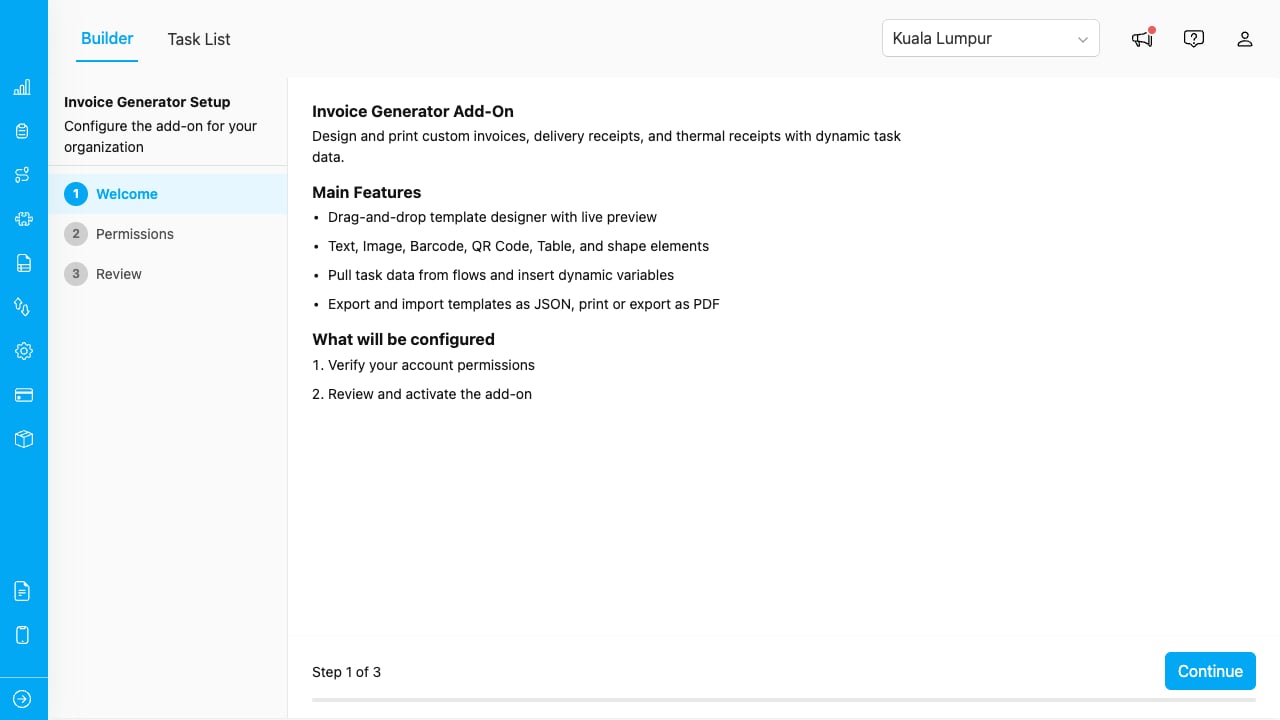
When you open PDF Generator for the first time, the Setup Wizard launches automatically. If the add-on was previously configured and the configuration was deleted, the wizard will reappear.

<div align="center">
  <img src="https://mintcdn.com/mileappv4/peiftEpaYwfPKwMQ/images/add-on/pdf-generator/wizard-welcome.png?fit=max&auto=format&n=peiftEpaYwfPKwMQ&q=85&s=f0b40480b96a36022bb45eef11548504" alt="Setup wizard welcome screen" width="600" data-path="images/add-on/pdf-generator/wizard-welcome.png" />
</div>

<p><em>The Setup Wizard welcome screen.</em></p>

## Step 1: Welcome

The first screen introduces the add-on and what it does:

* Design PDF templates with a drag-and-drop builder.
* Bind elements to task data for dynamic documents.
* Print or export documents from the Task List.
* Support for multi-page layouts, watermarks, and conditional elements.

Click **Next** to proceed.

## Step 2: Verify Permissions

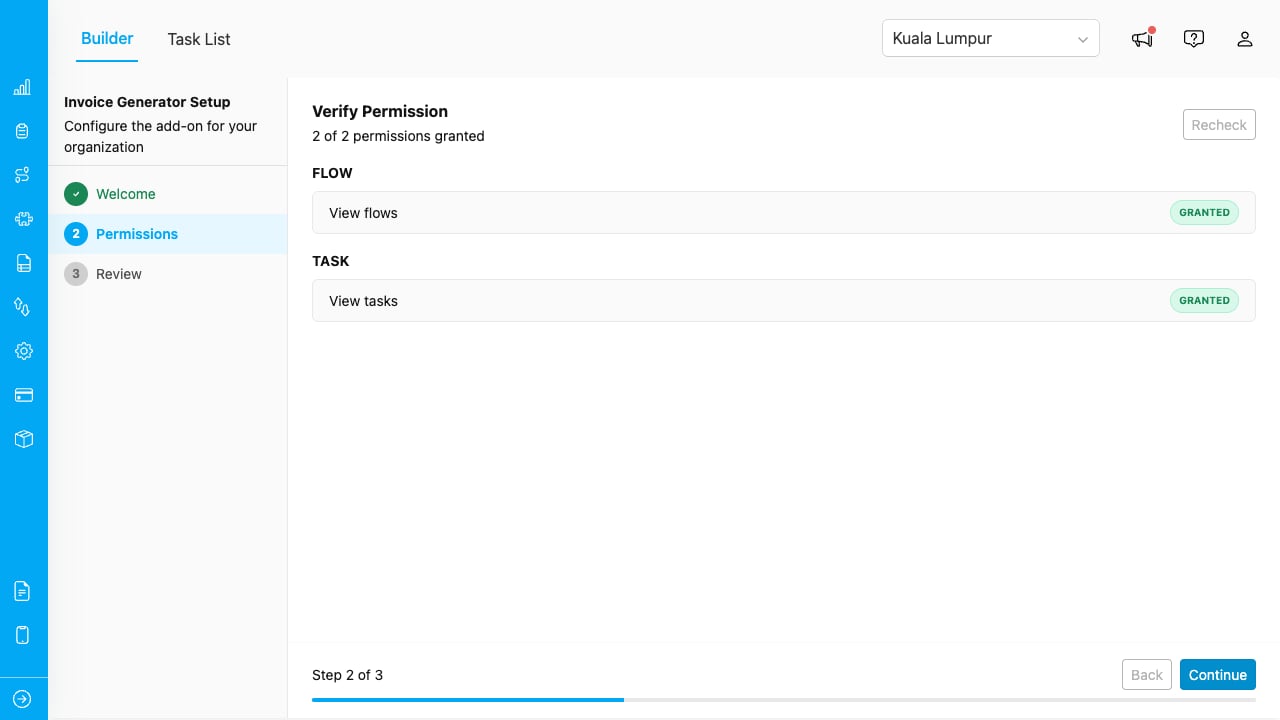
The wizard checks that your account has the required platform permissions.
<div align="center">
  <img src="https://mintcdn.com/mileappv4/peiftEpaYwfPKwMQ/images/add-on/pdf-generator/wizard-permissions.png?fit=max&auto=format&n=peiftEpaYwfPKwMQ&q=85&s=181308a33ffe36e54cc90cc95628100a" alt="Permission verification step" width="600" data-path="images/add-on/pdf-generator/wizard-permissions.png" />
</div>

<p><em>The wizard verifies your account has the required permissions.</em></p>

| Category | Permission |
| - | - |
| **Flow** | View flows |
| **Task** | View tasks |

If any permission is missing, contact your organization administrator to update your role. Once all permissions show a green checkmark, click **Next**.

## Step 3: Review and Activate

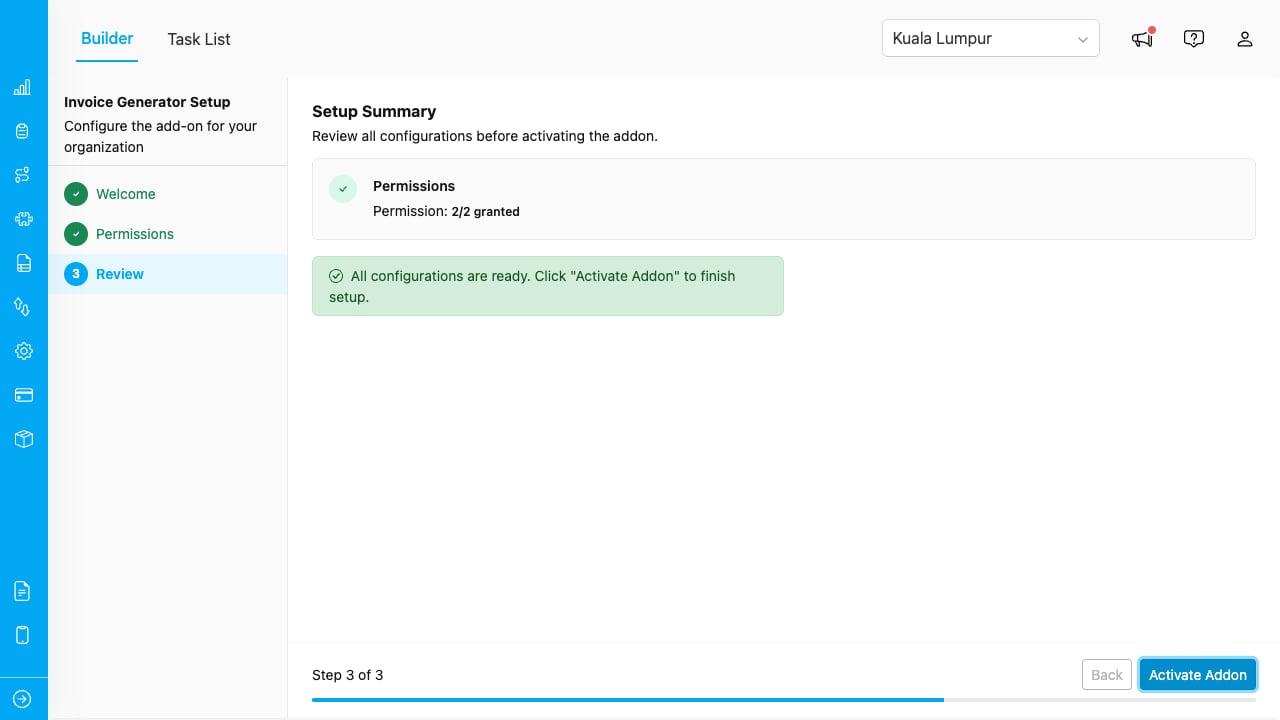
Review the configuration summary, then click **Activate** to complete the setup.
<div align="center">
  <img src="https://mintcdn.com/mileappv4/peiftEpaYwfPKwMQ/images/add-on/pdf-generator/wizard-review.png?fit=max&auto=format&n=peiftEpaYwfPKwMQ&q=85&s=9112abca888ea24807b4a08850a9b6fc" alt="Review and activate step" width="600" data-path="images/add-on/pdf-generator/wizard-review.png" />
</div>

<p><em>Review and activate the add-on.</em></p>

After activation, the builder opens and you can start designing templates immediately.

## Page-Level Permissions

The add-on creates two page-level permissions that control access to its tabs:

| Permission | Controls |
| - | - |
| **View PDF Builder** | Access to the Builder tab for designing templates |
| **View PDF Tasks** | Access to the Task List tab for browsing and printing |

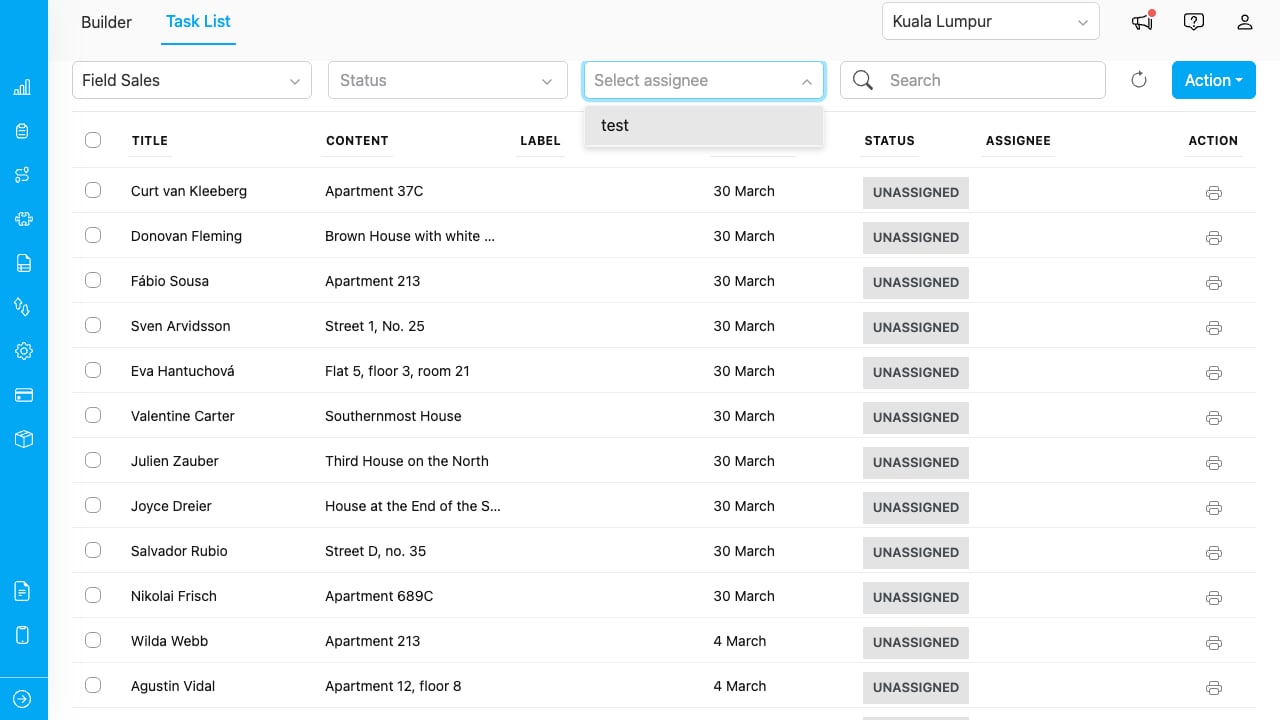
Assign these permissions to roles via **Settings > Roles**. Users without the required permission see an access-denied message.
<div align="center">
  <img src="https://mintcdn.com/mileappv4/peiftEpaYwfPKwMQ/images/add-on/pdf-generator/no-access.png?fit=max&auto=format&n=peiftEpaYwfPKwMQ&q=85&s=142978c6104e30e0f07ecdcadd345629" alt="No access message" width="600" data-path="images/add-on/pdf-generator/no-access.png" />
</div>

<p><em>Users without permission see this message.</em></p>

## Deleting Configuration

To reset the add-on and re-run the Setup Wizard:

1. In the Builder, click the **gear icon** (⚙) in the toolbar.
2. Select **Delete Configuration**.
3. Confirm the deletion.

The wizard will reappear on next load. Saved templates are preserved in the Template Library and are not affected by deleting the configuration.


This documentation is built and hosted on [Mintlify](https://mintlify.com), a developer documentation platform.