> ## Documentation Index
> Fetch the complete documentation index at: https://docsv4.mile.app/llms.txt
> Use this file to discover all available pages before exploring further.
# Viewing and Editing a Task
> Open a task to see everything captured on it, and change a task that is not done yet.
Required permission:
* View task
* Edit task (to make changes)
## Open a task
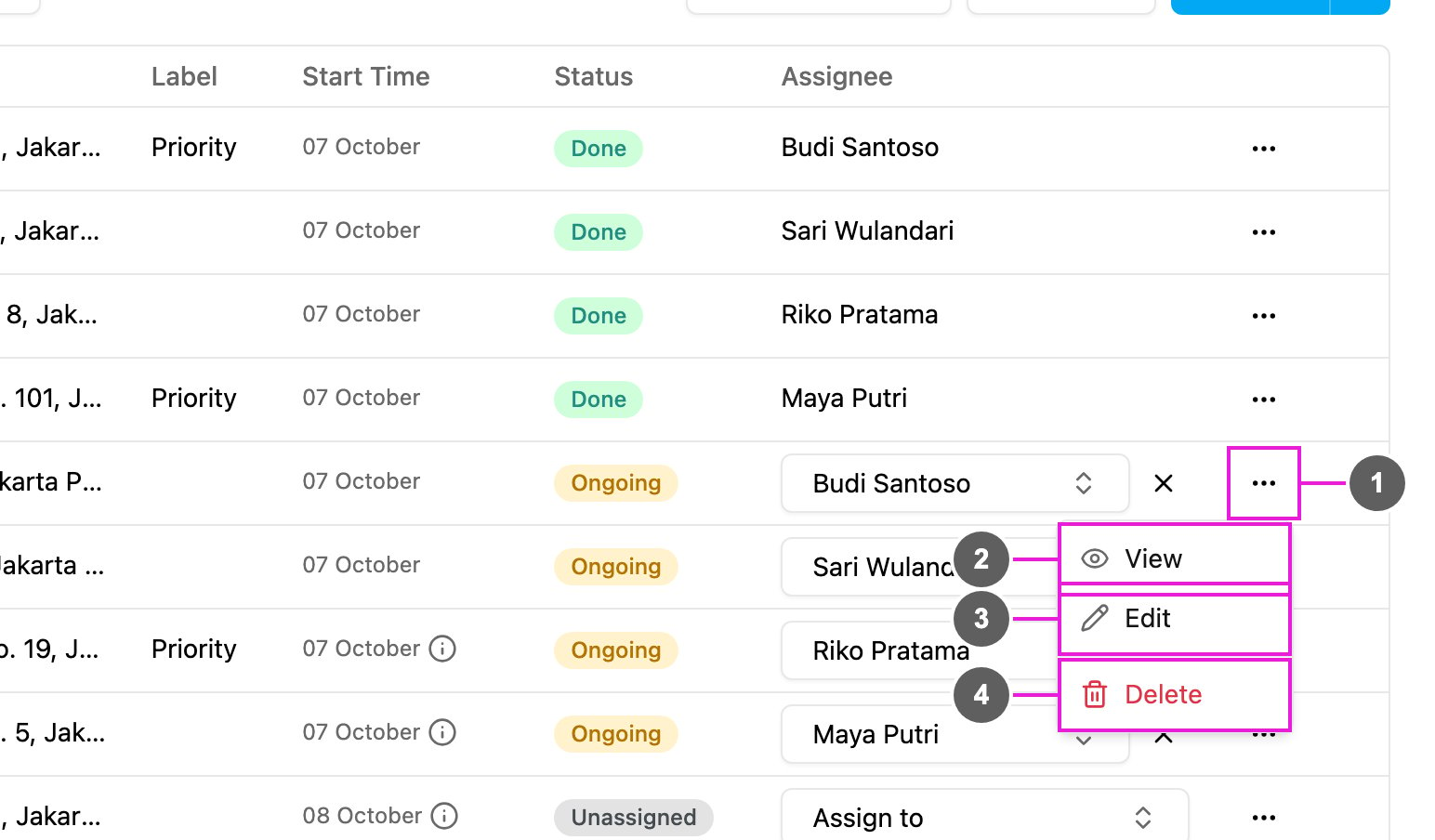
Click a row, or click **Task actions** (the **...** button at the end of the row) and choose an action.
1. **Task actions**: the menu of the row.
2. **View**: open the task's details.
3. **Edit**: open the task ready to change. Not offered for a done task.
4. **Delete**: remove the task. See [Deleting a Task](/pages/activities/task/delete-task).
When the task is assigned to you and is within its time window, the menu also offers **Do task**. See [Doing a Task on the Web](/pages/activities/task/do-task).
## The task detail
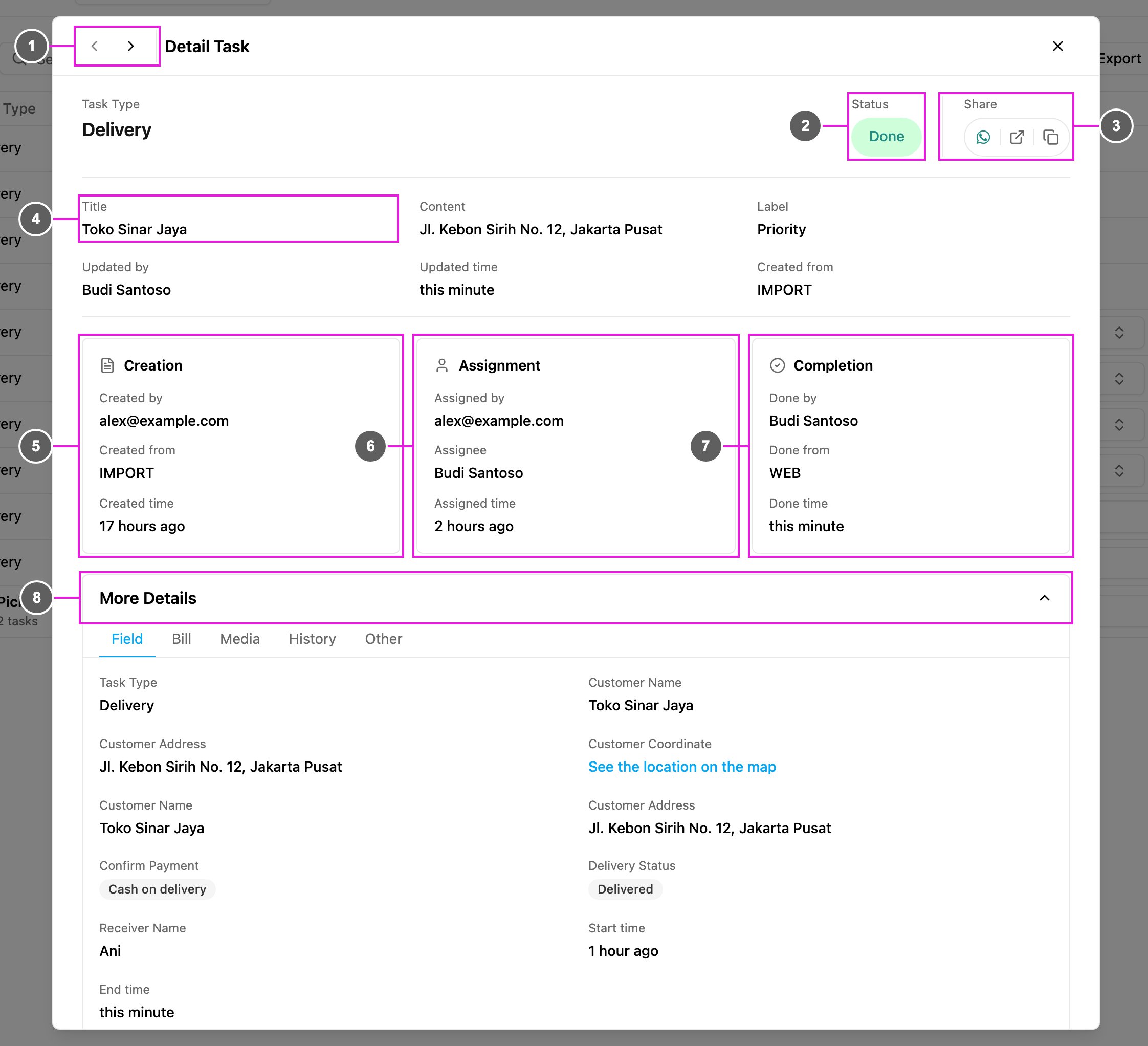
**Detail Task** opens on the side of the list.
1. **Previous task / Next task**: move through the list without closing the detail.
2. **Task type and status**: the task type the task belongs to and its status.
3. **Share**: **Share by WhatsApp**, **Copy link** to the task's [public tracking page](/pages/activities/public-tracking/introduction), or **Copy task ID**.
4. **Overview**: the title, content, label and the latest update.
5. **Creation**: who created the task, from where (**WEB**, **IMPORT**, **MOBILE** and so on) and when.
6. **Assignment**: who assigned the task, to whom, and when.
7. **Completion**: who finished the task, from where (**MOBILE** or **WEB**) and when.
8. **More Details**: show or hide everything captured on the task, in tabs.
### More Details
The tabs depend on the task type and on what has been captured, so a task shows only the tabs that have something in them:
| Tab | What it shows |
| - | - |
| **Field** | The value of every field of the task type, page by page, as filled in when the task was created and done. A coordinate has **See the location on the map**. |
| **Subtasks** | For a [main task with a subflow](/pages/activities/task/subflow-in-task): the subtasks it created. |
| **Routing** | For a planned task: the route order, vehicle, ETA, ETD, distance and waiting time. |
| **Bill** | For a task type with a [bill](/pages/workflow/task-type/components/bill/introduction): the items, quantities and quantities processed, costs, discounts and totals. |
| **List** | For a task type with a [list](/pages/workflow/task-type/components/list/introduction): the items, and which were checked or how many were processed. |
| **Subpage** | For a task type with a [subpage](/pages/activities/task/subpage-in-task): every entry and its fields. |
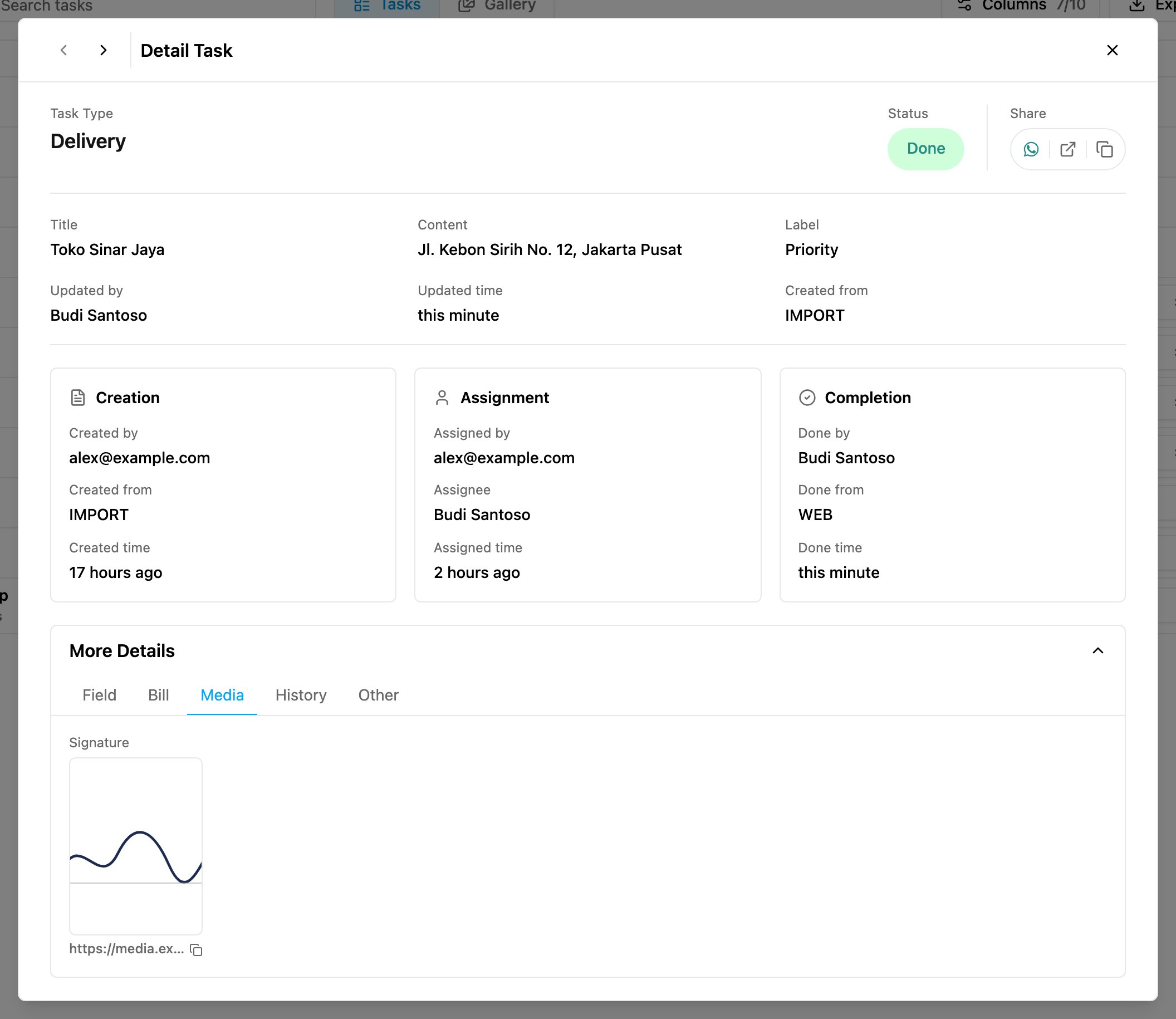
| **Media** | The photos, signatures and videos taken on the task. Click one to open the media viewer, where you can move between items. |
| **History** | Every change to the task, by whom and when: created, assigned, re-assigned, unassigned, updated, completed, moved, and OTP sent or verified. |
| **Other** | The system details of the task, such as the task id, hub id, coordinates where it was created and done, duration, travel distance and travel duration, geo lock and the synced time. |
Most of these values only appear after the field worker finishes the task.
A subtask opens as **Subtask Detail**, with **View master task** to jump to its main task.
## Edit a task
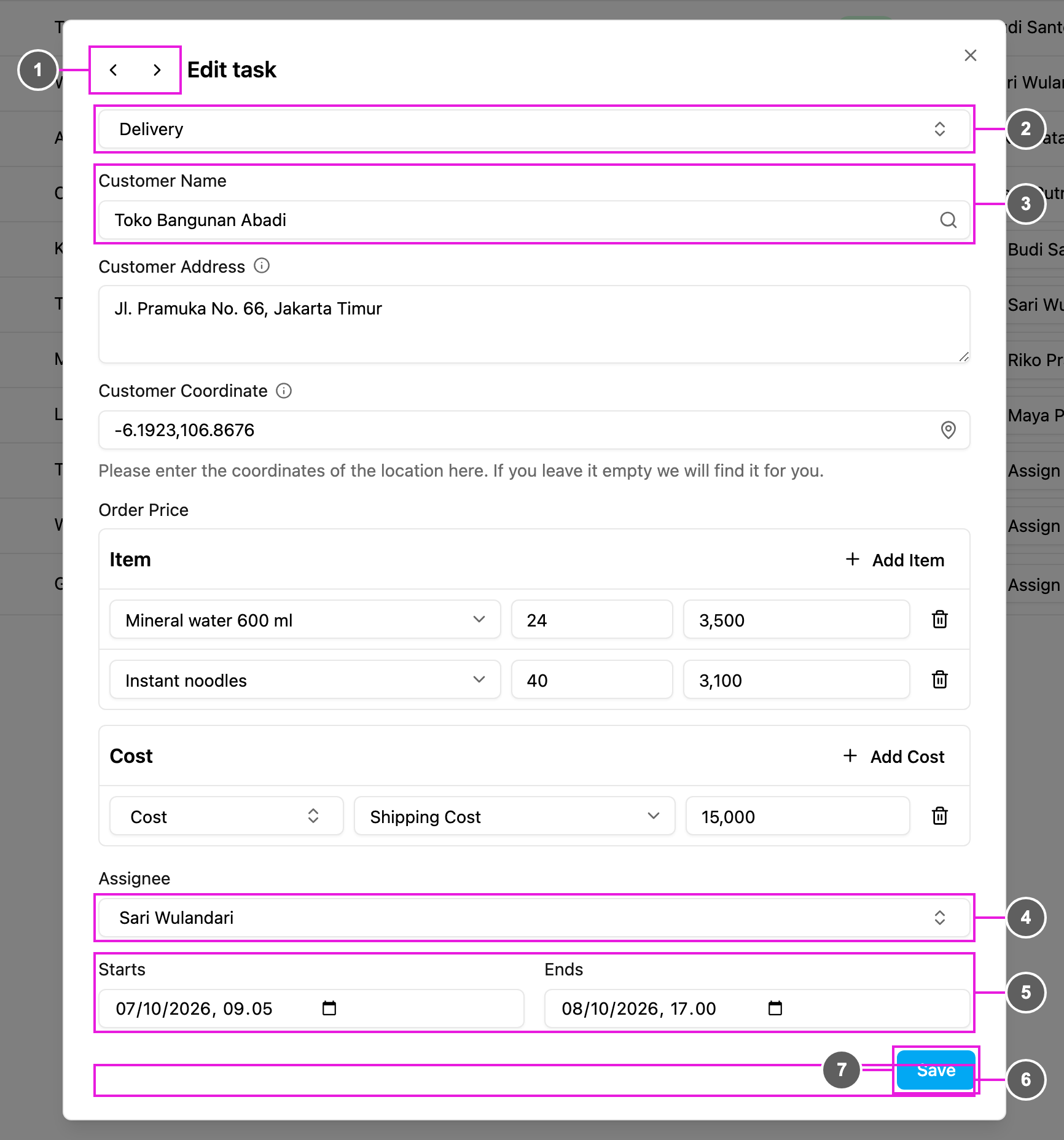
Choose **Edit** from **Task actions**. **Edit task** opens with the task's current values.
1. **Previous task / Next task**: move to the next task to edit.
2. **Task type**: the task type cannot be changed on a task that already exists. A task shared to you by another organization keeps its task type locked.
3. **Fields**: change the values of the initial page, as when [creating a task](/pages/activities/task/create-task).
4. **Assignee**: change who has the task.
5. **Starts / Ends**: change the time window.
6. **More Details**: the task's **Task Information**, **Bill** and **Other** values, read only.
7. **Save**: save your changes.
A task that is **Done** cannot be edited: its record is kept as it was finished. A subtask cannot be edited on its own row either; edit its main task.
To change only the time window of many tasks at once, use **Edit time**. See [Assigning Tasks](/pages/activities/task/assign-task#edit-the-time-of-many-tasks).
This documentation is built and hosted on [Mintlify](https://mintlify.com), a developer documentation platform.