> ## Documentation Index
> Fetch the complete documentation index at: https://docsv4.mile.app/llms.txt
> Use this file to discover all available pages before exploring further.
# Filtering and Searching Tasks
> Narrow the task list by status, assignee, task type and date range, or search for any text.
Required permission:
* View task
Filters and search narrow the task list to the tasks you want to see, to act on, or to [export](/pages/export-import/export). Only the tasks shown in the list are included when you export.
## Filter
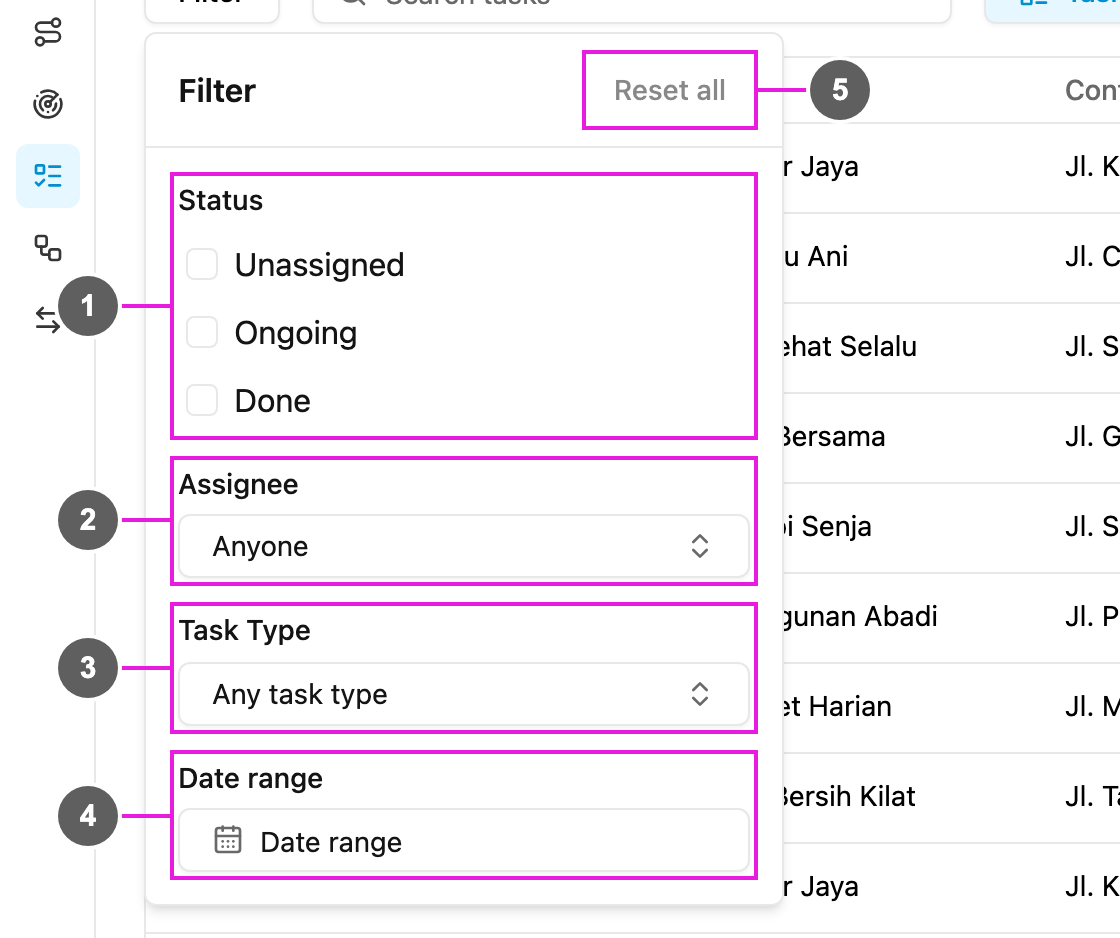
Open **Activities › Task** and click **Filter**.
1. **Status**: **Unassigned**, **Ongoing** or **Done**. Pick more than one to see them together.
2. **Assignee**: the tasks of one person, or **Anyone**. Search by name, across hubs.
3. **Task Type**: the tasks of one task type, or **Any task type**.
4. **Date range**: tasks whose start time falls between the **Start date** and **End date**. Quick picks such as **Today** and **Yesterday** are offered.
5. **Reset all**: clear every filter.
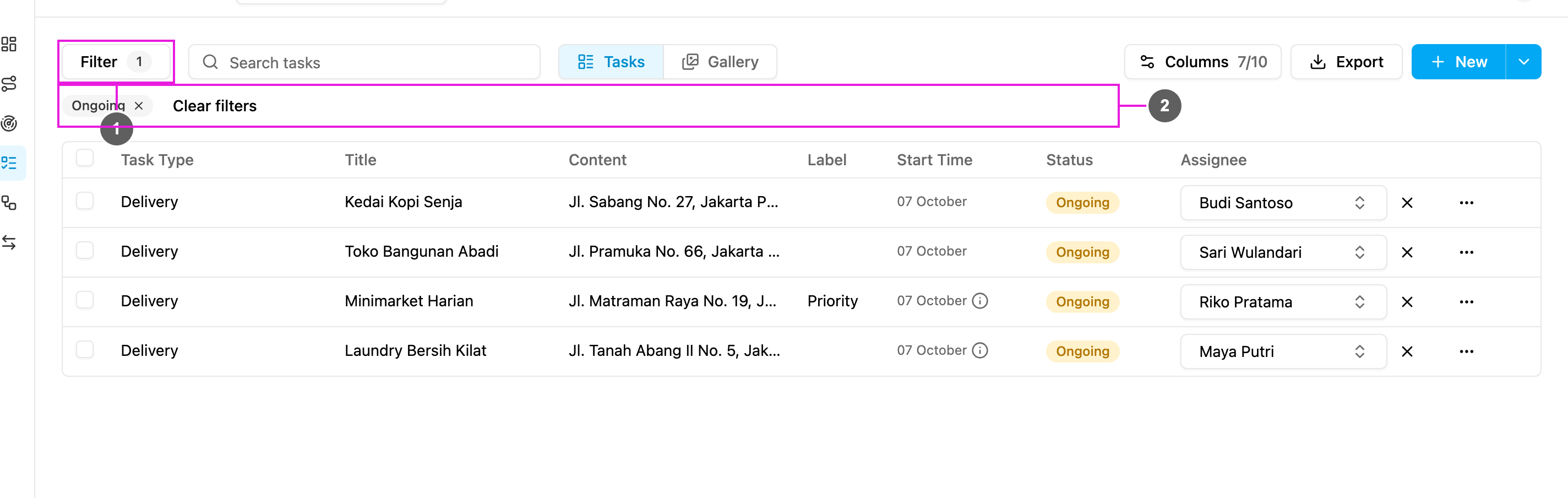
Each active filter shows as a chip under **Filter**. Click the **x** on a chip to remove that filter, or **Clear filters** to remove them all.
1. **Filter**: the number beside it is how many filters are in use.
2. **Filter chips**: the filters in use. **Clear filters** removes them all.
When nothing matches, the list says "No task matches these filters". Clear the filters to see the rest.
## Search
Type in **Search tasks** to find tasks that contain the text in any of their fields, such as a customer name, an address or an order number. The search works together with the filters.
## Filter before you export
Set the filters and the search first, then click **Export**: the export includes the tasks in the list. To export only some of them, tick those tasks before you click **Export**. See [Export](/pages/export-import/export).
If you export without a date range, the export covers the **last 30 days**, counted from the moment you click **Export**. One export covers at most **31 days**. This does not apply when you export ticked tasks: only the ticked tasks are included, whatever their date.
The filters and the search are part of the page address. Copy the link to share exactly the list you are looking at.
This documentation is built and hosted on [Mintlify](https://mintlify.com), a developer documentation platform.