> ## Documentation Index
> Fetch the complete documentation index at: https://docsv4.mile.app/llms.txt
> Use this file to discover all available pages before exploring further.
# Doing a Task on the Web
> Finish a task from the web app, page by page, the same way the field worker does on the field app.
You don't always need the field app to finish a task. **Do task** lets you complete a task from the web app: for back-office work, to show a new field worker what to expect, or to finish a task on a field worker's behalf after it has been assigned to you.
Required permission:
* View task
* Do task
You must also be an **assignee** of the task. To do someone else's task, assign it to yourself first.
## When Do task is offered
**Do task** appears in a row's **Task actions** menu only when all of these are true:
* The task is assigned to you, the person signed in to the web app.
* The task is **Ongoing**, not **Unassigned** or **Done**.
* The task's start time has passed. Before it, a message says when the task will start.
* The task's end time has not passed. After it, the task has expired: update its end time first.
* The row is not a subtask of a subflow.
If you expect **Do task** and don't see it, check the assignee, the start and end time, and the status.
## Step 1: Open the task
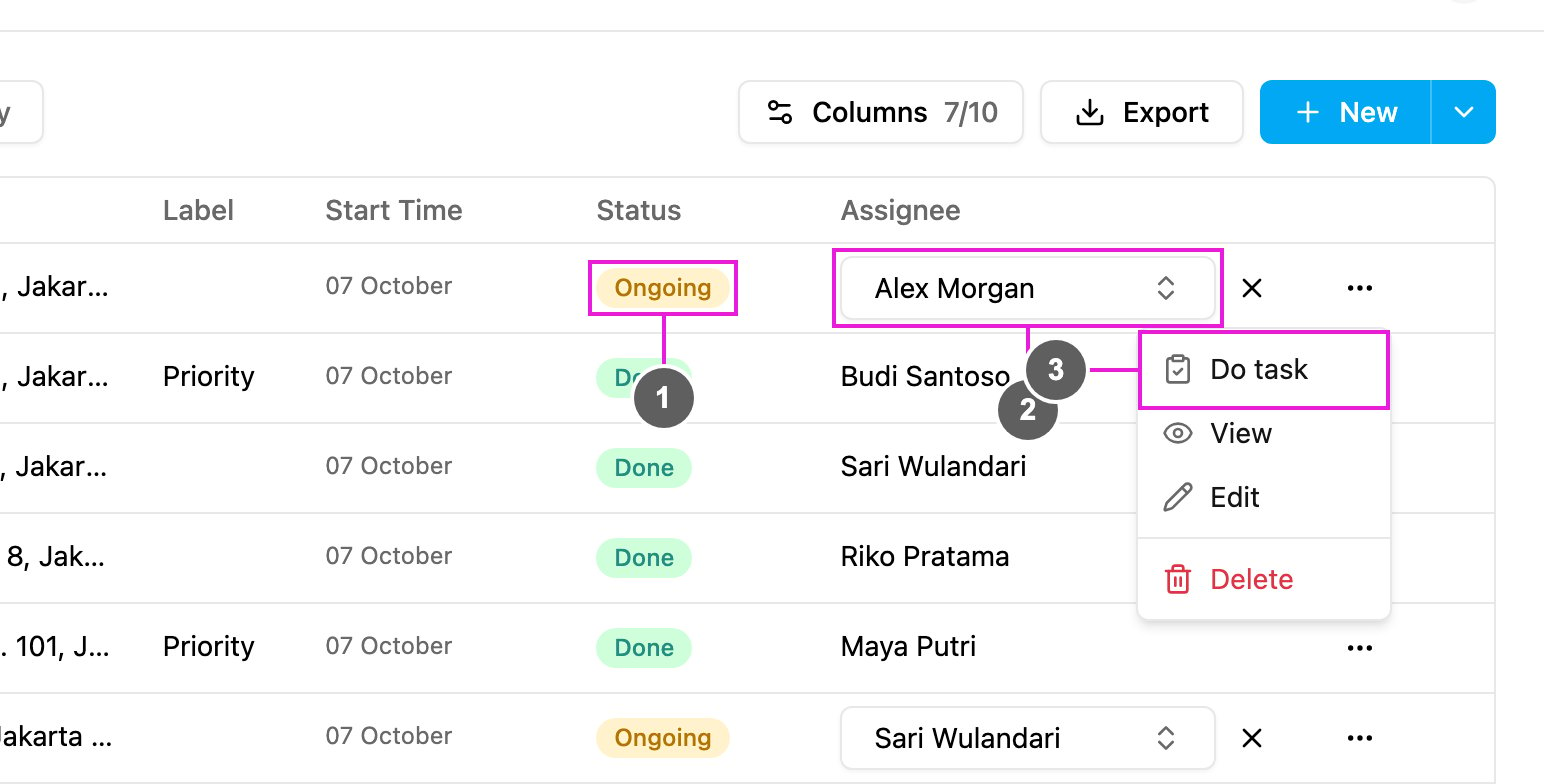
Open **Activities › Task**, find the task, click **Task actions** and choose **Do task**.
1. **Status**: the task must be **Ongoing**.
2. **Assignee**: your own name must be among the assignees.
3. **Do task**: open the task's form.
If your organization has the field app notice turned on, a **Do Task** notice first suggests the field app, with a QR code and store links to download it. Click **Do task on the web instead** to go on, or tick **Don't show this notice again** to skip it next time.
## Step 2: Fill in each page
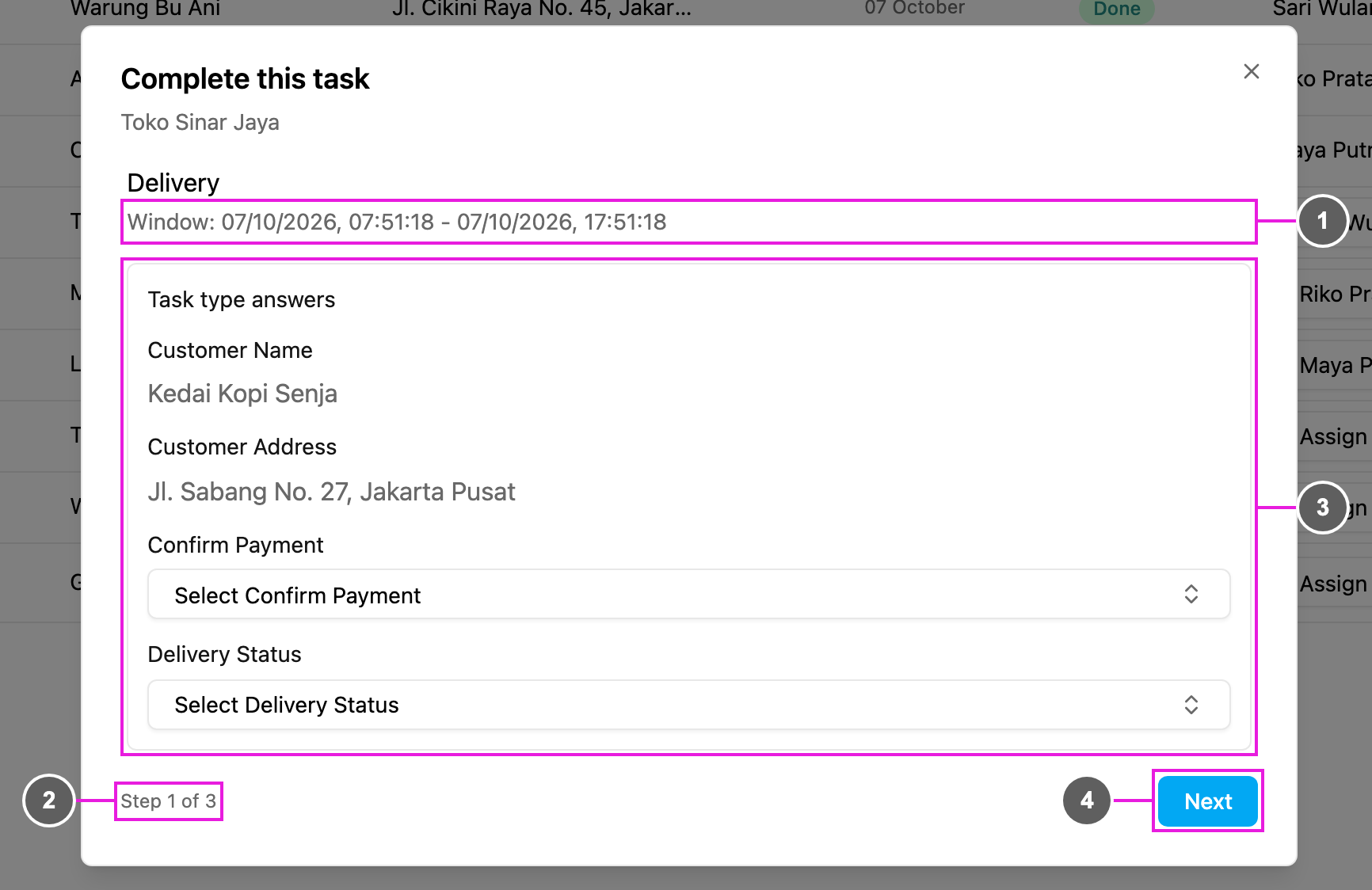
**Complete this task** opens with the same pages, fields and checks the field worker sees on the field app. What you fill in is saved on the task exactly as a field app submission.
1. **Window**: the task's time window.
2. **Step**: *Step 1 of 2* and so on. A task type can have one page or many, in the order set in the [task type builder](/pages/workflow/task-type/builder).
3. **Fields**: every component of the current page, such as inputs, photos, signatures, lists and bills. Fields already filled in on the initial page or earlier steps show their values. Required fields must be filled in before you move on.
4. **Next**: go to the next page. **Back** returns to the previous one.
Like on the field app, a page can check your input with the task type's validation before you move on, and a page with a geo lock asks you to be within range of the task's location. If a check fails, its message is shown and you stay on the page.
## Step 3: Finish the task
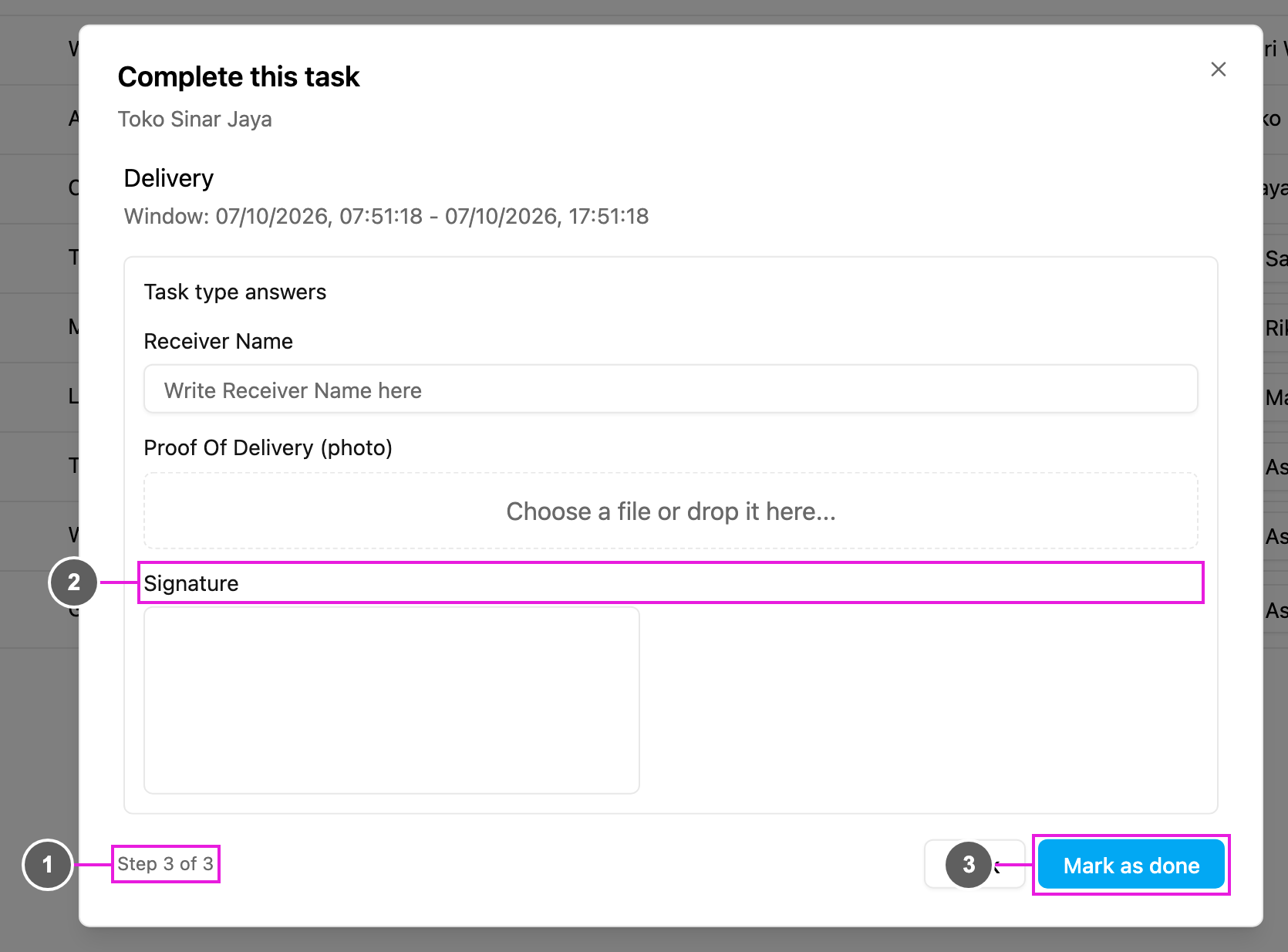
On the last page, **Next** becomes **Mark as done**. This is usually where you add the proof, such as a photo or a signature.
1. **Last step**: the final page of the task type.
2. **Fields**: the final fields. Fill in every required one.
3. **Mark as done**: finish the task.
A message confirms the task is completed. If you close the form part way, **Discard changes?** asks before your input is lost.
## After the task is done
* The task's status becomes **Done**, and **Do task** no longer appears on it.
* Open the task to check what was saved: the done time, photos and files and the other values. See [Viewing and Editing a Task](/pages/activities/task/view-and-edit-task).
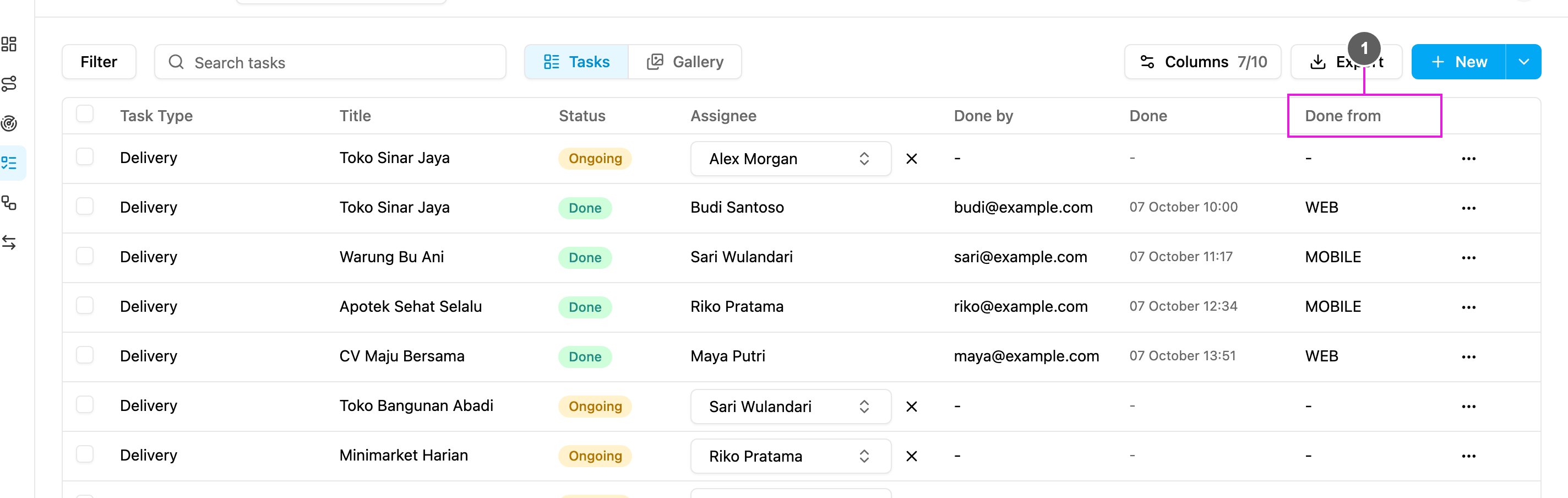
* **Done from** shows **WEB**, so a task done on the web can be told apart from one done on the field app. Show the **Done from** column to see it in the list.
1. **Done from**: **WEB** for a task finished on the web app.
This documentation is built and hosted on [Mintlify](https://mintlify.com), a developer documentation platform.