> ## Documentation Index
> Fetch the complete documentation index at: https://docsv4.mile.app/llms.txt
> Use this file to discover all available pages before exploring further.
# Sharing Public Tracking
> Copy a task's tracking link or task ID and send it to people outside your organization.
This page explains how to share a task's tracking with people who don't have an account.
Required permission:
* View task
## Find the task ID
Every task has a unique task ID that works as the access key for public tracking.
1. Open **Activities › Task**.
2. Click a task, or choose **View** from its **Task actions**, to open its details.
3. Click **Share**.
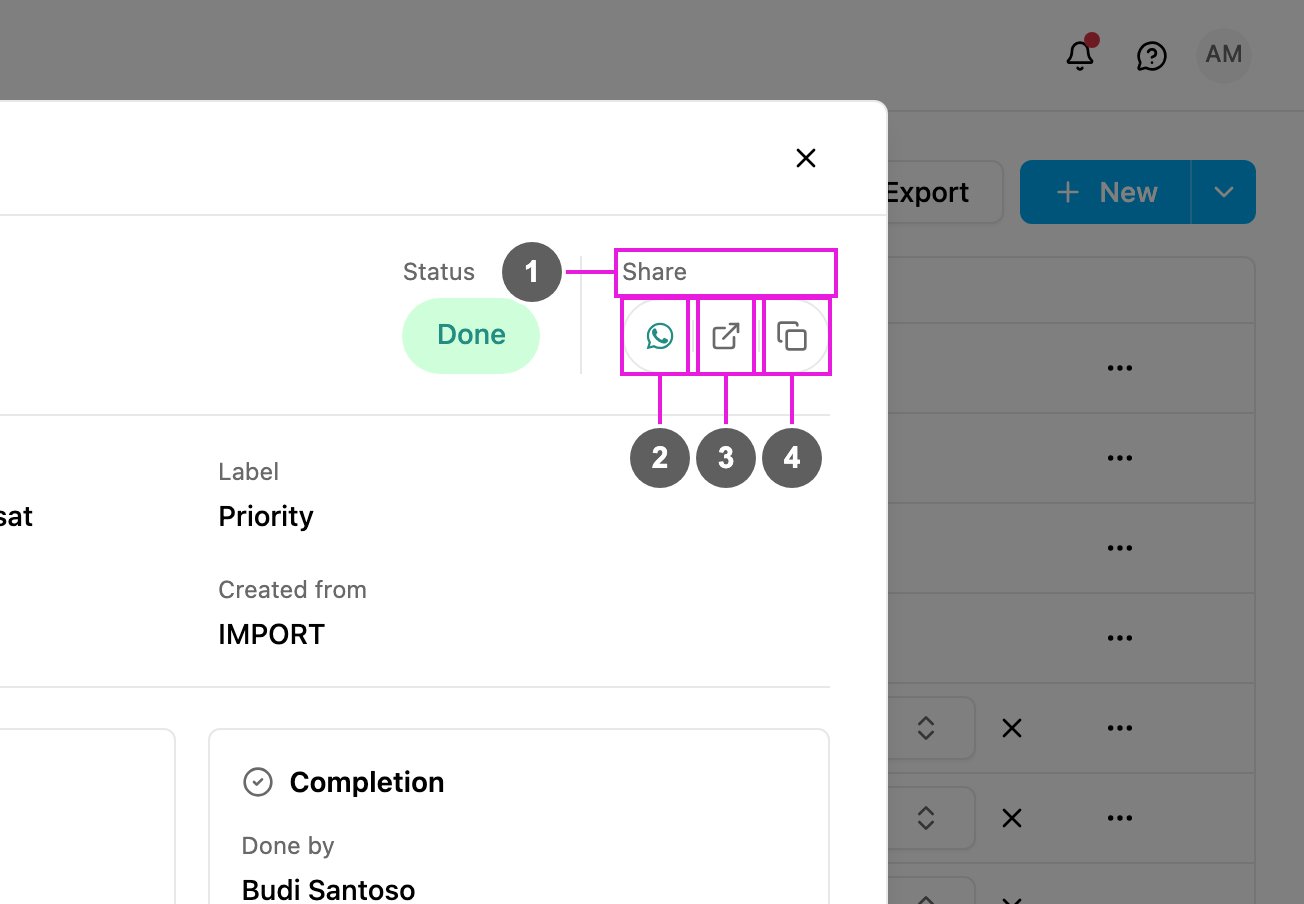
1. **Share**: opens the share options.
2. **Share by WhatsApp**: opens WhatsApp with a message and the tracking link. When the task has a phone number on its initial page, the chat opens to that number.
3. **Copy link**: copies the full tracking link.
4. **Copy task ID**: copies the task ID on its own.
A task ID is a 24-character code, for example:
```
66abcdef12345679ab0c74d2
```
## Ways to share
### Option 1: the tracking link (recommended)
Send the full link: the web app's address, then `/tracking/`, then the task ID. For example:
```
https:///tracking/66abcdef12345679ab0c74d2
```
* One click opens the task for the recipient.
* Nothing needs to be typed.
* Easy to send by email, chat or text message.
### Option 2: the portal and the task ID
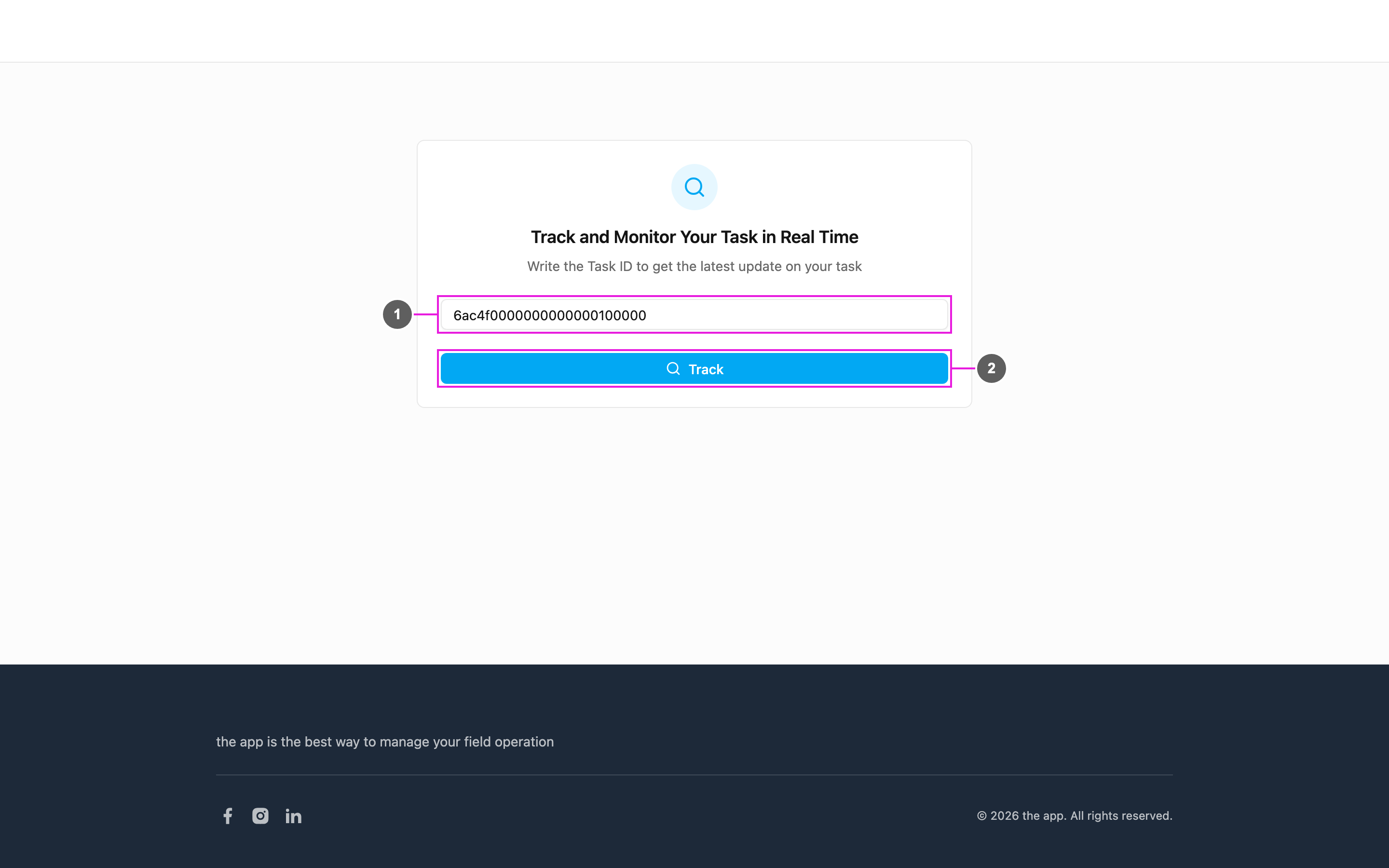
Send the portal address (`/tracking`) and the task ID separately. The recipient:
1. Opens the portal.
2. Types or pastes the task ID.
3. Clicks **Track**.
1. **Task ID**: where the recipient enters the task ID.
2. **Track**: open the task's tracking page.
This works well when you read the task ID out over the phone or in a support conversation.
### Option 3: Share in the task detail (easiest)
Open the task and click **Share**, then pick **Share by WhatsApp**, **Copy link** or **Copy task ID**. The link is built for you, and WhatsApp sends it in one step.
### In automatic emails
An [email notification](/pages/workflow/automation/actions/notification-email) can include the tracking link as a variable, so the recipient gets it as soon as the task is created or updated.
## Best practices
1. **Share right after the task is created**, so the recipient can follow it from the start.
2. **Add a short explanation** of what the recipient will see on the page.
3. **Set expectations**: when the task will be updated, what information appears, and how often the location updates.
4. **Share task IDs only with the intended recipients.** Anyone with the ID can see the task.
5. **Open the link yourself first** to check it shows what you expect.
## What recipients see
1. **Task information**: title, content and label.
2. **Task history**: every status change with its time and note.
3. **Location**: where the task is, and the courier's location while it is ongoing.
4. **Media, Bill and List**, when the task type has them.
See [The Tracking Page](/pages/activities/public-tracking/tracking-page) for details.
## Troubleshooting
**"No task matches that ID" or "We could not find that task"**
* The task ID is wrong or incomplete, or has a typo.
* A task ID contains no spaces: check what was pasted.
* The task has been deleted.
Check the task ID and copy it again.
**"We could not reach the tracking service" or "Something went wrong"**
* The recipient's connection dropped, or the service is briefly unavailable.
Ask the recipient to click **Try again** or reload the page later.
This documentation is built and hosted on [Mintlify](https://mintlify.com), a developer documentation platform.