> ## Documentation Index
> Fetch the complete documentation index at: https://docsv4.mile.app/llms.txt
> Use this file to discover all available pages before exploring further.
# Public Tracking
> Let customers and partners follow a task's progress without signing in.
Public tracking shares a task's progress with people outside your organization, such as customers, partners or recipients, without asking them to sign in. It is the "track your order" page for your tasks.
## What people can see
Anyone with the task ID can follow:
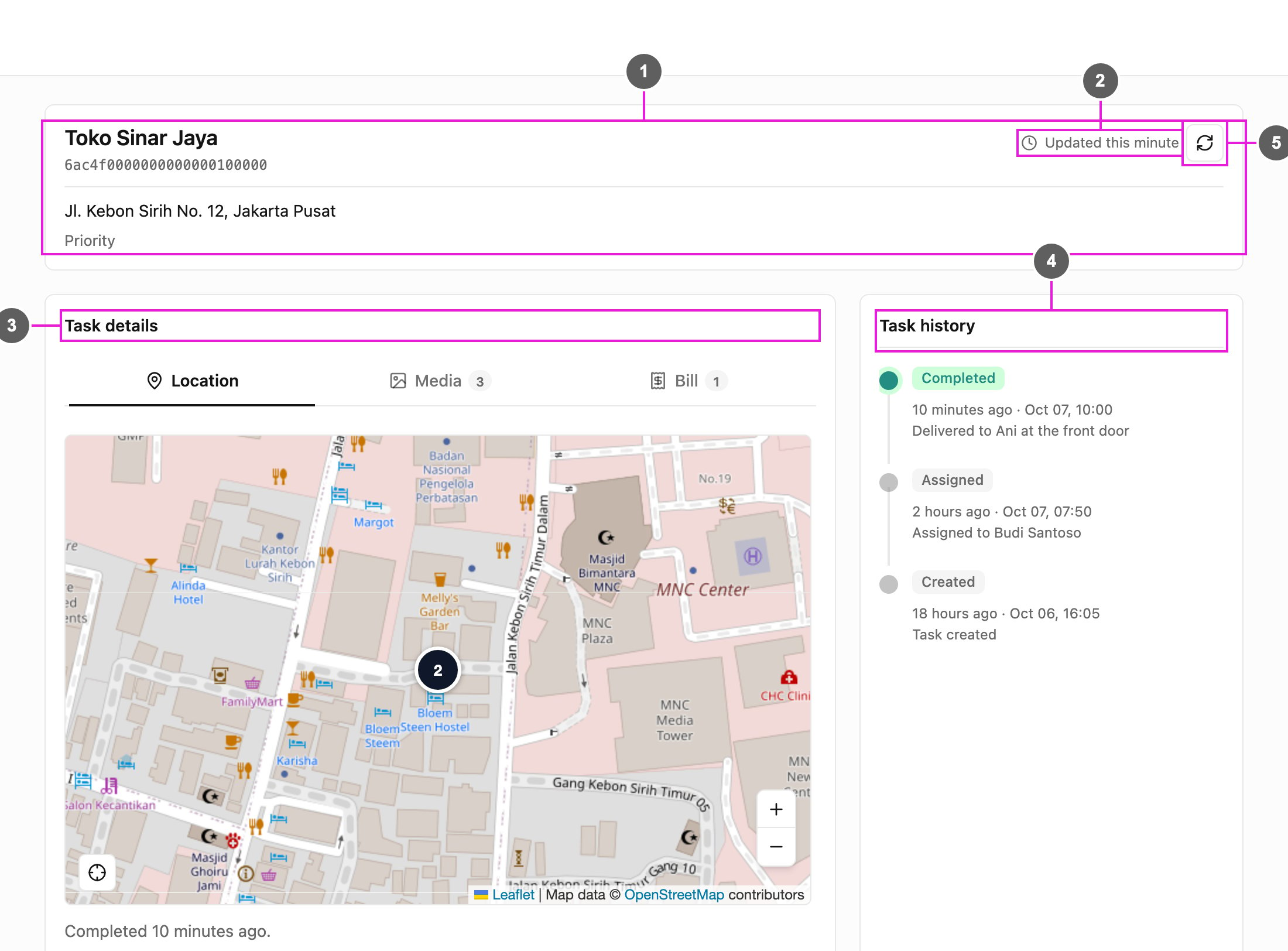
* the task's information: title, content and label,
* its current status and the history of what happened,
* where the task is on a map, and the field worker's last location while the task is ongoing,
* the photos, bill and list captured on the task, when the task type has them.
It is often used for:
* **Deliveries and e-commerce**: customers follow their delivery and see when it arrives.
* **Field services**: clients see when a technician is assigned, on the way, or done.
* **Logistics and shipping**: partners and recipients follow a shipment without access to your account.
* **Home delivery**: customers see where their courier is.
## How it works
1. **Share the task ID or link.** Every task has a unique task ID. Copy it, or the full tracking link, from the task's detail. See [Sharing Public Tracking](/pages/activities/public-tracking/sharing).
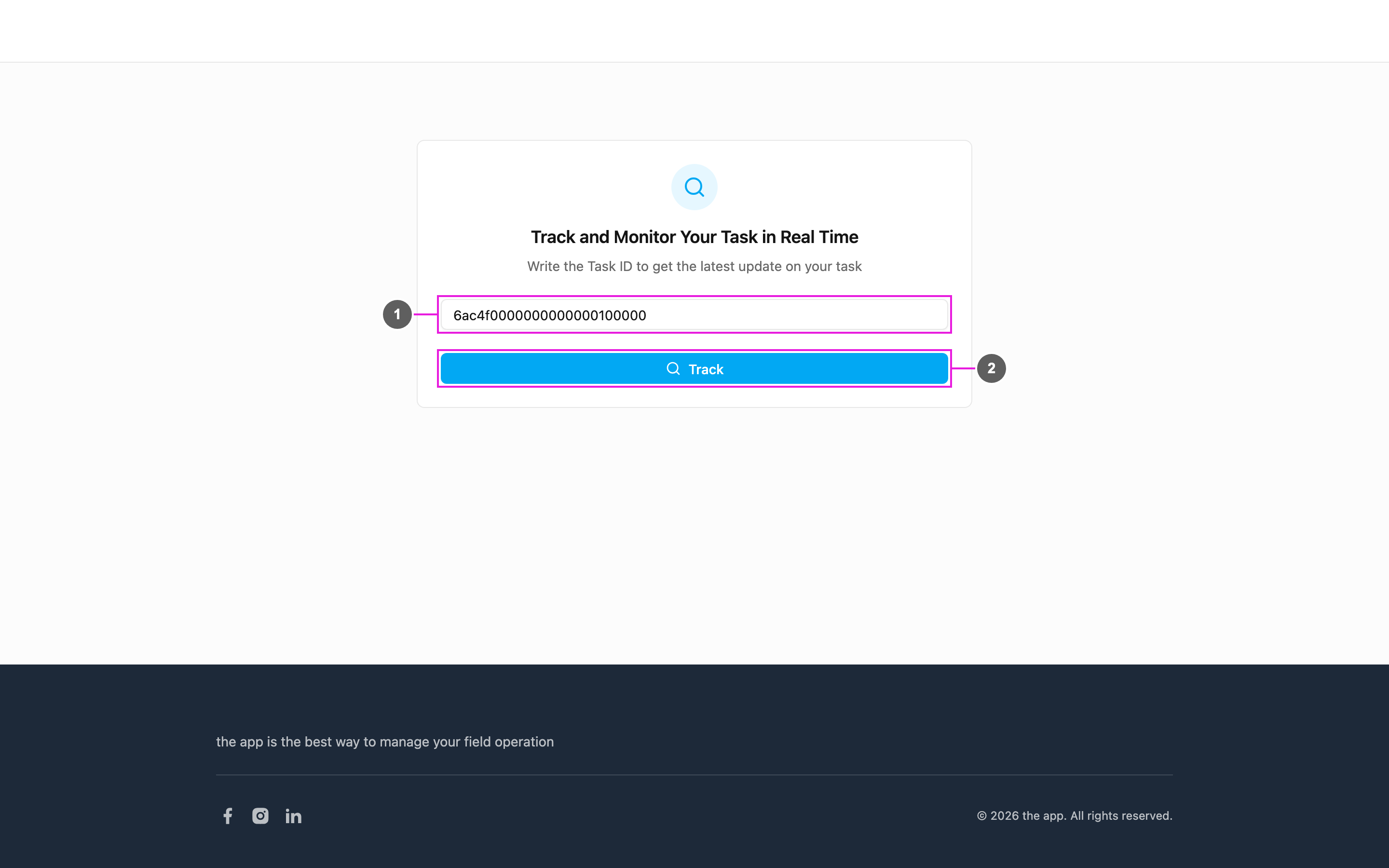
2. **Open the tracking page.** The recipient opens the link, or opens the tracking portal (`/tracking` on the web app's address) and types the task ID.
3. **Follow the task.** The tracking page shows the task's details, history and location. See [The Tracking Page](/pages/activities/public-tracking/tracking-page).
## Key points
* **No sign-in**: recipients need no account. The task ID is all they need.
* **Kept up to date**: the page refreshes on its own every few minutes, and the recipient can refresh it at any time.
* **History timeline**: every step of the task, such as created, assigned and completed, with the time and a note.
* **Map**: the task's location, and where the courier is or where the task was completed.
* **Access by task ID**: each task ID works as an access key. Only people who have it can see that task.
## Get started
1. [Create a task](/pages/activities/task/create-task) with the information the recipient needs.
2. Open the task and use **Share** to copy its link or task ID.
3. Send the link (`/tracking/` followed by the task ID) to the recipient.
This documentation is built and hosted on [Mintlify](https://mintlify.com), a developer documentation platform.