> ## Documentation Index
> Fetch the complete documentation index at: https://docsv4.mile.app/llms.txt
> Use this file to discover all available pages before exploring further.
# Order
> The Orders list: every order in your Order Types, with its status, the fields you chose to show, its hub and when it was created.
An **order** is one customer request that runs through several tasks, for example "pick up the goods, approve them, then deliver them". You create the order once. Its [Order Type](/pages/workflow/order-type/introduction) then runs the steps: it creates the tasks, waits for the field workers to finish them, checks the results and moves the order from status to status until it finishes.
* Each order belongs to one **Order Type**. The Order Type decides the order's fields, its statuses, how its number is made and which steps run.
* An order is created from the web app, from an import file, by API, or by a task finishing (when the Order Type starts that way).
* The tasks an order creates are normal tasks. They appear in [Task](/pages/activities/task/introduction) and on the field worker's field app, and the order keeps a link to each of them.
Open **Activities › Order** to see every order, find one, filter the list, create a new order, import orders from a file and export the list.
Required permission:
* View Order
## Before you start
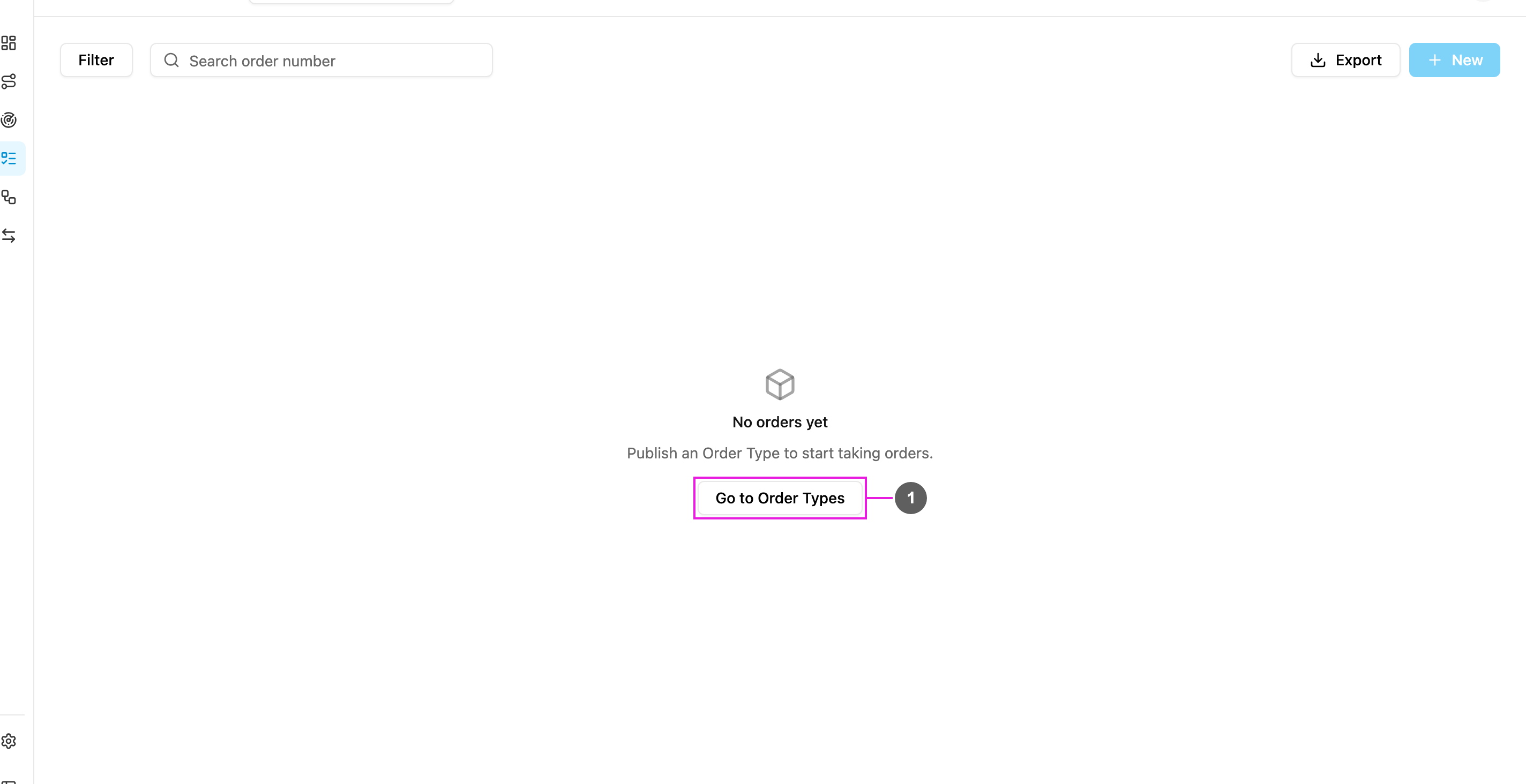
Orders can only be created for an Order Type that has been published. When no Order Type is published yet, the list is empty and asks you to publish one first.
1. **Go to Order Types**
Opens **Workflow › Order Type**, where you build and publish an Order Type. See [Order Type](/pages/workflow/order-type/introduction). The **New** button stays disabled, with the hint "Publish an Order Type first", until one is published.
Once an Order Type is published and has no orders yet, the list says "Create an order, import a file, or send orders by API."
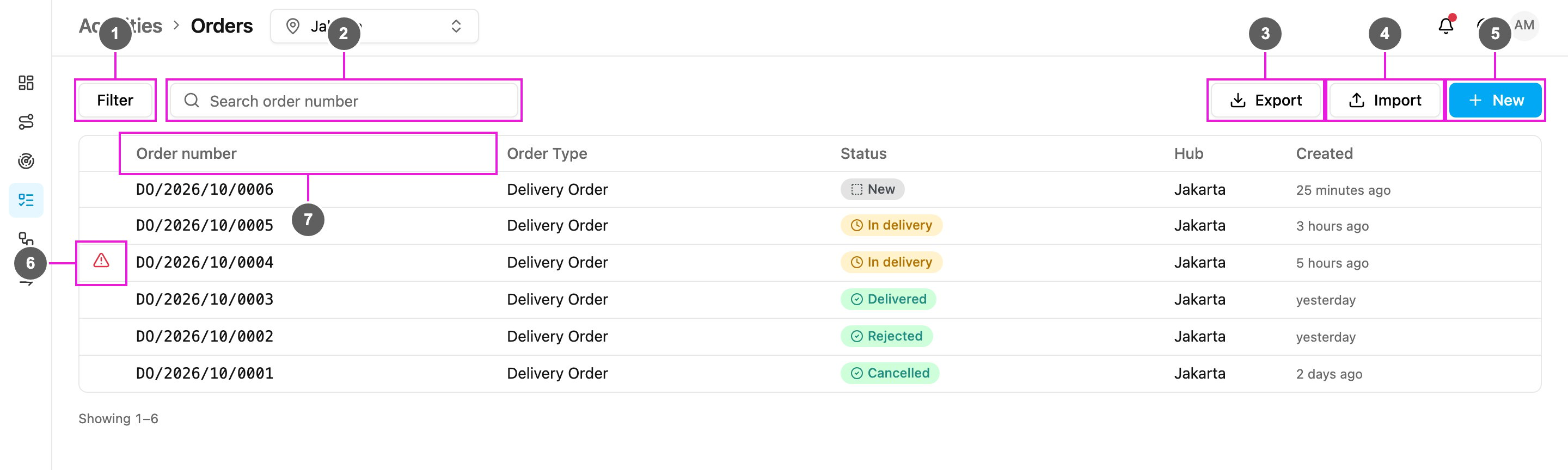
## The Orders list
1. **Filter**
Narrows the list by Order Type, status, active step, hub and created date. See [Filter the list](#filter-the-list).
2. **Search order number**
Finds orders whose number contains the text you type. The list updates as you type.
3. **Export**
Downloads the orders that match the current search and filters as a file. See [Import and export](/pages/activities/order/import-and-export).
4. **Import**
Creates or updates many orders from an `.xlsx` or `.csv` file. Shown when you have **Add Order** and at least one Order Type is published. See [Import and export](/pages/activities/order/import-and-export).
5. **New**
Opens the form to create one order. Shown when you have **Add Order**. See [Creating an order](/pages/activities/order/creating-an-order).
6. **Needs attention**
A red warning sign in the first column means the order has stopped and needs someone to act, for example a task could not be created or a webhook failed. Point at the sign to read the reason. Open the order to retry the step or resolve it. See [Needs attention](/pages/activities/order/order-detail#needs-attention).
7. **Columns**
Each row is one order. Click anywhere on a row to open the order. The columns are described below.
The newest orders are at the top. Below the table, "Showing 1–6" tells you which rows you see; use the page buttons to move to the next page. The search, filters and page are kept in the page address, so a reload or a shared link shows the same list.
### Columns
| Column | What it shows |
| - | - |
| *(warning sign)* | Shown only when the order needs attention. Point at it to read the reason. |
| **Order number** | The order's number, made by the Order Type's numbering rule (for example `DO/2026/10/0005`) or typed in when the order was created. Click it to open the order. |
| **Order Type** | The Order Type the order belongs to. |
| **Status** | The order's current status, in the colour of its meaning: grey for **New**, yellow for **In progress**, green for **Completed**. The labels are the ones set in the Order Type (for example "In delivery", "Delivered", "Rejected"). |
| **Hub** | The hub the order belongs to. Tasks the order creates go to this hub unless the step says otherwise. Shown on wide screens. |
| **Created** | How long ago the order was created, for example "3 hours ago". Point at it to see the exact date and time. Shown on wide screens. |
### Columns from the Order Type's fields
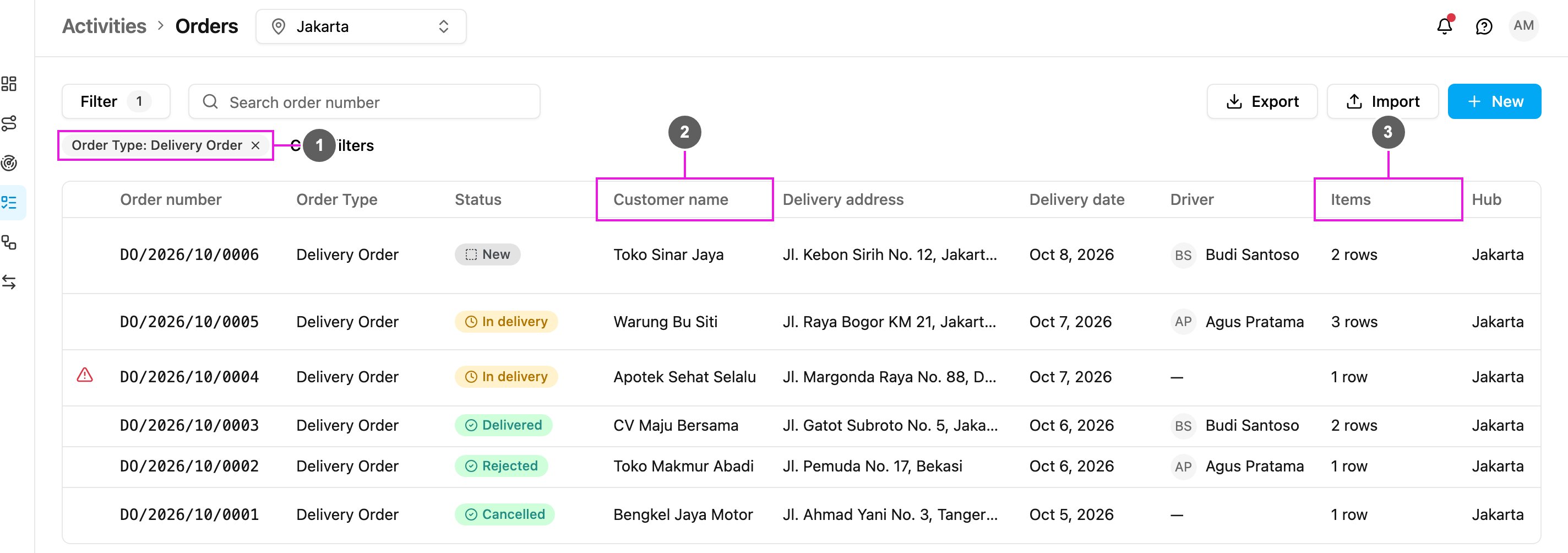
When you filter the list by one Order Type, the fields marked **Show on table** in that Order Type become extra columns, between **Status** and **Hub** (up to six).
1. **Order Type filter**
The active filter, shown as a chip. Click the **×** on the chip to remove it, or **Clear filters** to remove every filter.
2. **Field columns**
Each field marked **Show on table** gets a column with the field's name, here **Customer name**, **Delivery address**, **Delivery date** and **Driver**. A user field shows the person's name; a date shows the formatted date; an empty value shows "—".
3. **List fields**
A list (line items) field shows how many rows it has, for example "3 rows".
Which fields are shown is set in the Order Type, not on this page. See [Order Type](/pages/workflow/order-type/introduction).
## Filter the list
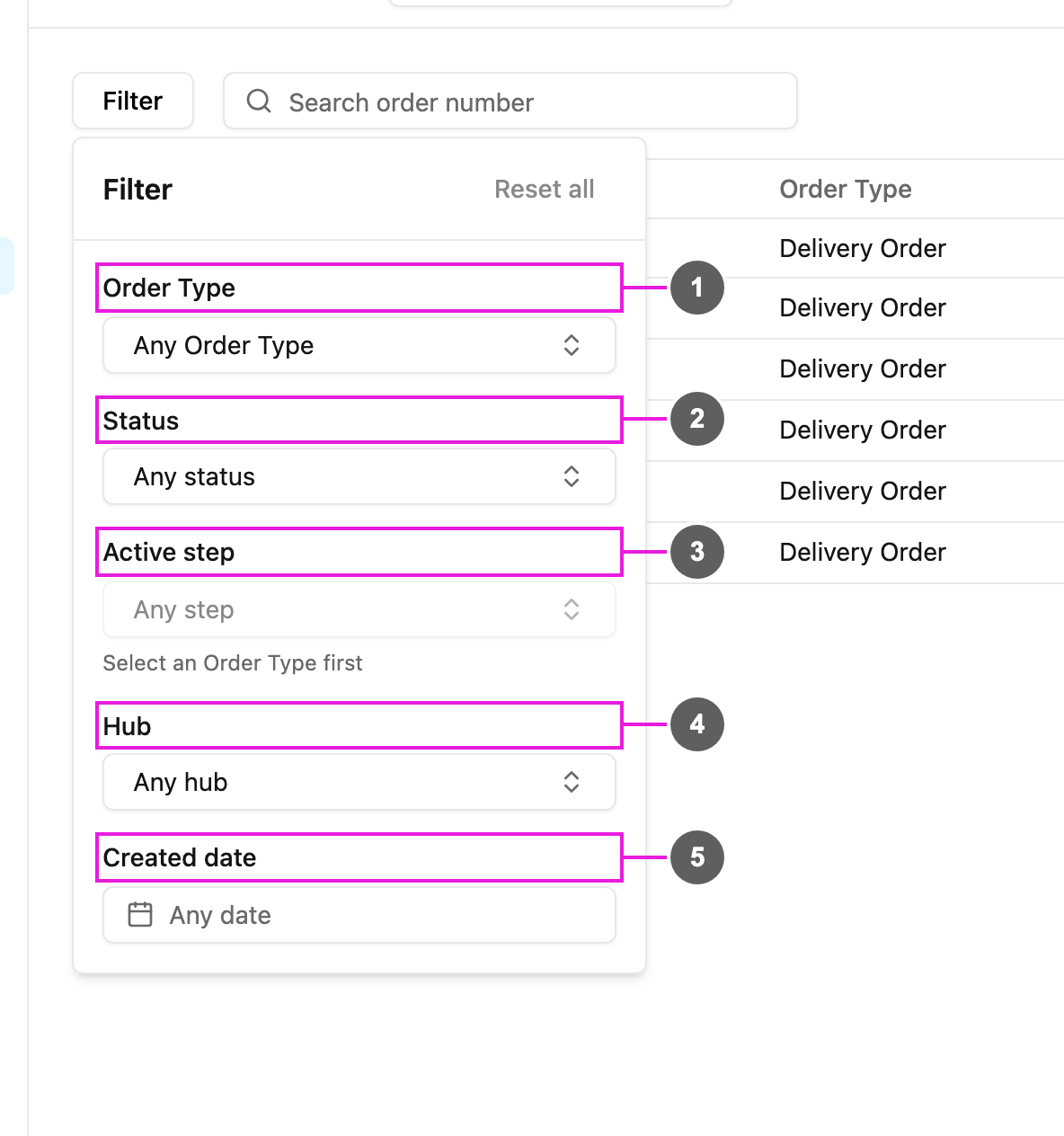
Click **Filter** to open the filter panel. Every filter you set appears as a chip above the table, and the **Filter** button shows how many are active.
1. **Order Type**
Shows orders of one Order Type only ("Any Order Type" by default). Choosing a type also adds its **Show on table** fields as columns and lets you filter by its statuses and steps.
2. **Status**
Without an Order Type, you choose a meaning: **New**, **In progress** or **Completed**. With an Order Type chosen, you can also pick one of its statuses, or "All In progress" and so on to take every status with that meaning.
3. **Active step**
Shows orders that are waiting at one step, for example every order waiting at **Delivery**. You must choose an Order Type first ("Select an Order Type first"). Each step shows how many orders are at it.
4. **Hub**
Shows orders of one hub ("Any hub" by default).
5. **Created date**
Shows orders created on a date or within a date range ("Any date" by default).
**Reset all** at the top of the panel removes every filter. When no order matches, the list says "No orders match these filters" with a **Clear filters** button.
## What's next
* [Creating an order](/pages/activities/order/creating-an-order)
* [Order detail](/pages/activities/order/order-detail): the order's fields, its tasks, the steps it has run, and how to edit, change the status, cancel or delete it.
* [Import and export](/pages/activities/order/import-and-export)
This documentation is built and hosted on [Mintlify](https://mintlify.com), a developer documentation platform.