> ## Documentation Index
> Fetch the complete documentation index at: https://docsv4.mile.app/llms.txt
> Use this file to discover all available pages before exploring further.
# Switching Organization
> Belong to more than one organization with one email, switch between them, and create a new organization.
With one email address you can belong to more than one organization, for example your own company and a customer who invited you. You switch between them from your profile menu, without signing out or keeping a second password.
Anyone who belongs to more than one organization can switch; no permission is needed.
## Switch to another organization
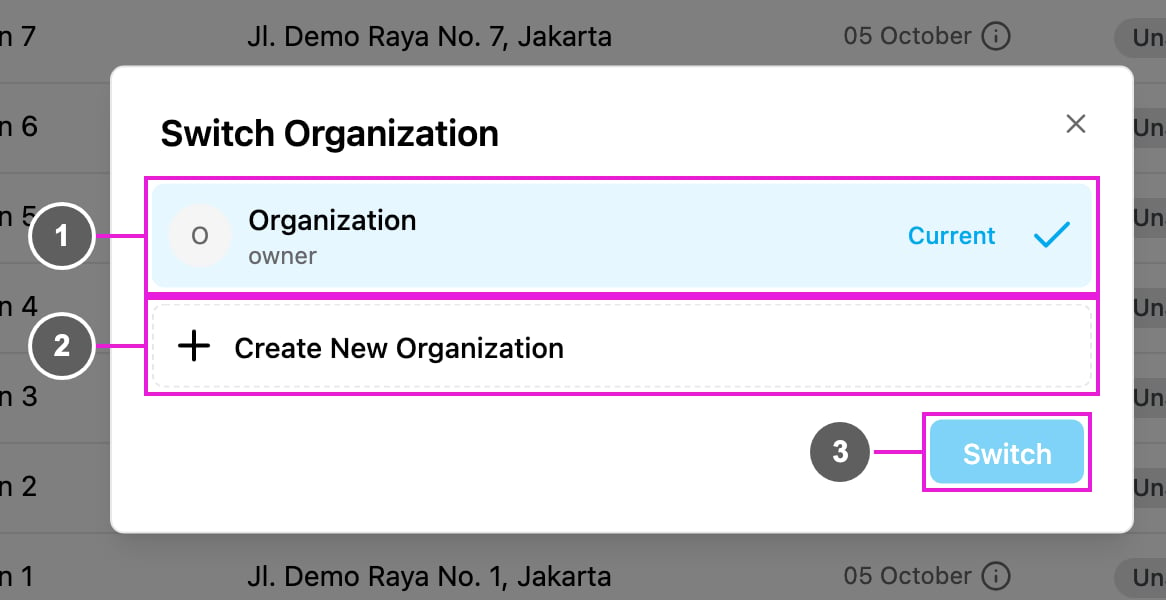
Click your initials in the top right corner, then **Change Organization**. The **Switch Organization** dialog opens.
1. **Organization list**: every organization you belong to, with your role in each one (for example *owner* or *field user*). The organization you are in now is marked **Current**. Click the one you want to move to.
2. **Create New Organization**: start a new organization of your own. See below.
3. **Switch**: move to the selected organization.
After you switch, the app reloads in the new organization and a message confirms it, for example *Successfully switched to Toko Maju*. Your hubs, menus and permissions now come from your role in that organization.
### Extra sign-in step
If the role you have in the other organization requires multi-factor authentication, you are asked for the second step before the switch finishes:
* **Authenticator app**: enter the 6-digit code from your authenticator app.
* **One-time code**: enter the code sent to you by email, WhatsApp or SMS.
See [Password and Sign-in Security](/pages/account/password-and-security#signing-in-with-a-second-step).
## Create a new organization
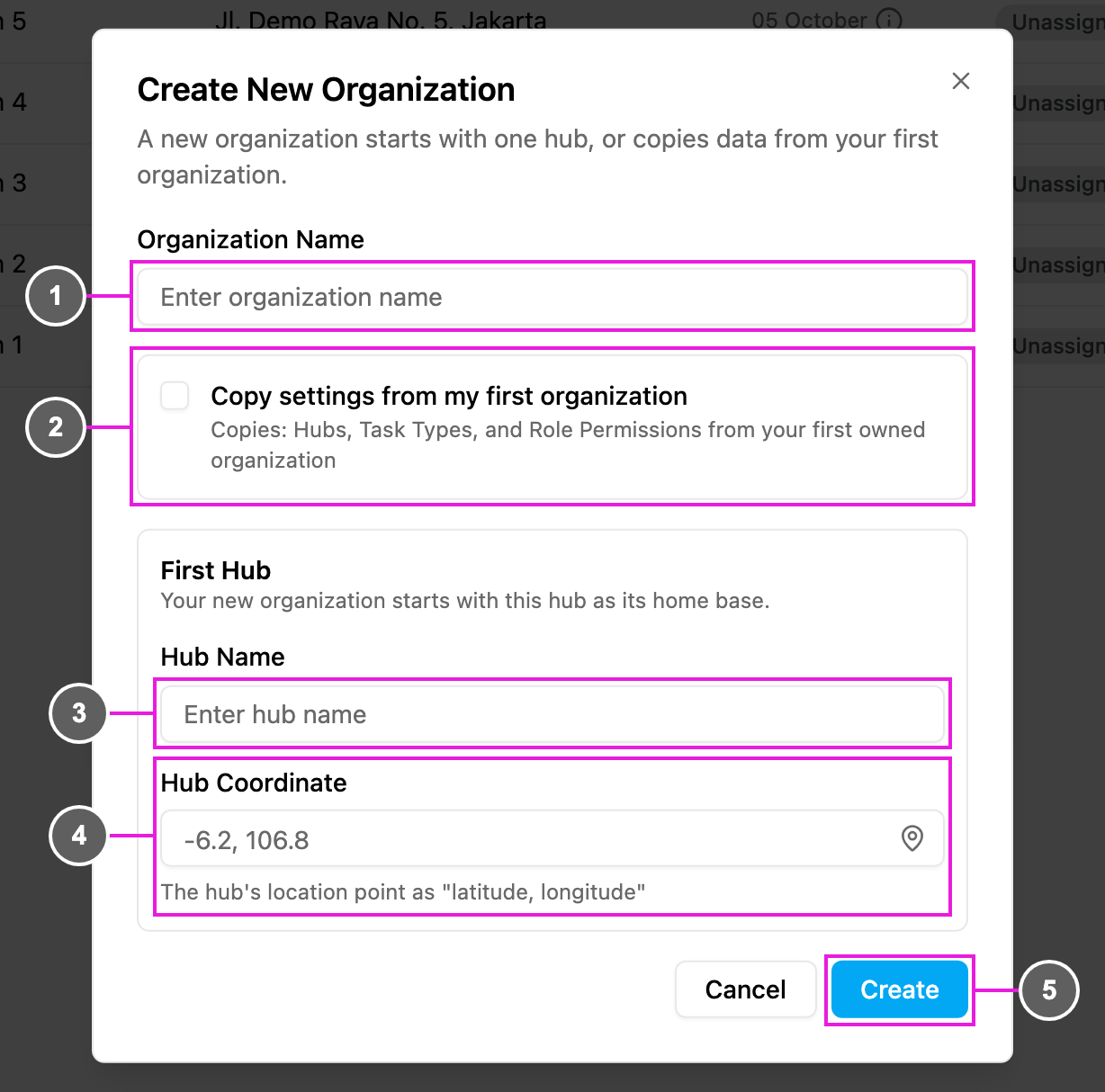
In the **Switch Organization** dialog, click **Create New Organization**.
1. **Organization Name**: the name of the new organization. Required.
2. **Copy settings from my first organization**: tick it to start with the **hubs**, **task types** and **role permissions** of the first organization you own. You then don't need to set up a first hub. This option shows only if you are the owner of at least one organization.
3. **Hub Name**: the name of the first hub, for example *Gudang Utama*. Required when you don't copy settings.
4. **Hub Coordinate**: the hub's location as *latitude, longitude*, for example *-6.2, 106.8*. Type it, or click the pin icon to pick the point on a map. Required when you don't copy settings.
5. **Create**: create the organization. You become its owner.
### What is copied
When you tick **Copy settings from my first organization**:
| Data | Copied | Notes |
| - | - | - |
| Organization settings | Yes | Language, currency and configuration. |
| Hubs | Yes | The hubs you have access to. |
| Task types | Yes | All custom and default task types. |
| Custom roles | Yes | With their built-in permissions. |
| Default roles | No | Always created fresh from the standard roles. |
| Custom module permissions | No | They belong to the original organization. |
Tasks, users, vehicles and other records are never copied. Invite your team to the new organization from **Settings › User**. See [Inviting Users](/pages/settings/user/inviting-users).
## Passwords across organizations
* You have **one password** for all your organizations. Changing it in one changes it everywhere.
* An admin can reset your password only in the organization where you first signed up. If someone was invited from another organization, admins in your organization can't reset their password.
## Related
* [Organization](/pages/settings/organization/introduction): the details of the organization you are in.
* [Deleting Your Organization](/pages/settings/organization/deleting-your-organization)
* [Permission](/pages/settings/permission/introduction): roles and what they allow.
This documentation is built and hosted on [Mintlify](https://mintlify.com), a developer documentation platform.