> ## Documentation Index
> Fetch the complete documentation index at: https://docsv4.mile.app/llms.txt
> Use this file to discover all available pages before exploring further.
# Profile
> Change your name, photo and language.
Your profile holds your name, photo and the language the web app uses for you. Anyone can edit their own profile; no permission is needed.
## Open your profile
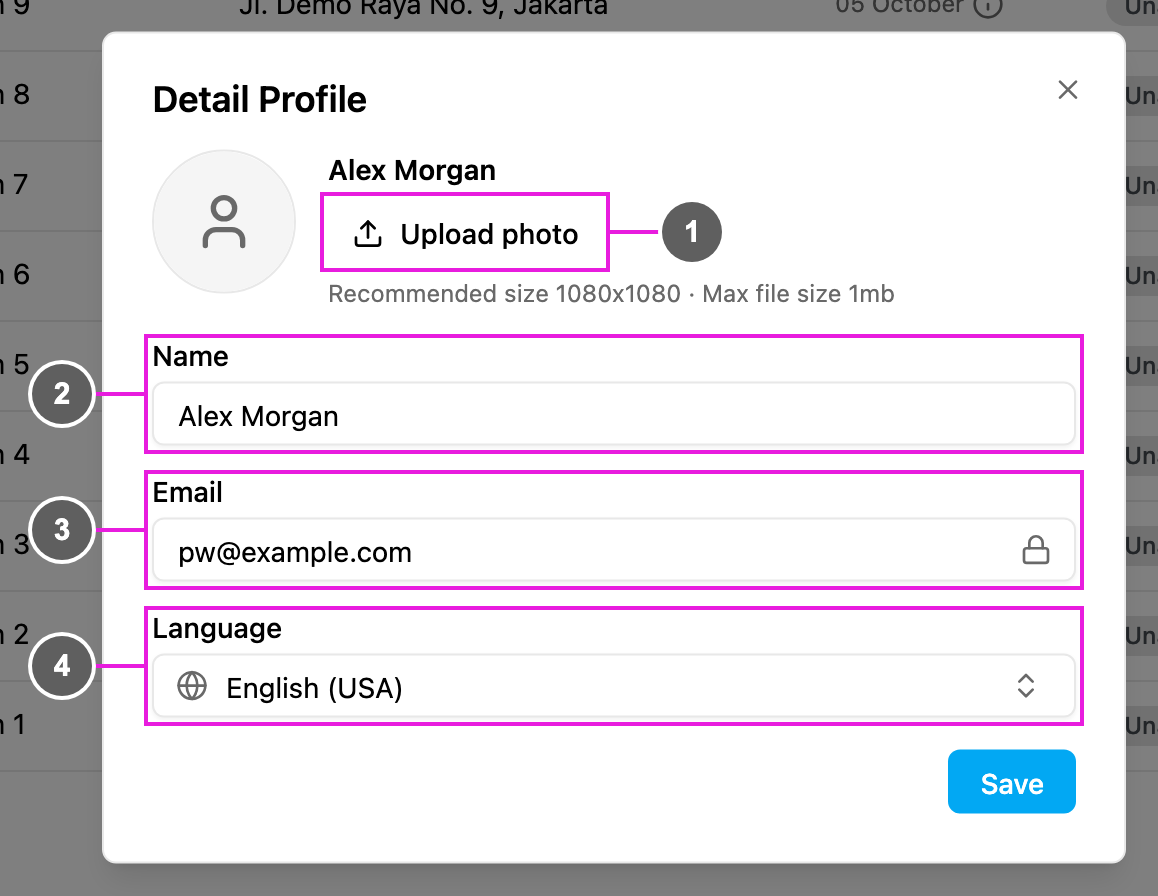
Click your initials in the top right corner, then **Profile**. The **Detail Profile** dialog opens.
1. **Upload photo**: choose a JPG, PNG or GIF picture. A square picture works best (1080 × 1080 is recommended), and the file can be at most 1 MB. The photo is saved as soon as you pick it. Once you have a photo, click **Remove** to go back to your initials.
2. **Name**: the name shown in the top bar, in the assignee lists and on what you do in the app. It must be 30 characters or fewer and can contain letters, numbers, spaces, dots ( . ) and apostrophes ( ' ).
3. **Email**: the email you sign in with. It is locked and can't be changed here.
4. **Language**: the language of the web app for you. It starts with your organization's language until you choose your own. The list shows each language with its country, for example **English (USA)** or **Indonesia (IDN)**.
Click **Save** to keep the name and language. If you close the dialog with unsaved changes, you are asked whether to discard them.
Changing your language changes only your own screens. To change the default language for everyone in the organization, see [Currency and Language](/pages/settings/organization/currency-and-language).
## Related
* [Switching Organization](/pages/account/switching-organization): move between the organizations you belong to.
* [Password and Sign-in Security](/pages/account/password-and-security): your password and authenticator app.
* [Notifications and Help](/pages/getting-started/notifications-and-help#your-profile-menu): everything else in the profile menu.
This documentation is built and hosted on [Mintlify](https://mintlify.com), a developer documentation platform.