> ## Documentation Index
> Fetch the complete documentation index at: https://docsv4.mile.app/llms.txt
> Use this file to discover all available pages before exploring further.
# Password and Sign-in Security
> Change your password, set up an authenticator app, and sign in with a second step.
This page covers your own password and the second step your role may ask for when you sign in. Admins choose which roles need a second step on **Settings › Permission**; see [Access and Sign-in](/pages/settings/permission/access-and-sign-in).
## Change your password
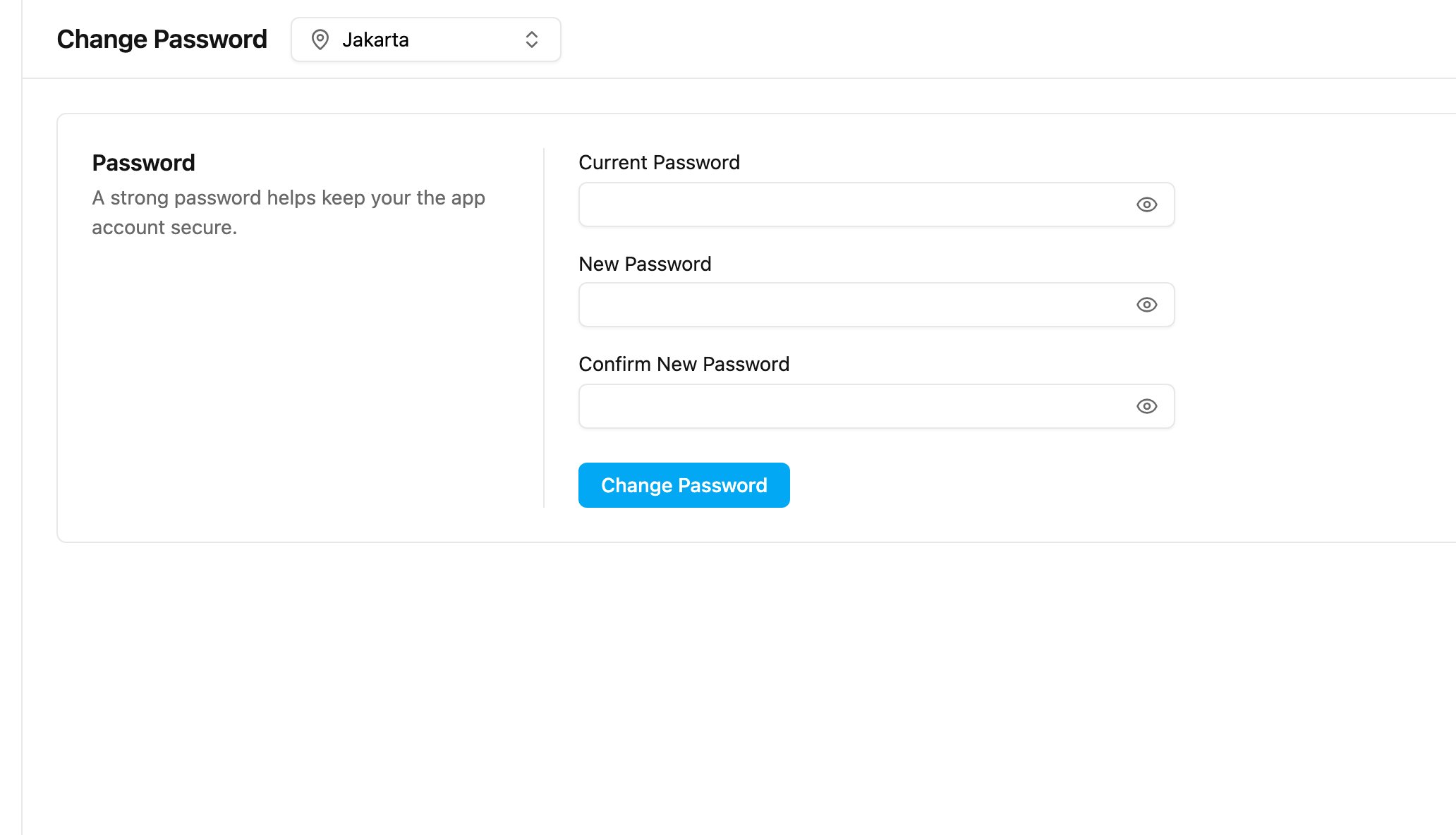
Click your initials, then **Change Password**.
1. Type your **Current Password**.
2. Type the **New Password**. A meter under the field shows how strong it is: **Weak**, **Medium** or **Strong**. Hover the information icon to see the **Password security requirements**.
3. Type it again in **Confirm New Password**.
4. Click **Change Password**.
A new password must:
* be at least **8 characters** and at most 256 characters;
* contain at least **3 of these 4**: one lowercase letter, one uppercase letter, one number, one symbol;
* not contain spaces;
* not be your name or your email.
Your organization may add more rules, such as how often a password expires. When your password has expired, the app opens this page after you sign in with the message *Your password has expired. Please set a new password to continue.* See [Password Policy](/pages/settings/organization/password-policy).
Your password is the same in every organization you belong to, so changing it here changes it everywhere.
If you have not verified your account yet, **Change Password** is greyed out. Verify your account from the email you received when you signed up first.
Forgot your password? On the sign-in page, click **Forgot your password?**, type your email and click **Send**. Open the link in the email and set a new password. An admin can also reset it for you; see [Managing Users](/pages/settings/user/managing-users#reset-a-password).
## Multi-factor authentication
Multi-factor authentication (MFA) adds a second step after your password, so a stolen password alone isn't enough to get into your account. There are four methods. Each is a separate permission on the role, and an admin turns on the ones your role needs.
| Method | Permission on your role | What you do at sign-in | Setup needed |
| - | - | - | - |
| Authenticator app | **Multi-factor authentication by Cloud-based Authenticator** | Type the 6-digit code from an authenticator app on your phone. | Yes, once. See below. |
| Email code | **Multi-factor authentication by email OTP** | Type the one-time code sent to your email. | No |
| WhatsApp code | **Multi-factor authentication by WhatsApp OTP** | Type the one-time code sent by WhatsApp. | No |
| SMS code | **Multi-factor authentication by SMS OTP** | Type the one-time code sent by SMS. | No |
The second step applies to the web app and the field app, and also when you switch to an organization where your role requires it.
### Authenticator app
An authenticator app, such as Google Authenticator, Microsoft Authenticator or Authy, shows a new 6-digit code every few seconds. To use it, your role needs **Multi-factor authentication by Cloud-based Authenticator**; otherwise **Multi-Factor Authentication** doesn't appear in your profile menu.
Required permission:
* Multi-factor authentication by Cloud-based Authenticator
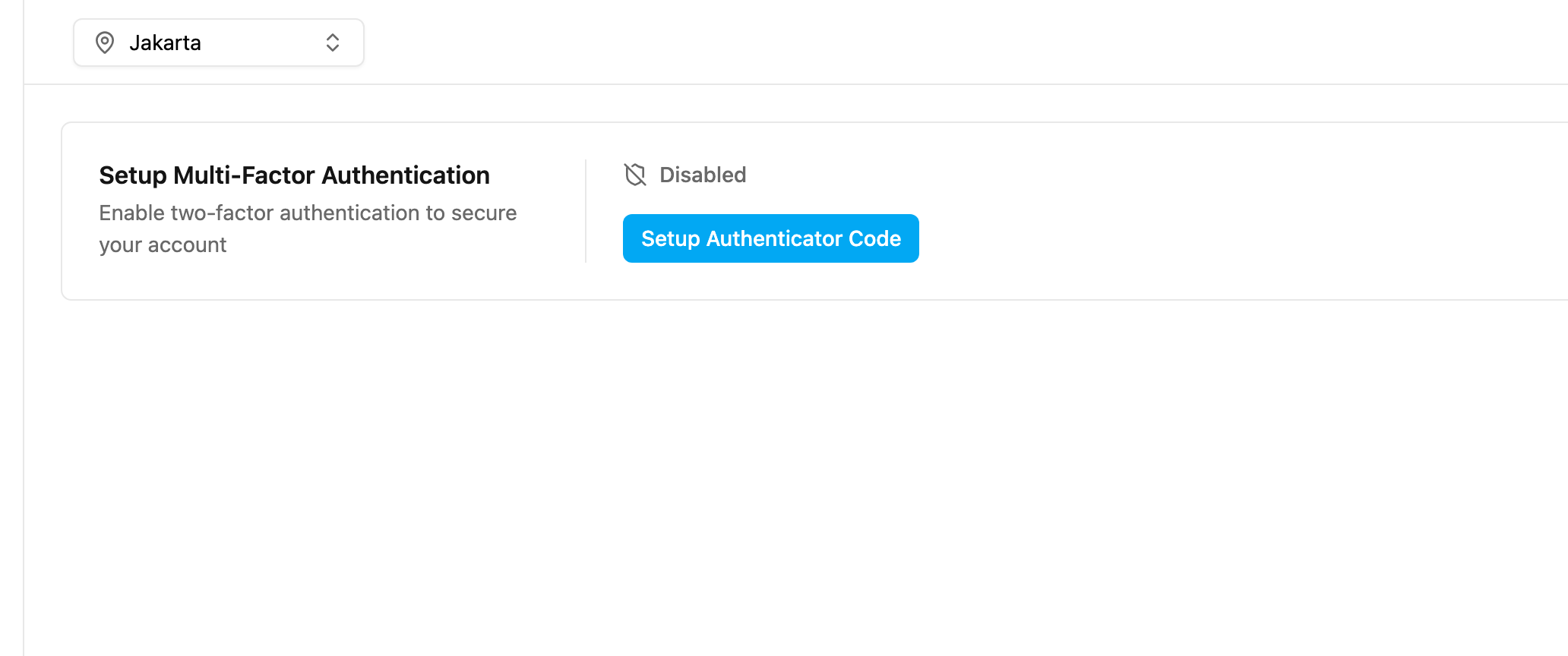
Click your initials, then **Multi-Factor Authentication**.
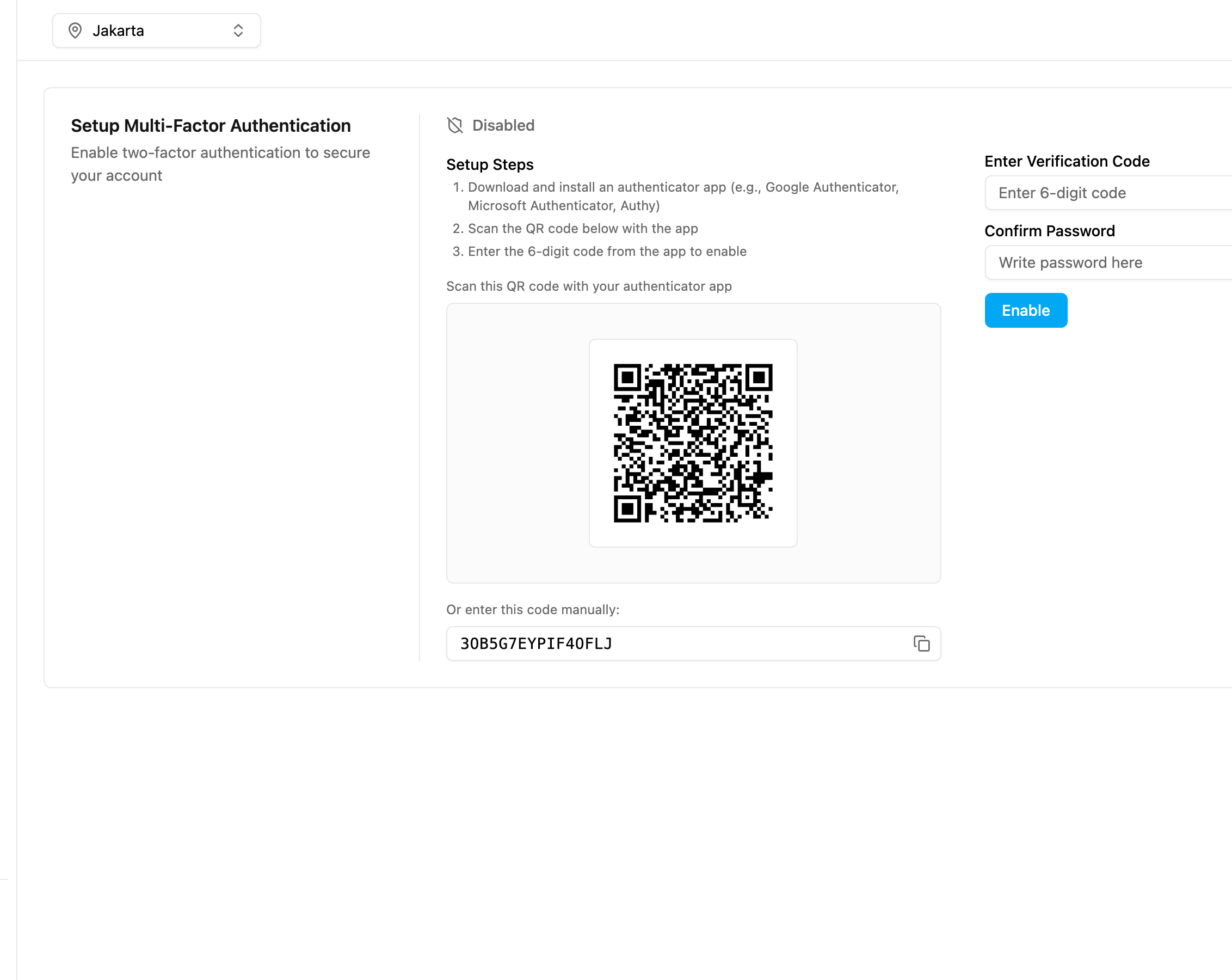
The status shows **Disabled** until you finish the setup. Click **Setup Authenticator Code**.
1. Install an authenticator app on your phone.
2. In the app, add an account and scan the **QR code**. If you can't scan it, copy the code under **Or enter this code manually** and type it into the app.
3. Type the 6-digit code the app shows into **Enter Verification Code**.
4. Type your account password in **Confirm Password**.
5. Click **Enable**.
The status changes to **Enabled** and shows the date and time under **Enabled At**. From your next sign-in, you are asked for the code.
**To turn it off**, open **Multi-Factor Authentication** again, type your password in **Confirm Password**, click **Disable** and confirm.
Lost your phone or deleted the authenticator app? You can't sign in until an admin resets your authenticator on **Settings › User**. Then set it up again. See [Managing Users](/pages/settings/user/managing-users#reset-cloud-authenticator).
### Signing in with a second step
1. On the sign-in page, enter your email and password and click **Sign in**.
2. The **Multi-Factor Authentication** page opens.
* **Authenticator app**: open the app, find the code for your account and type it in **Authenticator Code**. If the code is refused, wait for the next code and try again.
* **One-time code (email, WhatsApp or SMS)**: check your email or phone and type the 6-digit code in **OTP Code**. The code is valid for **3 minutes**; a countdown shows the time left. When it runs out, click **Resend OTP?** to get a new code. If the email doesn't arrive, check your spam folder.
3. Click **Submit**.
The field app asks for the same code on its **Multi-Factor Authentication** screen after you sign in.
If you can't get the code, contact your admin.
## Related
* [Access and Sign-in](/pages/settings/permission/access-and-sign-in): turn MFA, Single Login and Mobile App Access Only on for a role.
* [Password Policy](/pages/settings/organization/password-policy): password rules for the organization.
* [Access Token](/pages/account/access-token): tokens for connecting other systems.
This documentation is built and hosted on [Mintlify](https://mintlify.com), a developer documentation platform.